 Near Field Communication (NFC) products Online Store
 Worldwide Shipping (free DE shipping)

AirTag with NFC? It works! We explain exactly how the technology works with the AirTag with two helpful examples that make everyday life easier.
The Shortcuts app makes it possible to use the AirTag as an NFC tag. Automations can be created for this purpose, which are executed when the AirTag is scanned.
Example 1: Imagine you are sitting in the living room and want to check the TV program. You can easily use your AirTag for this by retrieving a URL through the AirTag.
Example 2: Would you like to combine the location function and NFC function in a practical way? In a second example, we explain how you can use the AirTag to locate your car and automatically plan your route home at the same time.
Good to know: The automations presented here in the shortcuts app can also be carried out with regular NFC tags.
Content:
- AirTag as a tracker and NFC tag?
- First steps: Preparing the automation
- Example 1: Read TV program via URL
- Example 2: Plan home route (set automation)
- Example 2: Plan home route (determine route)
AirTag as a tracker and NFC tag?
You have the option of using your AirTag in two ways with NFC:
-
You can use the AirTag independently of the location function by running an NFC automation that is not intended for a specific item or location.
-
You use the AirTag depending on the location/item to be tracked. In this case, the AirTag has an NFC automation that is specifically intended for the item or location to be tracked.
In the following two examples, we will explain how you can easily implement these options using Apple's shortcuts app.
First, we will explain the first steps required for both examples.
First steps: Preparing the automation
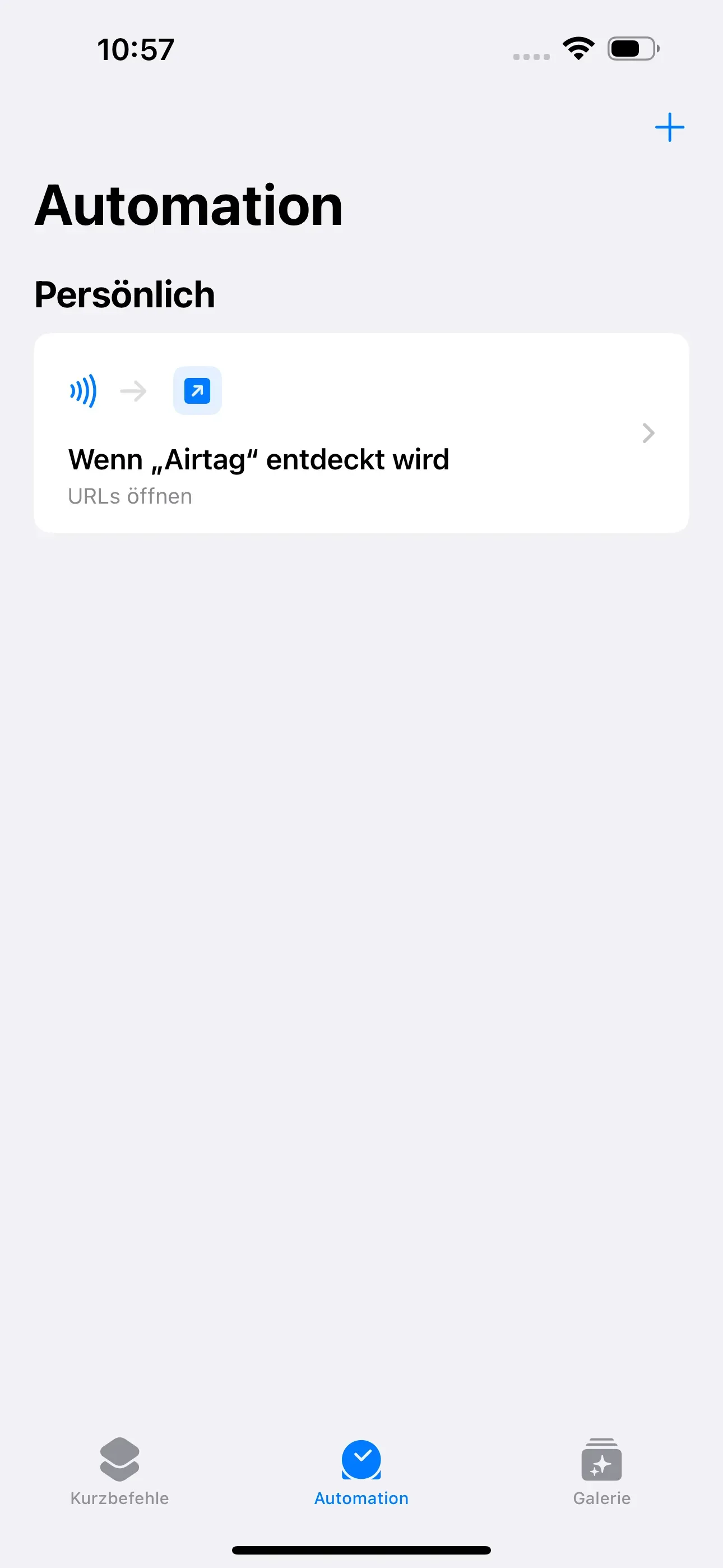
First open the Shortcuts app on your Apple iPhone. Like other standard apps, it is pre-installed on your iPhone.
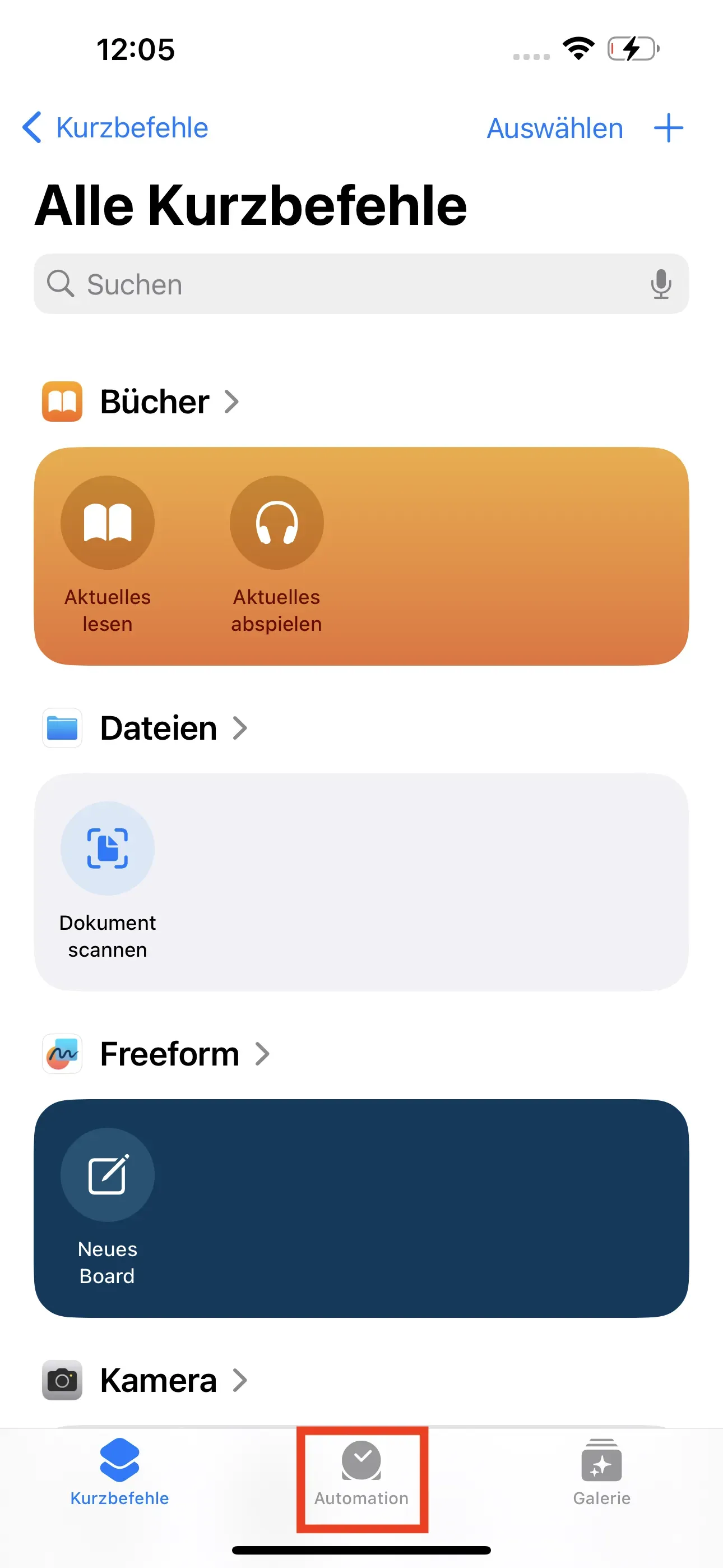
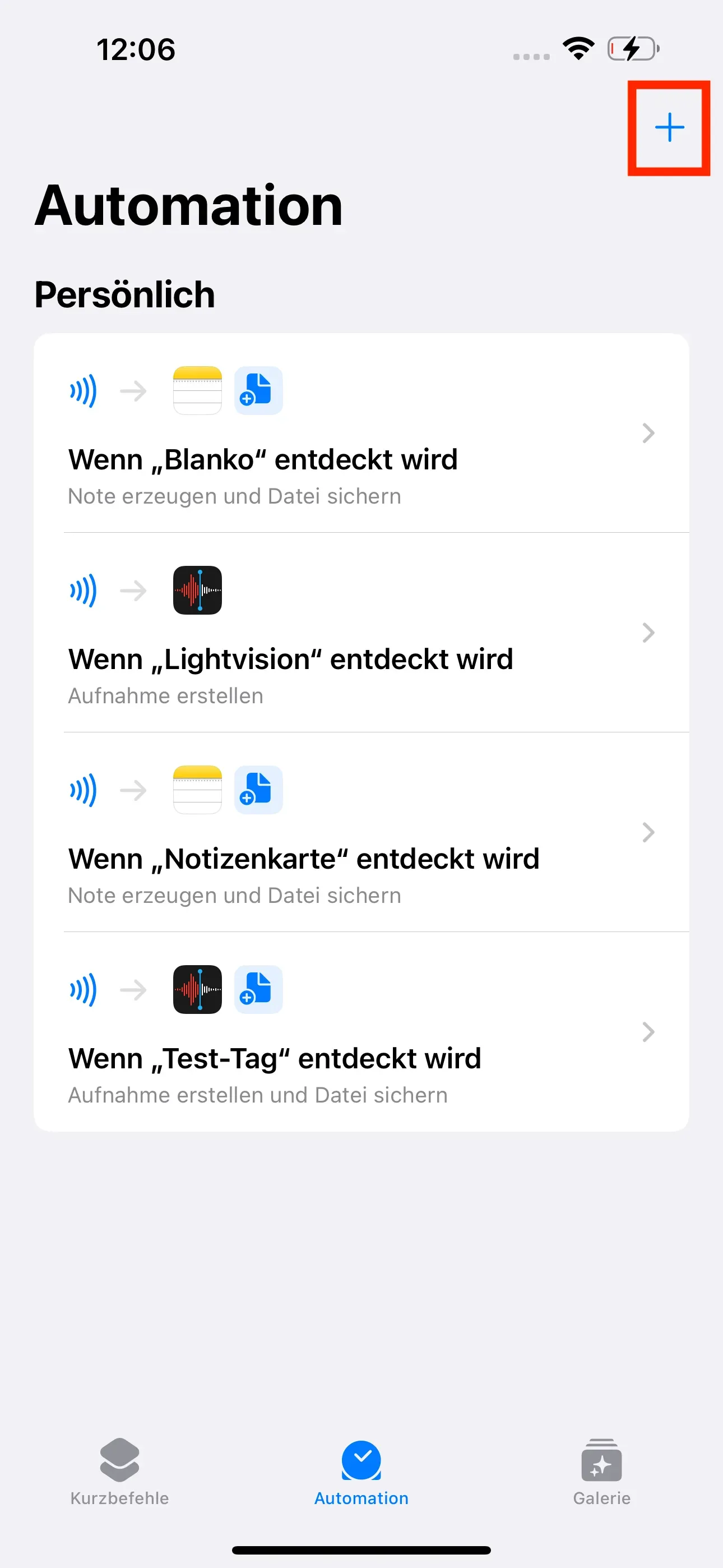
- Switch to the Automation tab at the bottom right. Then tap on New automation.
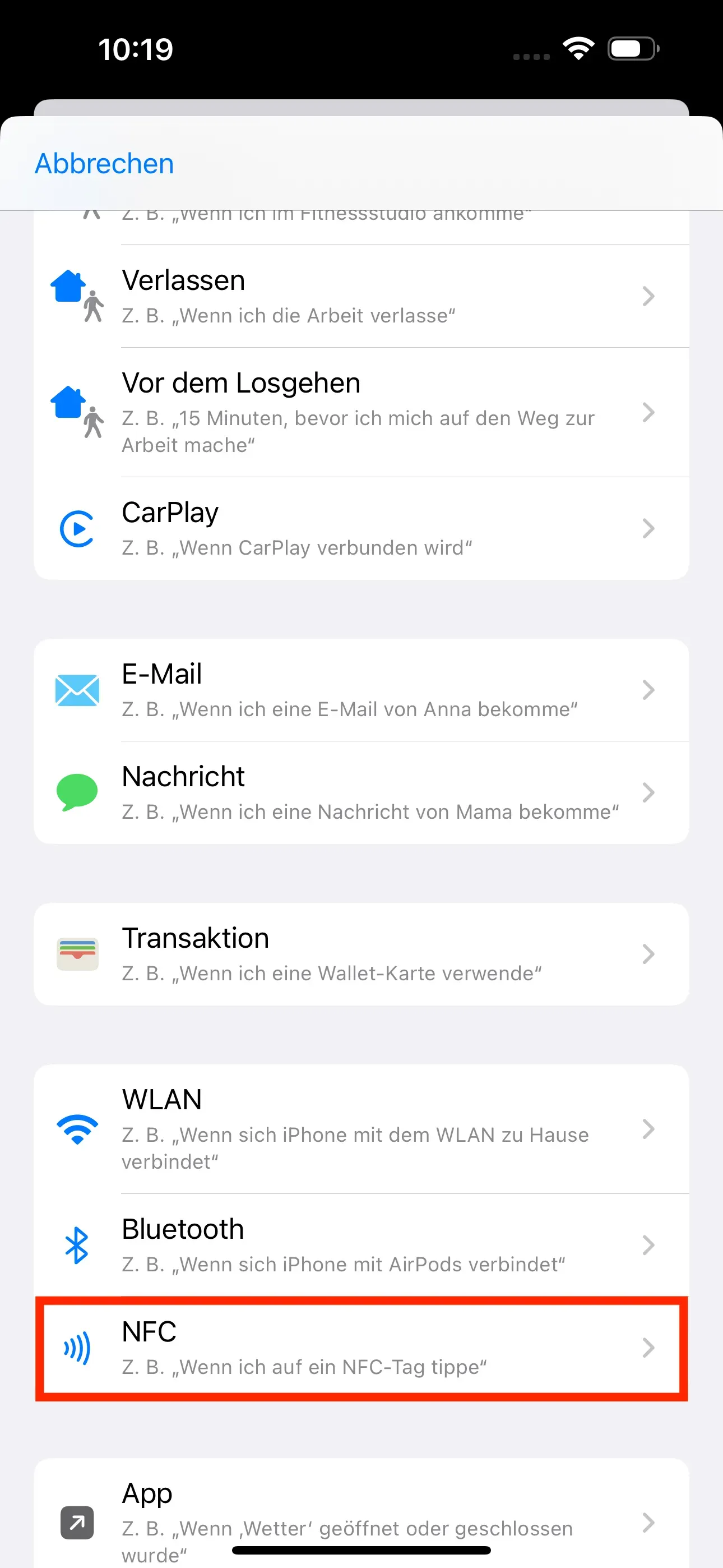
- Scroll down in the new Personal Automation window and then select NFC.
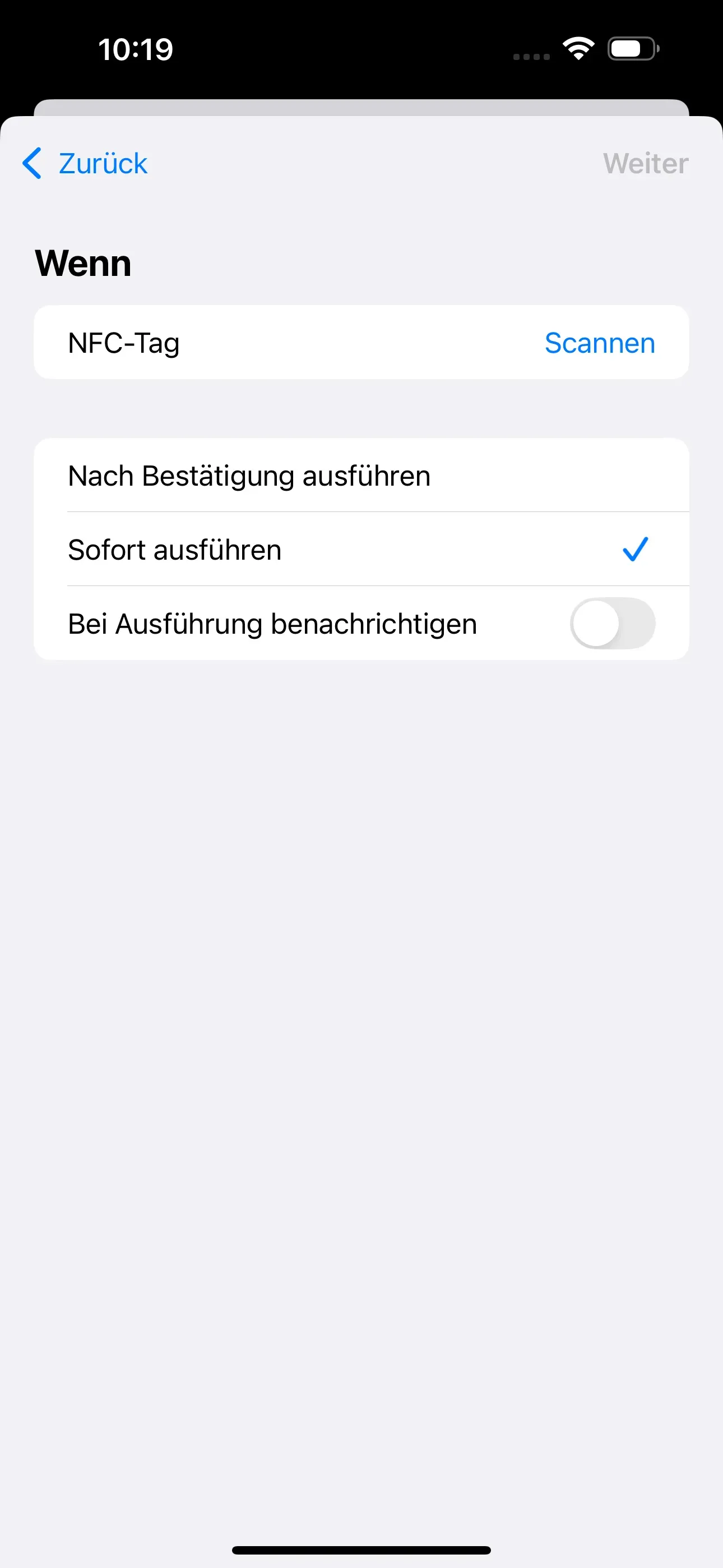
- Switch from Execute after confirmation to Execute immediately in the new window
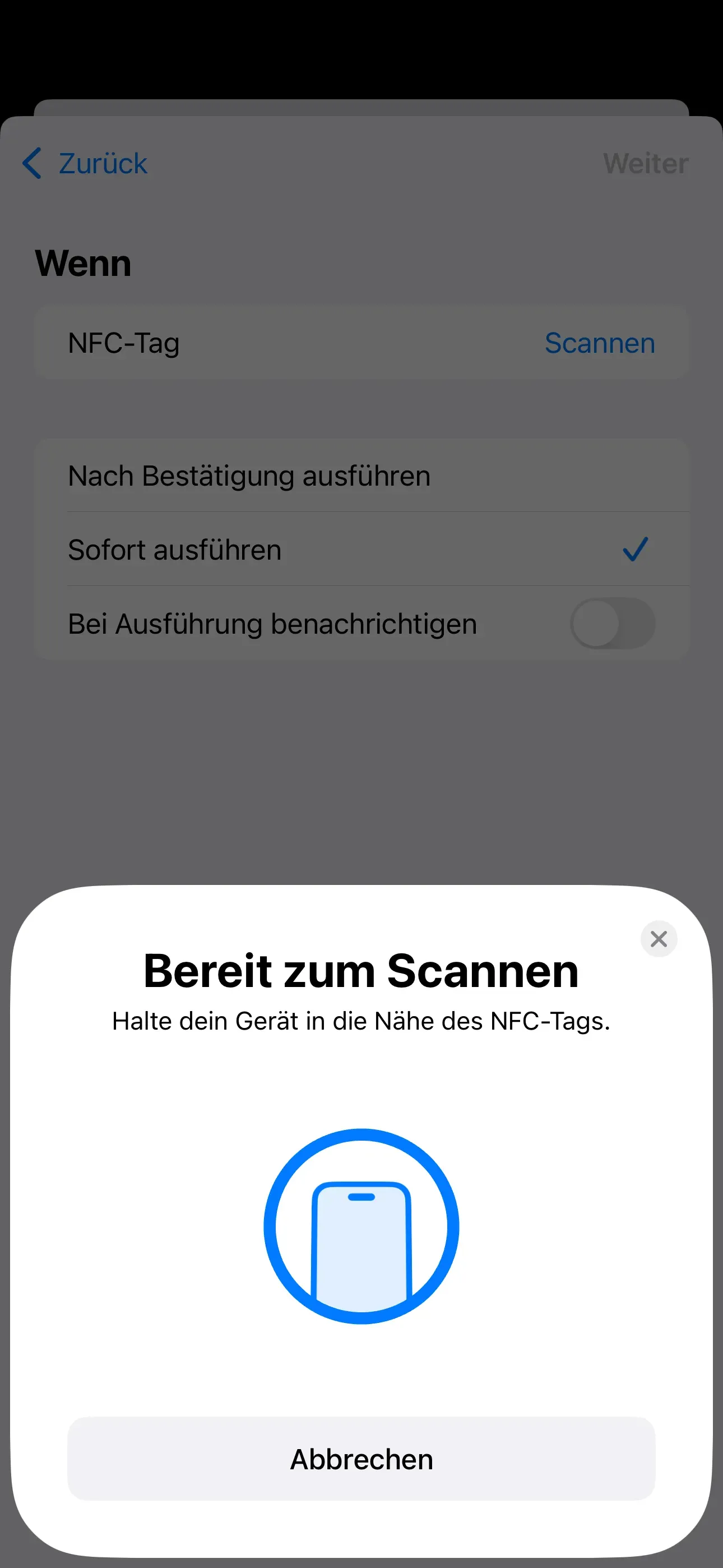
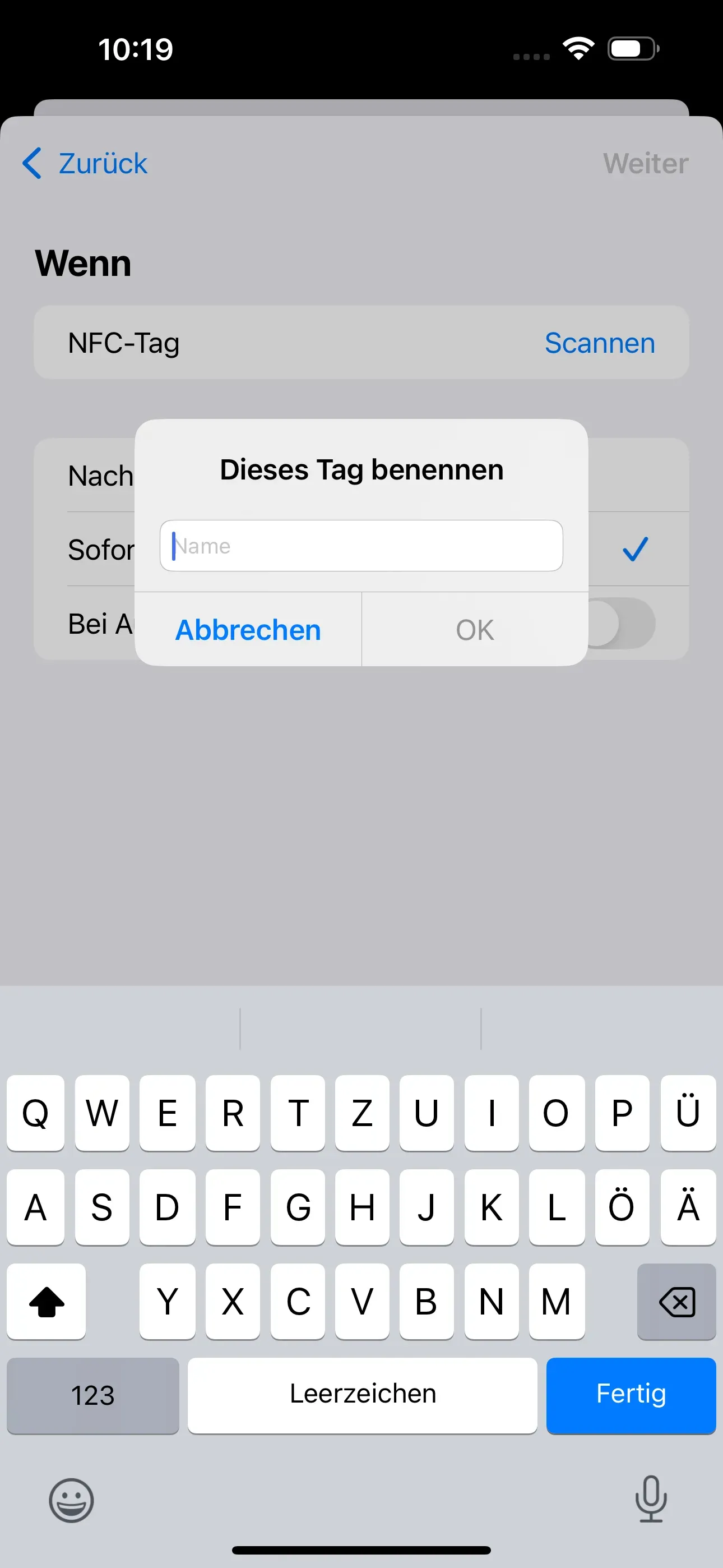
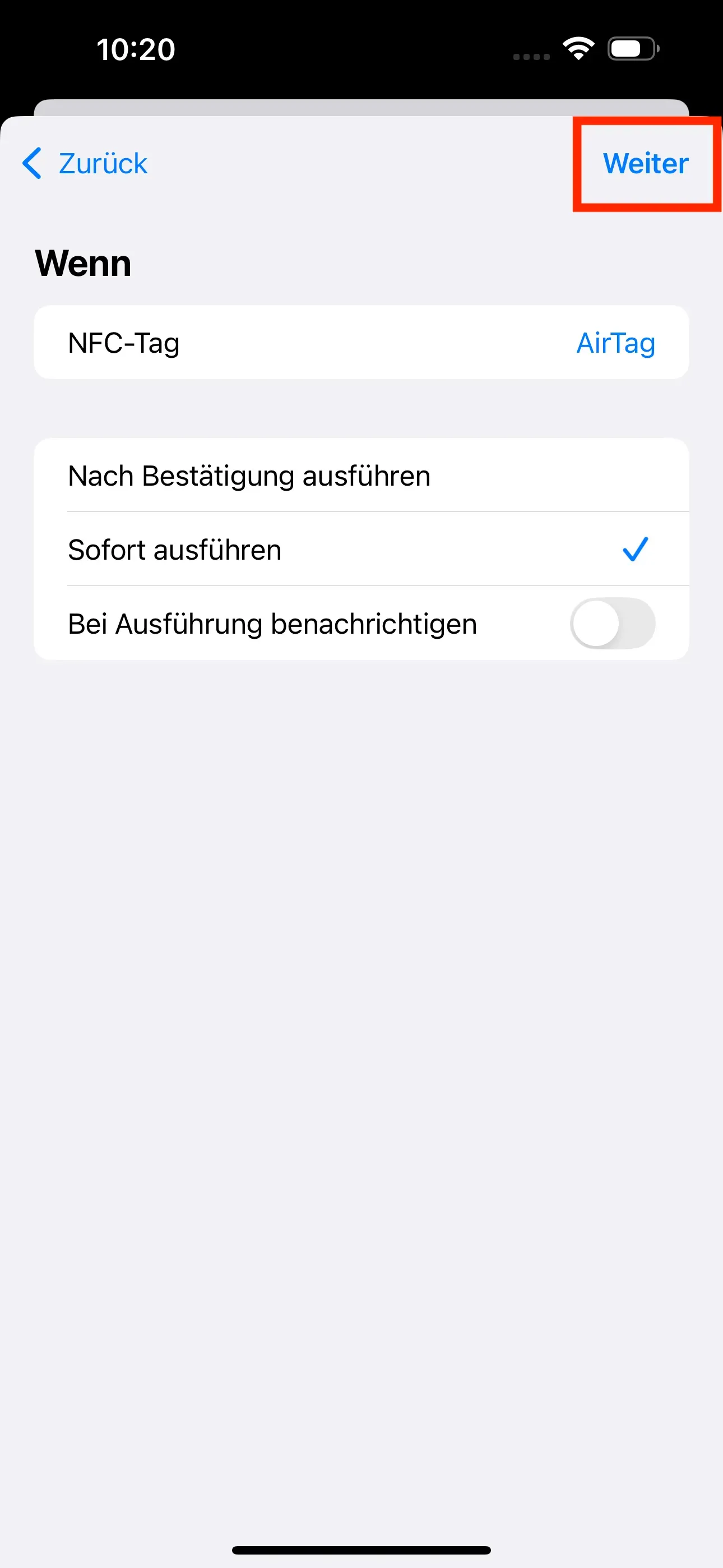
- The AirTag can then be scanned and named by clicking on Scan. For our application example, we will name it AirTag.
- Then tap on Ok” and then on Next.
Now you can decide which automation you want to perform. If you want to describe the AirTag with a URL, then carry out example 1. In example 2 you can find out more about how you can let the AirTag plan the route home in your car.
Example 1: Read TV program via URL
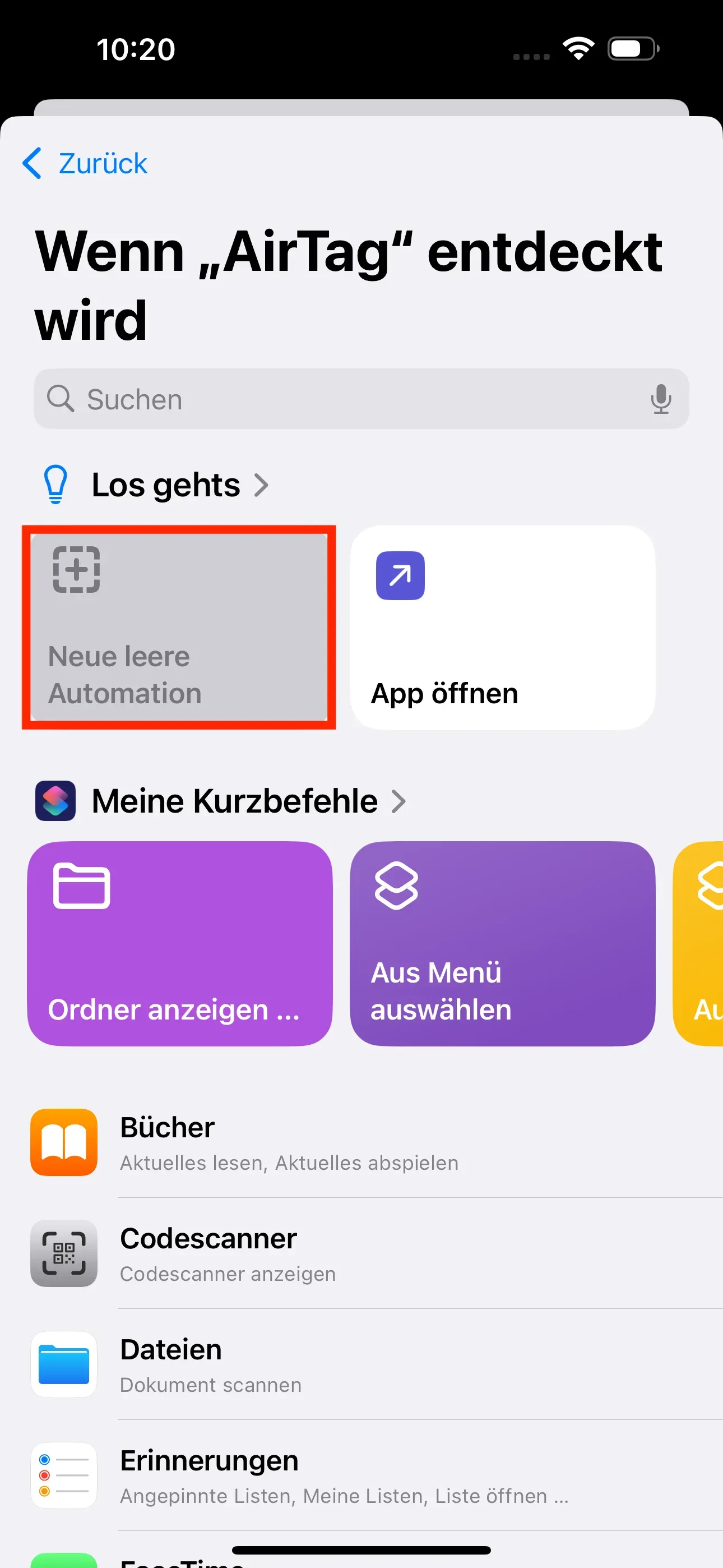
To perform this example, select an action for the AirTag that has already been scanned.
- Tap on New empty automation in the new When AirTag is detected window.
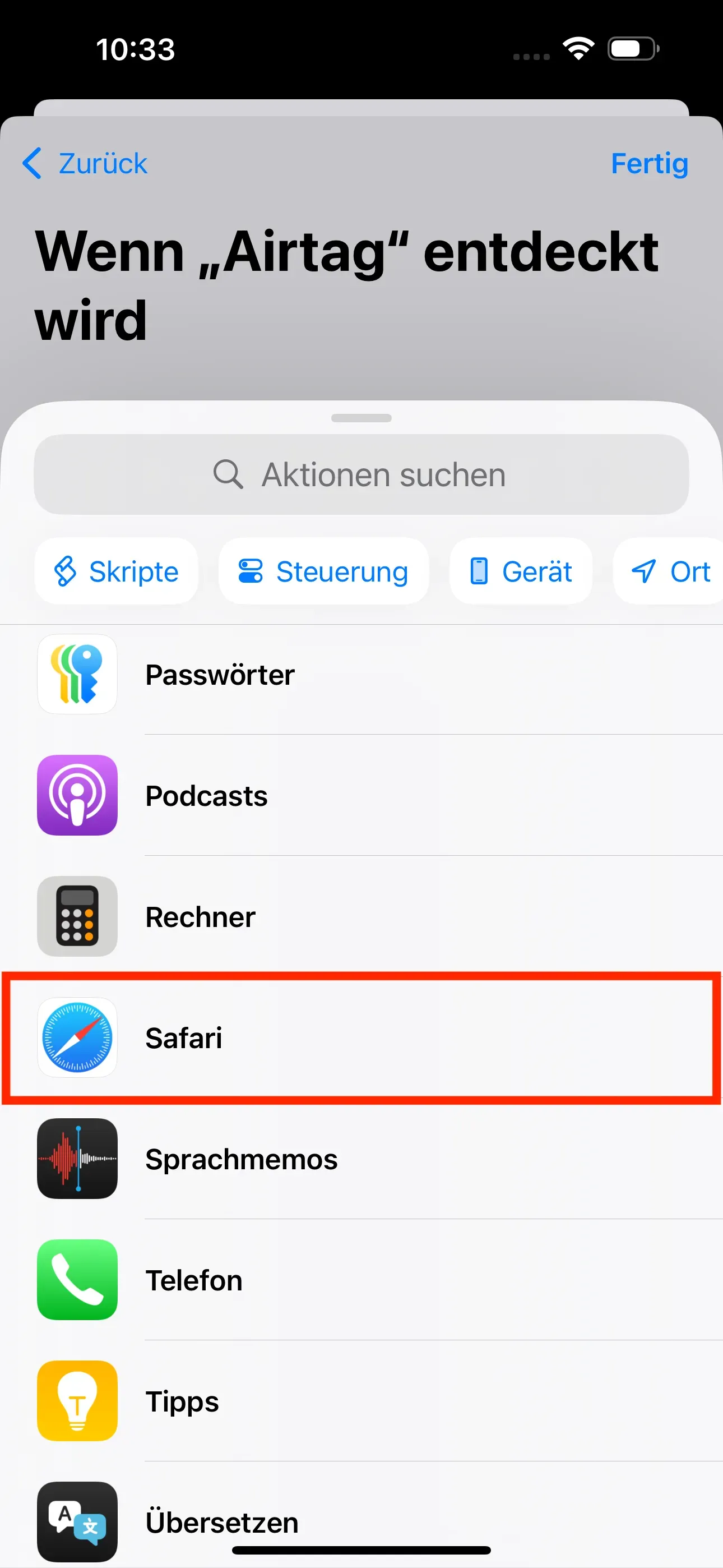
- Scroll down and tap on Safari.
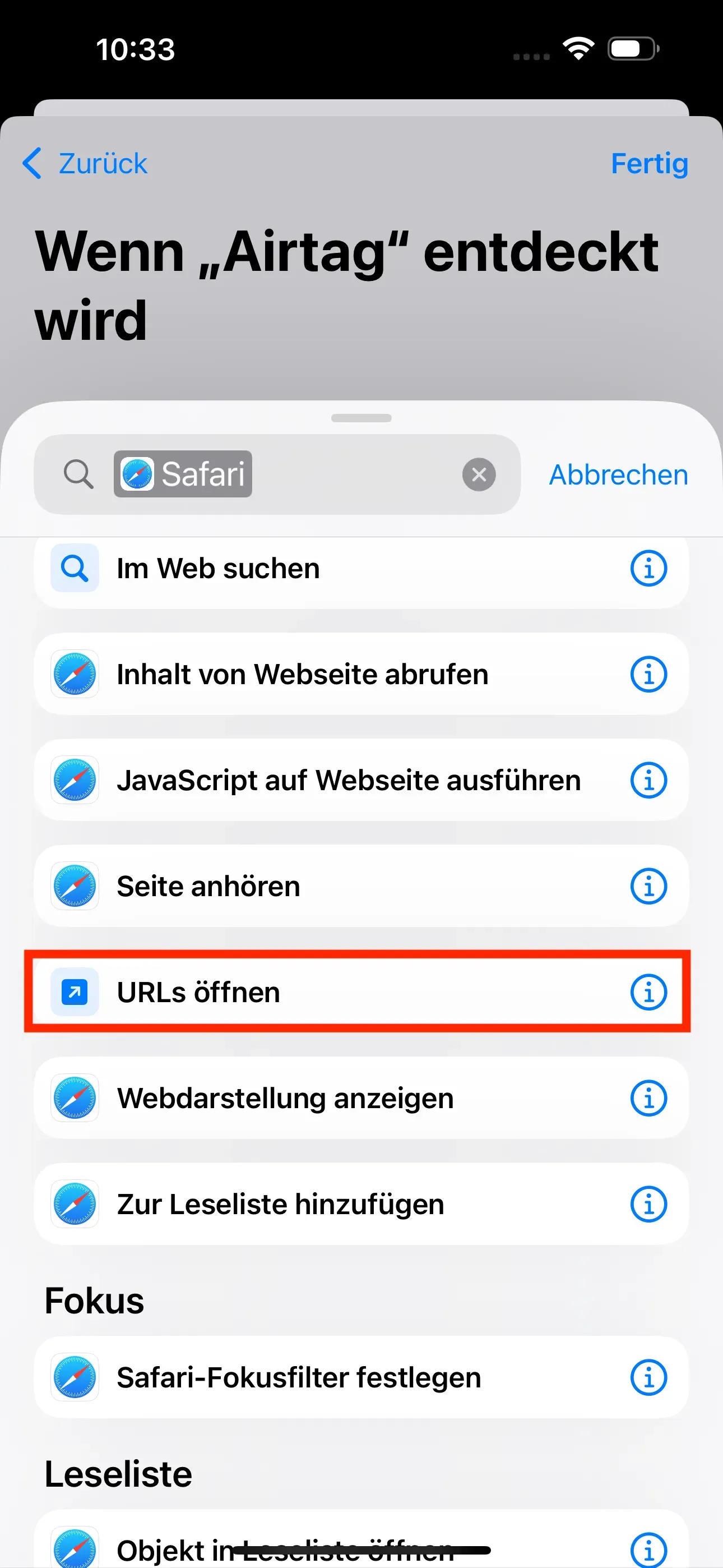
- Tap on Open URLs.
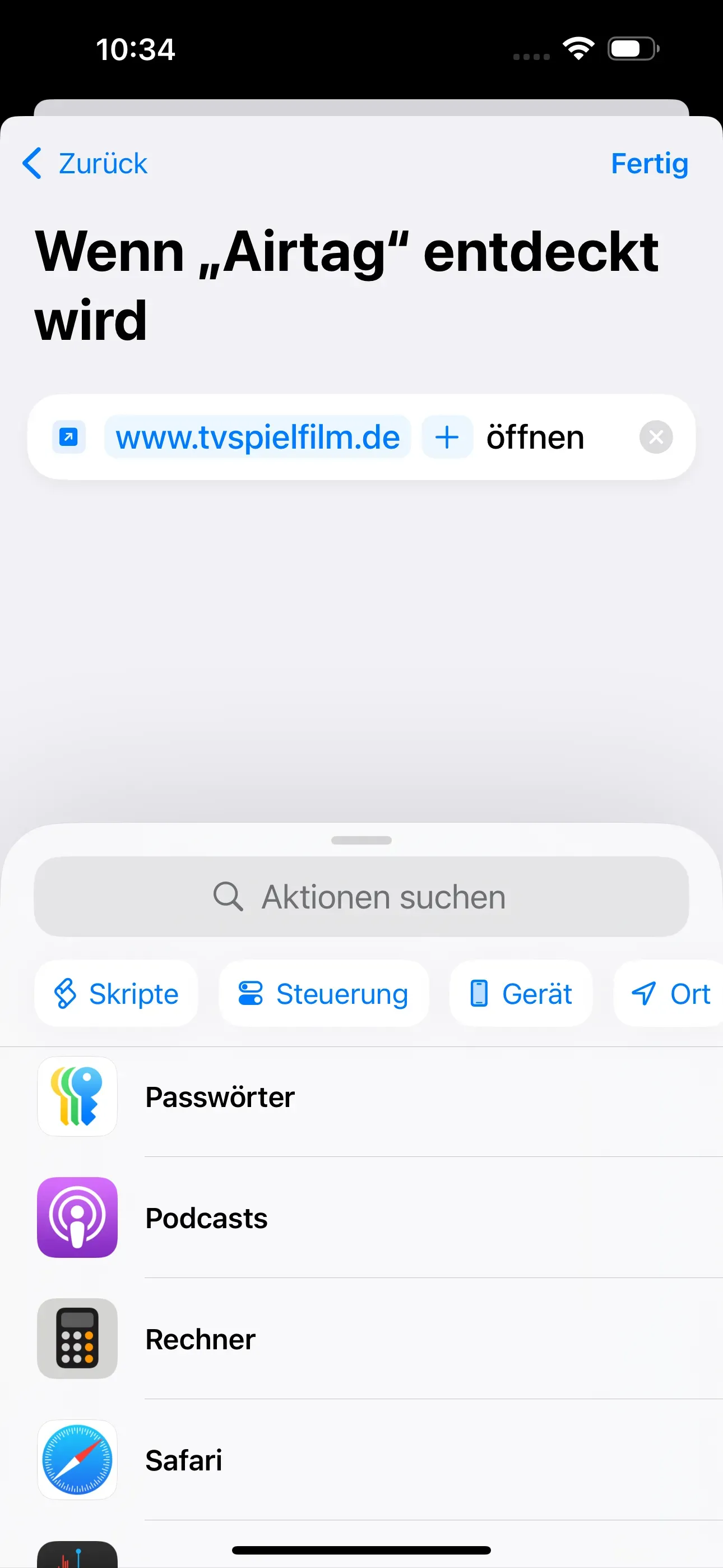
- Tap on URL and enter www.tvspielfilm.de.
- Confirm with Done.
Your automation is now set up. If you now hold your AirTag to your iPhone, the TV Spielfilm website with the current TV program will be called up directly.
Example 2: Plan home route (set automation)
Your AirTag should not only be used to locate you in the car, but also have a practical additional function: When scanning, your home route should be started automatically in the map app without you having to enter it manually.
To do this, you must first set the automation.
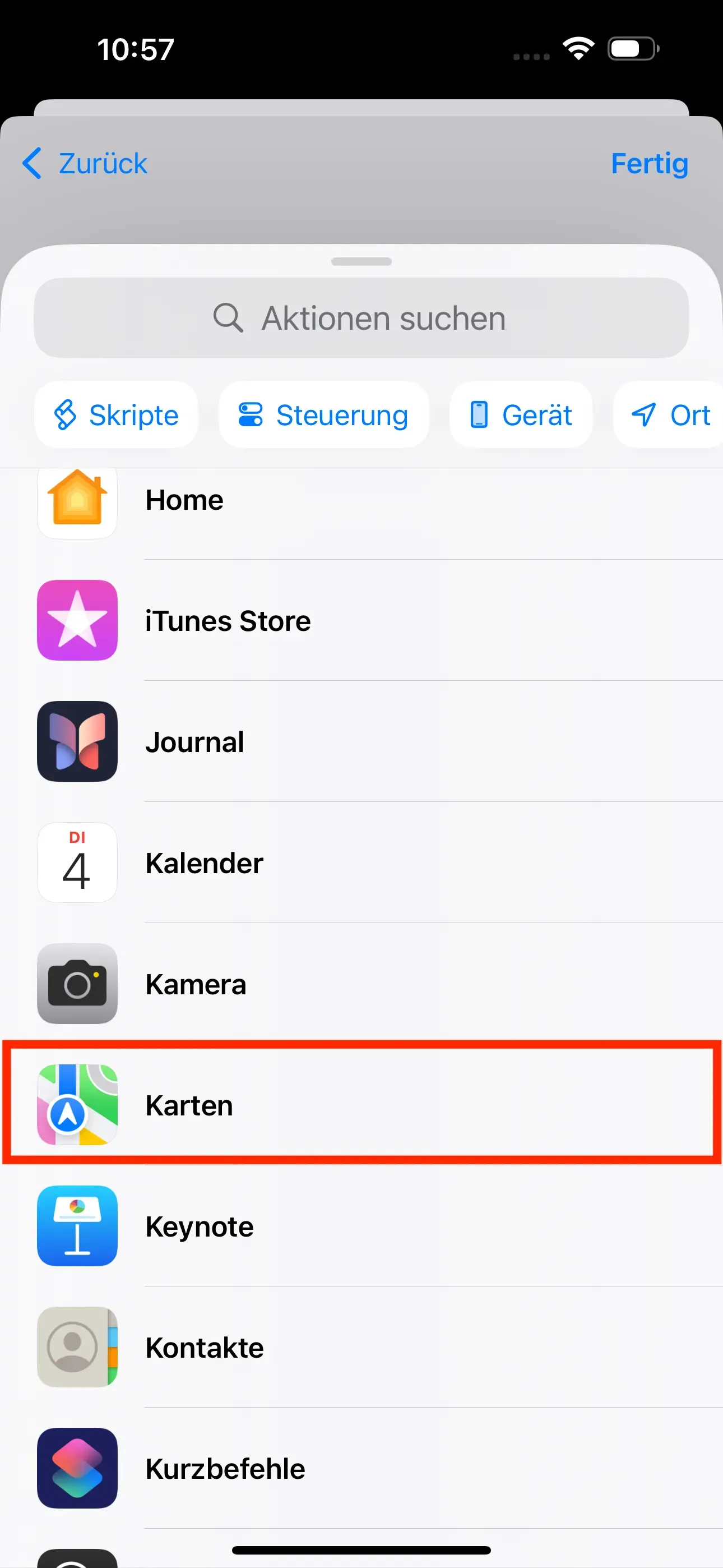
- Tap on New empty automation in the new When AirTag is detected window.
- Then scroll down and tap on Cards.
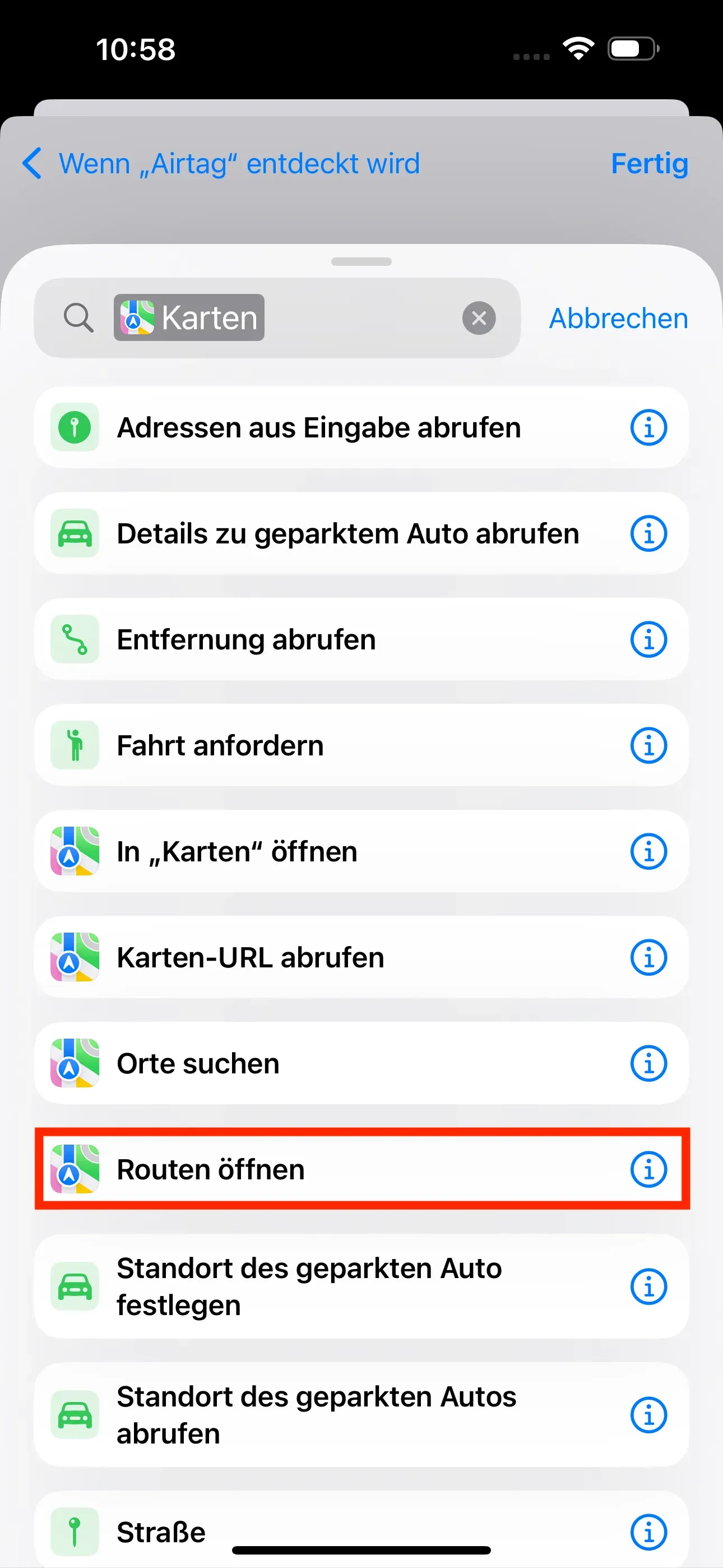
- Tap on Open routes.
A new window opens in which you can now define the route.
Example 2: Plan home route (determine route)
- To determine the route, tap Destination.
- Now enter your private address and confirm this with Done.
- Your address is now entered in the previous Destination field. Confirm this again with Done.
Your automation is now complete. If you now scan your AirTag, the route from your current location to your home will open automatically so that you can start driving straight away.
Summary
The AirTag can not only be used as a tracker to locate objects, but also as an NFC tag for automations in the shortcuts app. Users can trigger certain actions by scanning the AirTag, such as opening a URL or automatically planning a route home in the car.
They are set up via the Apple Shortcuts app and can be implemented in just a few steps. These automations are not only applicable for the AirTag, but also for regular NFC tags and offer a practical extension in everyday life.
Do you have more questions about the AirTag?
-Can I still locate the AirTag if I use it as an NFC tag? -Can I use the AirTag with an Android smartphone? -Does Bluetooth have to be switched on to use the AirTag with NFC? -Why is NFC not working with my AirTag? -How do I hold the AirTag correctly on my iPhone? -Can I use the AirTag with other NFC apps? -Can I also use the shortcuts on the AirTag with other iPhones? -Do I need to activate NFC for the AirTag? -Does the AirTag work with NFC?
Associated operating systems
iOSFirst published: 10.02.2025 / Updated: 23.07.2025