 Near Field Communication (NFC) products Online Store
 Worldwide Shipping (free DE shipping)


Imagine you want to open an bank account online, access your electronic health record, apply for child benefit or buy a computer game in an online shop, which is only available to people aged 18 and over. What all these cases have in common is that you must first identify yourself using your ID card, before you can continue with your activity and open your bank account, for example.
You often have to travel long distances and take a long time to go to the authorities, to prove your identity. However, this is now changing thanks to the new electronic ID card. The new electronic ID card allows you to prove your identity directly on the Internet and submit applications to the citizen centre online. In addition, the eID function can be used to transmit to the online shop, whether you are of the required age to buy the computer game.
However, the following requirements must be met before we can use the online ID function:
- The online ID function of the ID card must be switched on.
- You must know your personal 6-digit PIN.
- The federal eID Software, AusweisApp must be installed.
- You need an NFC-enabled smartphone or a USB card reader, that is suitable for reading out your ID card.
If you want to transmit your ID data to the online shop or to fill in an application form to set up a bank account or to receive child benefit, it is a good idea to use the online ID function on a laptop, for example a Windows computer.
In this How2 we explain how you can read out your ID card, using a Windows computer.
Content:
Technical preparation
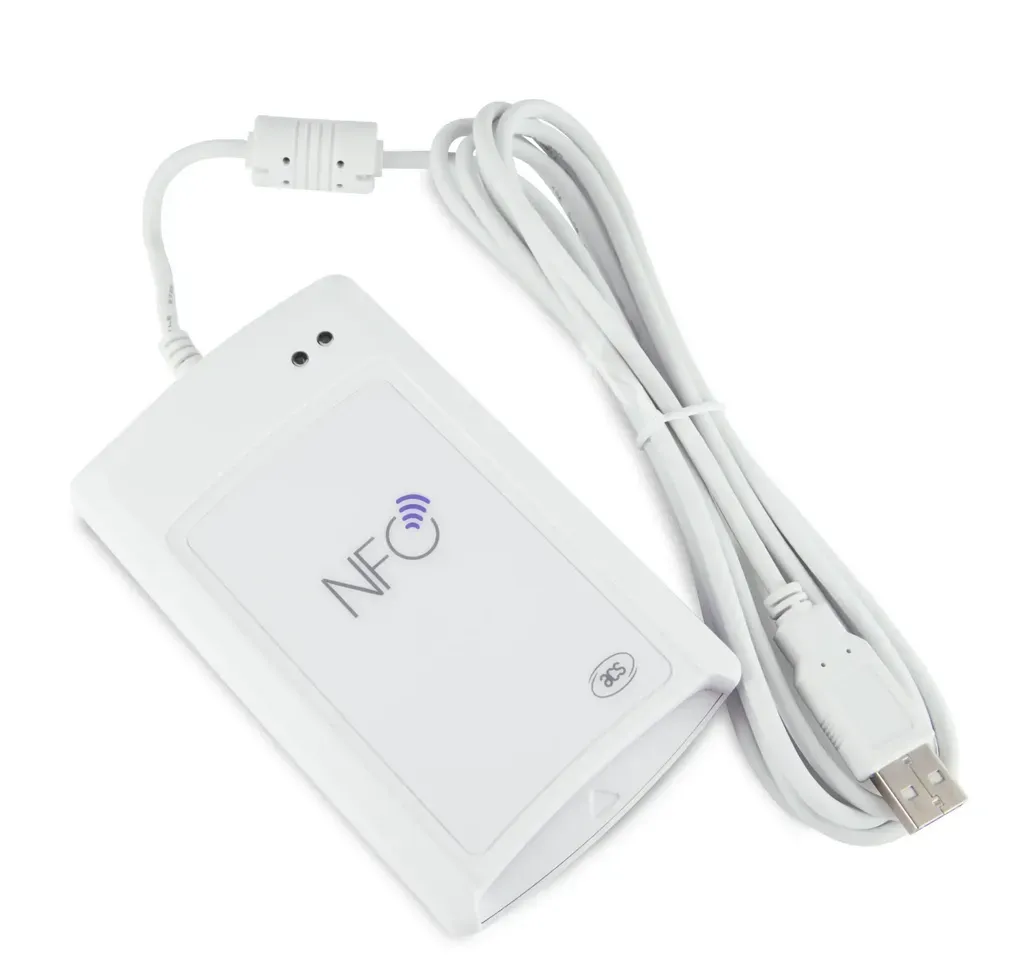
Firstly, we need to install the AusweisApp on the Windows computer. We also need a card reader respectively an NFC reader that is explicitly suitable for reading the ID card. We therefore use the NFC Reader / Writer ACR1581U-C1 DualBoost III. This is one of the compatible card readers listed by the AusweisApp. We can now connect it to the Windows computer.
View your own data
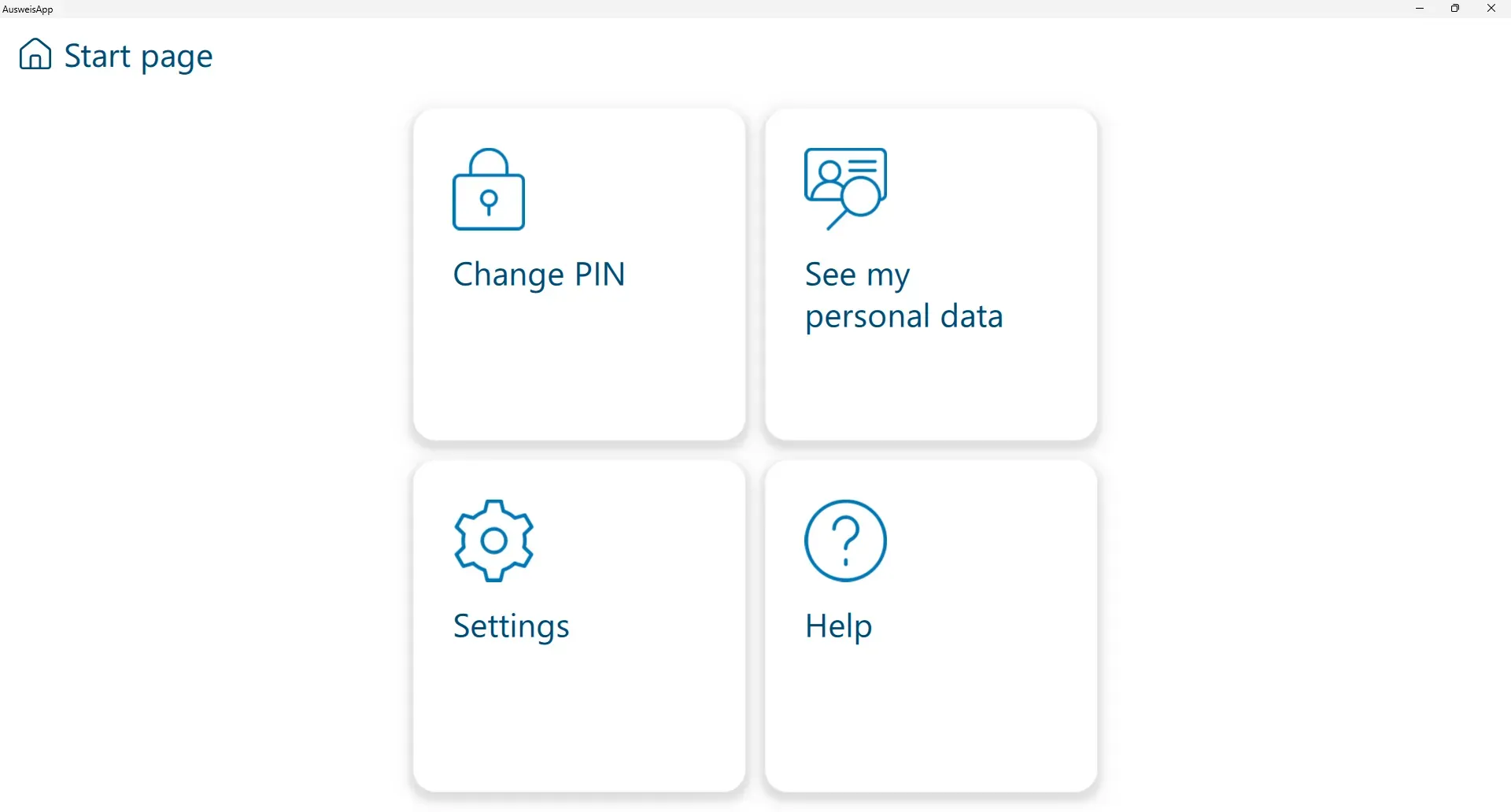
The first step is to check that the data stored on our ID card is correct and still up to date. To do this, we open the AusweisApp. Then we go to Settings → USB card reader. This will show you which USB card reader is currently connected to your Windows computer. Our NFC reader should be ticked in green.
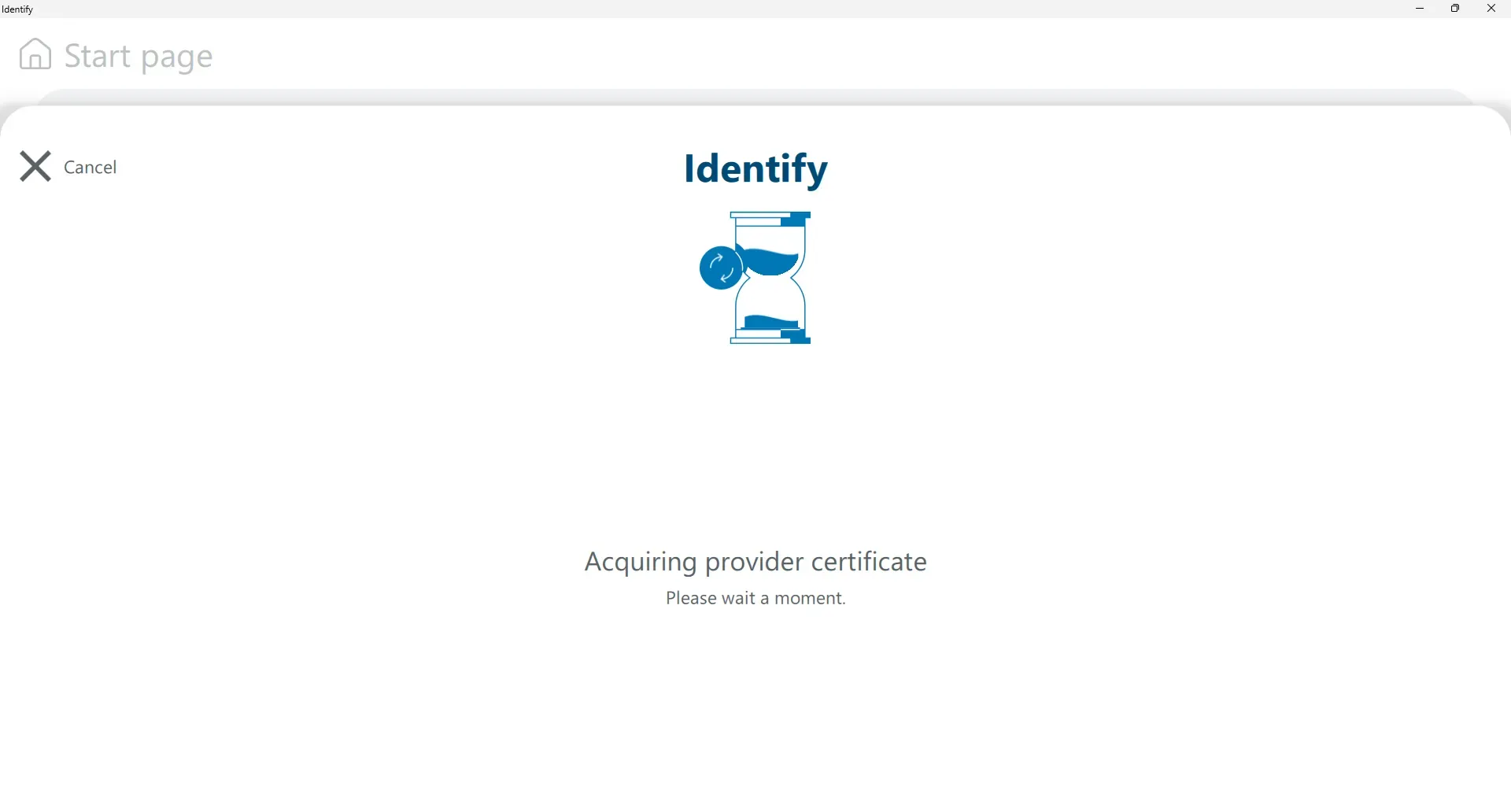
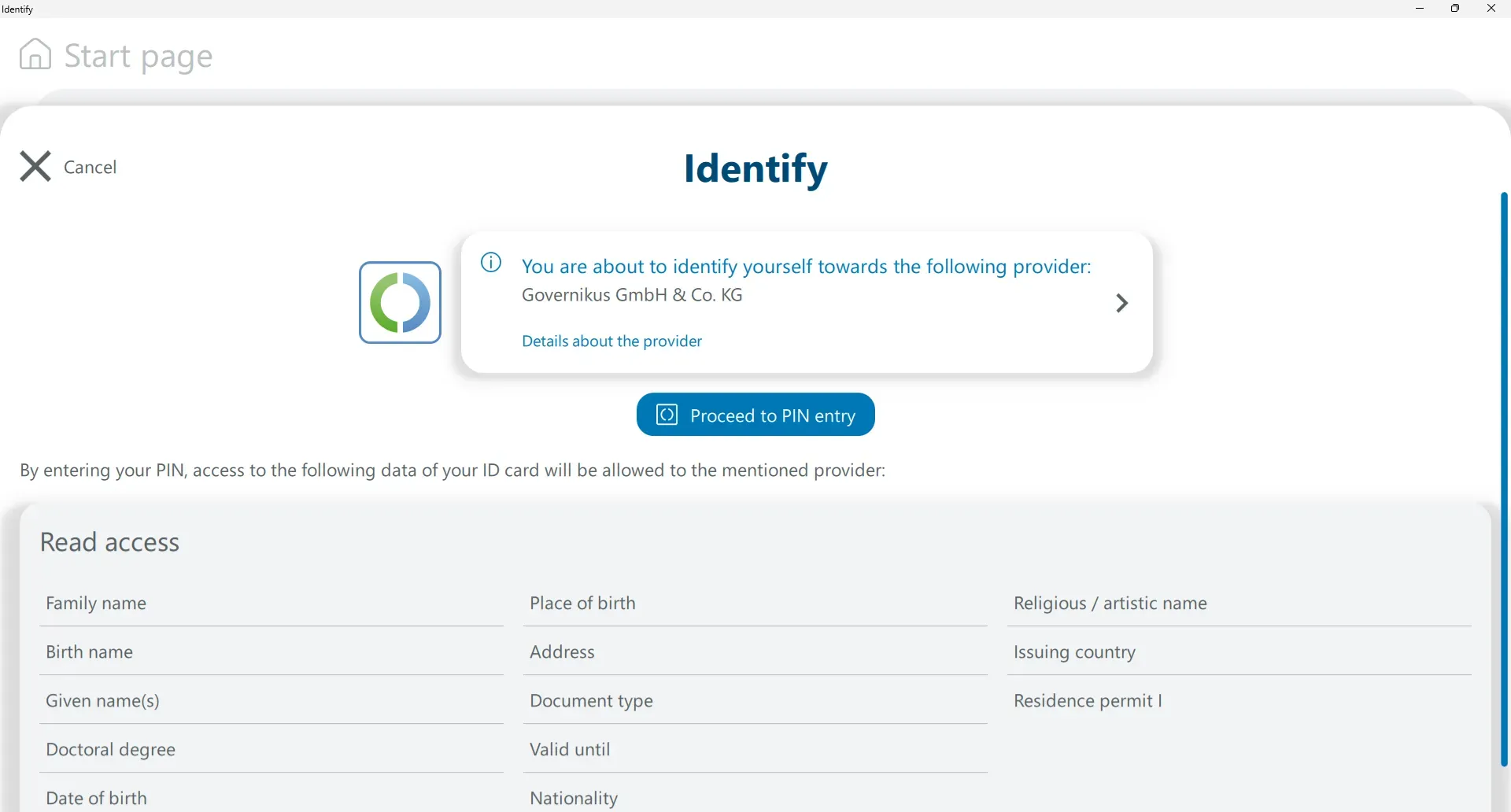
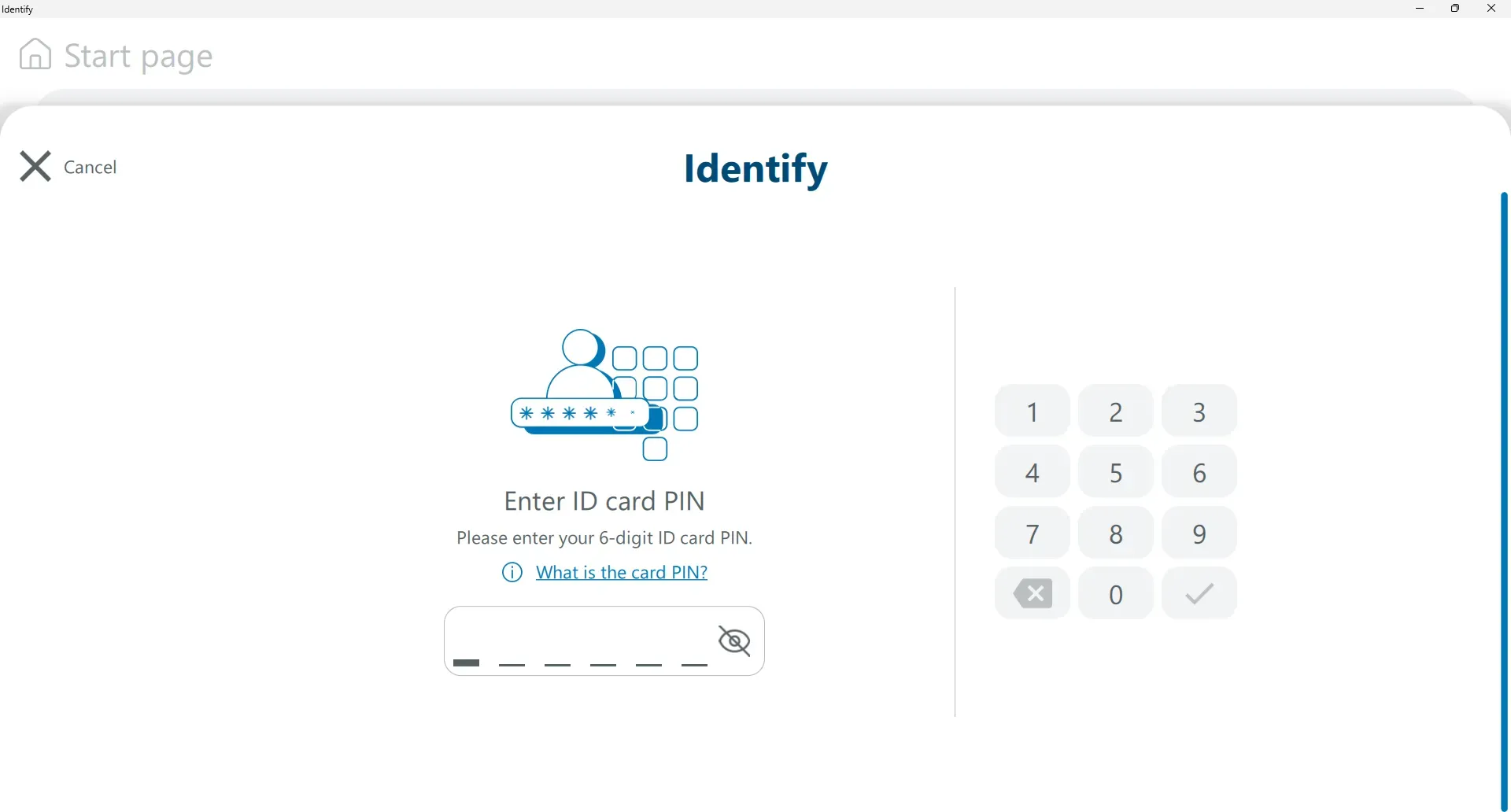
We then go back to the starting page and click on See my personal data → See my personal data. The acquiring provider certificate is then downloaded and we tap on Proceed to PIN entry. You will then be asked to connect the NFC reader to your computer, if you have not already connected it. Then place your ID card on the NFC reader and enter your ID card PIN.
Authenticate with the provider
Now we go to the website of the provider were we want to authenticate ourselves and at the same time, we start the AusweisApp. We can now access the AusweisApp via the provider's website. When the app prompts us to do so, we place our ID card on the NFC reader and enter our card PIN.
Summary
In this How2 we have explained how you can identify yourself directly online with your ID card and the NFC reader and to fill out application forms easily online.
The advantage of being able to identify yourself online or submit and complete applications online, is that long waiting times for appointments with authorities and personal consultations at banks are no longer necessary. There is also no longer any need to plan for long journeys. But these activities can now be carried out easily, flexibly and spontaneously from home.
First published: 23.04.2026 / Updated: 23.04.2026