 Near Field Communication (NFC) products Online Store
 Worldwide Shipping (free DE shipping)

A wide variety of content can be stored on a writable NFC tag. This includes web links (URLs), telephone numbers and text content. The NFC tag itself can also take various forms, for example, it can be incorporated into a wristband, a pendant or a business card.
The iPhone XS, XS Max and XR models (iPhone generation 2018) can read some NFC tags without an additional app. These include NFC tags on which the following data types are stored: web links, text, telephone numbers (FaceTime), email and SMS templates. To do this the device simply needs to be unlocked. For all other data types, the free external app NFC21 Reader must be installed. From iPhone 7 and iOS 11 onwards, NFC tags can be read using the NFC21 Reader app. We explain more about this here.
In this How2, we show you what types of NFC tags can be read. Important: When you tap Scan NFC tag at the bottom of the NFC21 Reader app, the NFC tag will be read.
Content:
- Open Web Link
- Read text
- Establish a Wi-Fi connection
- Call telephone number
- Share contact
- Open location or address
- Send an E-Mail
- Write SMS
- Start FaceTime call
Open Web Link
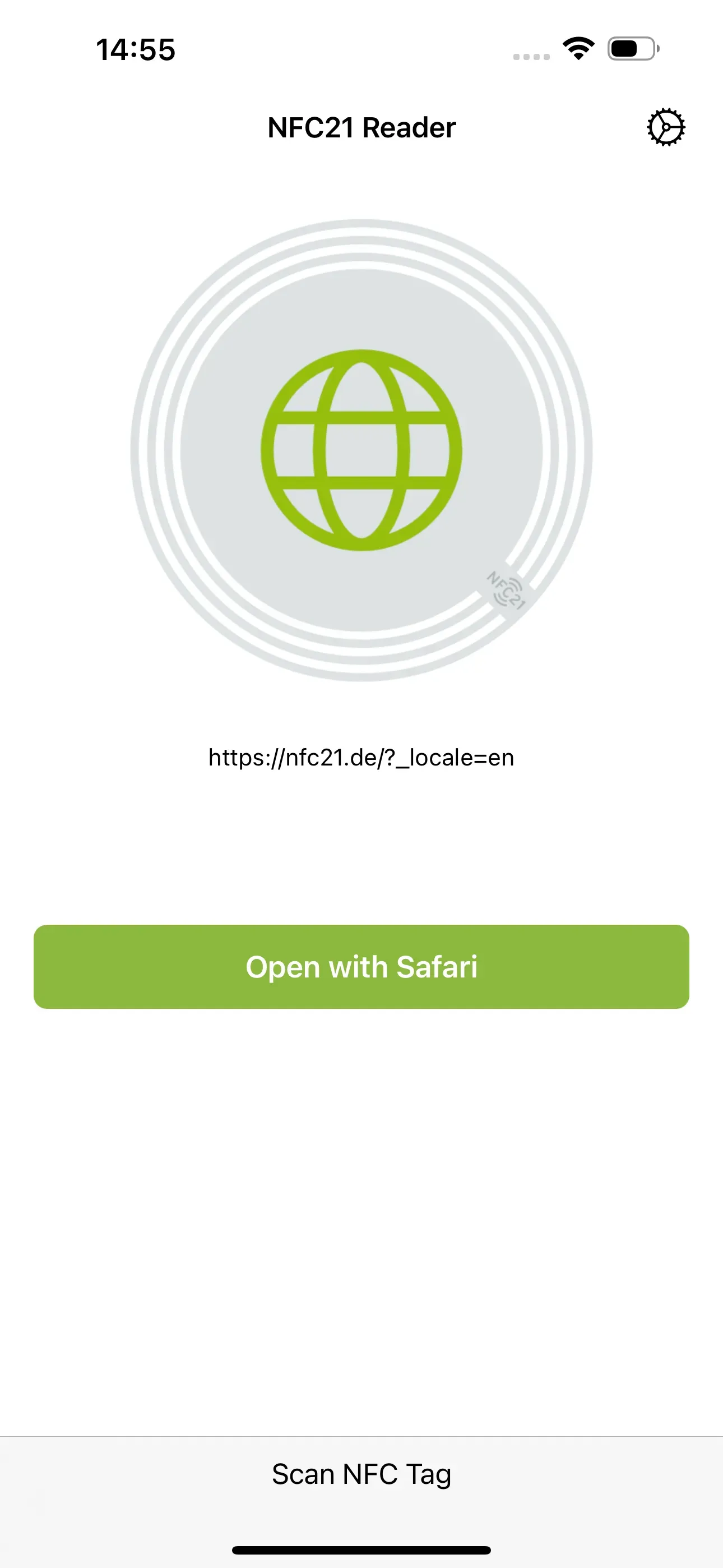
If a web link has been stored on an NFC tag, it can be easily read by scanning it. Once successfully scanned, the link can be opened directly in Safari. This means that even long and complicated URLs can be opened with just one scan. This makes it easier to share web links with other people and eliminates the need to type them out.
Read text
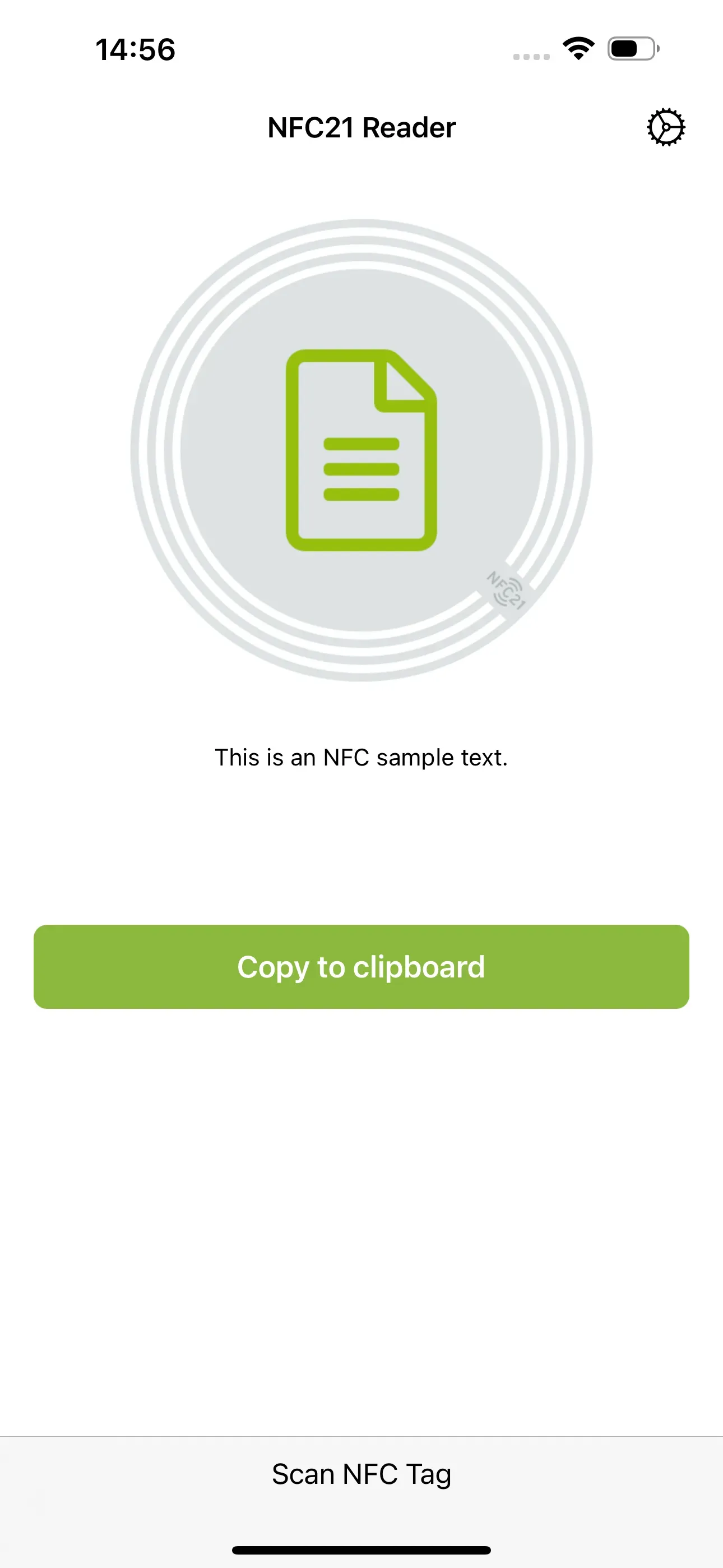
Text stored on an NFC tag can be used to exchange short messages. This is very easy to do with an NFC tag. By tapping Copy to clipboard, the text can be copied to the clipboard so that it can be pasted and edited elsewhere.
Establish a Wi-Fi connection
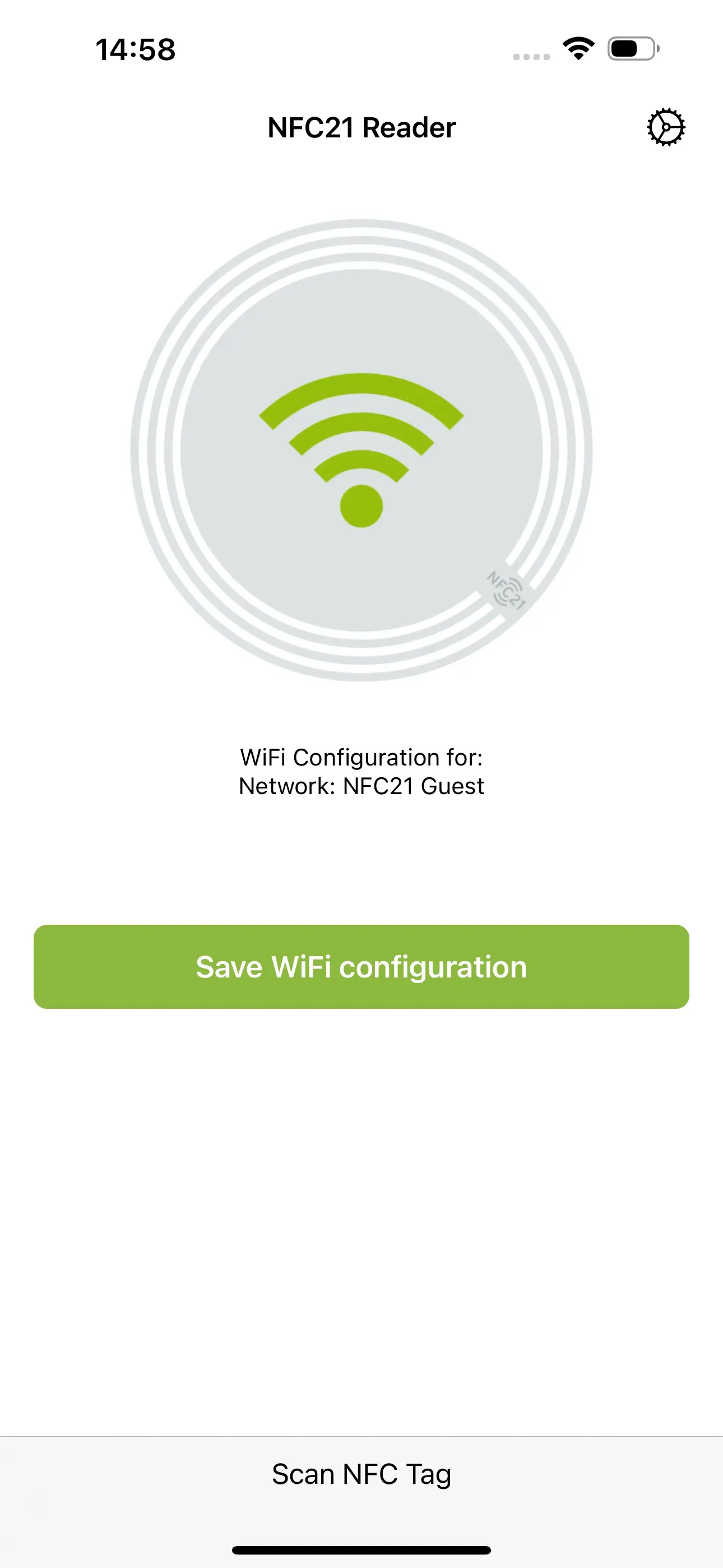
Scanning an NFC tag with a stored WiFi network saves you the hassle of entering the WiFi password. After successfully scanning the NFC tag, you can establish a WiFi connection to the corresponding network directly by selecting Save WiFi configuration.
Call telephone number
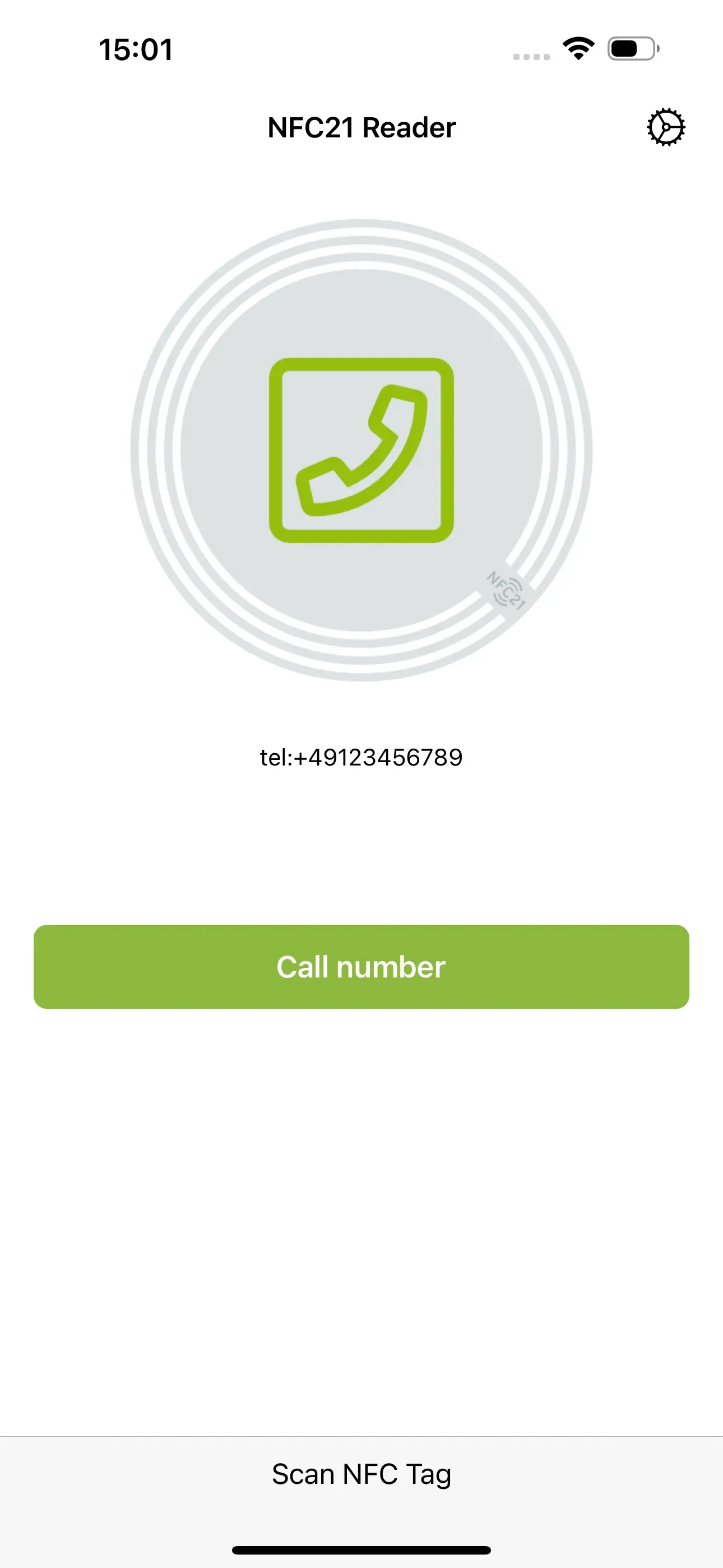
The telephone number stored on the NFC tag can be called directly by selecting Call number. The iPhone XS, XS Max and XR models (iPhone generation 2018) also offer the option of calling the number via FaceTime or adding it to your contact list via a push notification.
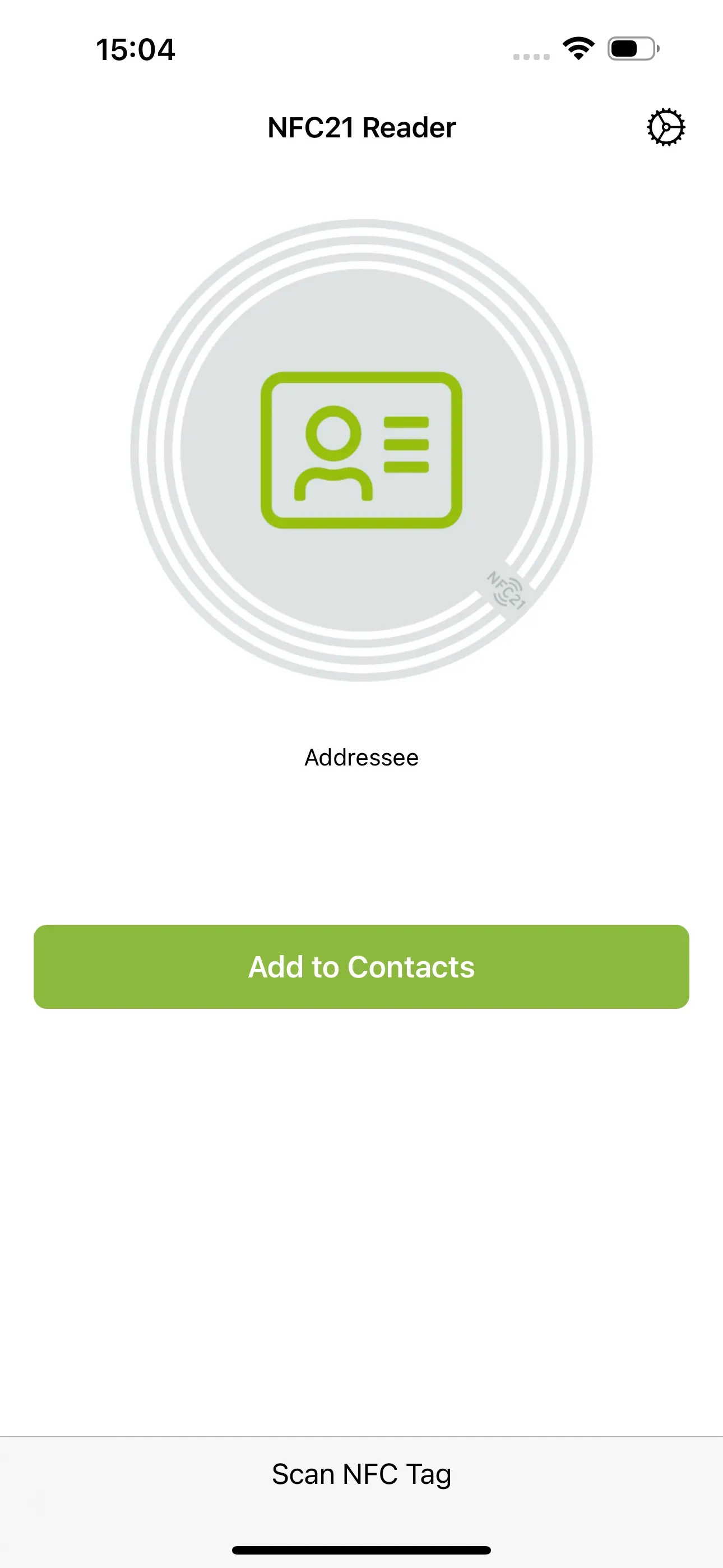
When a contact is saved on the NFC tag, it can be shared with others with just one scan. After successful scanning, the contact can be saved to your own contact list by tapping Add to Contacts.
Open location or address
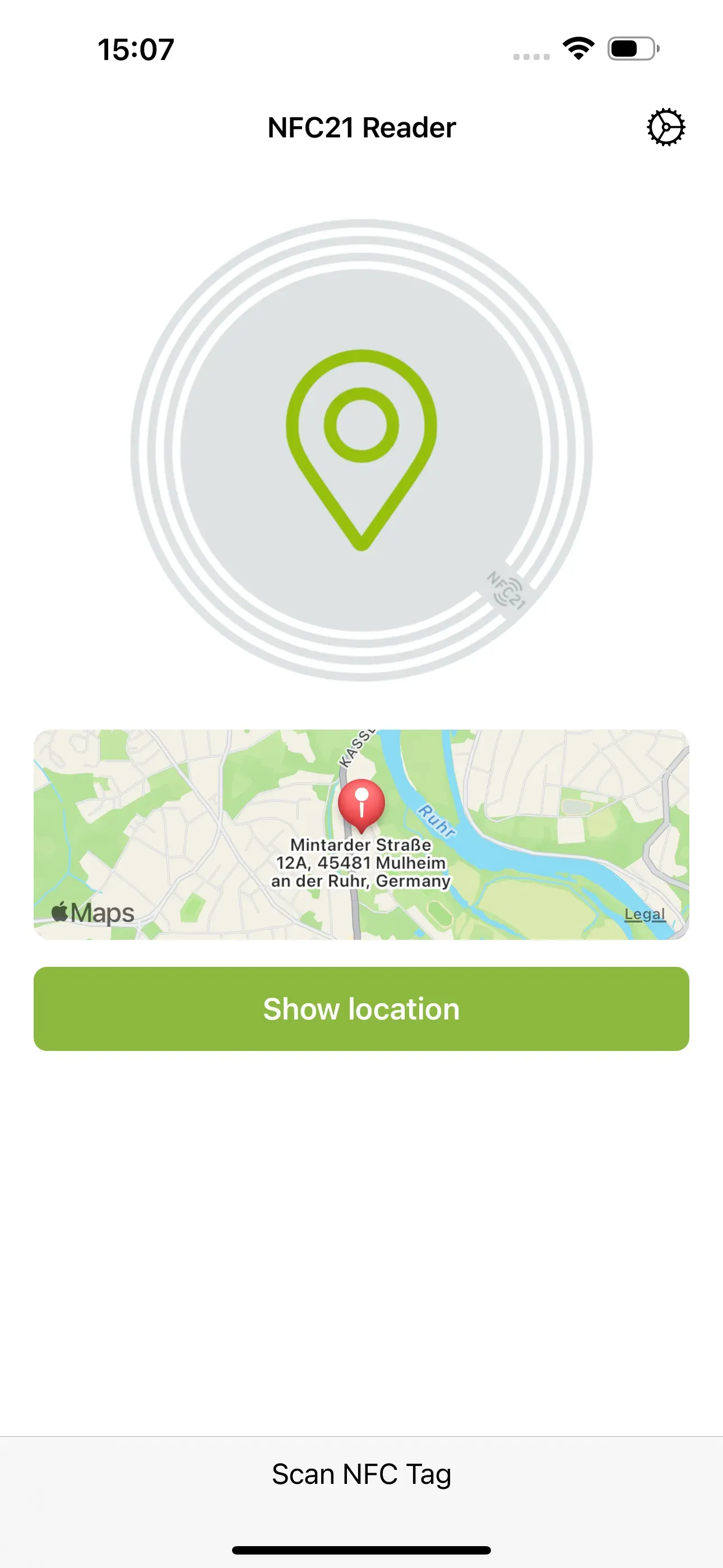
After reading an NFC tag containing a location (geo-data) or address, you can open the Maps app by tapping Show location. This allows you to immediately see the route to the respective location.
Send an E-Mail
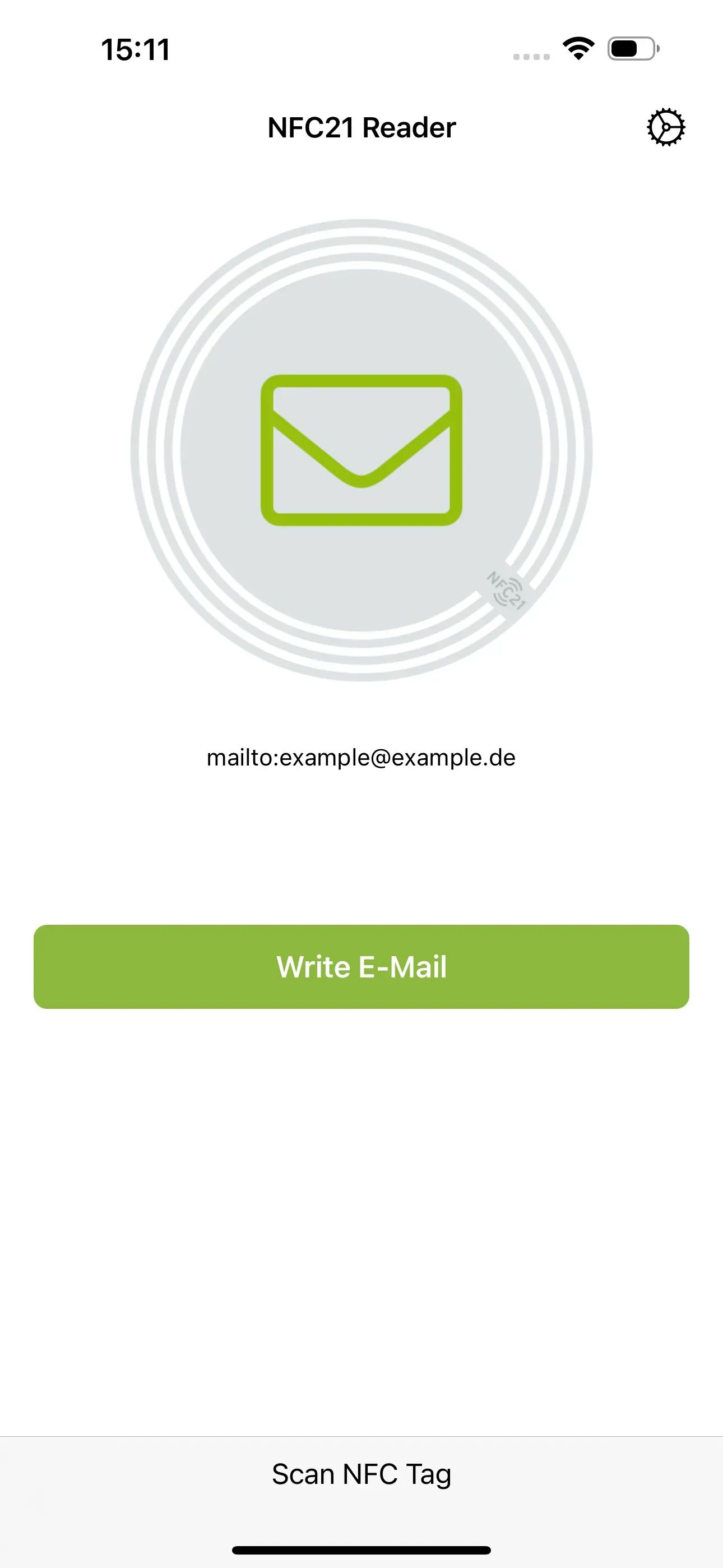
If you regularly need to send emails to the same recipient, it can be tedious to open the Mail app and re-enter the contact details each time. When you scan an NFC tag with the stored email address, the Mail app opens automatically, and a new email is created with the stored sender. Before sending, you can of course enter a custom subject line and text.
Write SMS
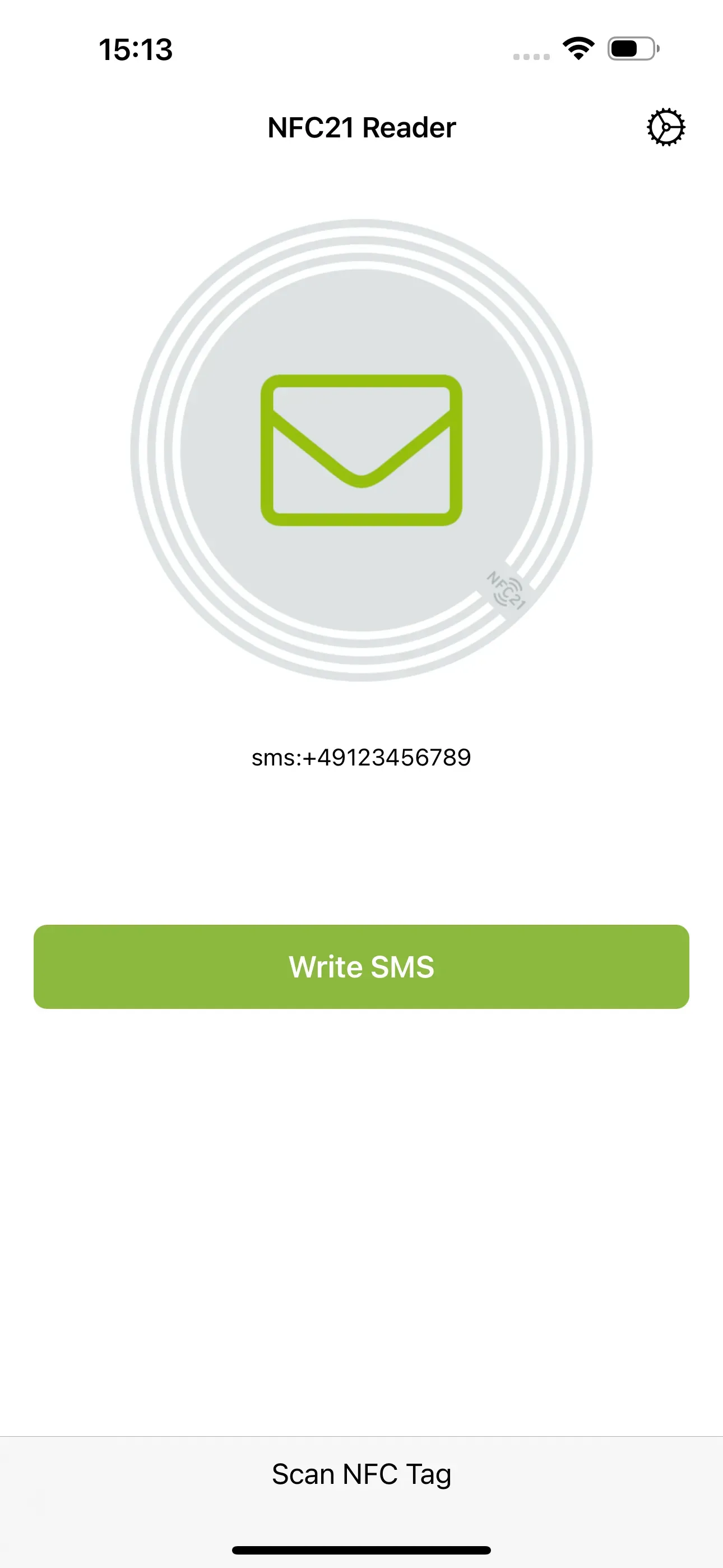
After successfully scanning the NFC tag, tapping Write SMS automatically creates a blank SMS to the stored number. Once the desired message has been entered, it can then be sent directly. This saves time by eliminating the need to search for and select the desired contact in order to send a message.
Start FaceTime call
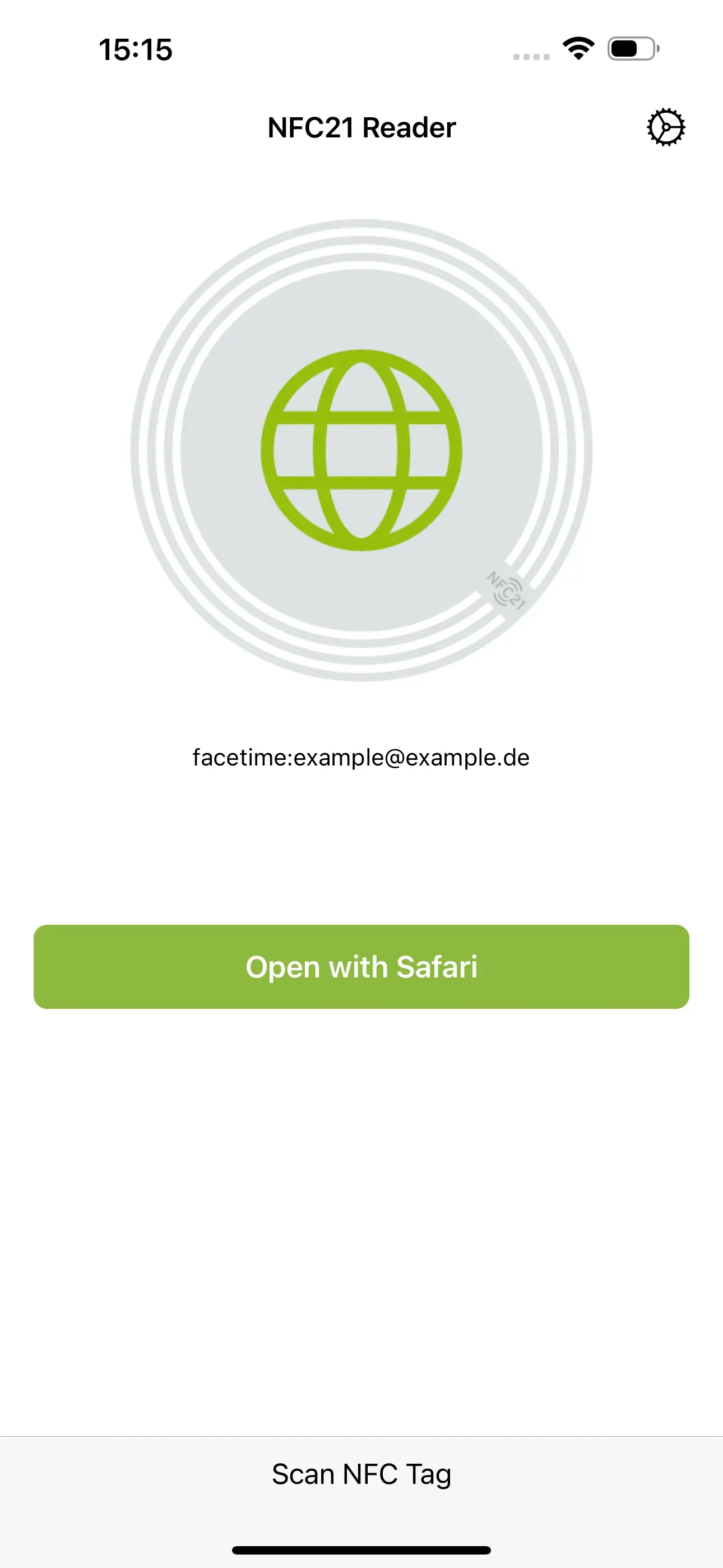
By scanning an NFC tag with a linked FaceTime contact, you can start a FaceTime call directly without any detours.
Summary
This article explained how different types of data stored on NFC tags can be read using an iPhone. While this is possible for URLs with newer iPhone generations without an additional app, more advanced content can be read using the NFC21 Reader app.
In another article, we explain how with the iPhone, NFC tags can be written.
Associated operating systems
iOSFirst published: 25.07.2023 / Updated: 13.11.2025