 Near Field Communication (NFC) products Online Store
 Worldwide Shipping (free DE shipping)

An NFC tag can be used to shorten and automatically execute many different operating steps on a smartphone. To do this, you only need to create a shortcut, save it to the NFC tag and scan it with an NFC-enabled iPhone.
Imagine you want to drive home from work and use your Maps app for the journey. An NFC tag could be installed in your car so that when it comes into contact with your iPhone, the map app opens immediately. This makes the navigation process much faster and easier.
But there are many other situations where quickly opening an app can be helpful, such as opening the camera or phone book. We'll show you how to do it! In this How2, we will describe how an app can be opened on the iPhone with an NFC tag without having to select the app manually.
Important Information: If you want to download the finished shortcut directly and save it to the NFC tag, skip to the end of this article.
Content:
Create a shortcut
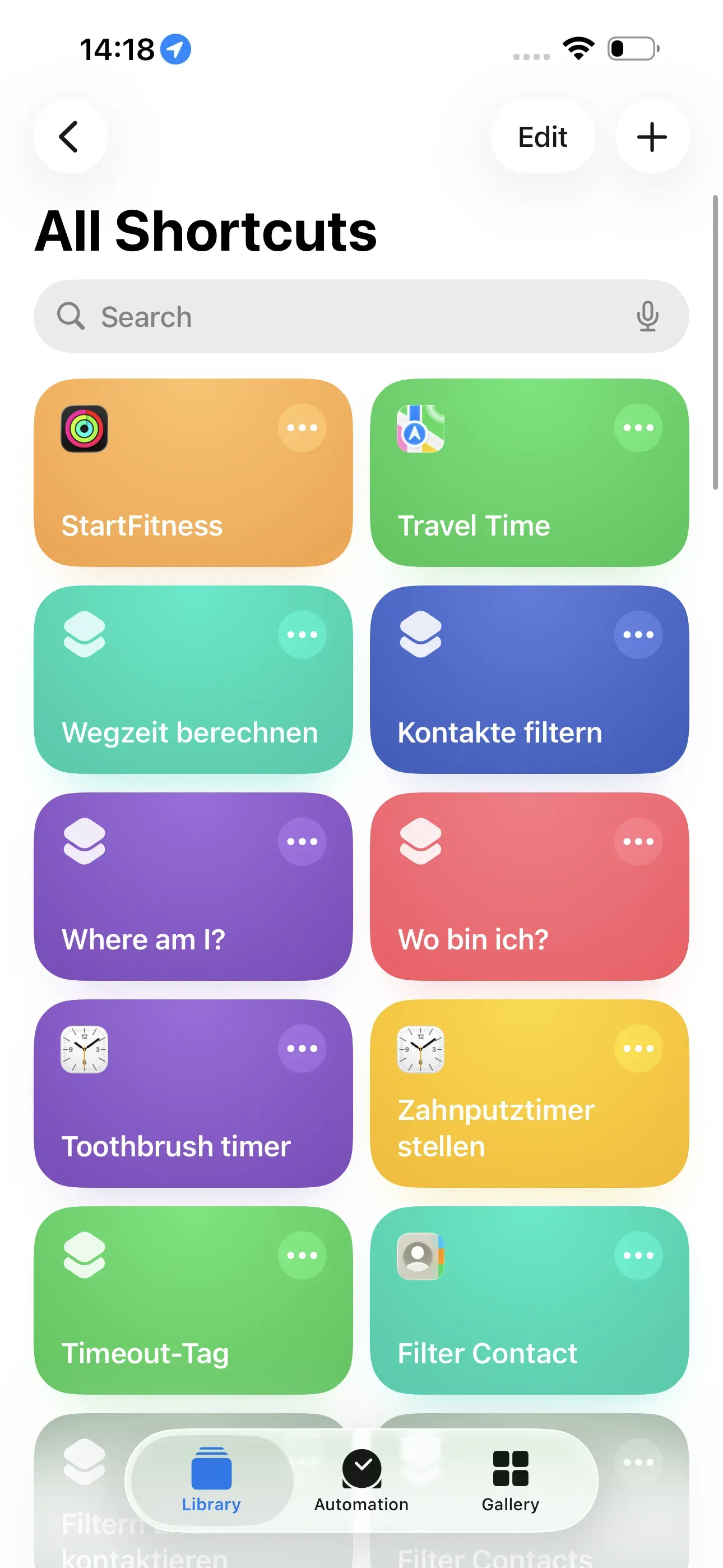
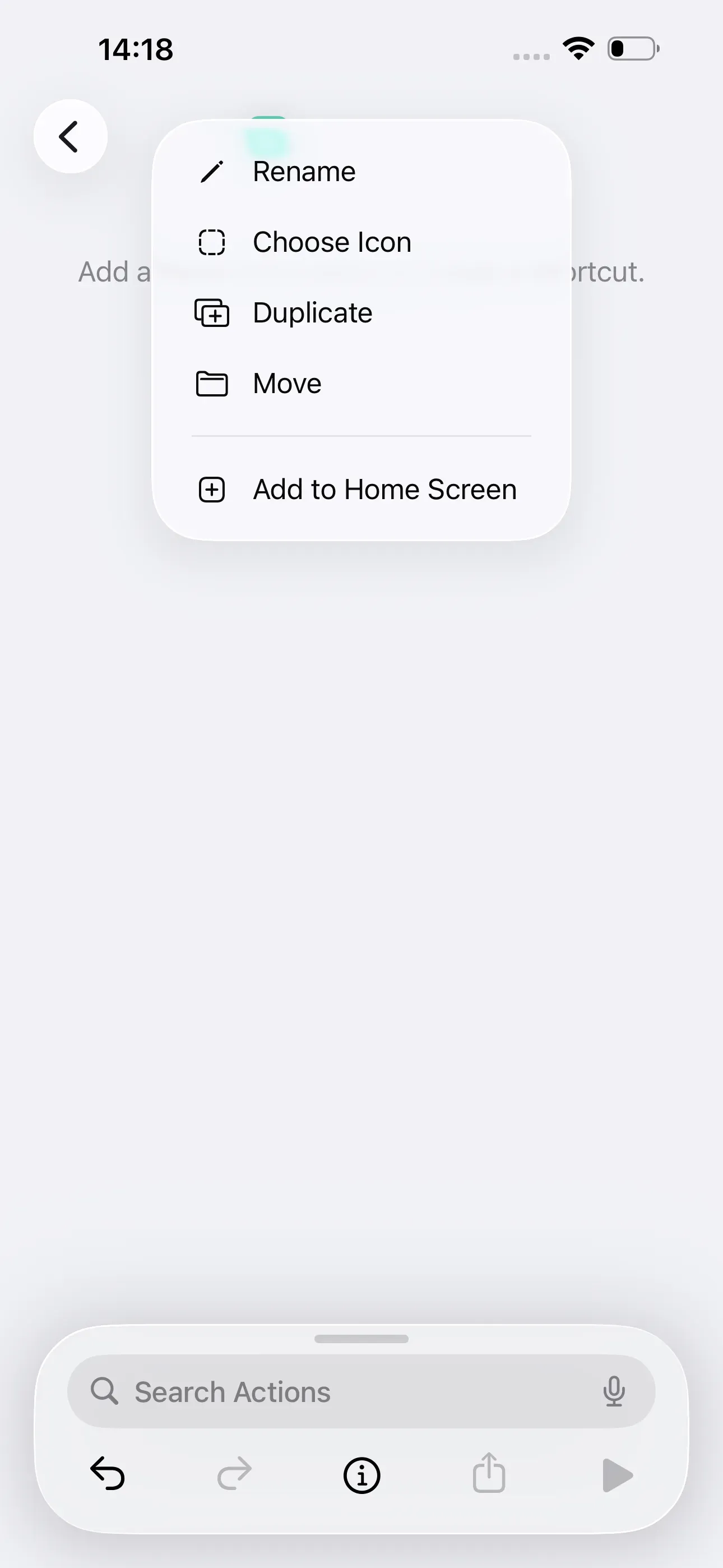
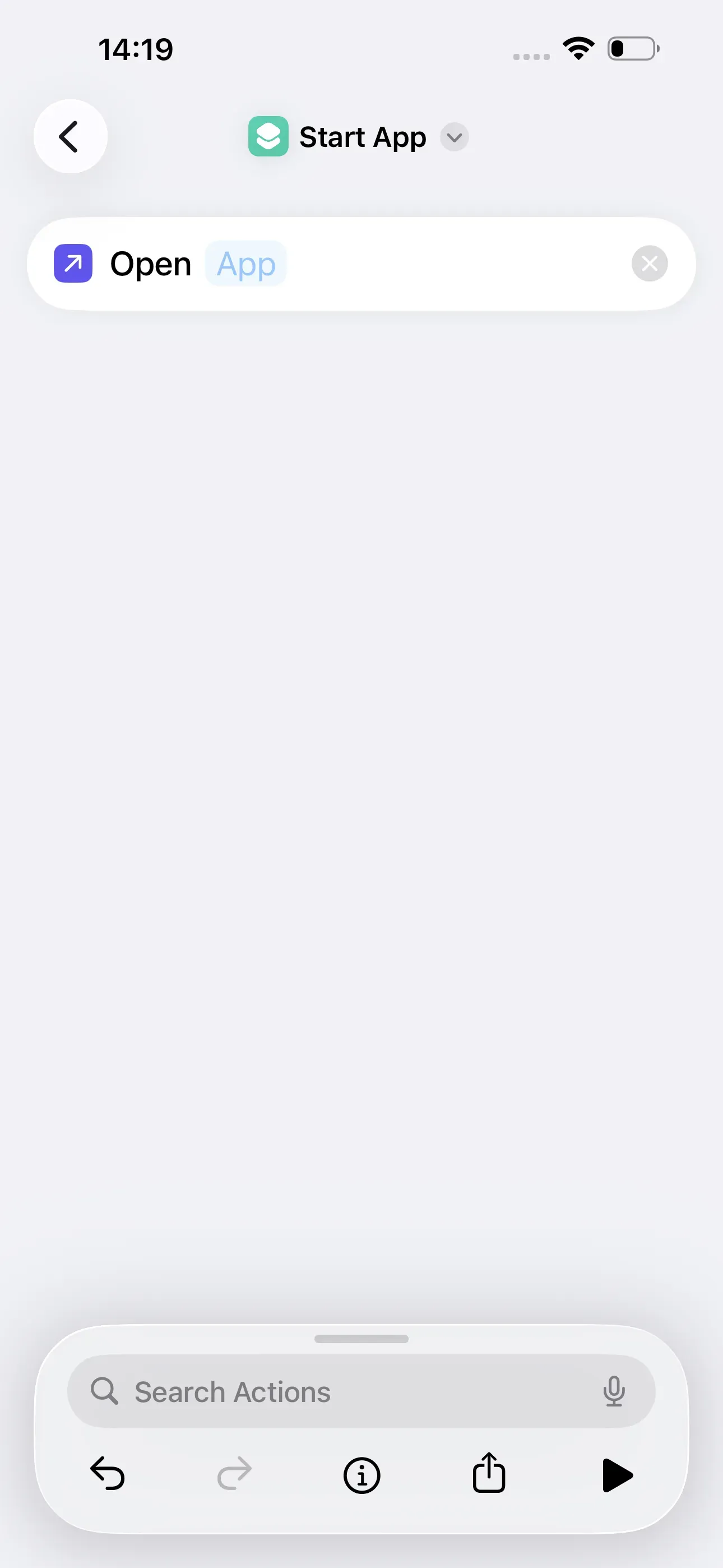
To save the action ‘Open app’ on an NFC tag so that the respective app opens directly when it comes into contact with the iPhone, we first need to create a shortcut. To do this, we open the free Shortcuts app. There, tap on the + in the top right corner. Then tap on New Shortcut at the top and rename it to Start App.
Select App
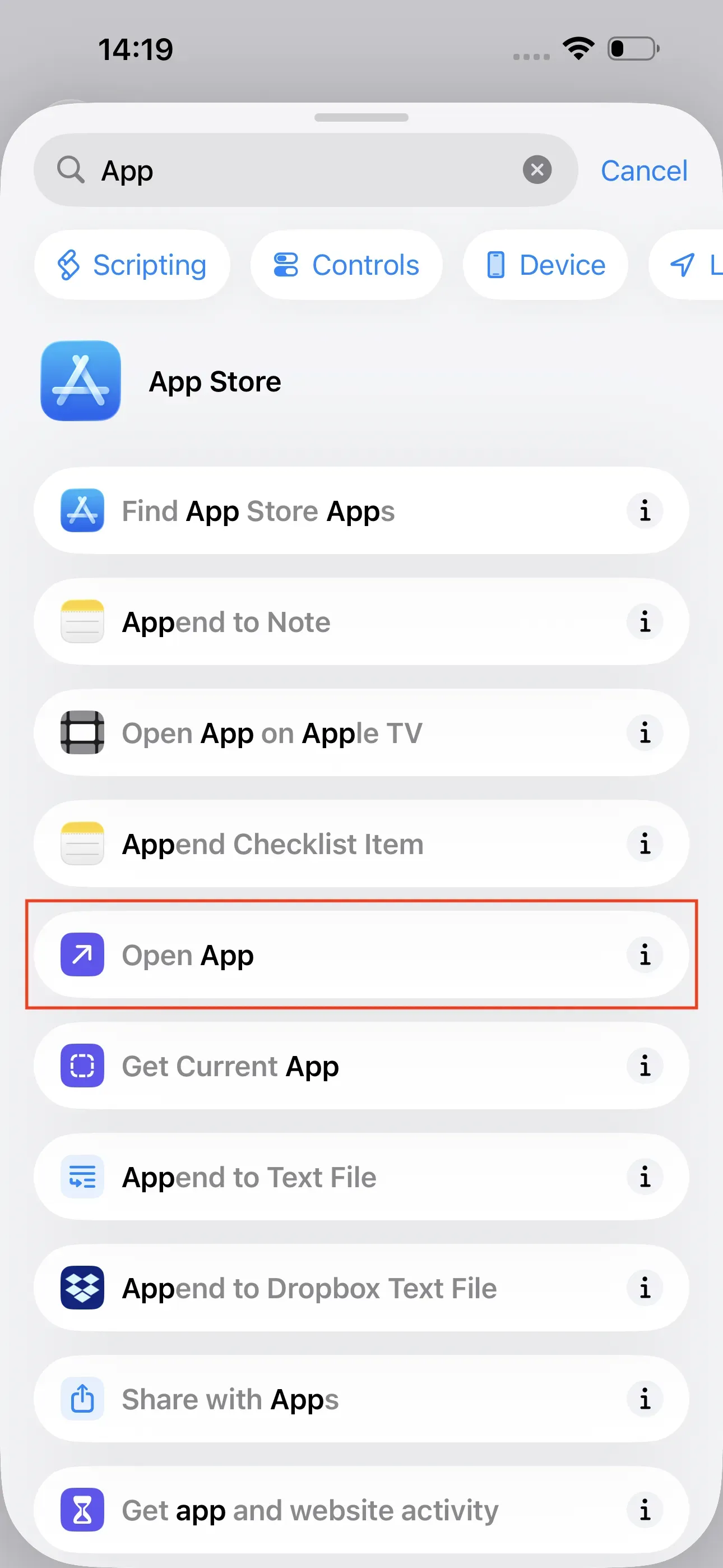
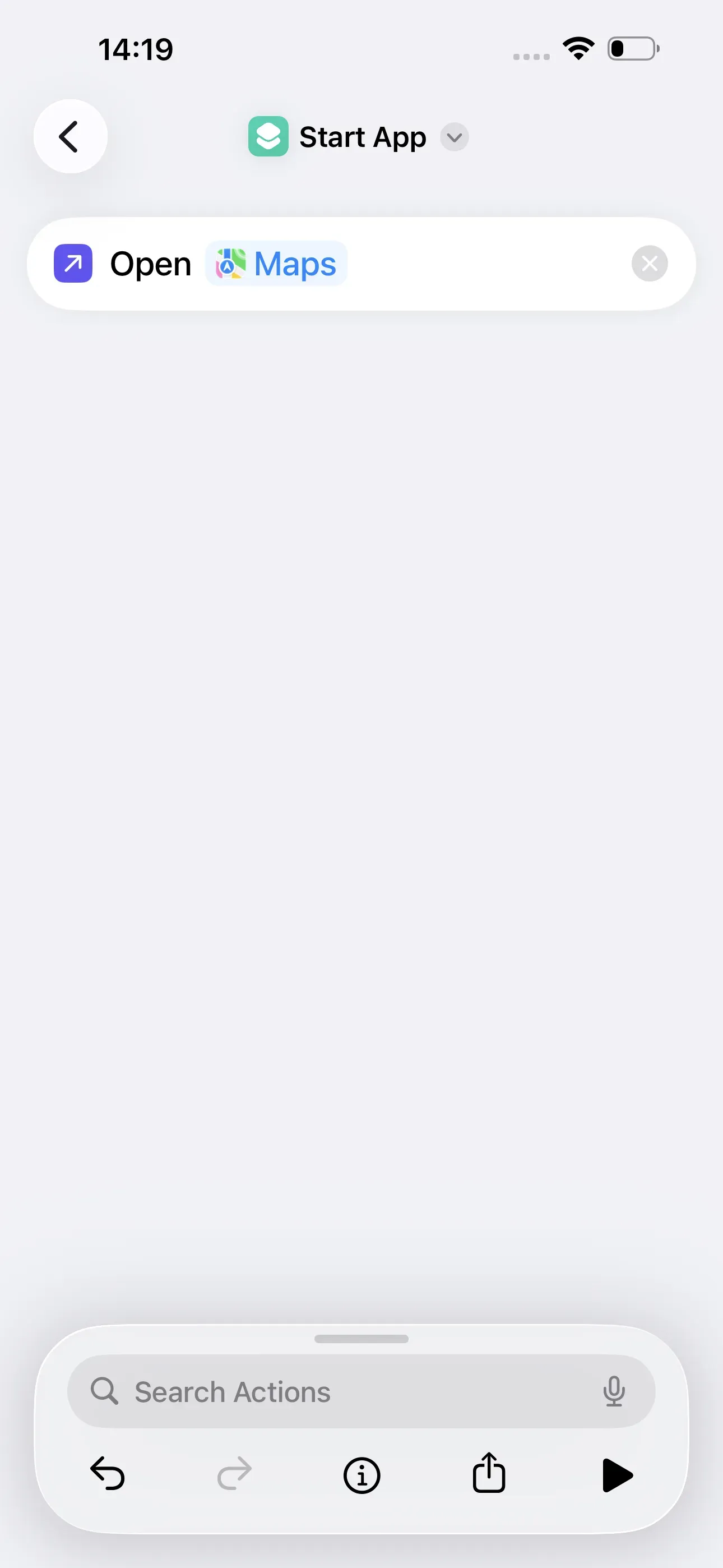
Then enter App in the search bar and select Open App. To automatically open a specific app, we need to tap on the App field. A list of all the apps that are on our smartphone will then appear. Since we want the Maps app to open automatically when the NFC tag is scanned, we select Maps. Now we have created the shortcut and return to the app's home screen.
Write shortcut to NFC tag
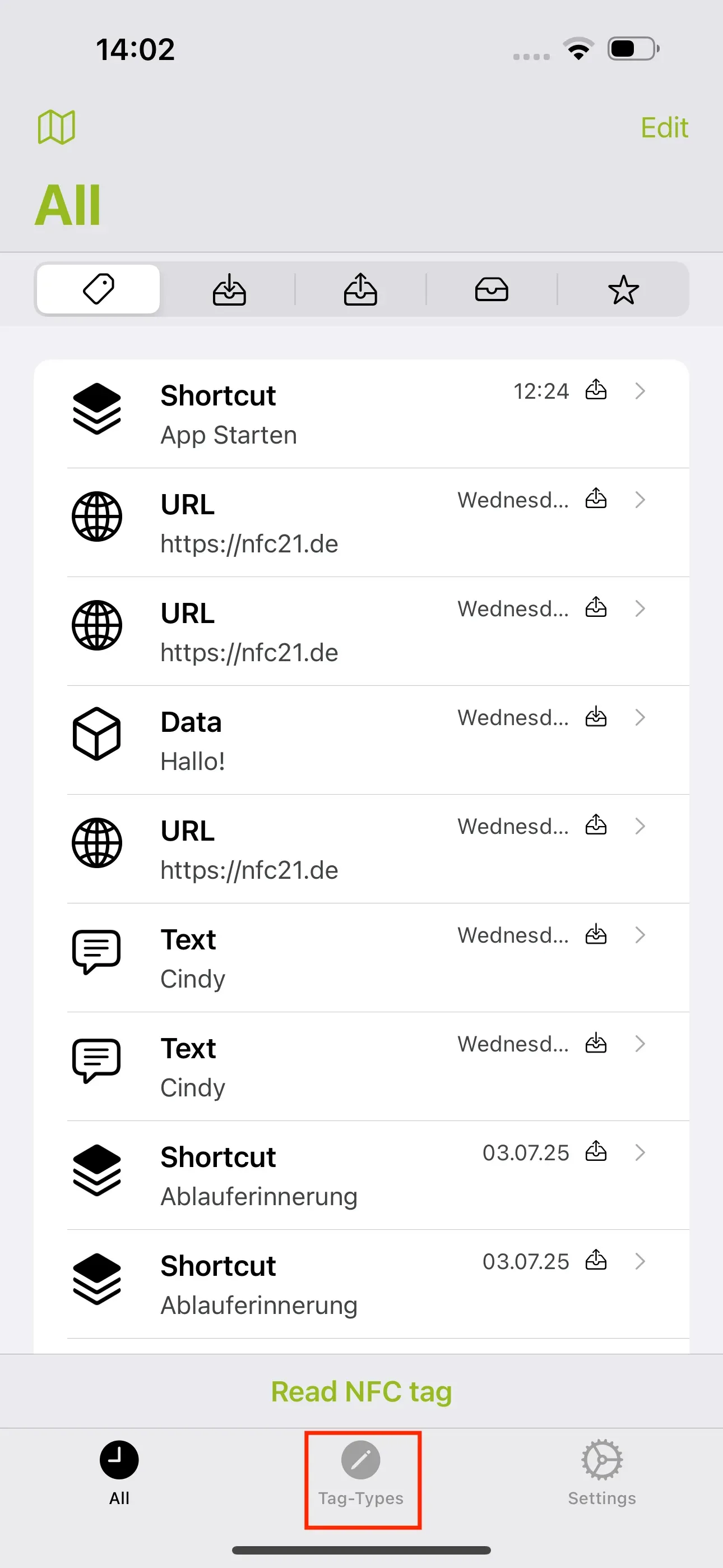
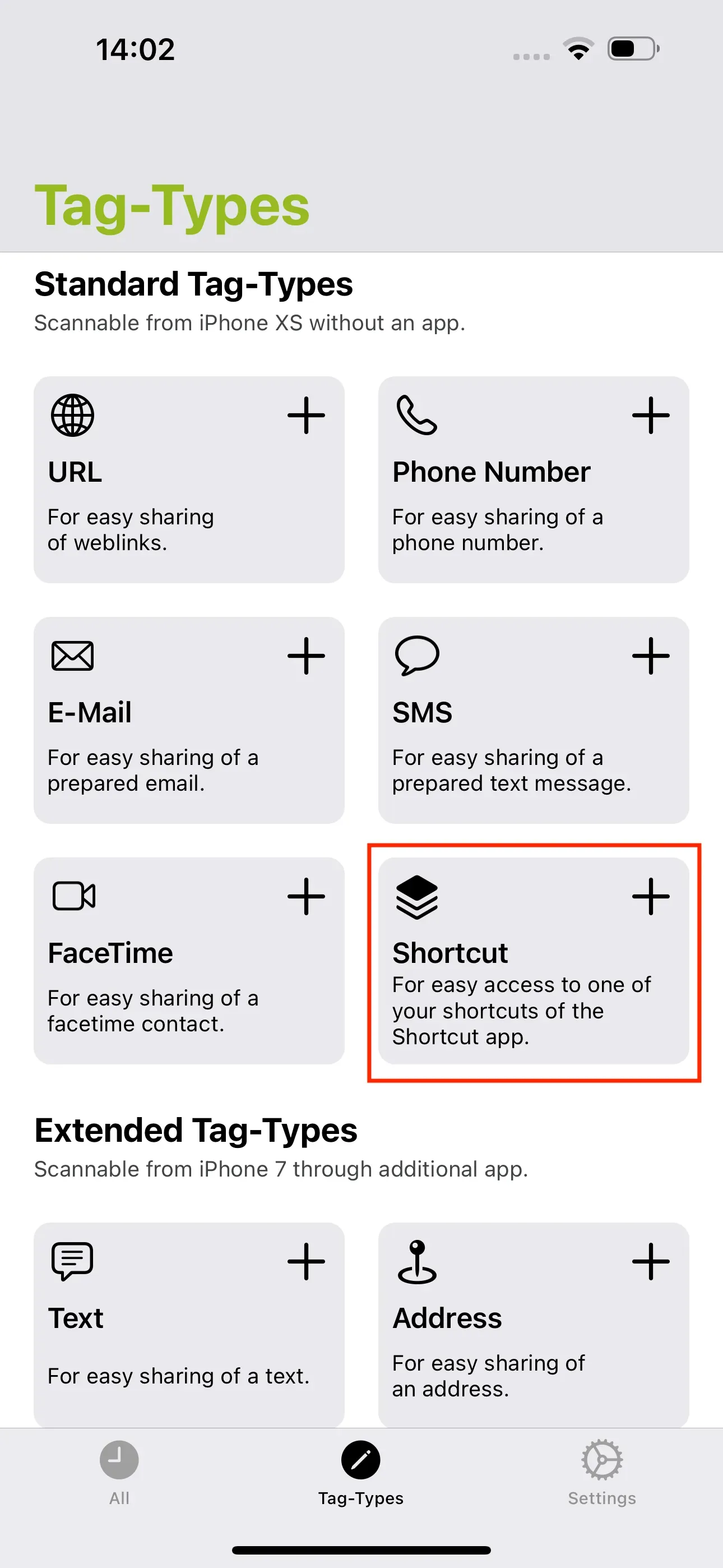
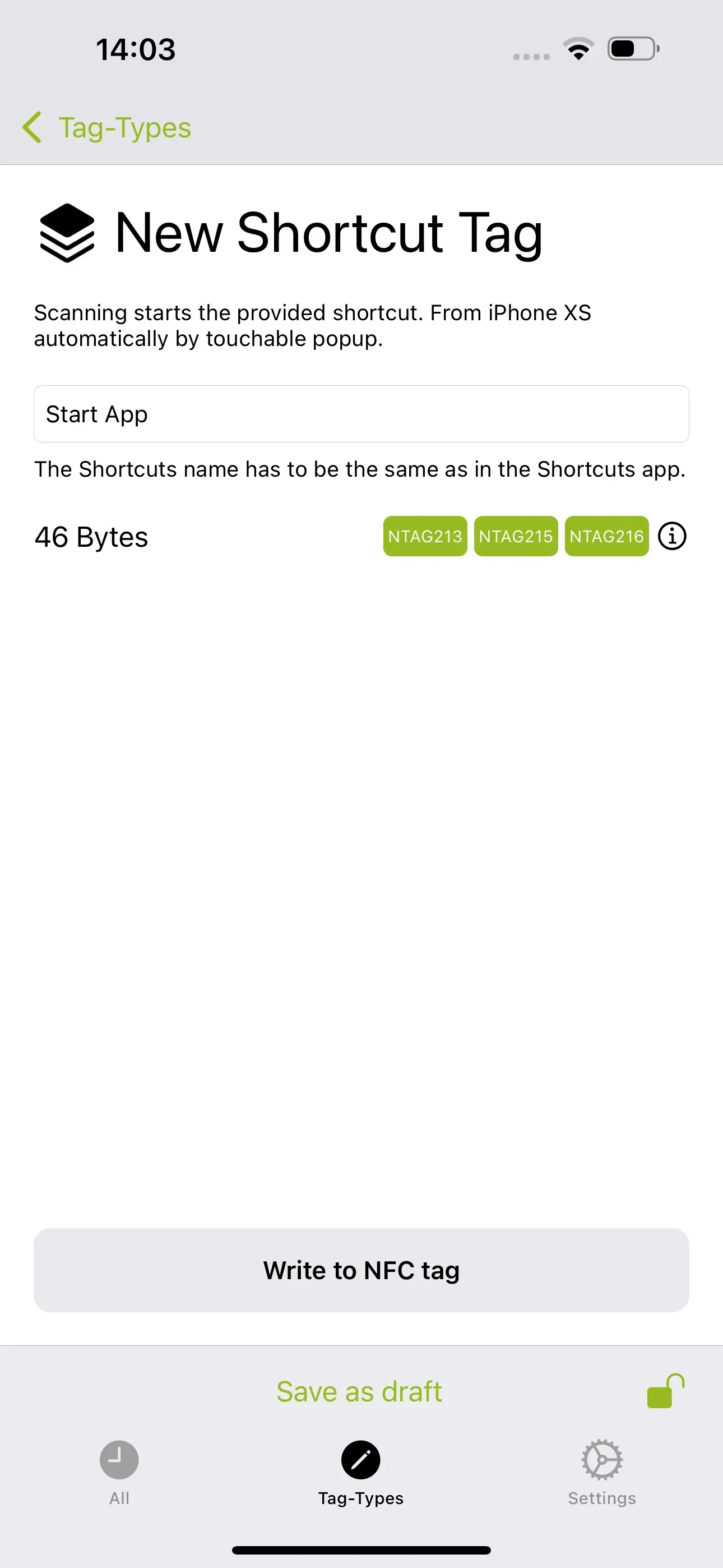
Now we just need to write the shortcut we just created to our NFC tag. To do this, we open the NFC21 Tools app. Then tap on Tag-Types → + Shortcut. There, we enter the name of our shortcut Start App.
Important note: The name of the shortcut from the Shortcuts app and the name you enter in the text field must match exactly!
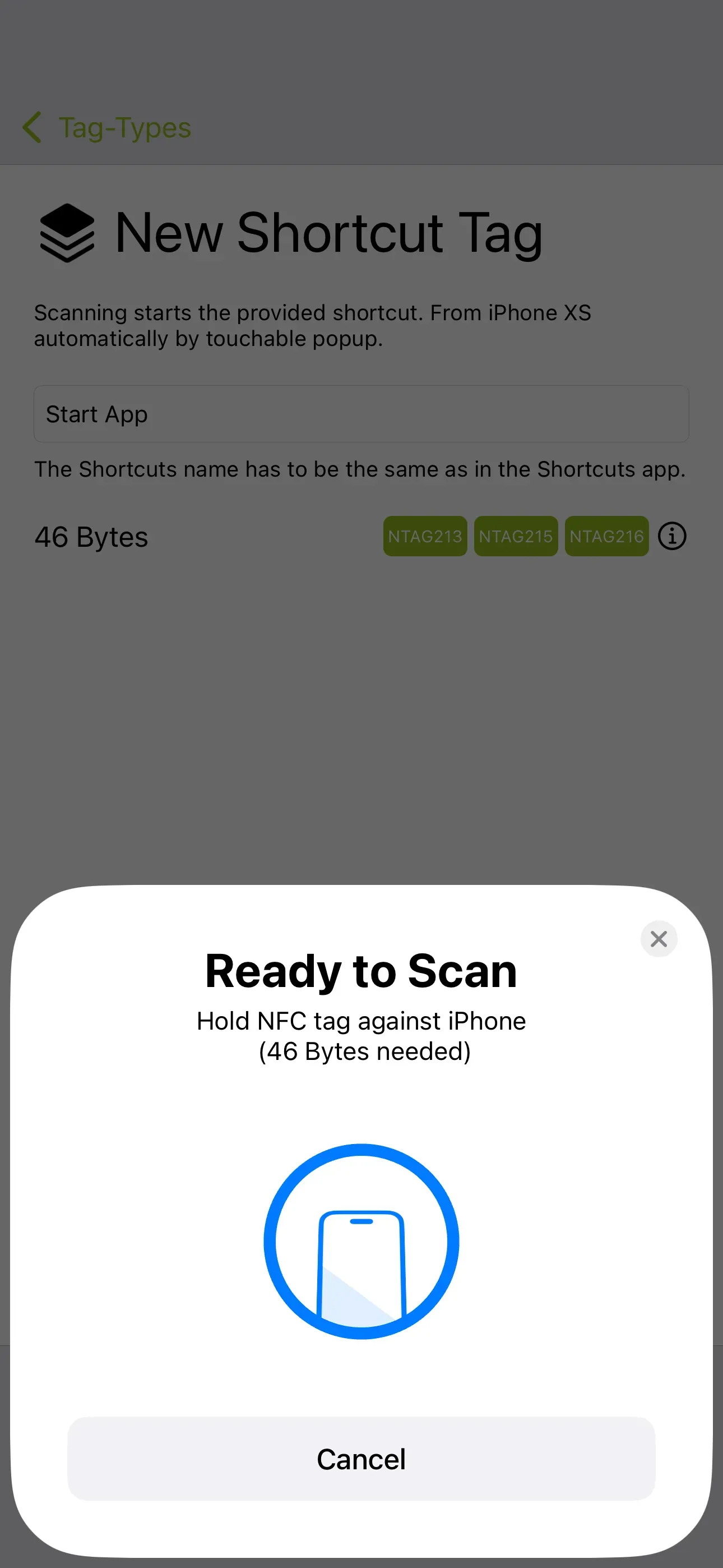
Then tap Write to NFC Tag and hold a blank, writable NFC tag against the upper back of the iPhone.
Summary
This How2 was about opening an app on the iPhone without having to tap on the app manually. Many other use cases are conceivable. For example, tags can directly open the phone book, the fitness app or the camera app. Note: If you don't want to create the shortcut yourself, you can download the finished shortcut directly here. To do this, click on this link. Now all you have to do is save the shortcut to the NFC tag.
Associated operating systems
iOSFirst published: 25.07.2023 / Updated: 11.12.2025