 Near Field Communication (NFC) products Online Store
 Worldwide Shipping (free DE shipping)

Various information and properties can be assigned to a contact. In addition to standard information such as first and last name, telephone numbers, email address and place of residence, you can also add the company, website and social media channels, among other things. By default, only the first and last name are visible in the contact list. If you want to search for contacts using other information, you must enter this search term in the search bar of the “Contacts” app. This allows you to filter contacts.
The aim of this How2 is to shorten this step. It can be useful to have an NFC tag that filters your contacts directly based on a fixed criterion. A fixed criterion could be, for example, the company where your contacts work. For example, the NFC tag would then directly display all contacts from the company NFC21. An NFC sticker or NFC tag with this function could then be attached directly to the building key. Another application scenario could be filtering family contacts. The criteria for filtering can be set as desired when writing the NFC tag, so that countless applications are possible. In this How2, we explain how such a shortcut can be created and stored on an NFC tag.
Info: If you want to download the finished shortcut directly and save it to the NFC tag, skip to the part "Download and upgrade shortcut" of this article.
Content:
- Create shortcut and set filter
- Display filtered contacts
- Select from list
- Write shortcut to NFC tag
- Download and upgrade shortcut
Create shortcut and set filter
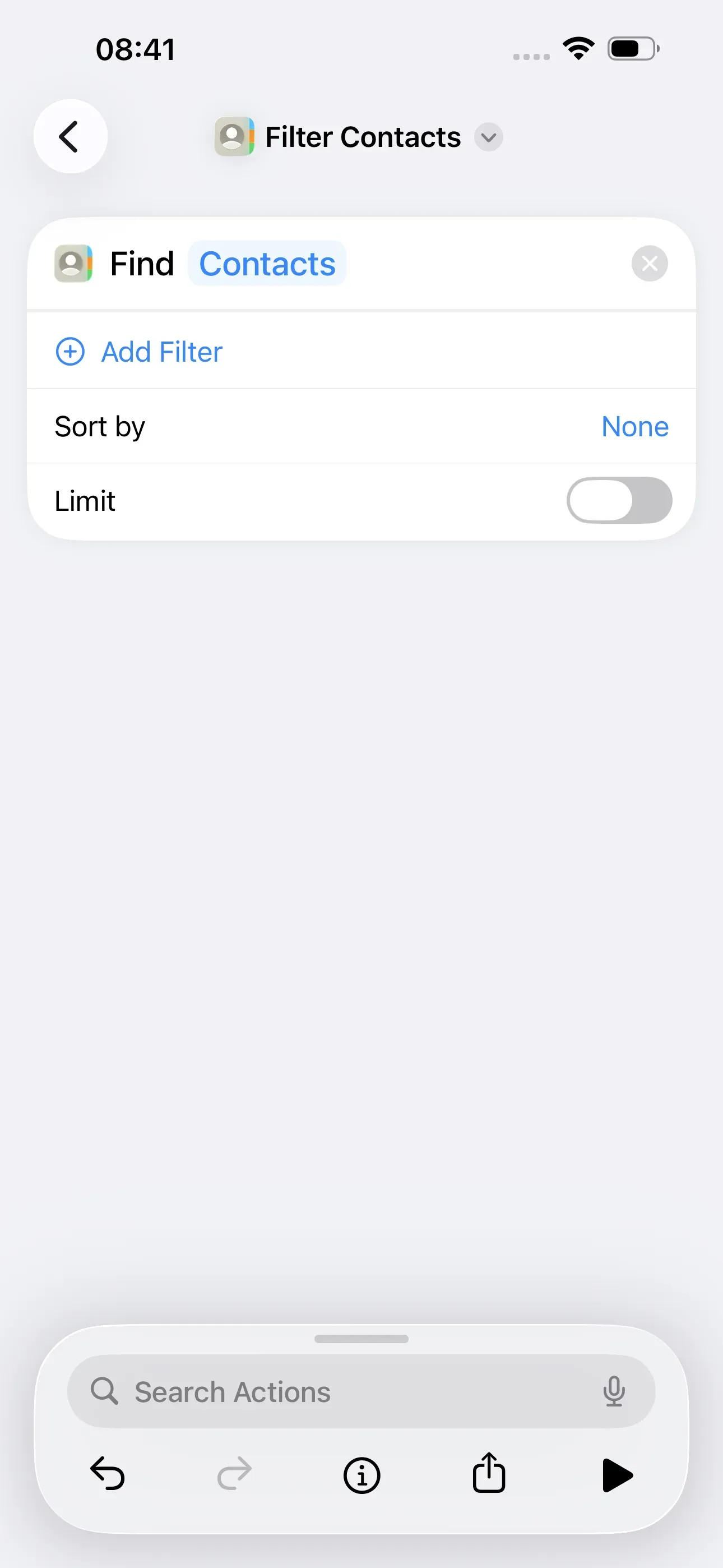
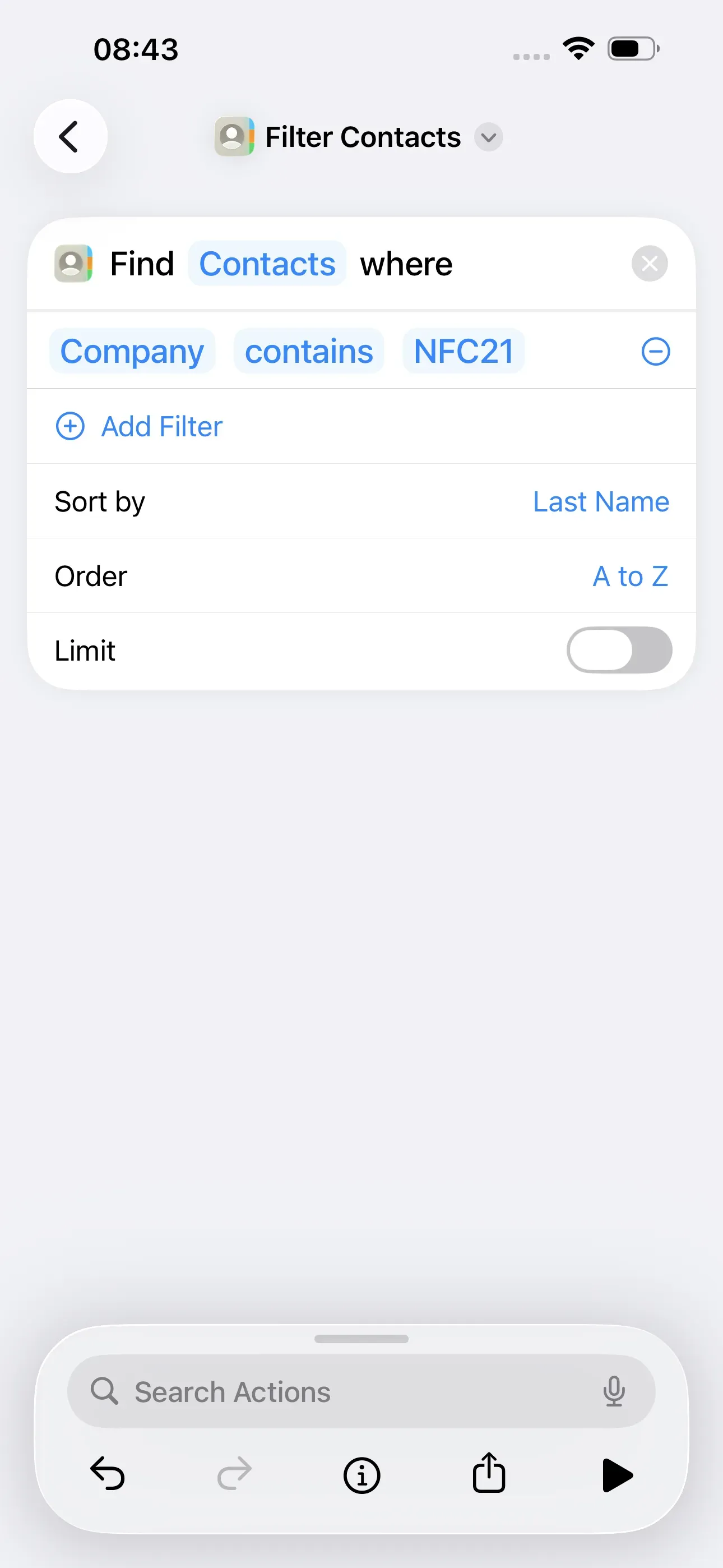
First, we create a shortcut by opening the shortcuts app. There, we tap on the + in the top right corner. Then we tap on New Shortcut at the top and rename it to Filter Contacts. Then we enter Contacts in the search bar and select Find Contacts.
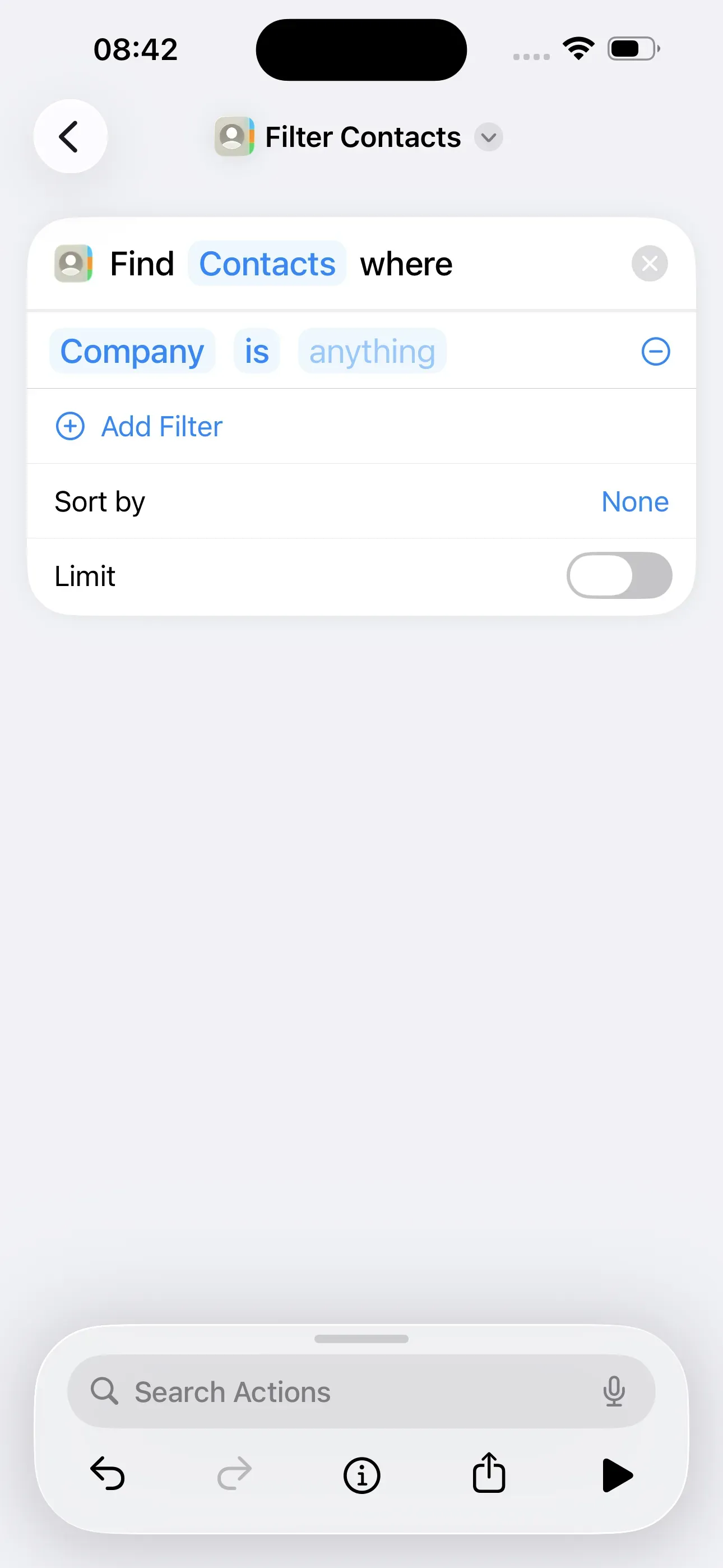
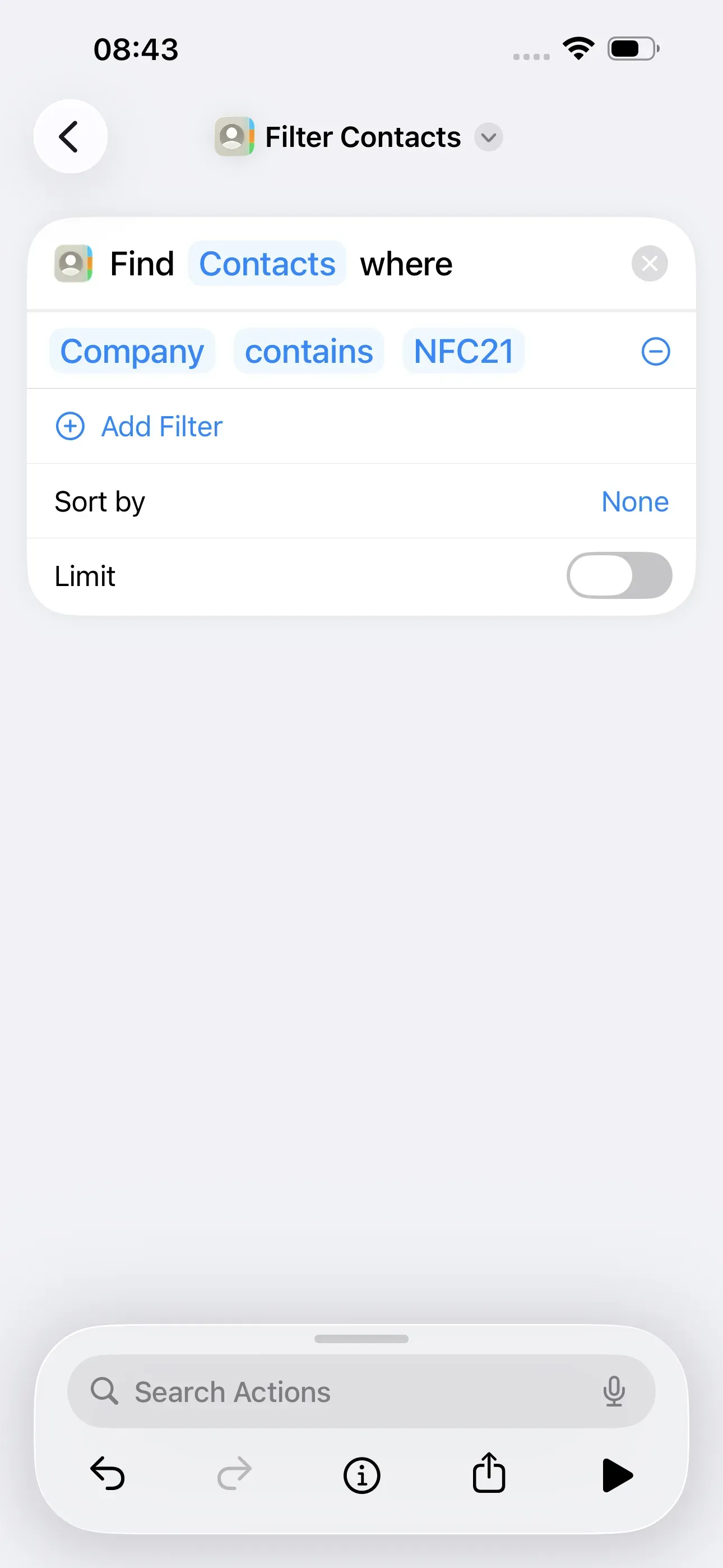
In the next step, tap + Add Filter. By default, Group is Choose appears. At this point, we want to filter by company name. To do this, we tap on Group and select Company. Then we tap on is and select contains. By tapping on anything, we can then enter our desired term, i.e. the company name. In our example, the filter term should be NFC21. This will now filter all contacts that have specified “NFC21” as their company name.
If we want the search results to be sorted, we tap on Sort by and select, for example, Last Name.
Display filtered contacts
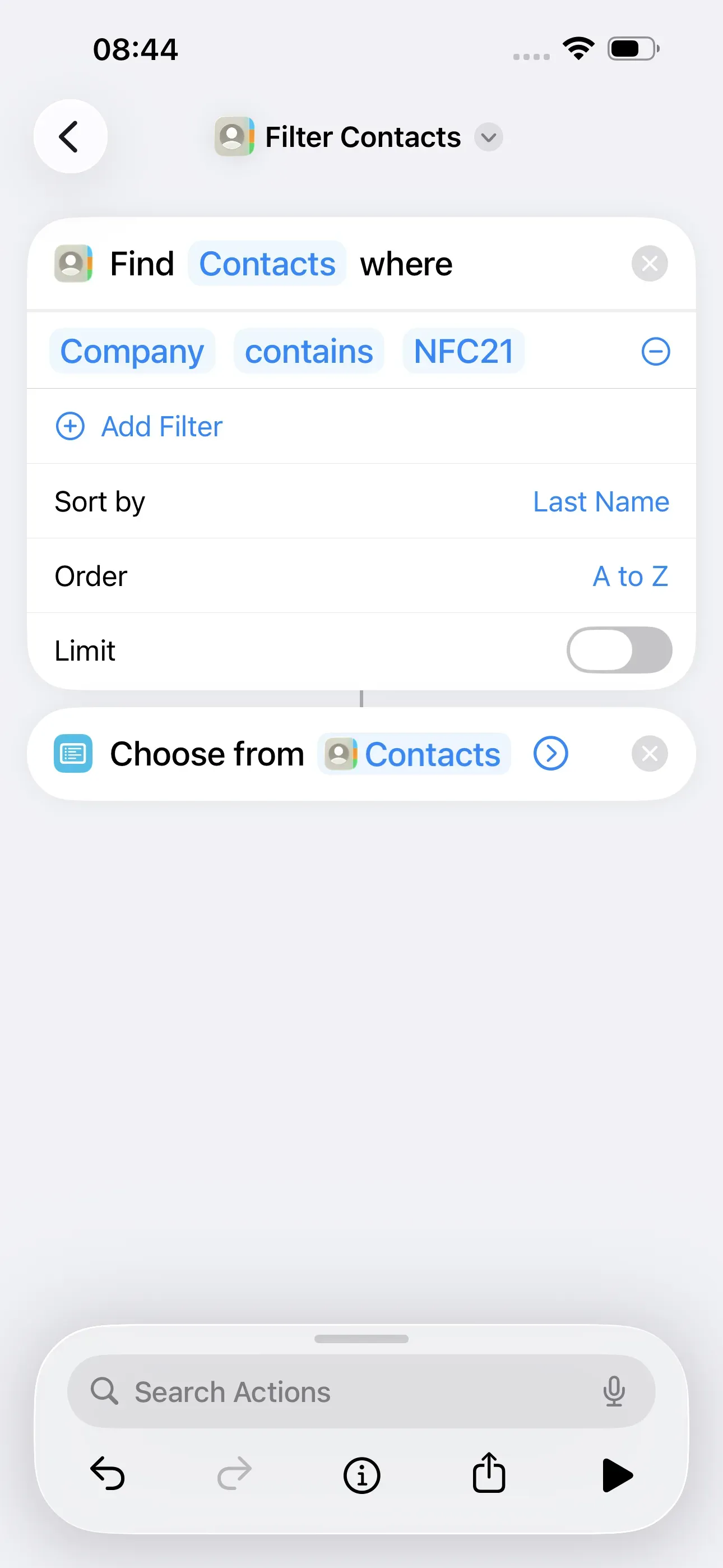
To display the filtered contacts in a list, search for List → Choose from list in the search bar.
Select from list
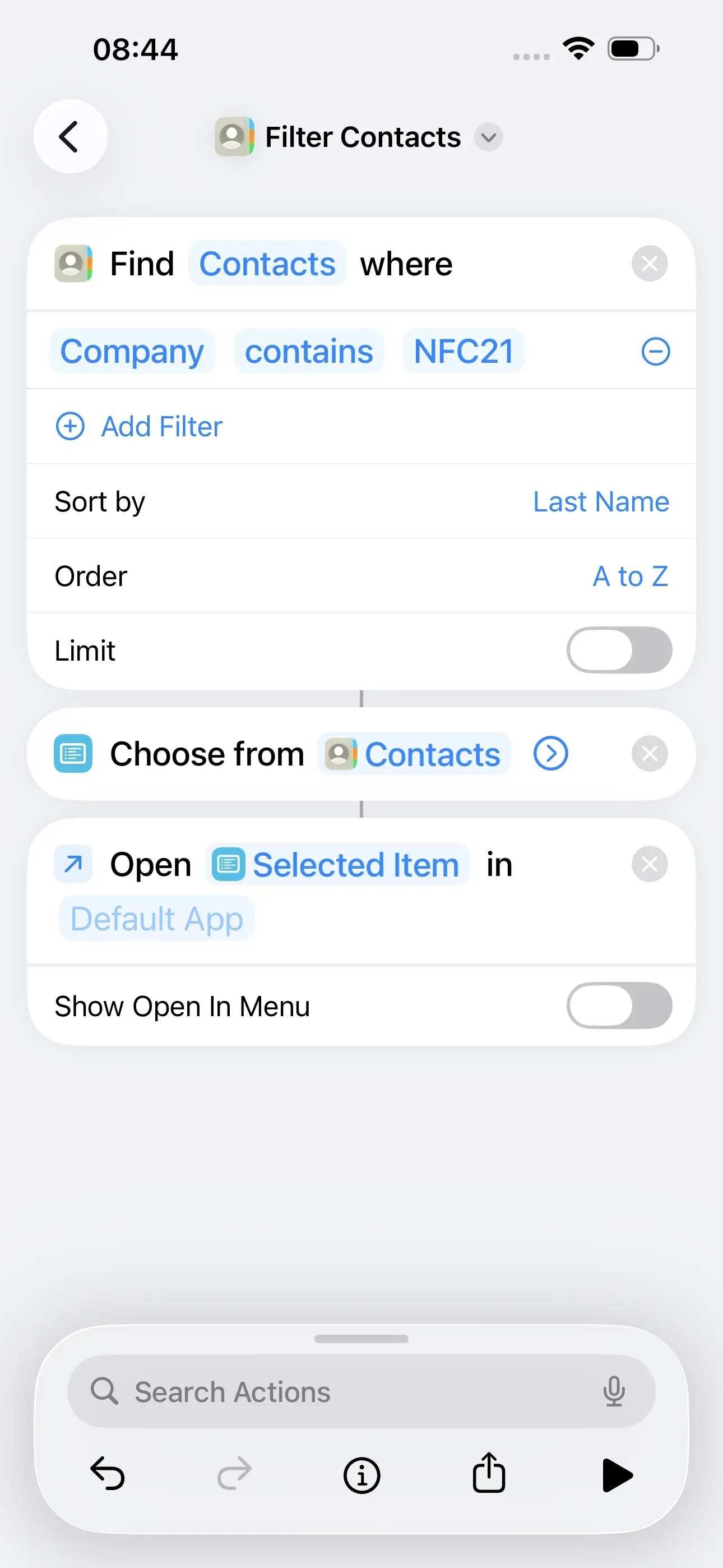
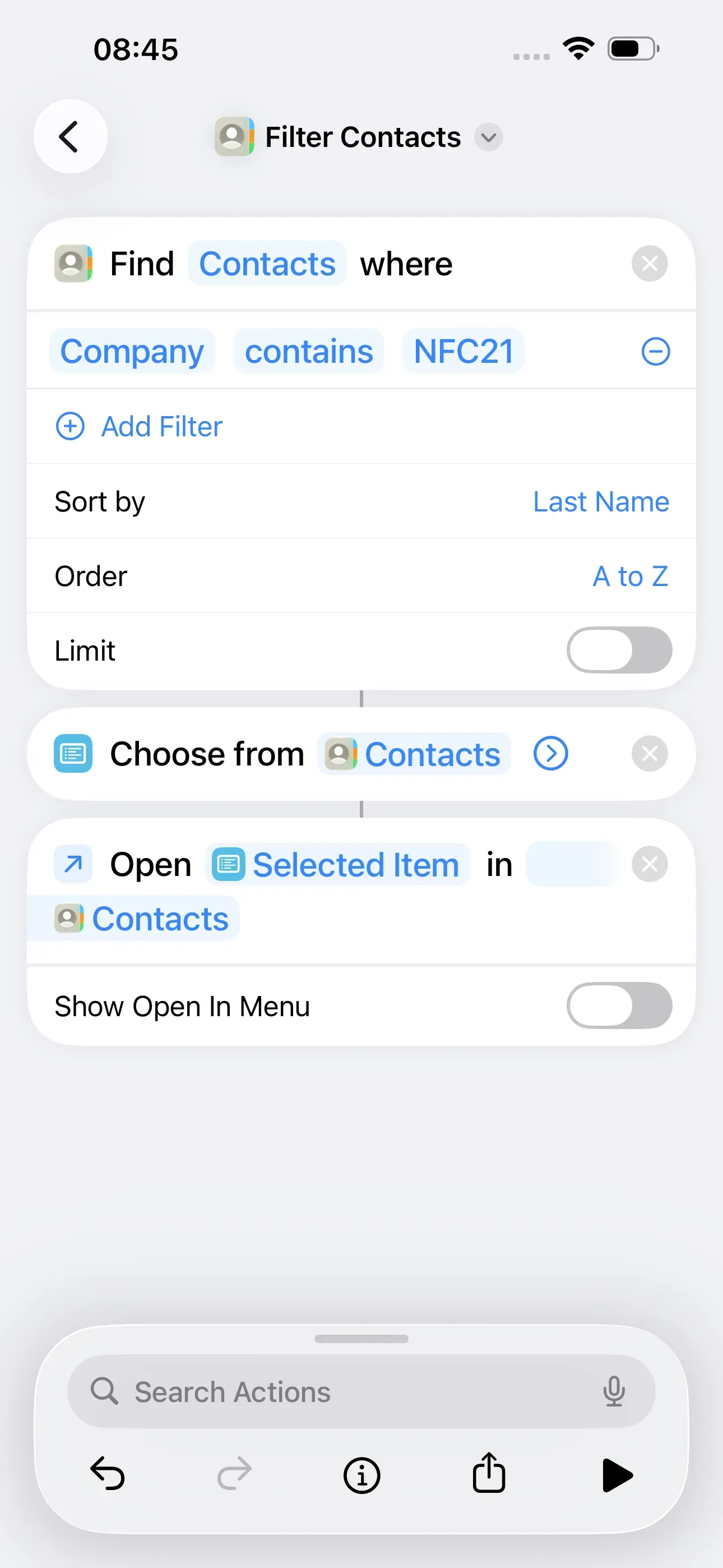
In a final step, we want to set the contact to open with a single tap. To do this, we search for Open File → Open File in the search bar. Then we tap on Default App and select Contacts. Finally, we deactivate Show Open In Menu.
The shortcut has now been created and we can go back to the home screen of the Shortcuts app.
Write shortcut to NFC tag
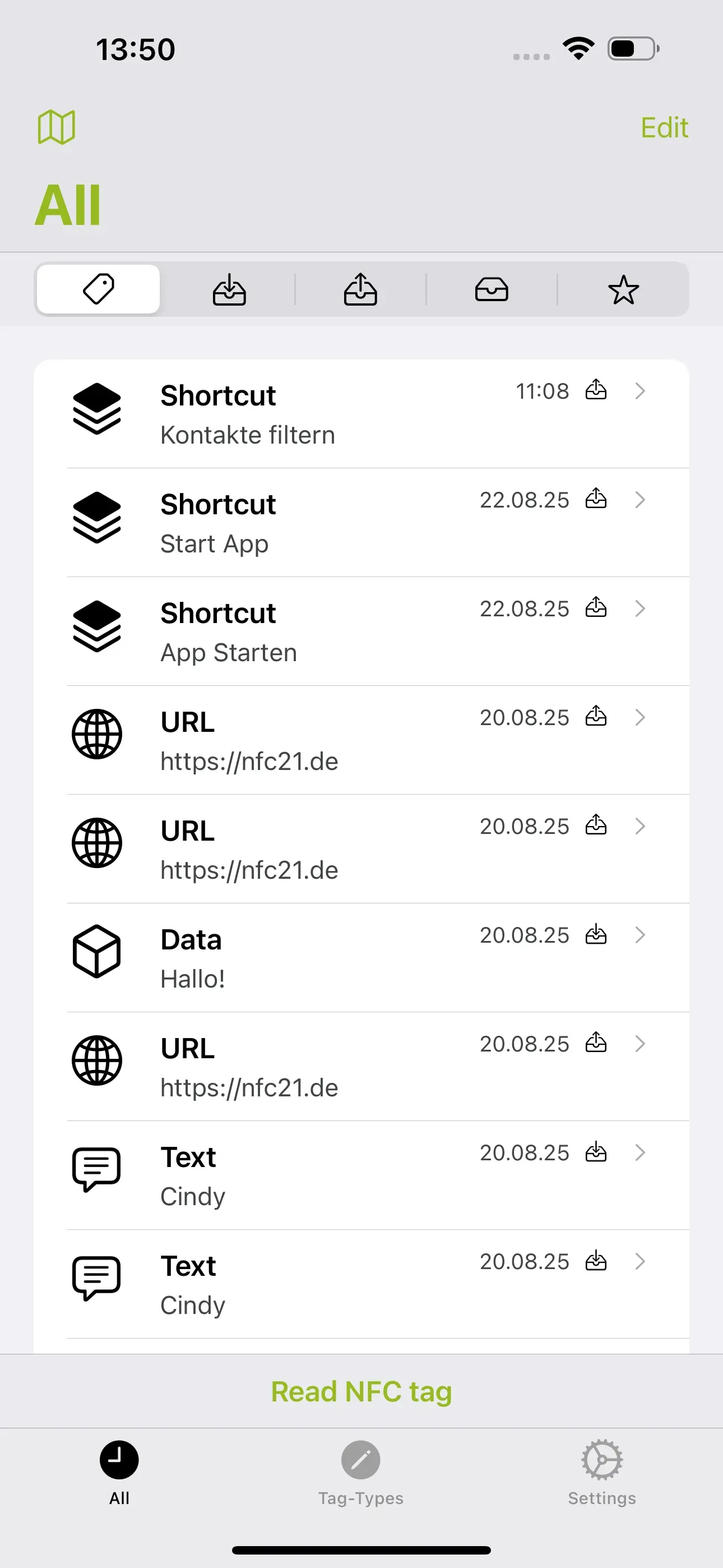
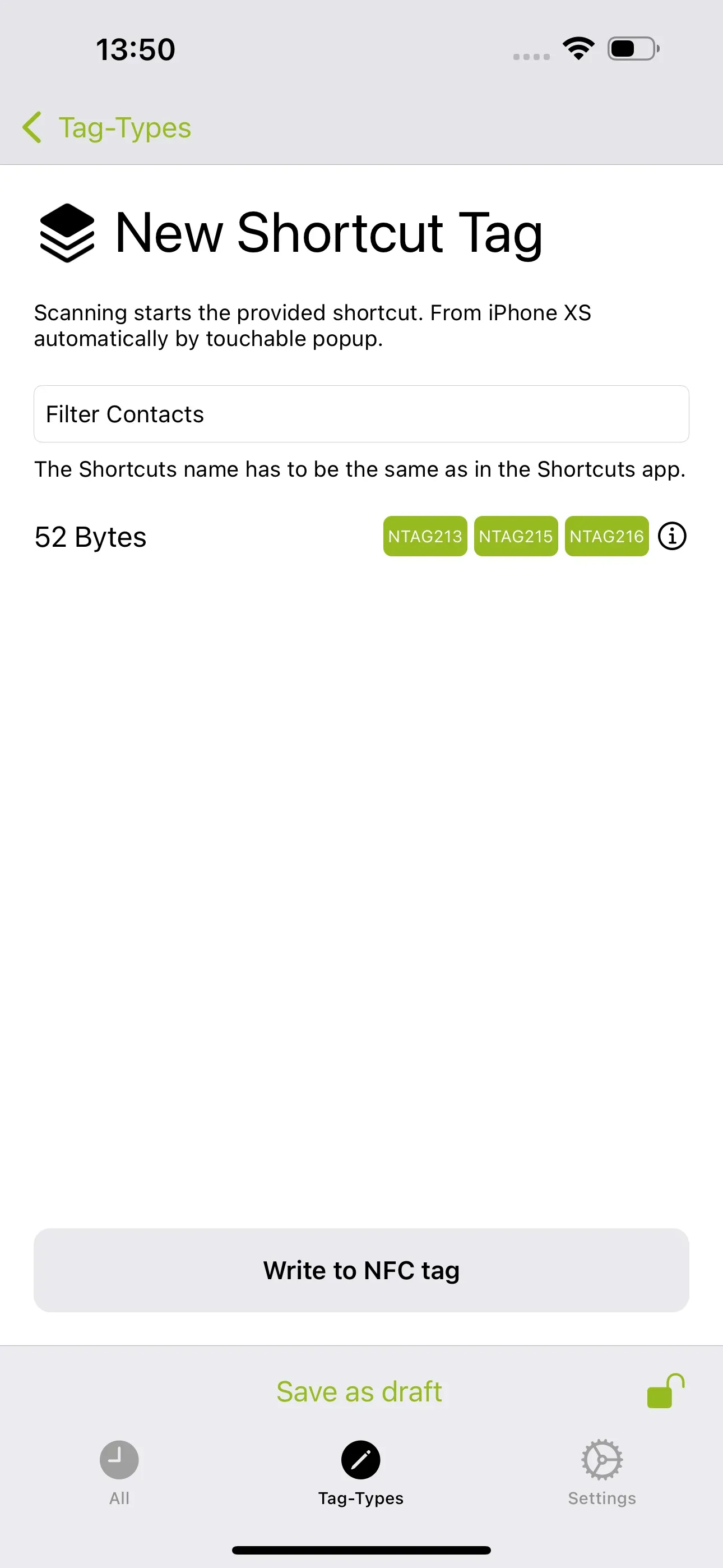
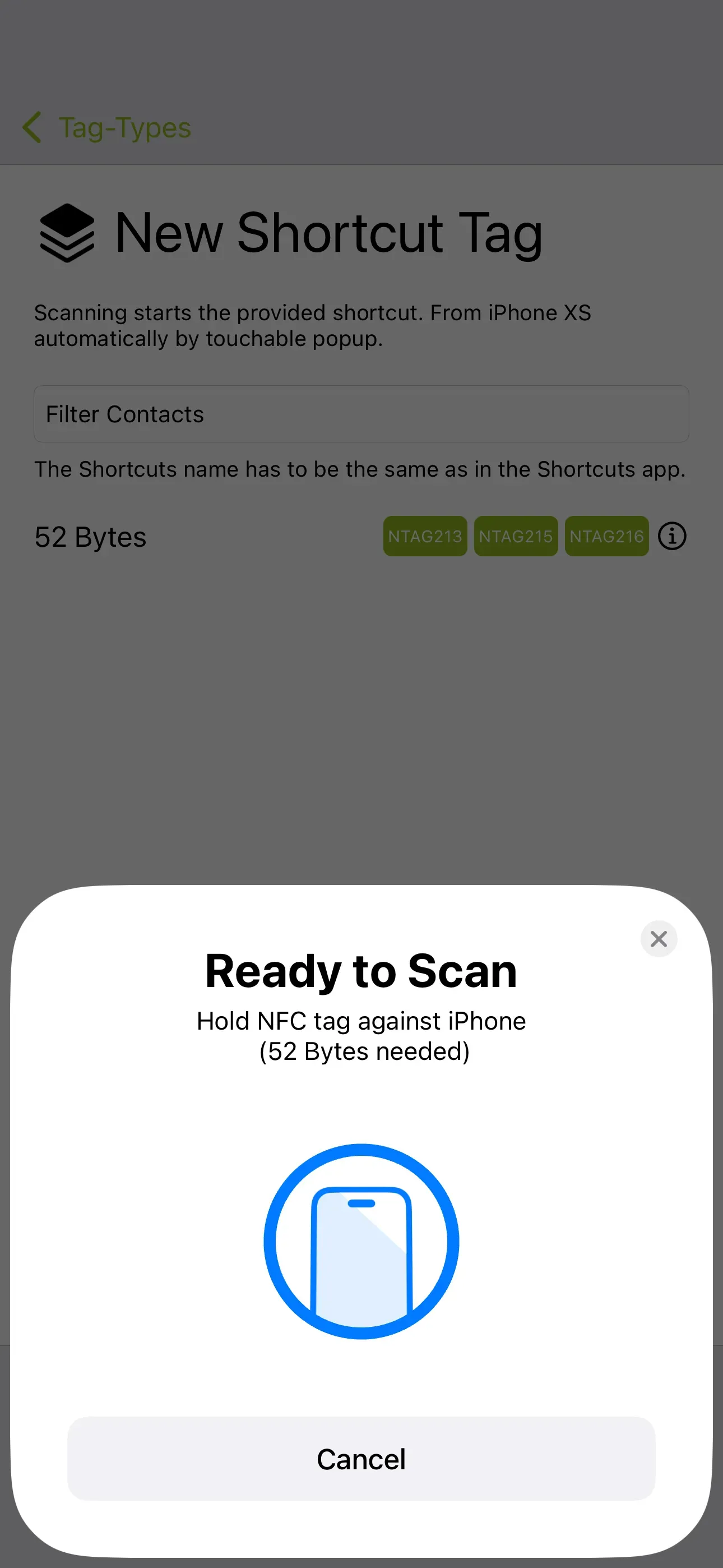
To save the shortcut to our NFC tag, we open the NFC21 Tools app (https://apps.apple.com/de/app/nfc21-tools/id1496636288?l=en-GB ). Then we tap on Tag-Types → + Shortcut. There, we enter the name of our shortcut Filter Contacts. We tap Write to NFC Tag and hold the NFC tag against our iPhone.
Download and upgrade shortcut
Note: If you do not want to create the shortcut yourself, you can download the finished shortcut directly here. To do so, click on this link. Now all you have to do is write the shortcut to the NFC tag.
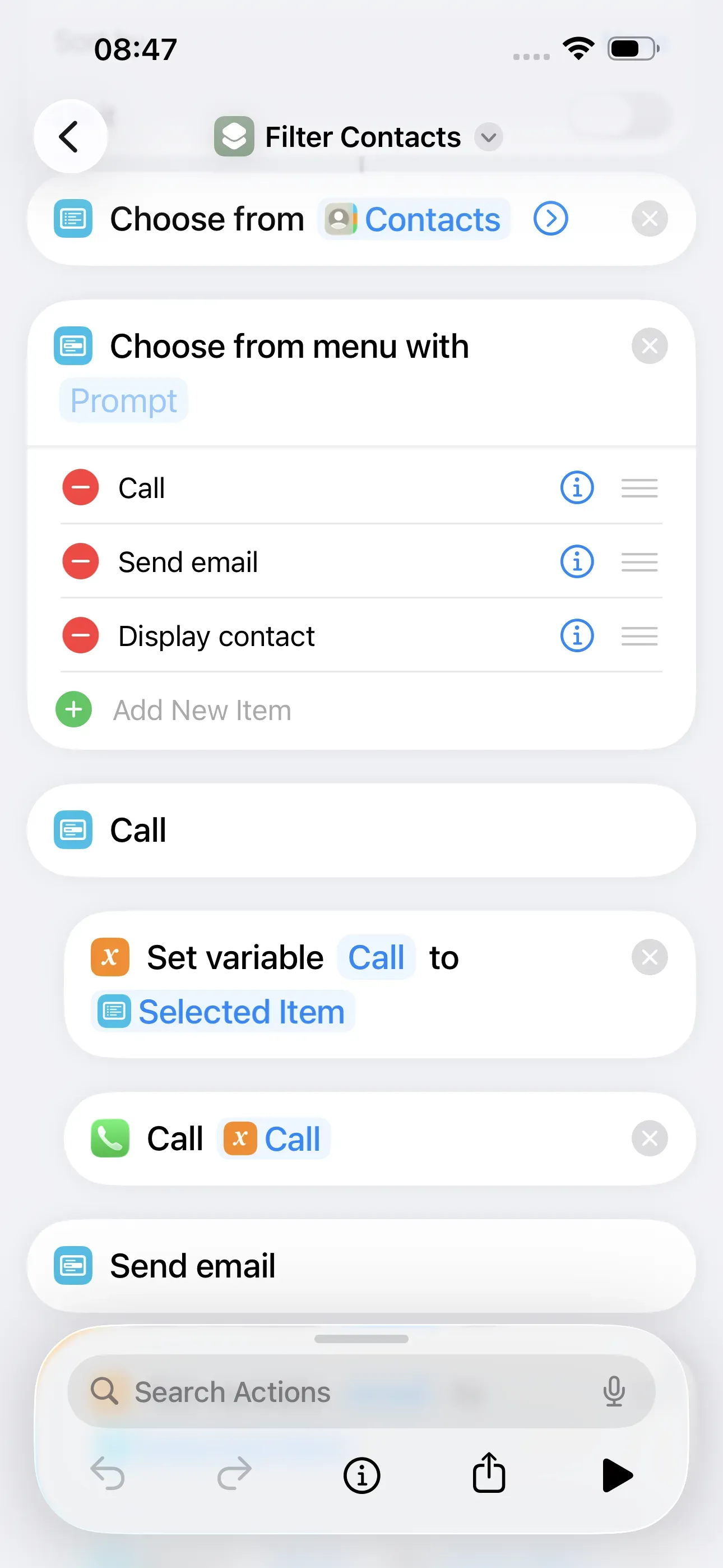
We have also expanded the shortcut: In the example above, the filtered and selected contact is simply displayed. With this expansion, it is now possible to additionally select whether the contact should be called directly, emailed or simply displayed. You can download the extended shortcut here and write it to the NFC tag.
Summary
In this How2, we explained how contacts from the address book can be automatically filtered and listed according to specific criteria when scanning an NFC tag. The criteria used to filter the contacts are highly individual and can be flexibly configured. For example, contacts can also be filtered by initial letter or address.
Associated operating systems
iOSFirst published: 25.07.2023 / Updated: 13.11.2025