 Near Field Communication (NFC) products Online Store
 Worldwide Shipping (free DE shipping)

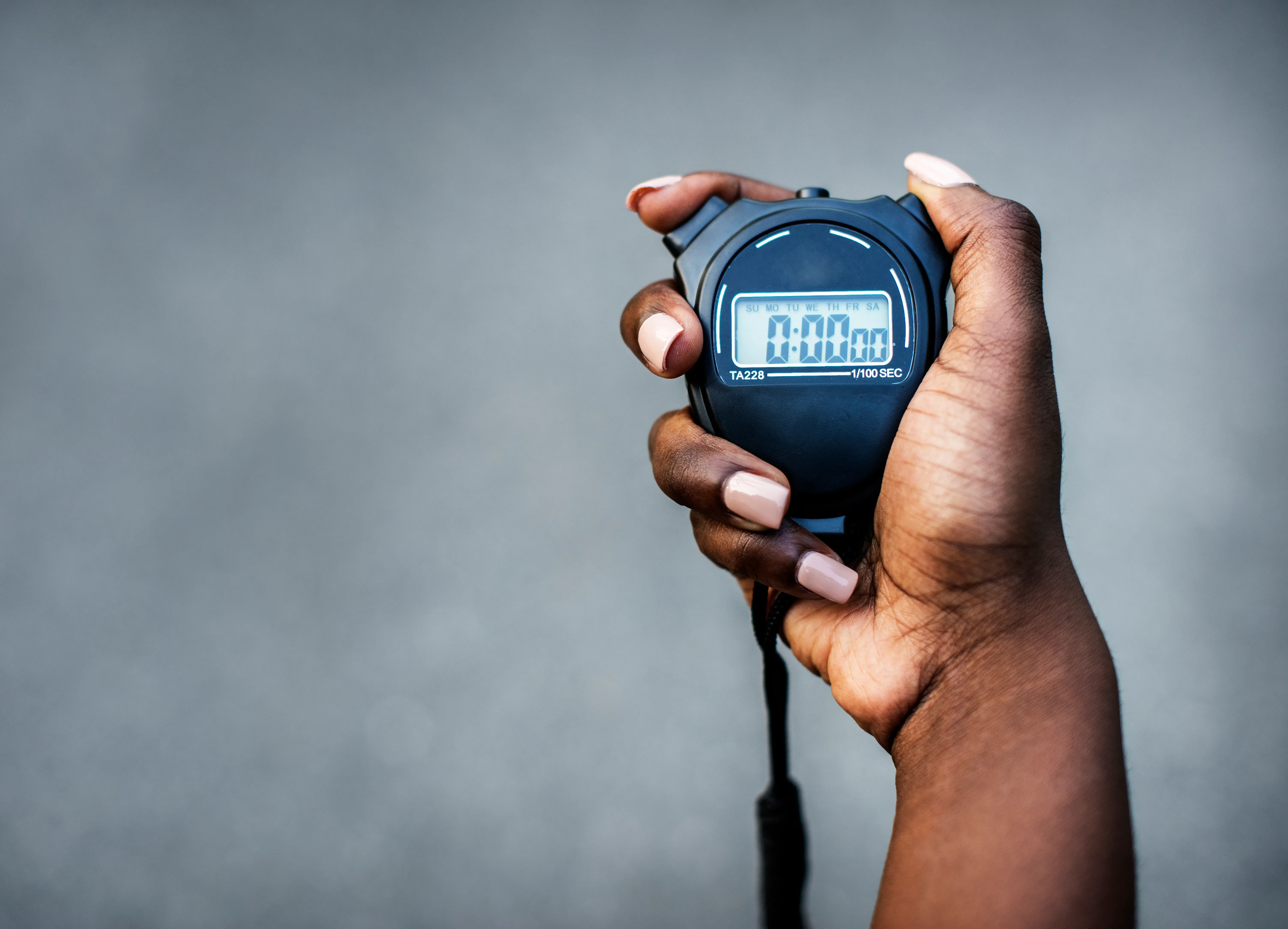
With NFC tags such as stickers and magnets, you have the option of making certain actions automatically executable. For example, you can set a timer or a stopwatch and have it executed directly without having to touch the screen or open the app manually. Imagine you are doing a home workout and you want to time how long you manage to do push-ups or stay in a certain yoga position - a stopwatch is useful in both cases. Using NFC, you can start the stopwatch automatically with just one scan, for example by attaching an NFC magnet or an NFC sticker to your desk or pinning it to your wall. In this How2 we explain how you can start your stopwatch by creating a shortcut and then writing it on an NFC tag.
Content:
Create shortcuts: Start stopwatch
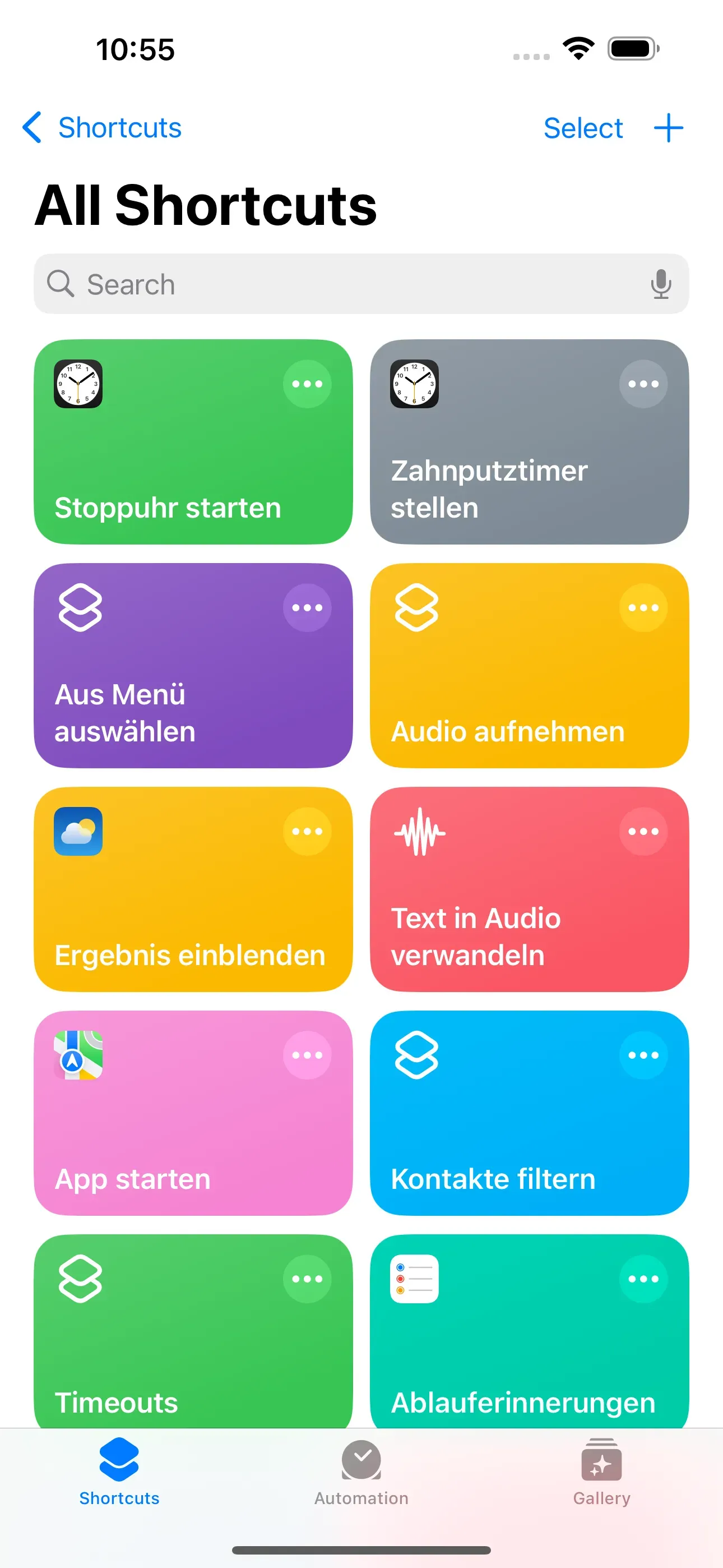
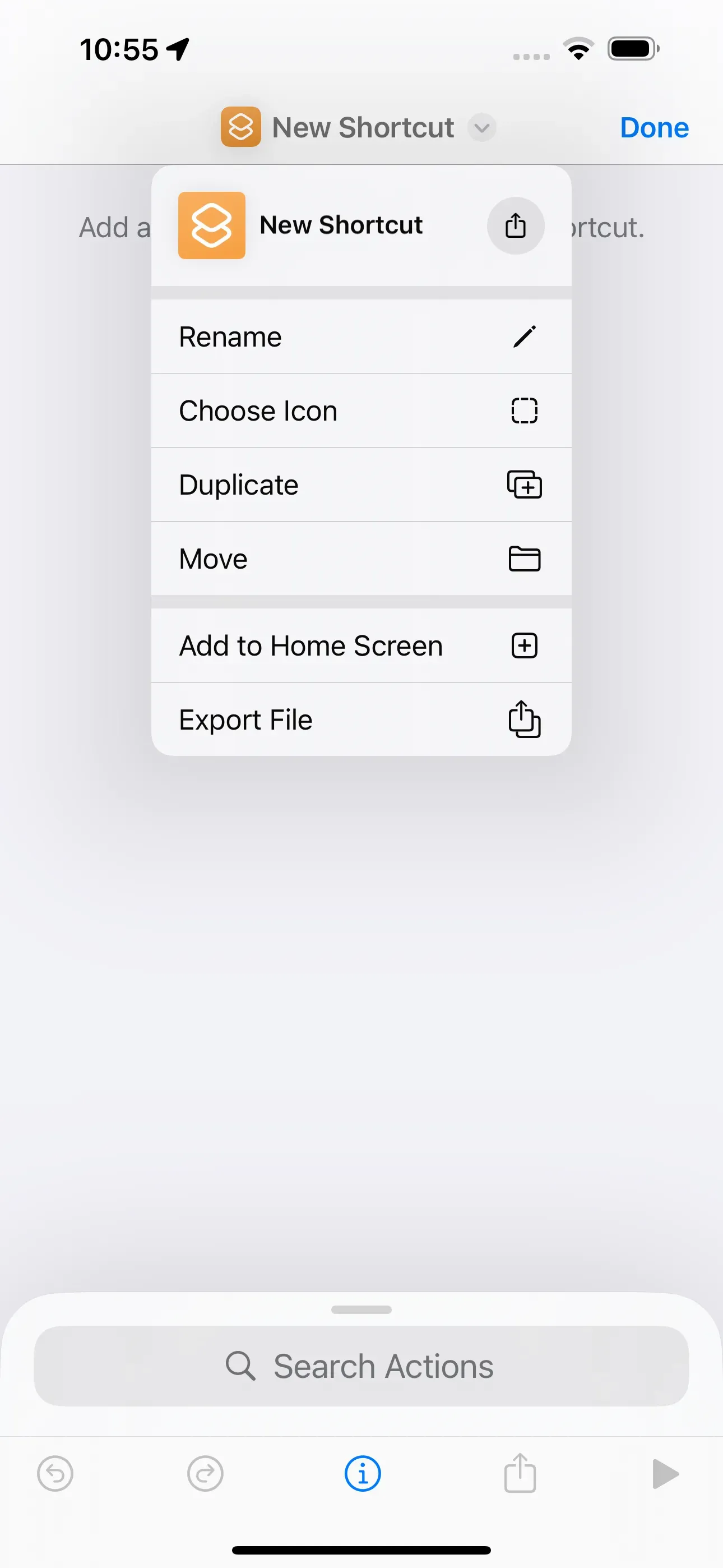
To start a stopwatch on your iPhone and trigger it via an NFC tag, you need the Shortcuts app. First you need to create a shortcut. To do this, press on + in the top right-hand corner of the app. Then tap on New Shortcut and rename it Start Stopwatch. Finally, tap on Done.
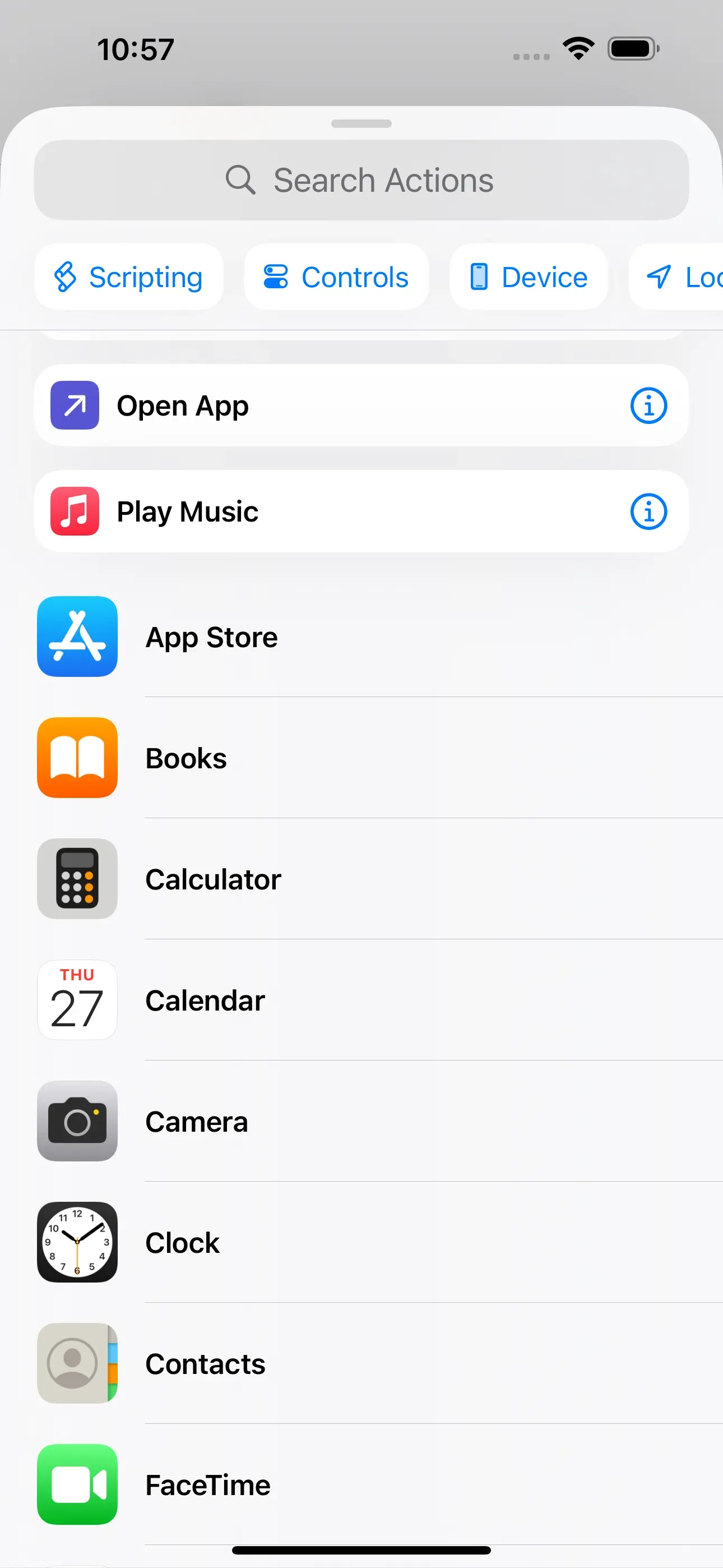
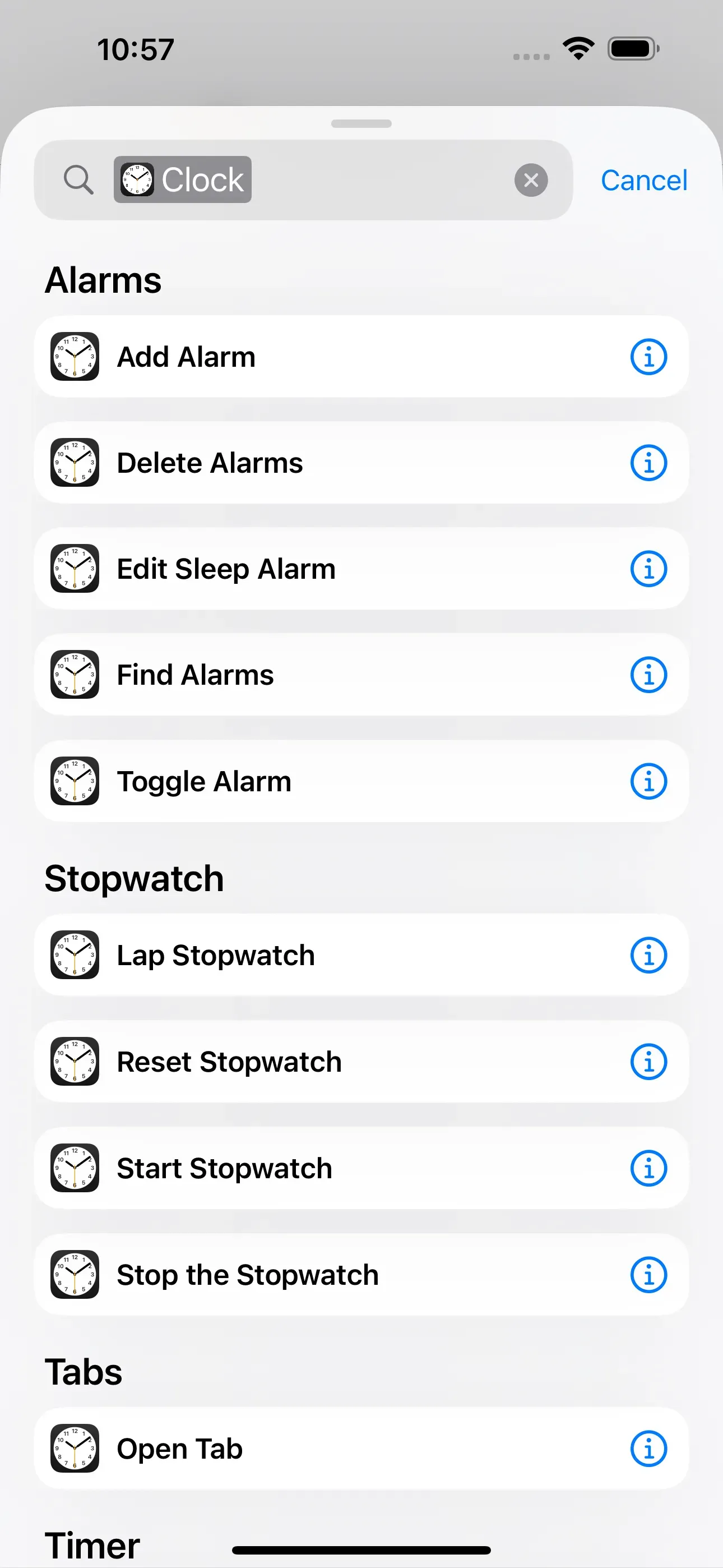
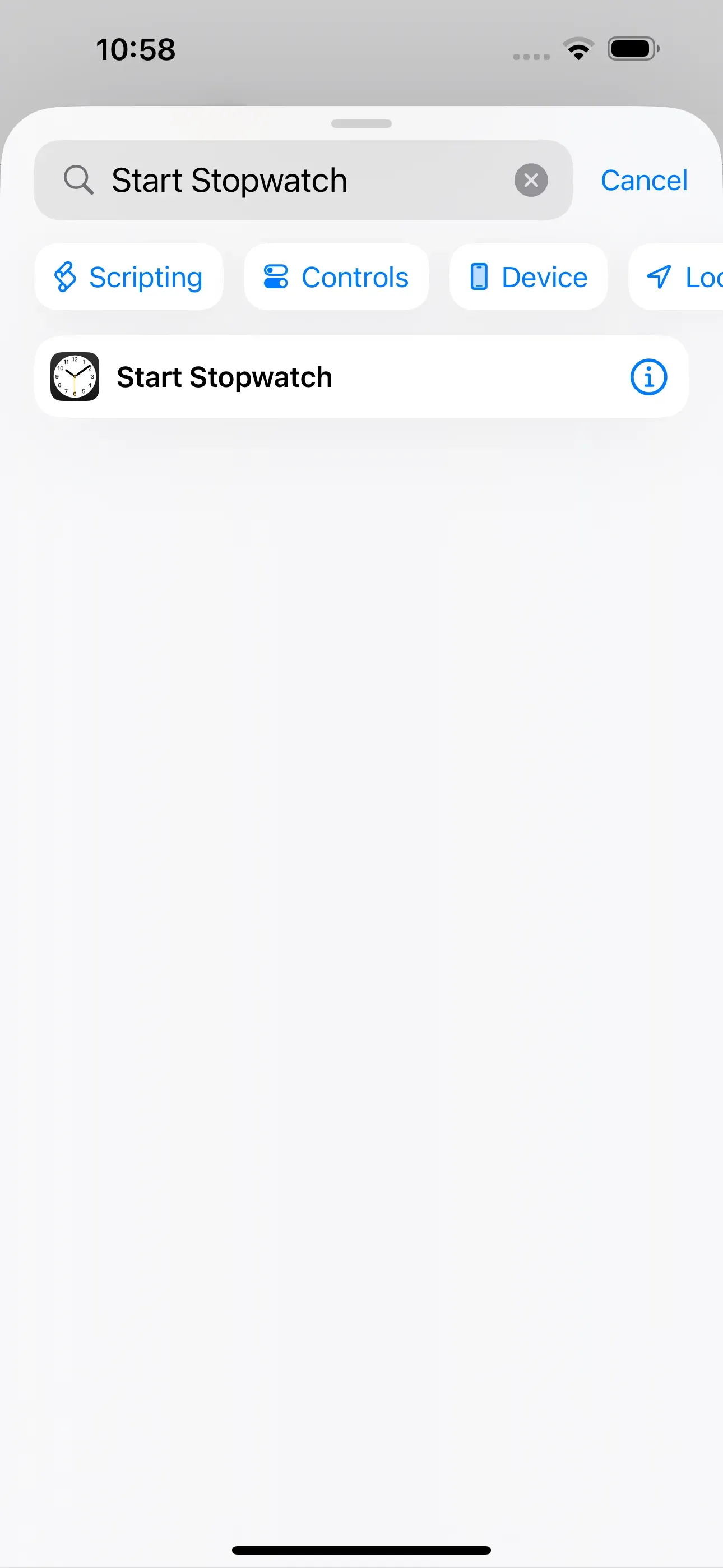
You can now see that there is a list of action further down. To create the shortcut, you must select an action from this list. In our case, scroll down and then tap on the Clock action. Then click on the Start Stopwatch action. Or you can enter Start Stopwatch directly in the search field and then tap on the action.
Create shortcuts: Show confirmation
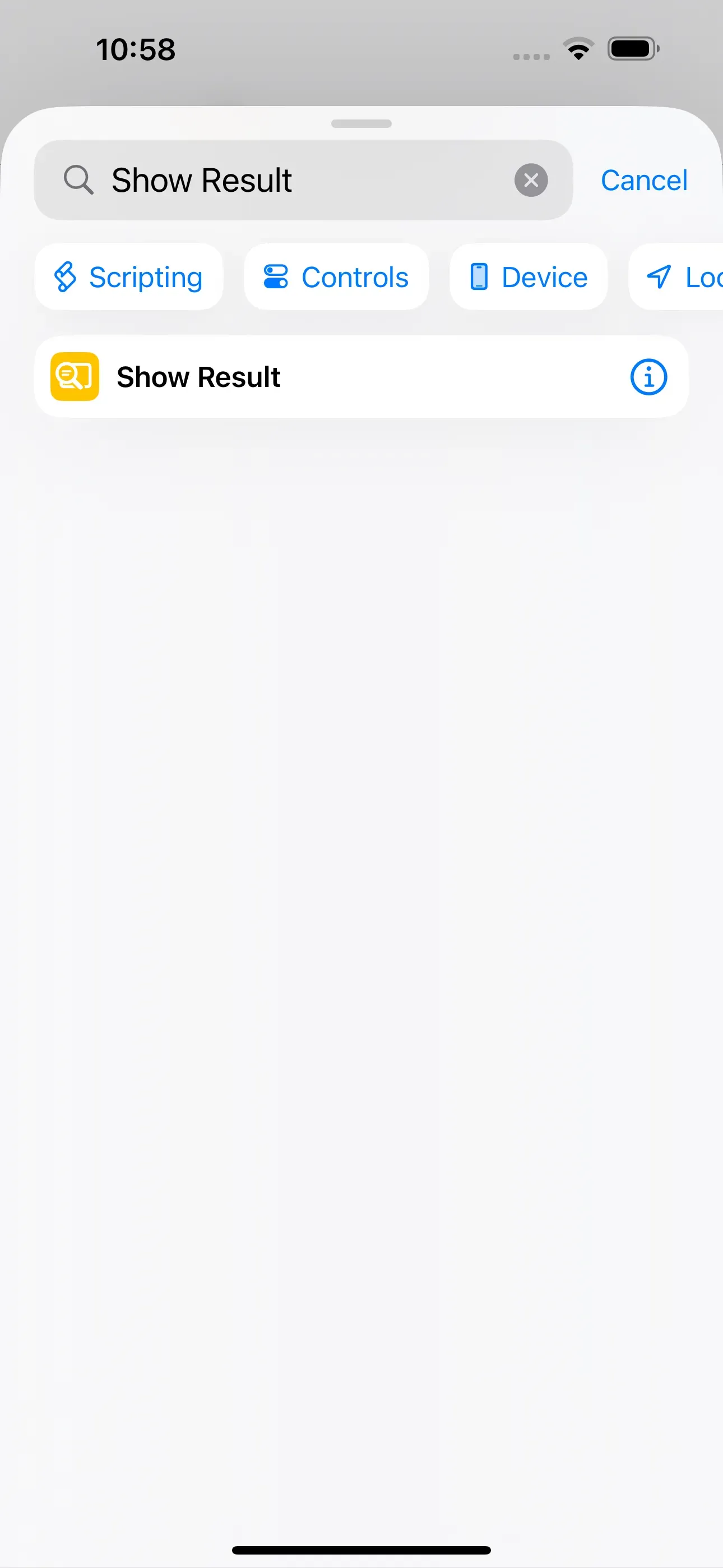
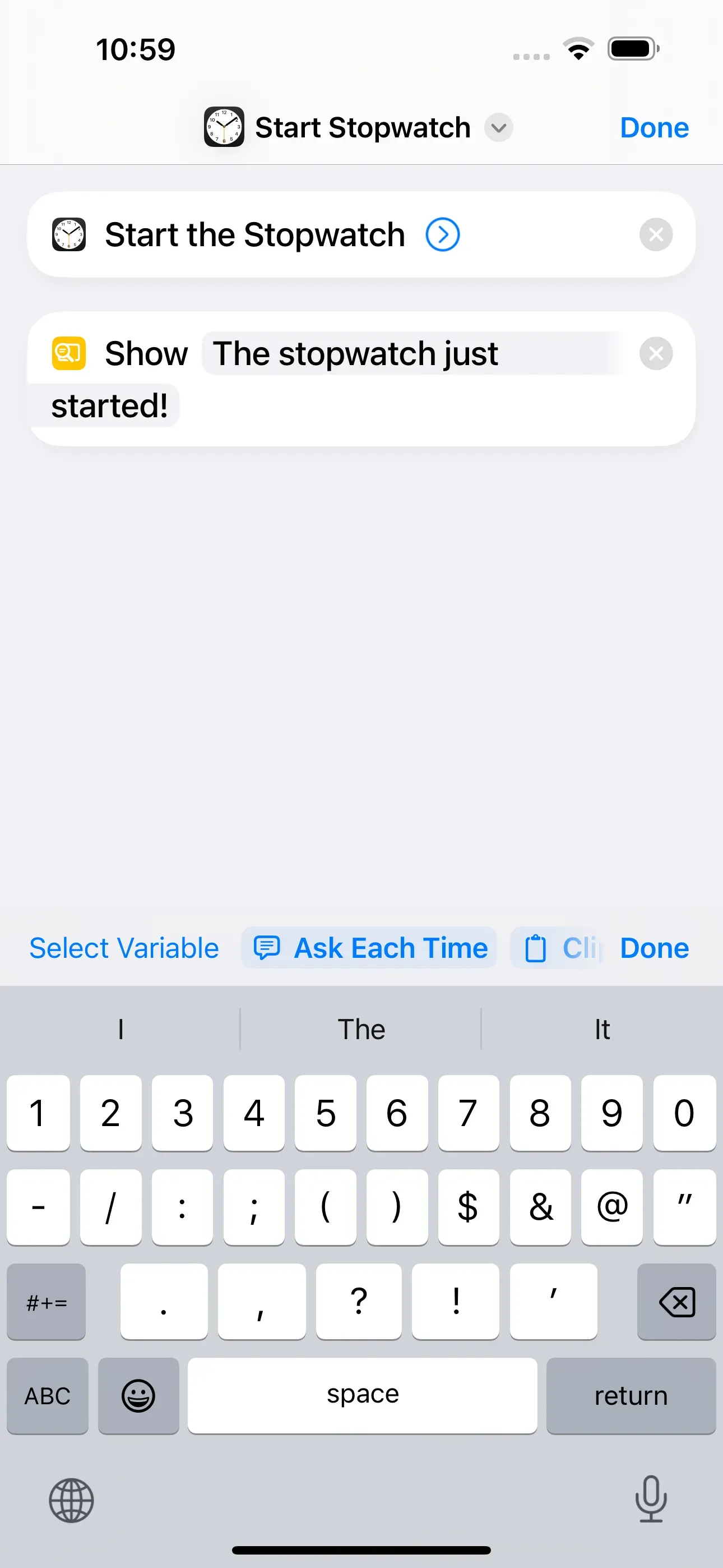
In the next step, you have the option of configuring a confirmation. This means that you can enter a text that is displayed when the stopwatch is started. This allows you to notify yourself that the stopwatch has been started. To do this, go back to the list of actions and enter Show Result in the search field. After you have tapped on it, you can enter the following sentence in the Result field, for example The stopwatch just started! Click Done to save the shortcut. You can use the play button ► at the bottom right to see how the short command will be called up via the NFC tag.
Save short command on NFC tag
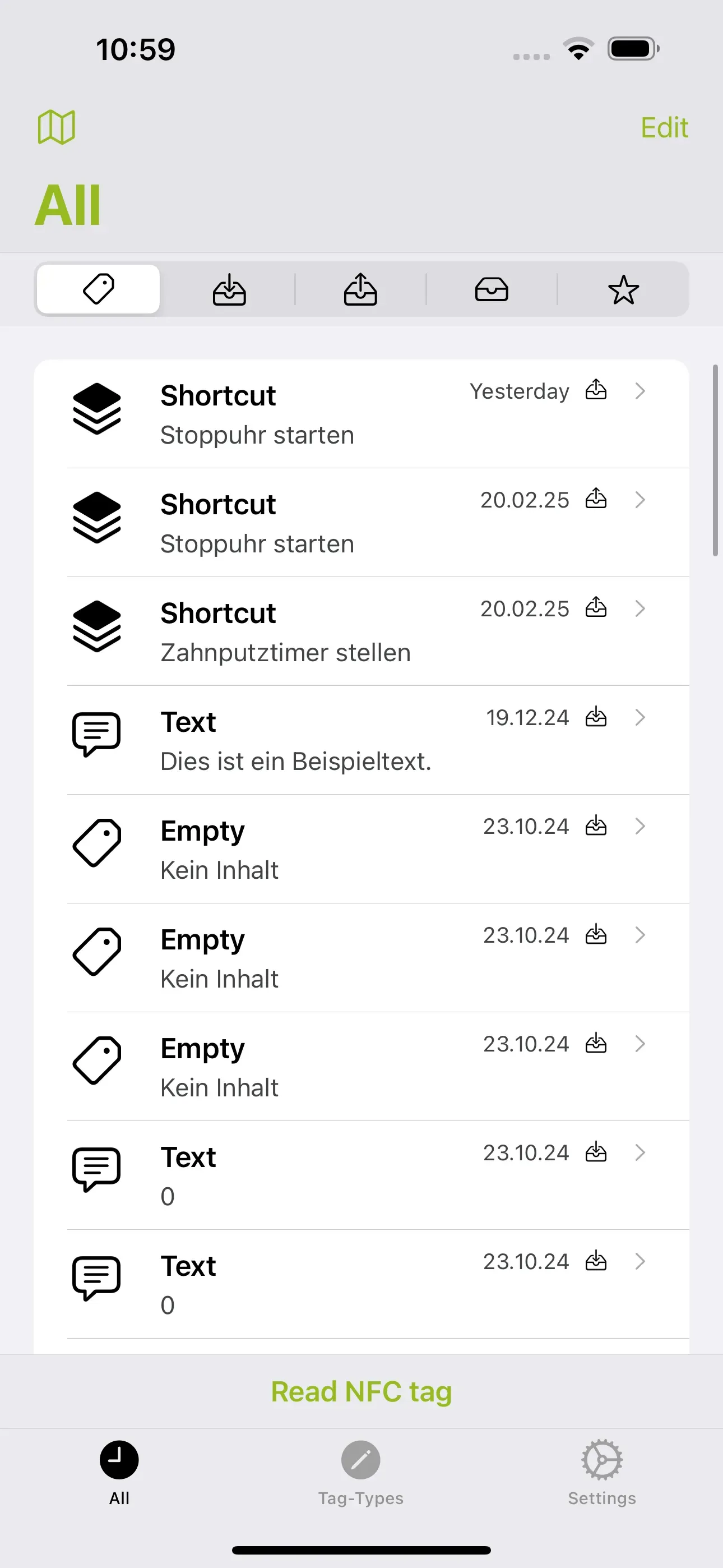
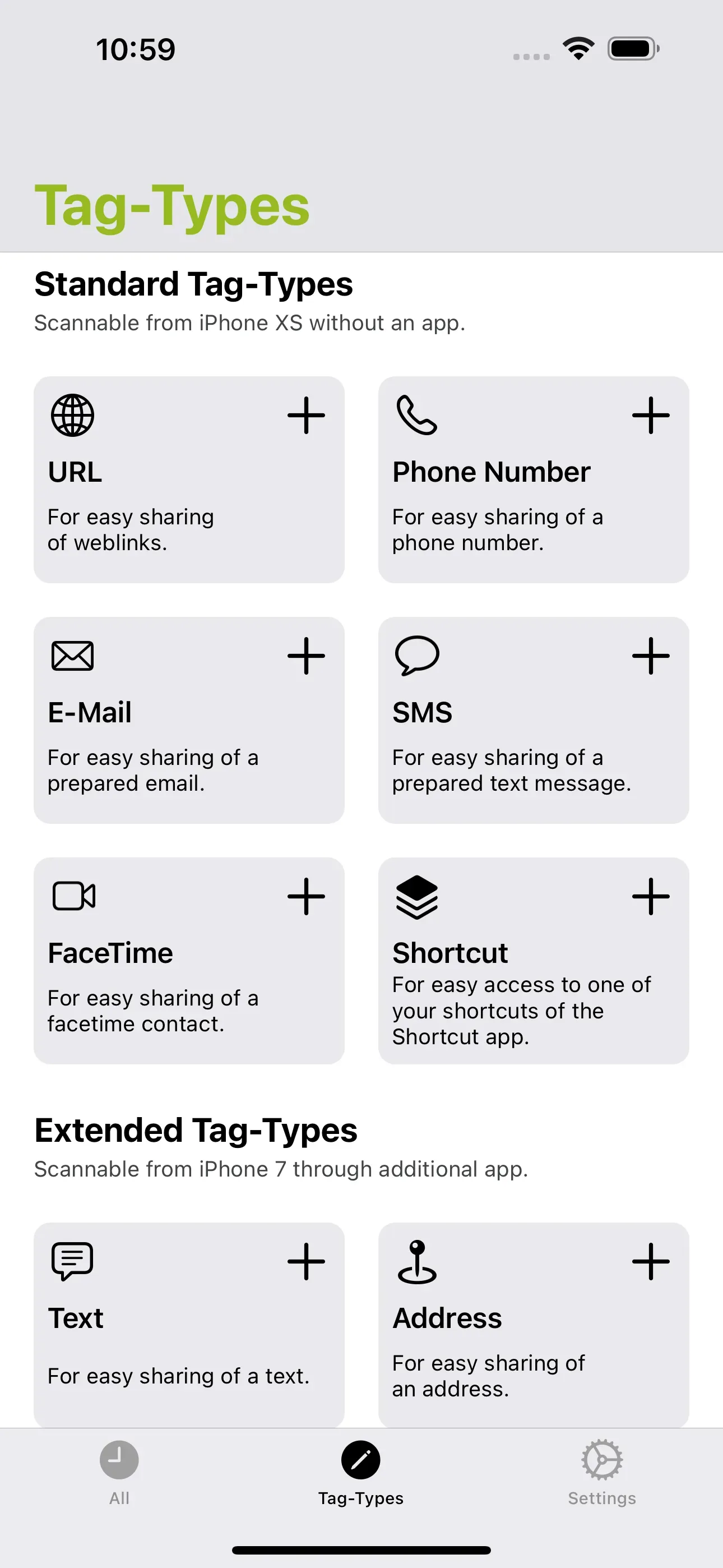
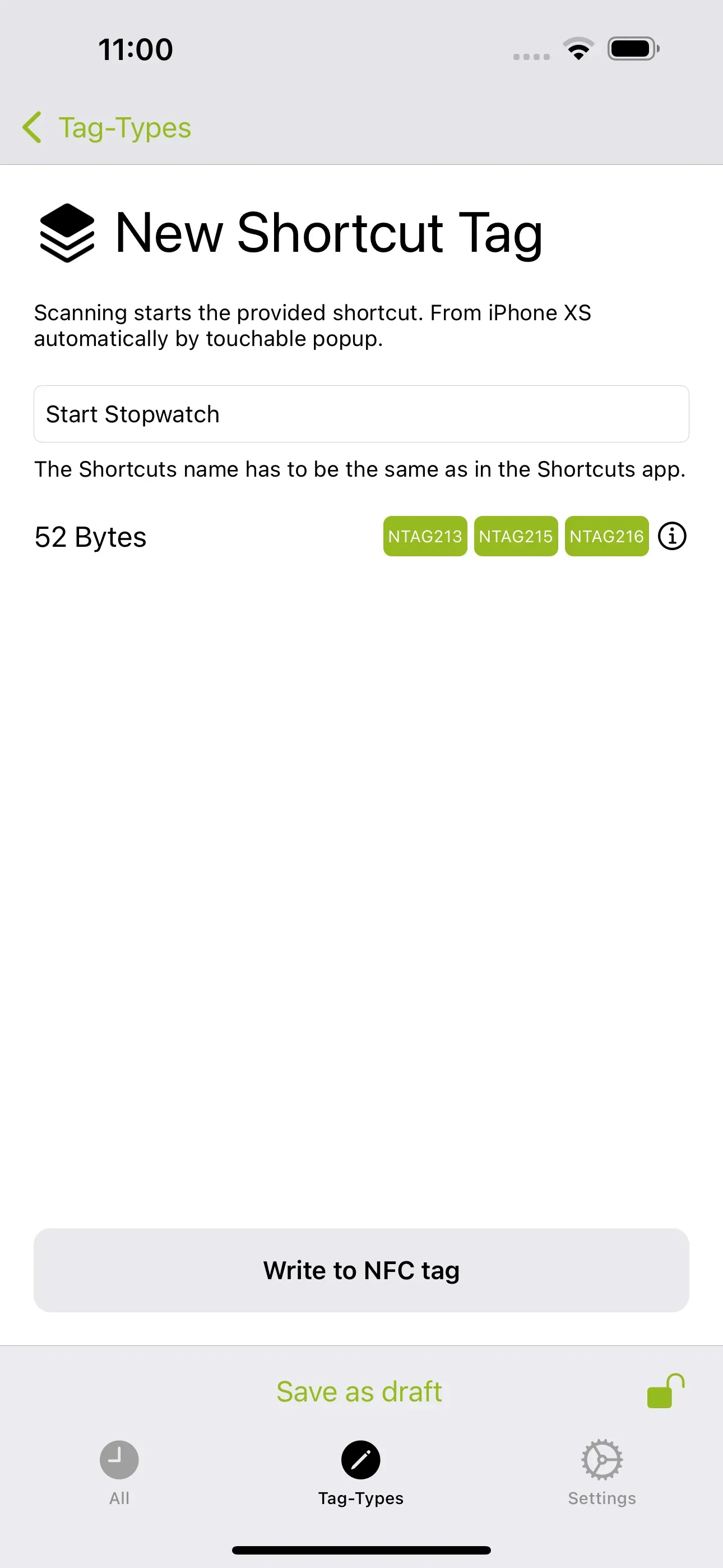
Now you just need to save the shortcut to an NFC tag. To do this, open the app NFC21 Tools → Tag-Types → + Shortcut. Then the New Shortcut Tag page opens. Enter the name of the shortcut Start Stopwatch in the text field and tap Done. In a final step, tap Write to NFC tag and hold the top edge of your iPhone over the NFC tag so that the shortcut can be saved on the NFC tag.
Important note: It is important that the name of the shortcut from the shortcut app and the name you enter in the text field match! If the names do not match, the scan of the NFC tag will show that the shortcut was not found and the file does not exist.
Summary
We have programmed a short command and saved it on an NFC tag that allows you to start a stopwatch automatically with just one scan and measure your time. You will also receive a notification that the stopwatch has been started. This means you will soon be able to easily recognise whether you have achieved your sporting goals.
You not only have the option of starting a stopwatch, but you can also set a timer using short commands and we explain how this works here.
With NFC21 Tools you can not only save short commands on an NFC tag, but you can also save many other types of data. We explain how this works here.
More How2s
Create toothbrush timer via NFCFirst published: 23.07.2025 / Updated: 23.07.2025