 Near Field Communication (NFC) products Online Store
 Worldwide Shipping (free DE shipping)

By scanning an NFC tag, the travel time to a defined target (e.g. home) can be calculated based on the current location. This time entry can then be automatically sent to a contact via messenger (e.g. WhatsApp or iMessage). Especially for typical recurring trips, such as the way home with fluctuating traffic conditions, a current estimate of the arrival time can be easily determined and communicated via scan. For example, you can attach an NFC sticker to your desk in the office or hang an NFC tag on your car keys and automatically let your family know when you will be home before you set off.
As always, the application scenarios can be expanded in many ways.
In this How2 we will explain how to create and customize such a shortcut command with the iPhone. We will then save the command on an NFC tag, such as a sticker, a tag or a wristband.
Info: If you want to download the finished shortcut directly and save it on the NFC tag, skip straight to the end of this article.
Content:
- Location and target search
- Drive or walk the route
- Send travel time via iMessage
- Write shortcut on NFC tag
Location and target search
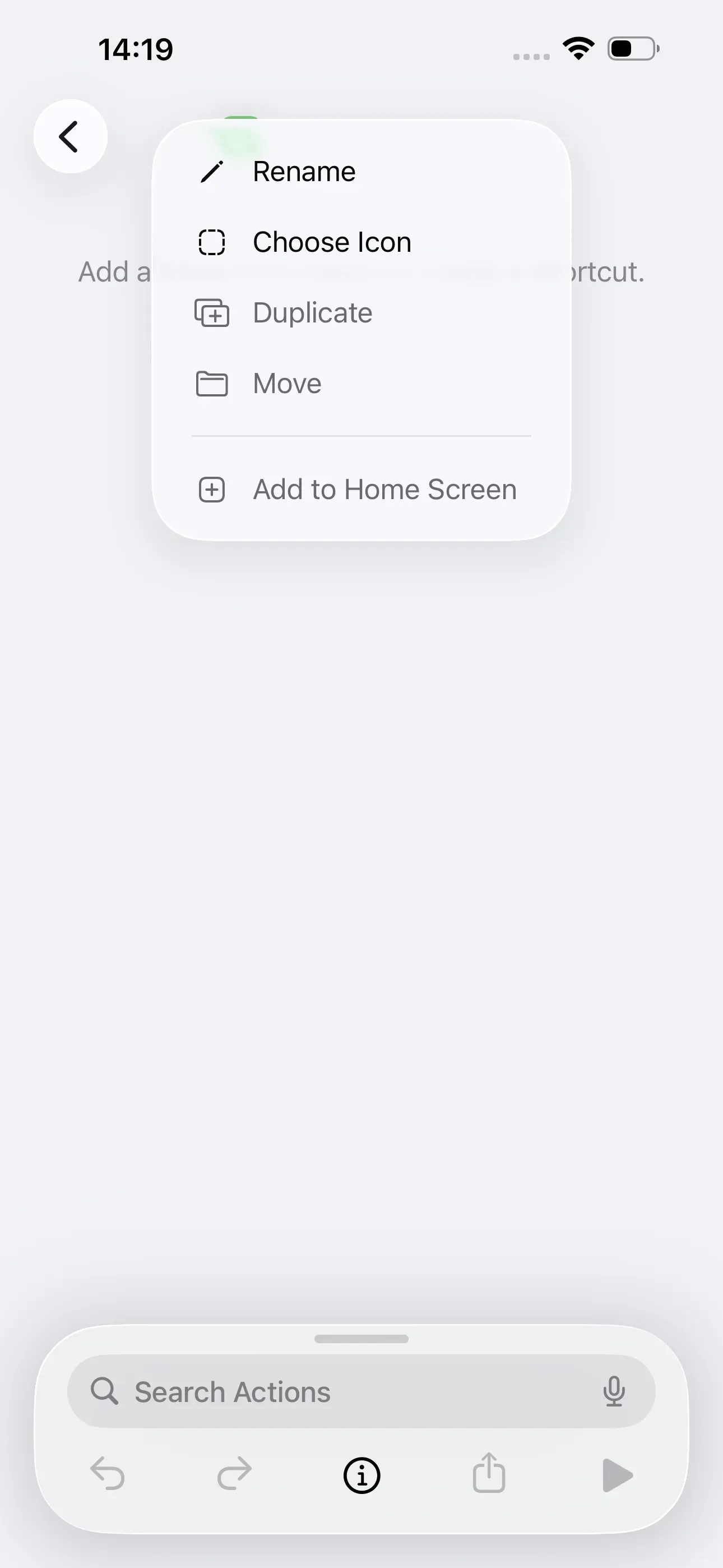
Firstly, we open the Shortcuts app and create a new shortcut using + in the top right-hand corner. We name this Travel Time.
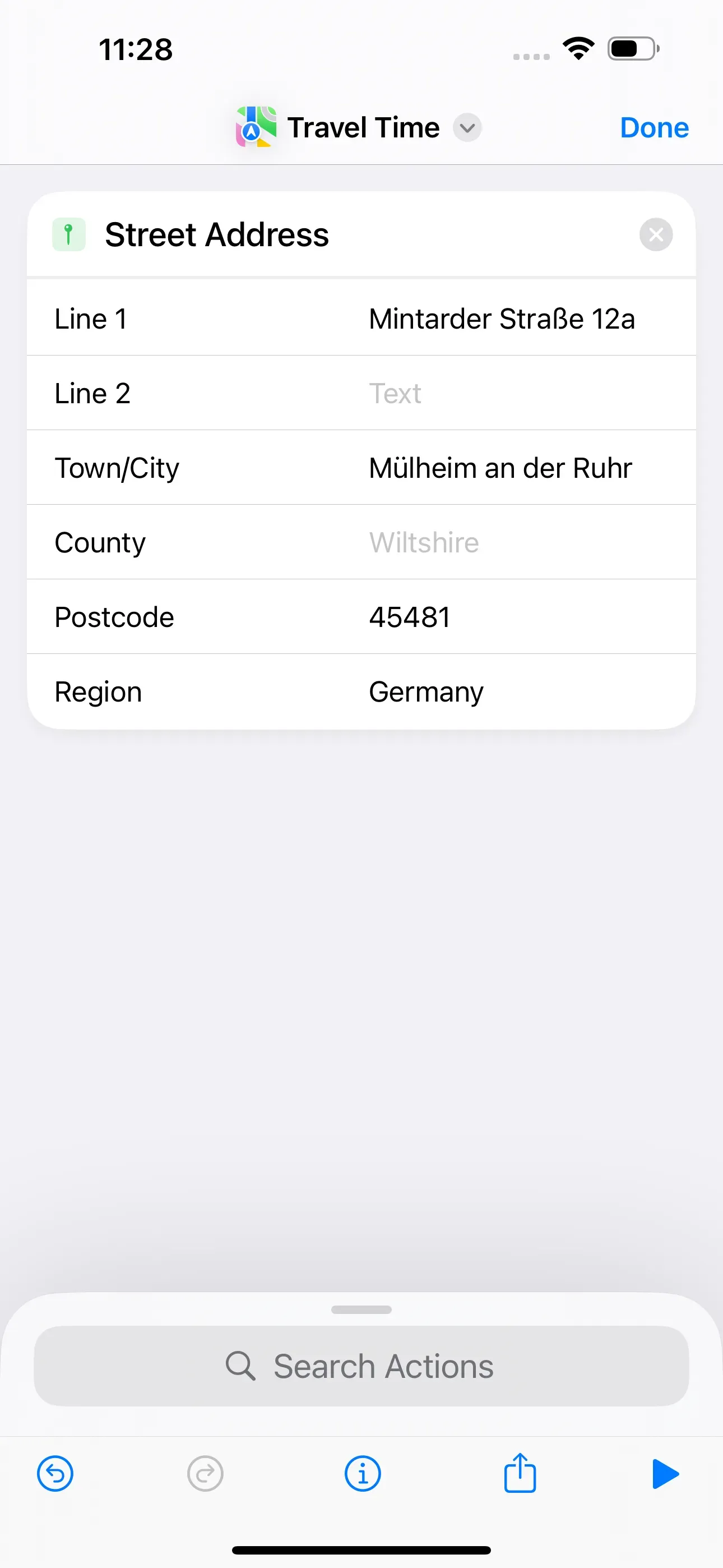
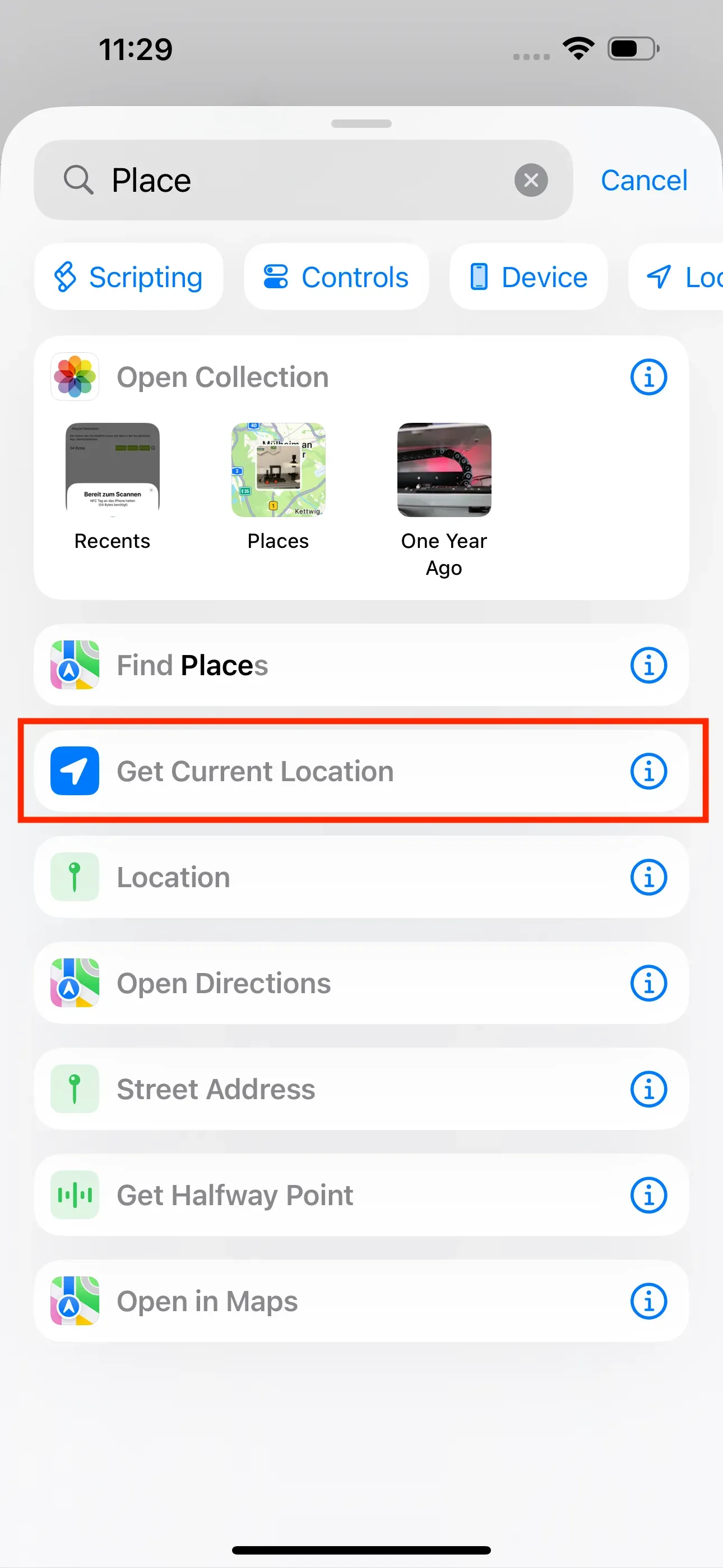
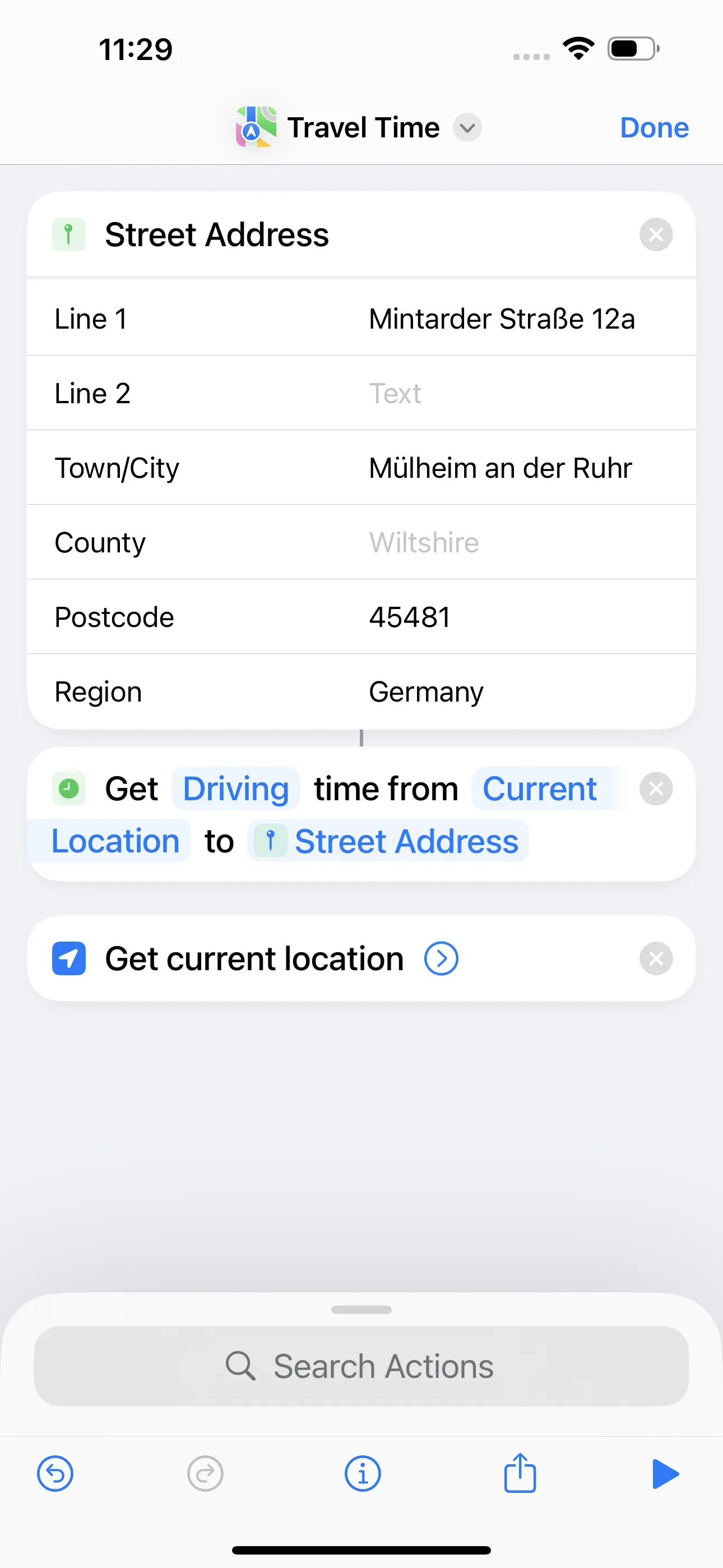
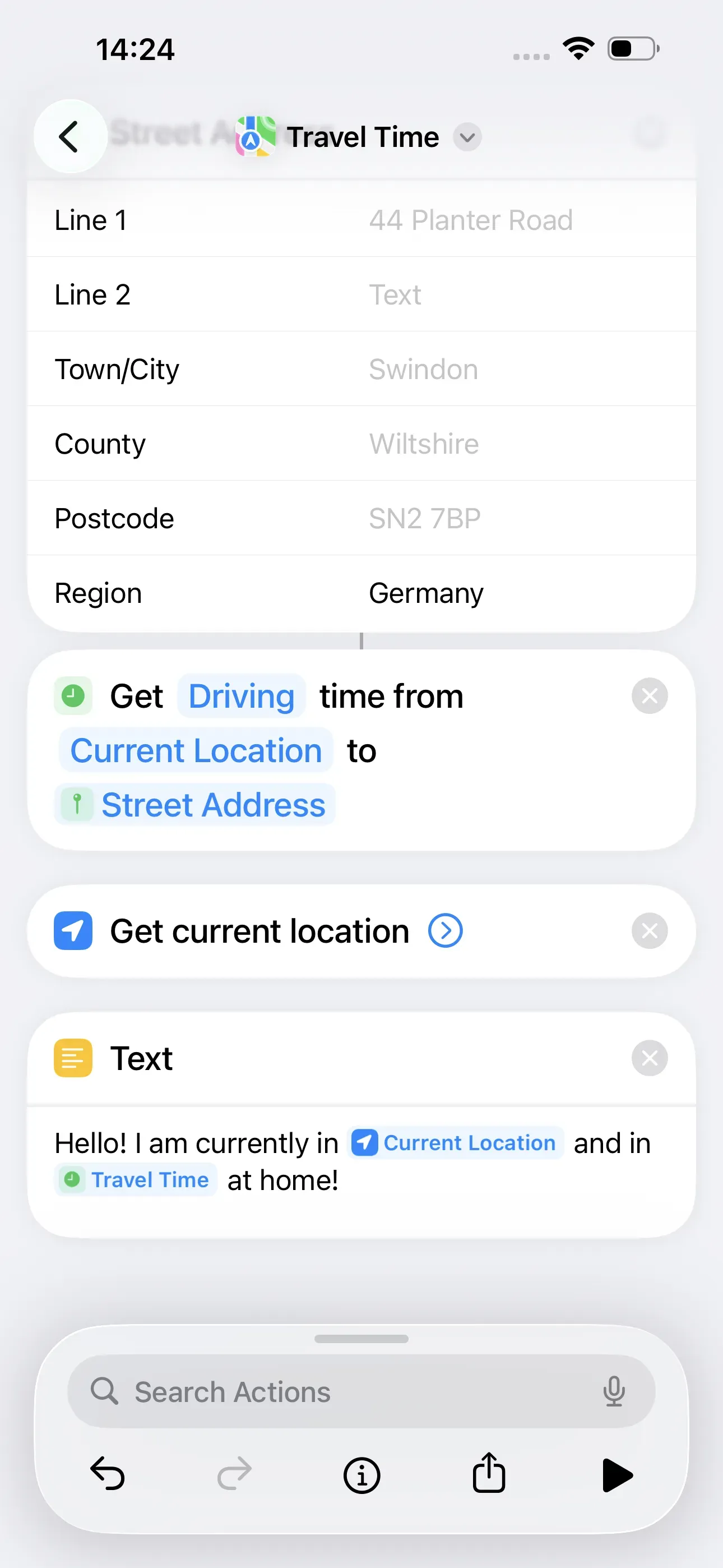
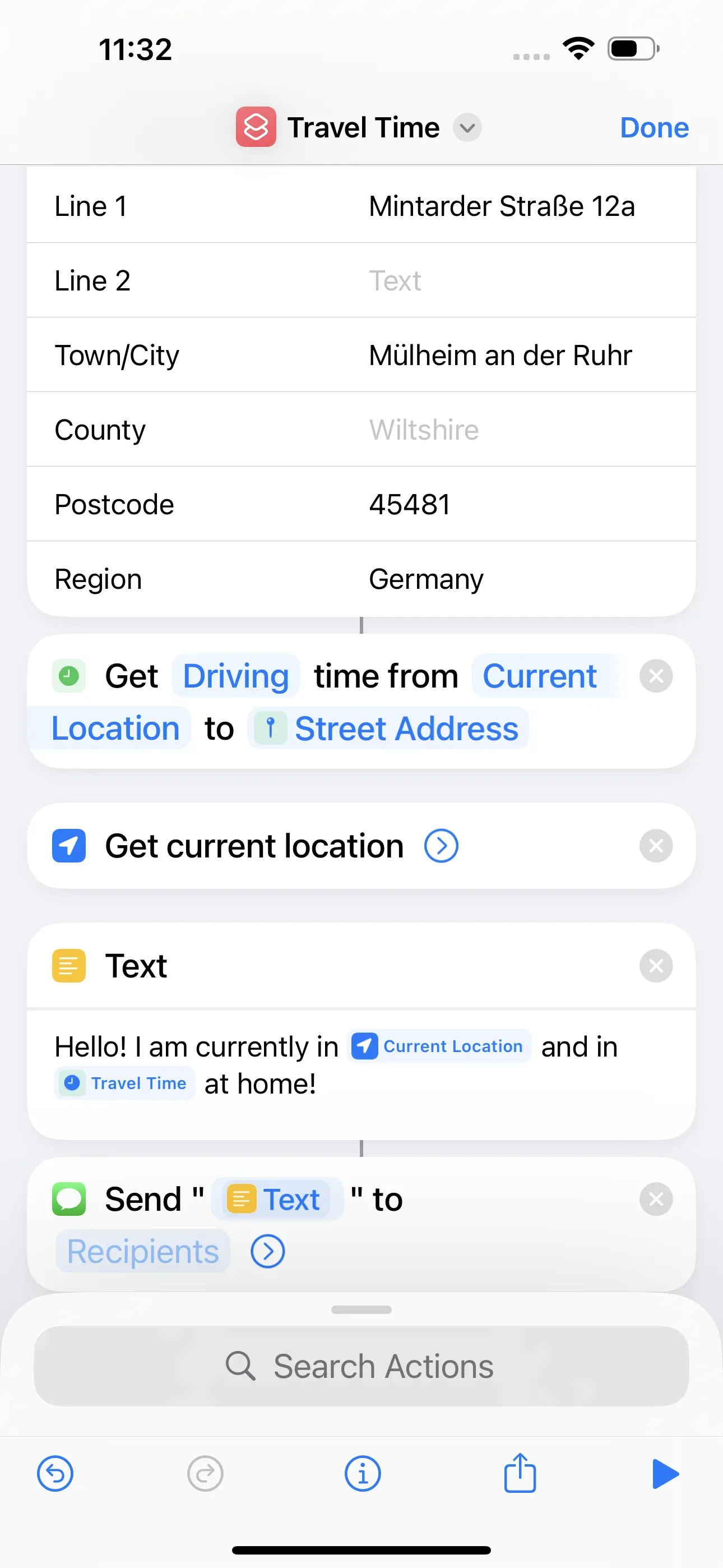
The first thing we do here is to define a destination. To do this, we enter Street in the search bar and select Street Address. Here we enter the address to which the NFC tag should always point.
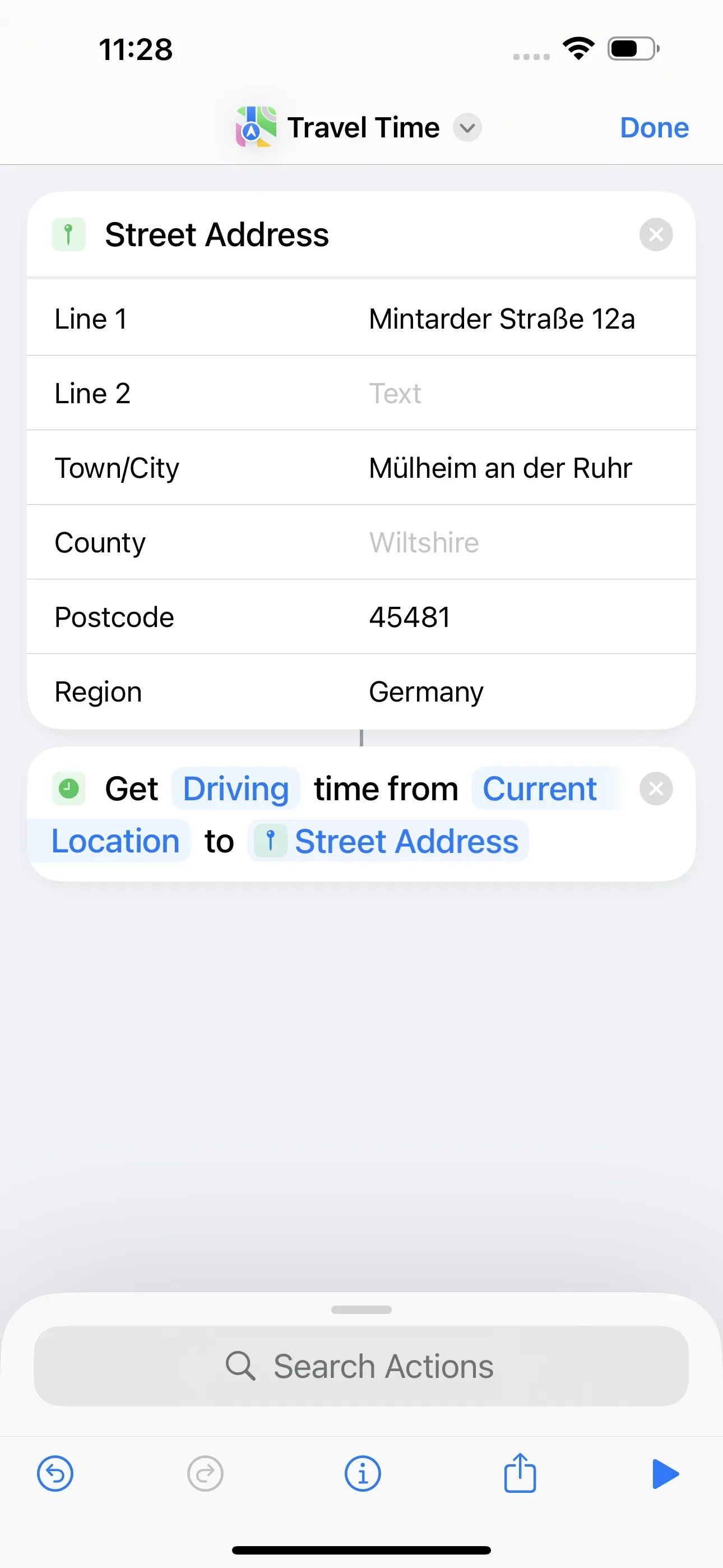
We then search for Travel Time and tap on Get Travel Time. After that we search for Place → Get Current Location.
Drive or walk the route
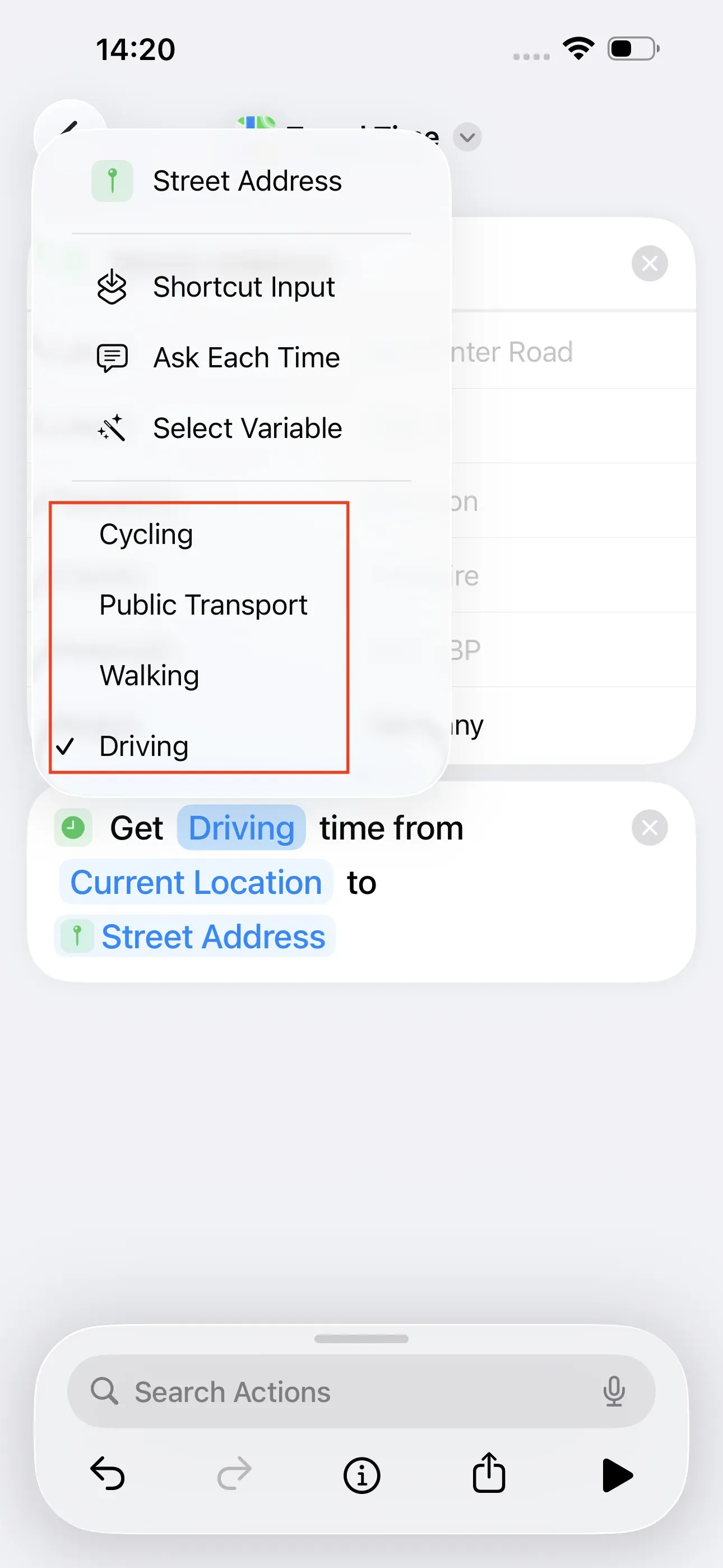
In the Travel Time element, you can choose between driving, walking, public transport and cycling. By tapping on this element, the specification can be changed. Therefore, it is possible to set in advance on which basis the travel time is calculated.
Send travel time via iMessage
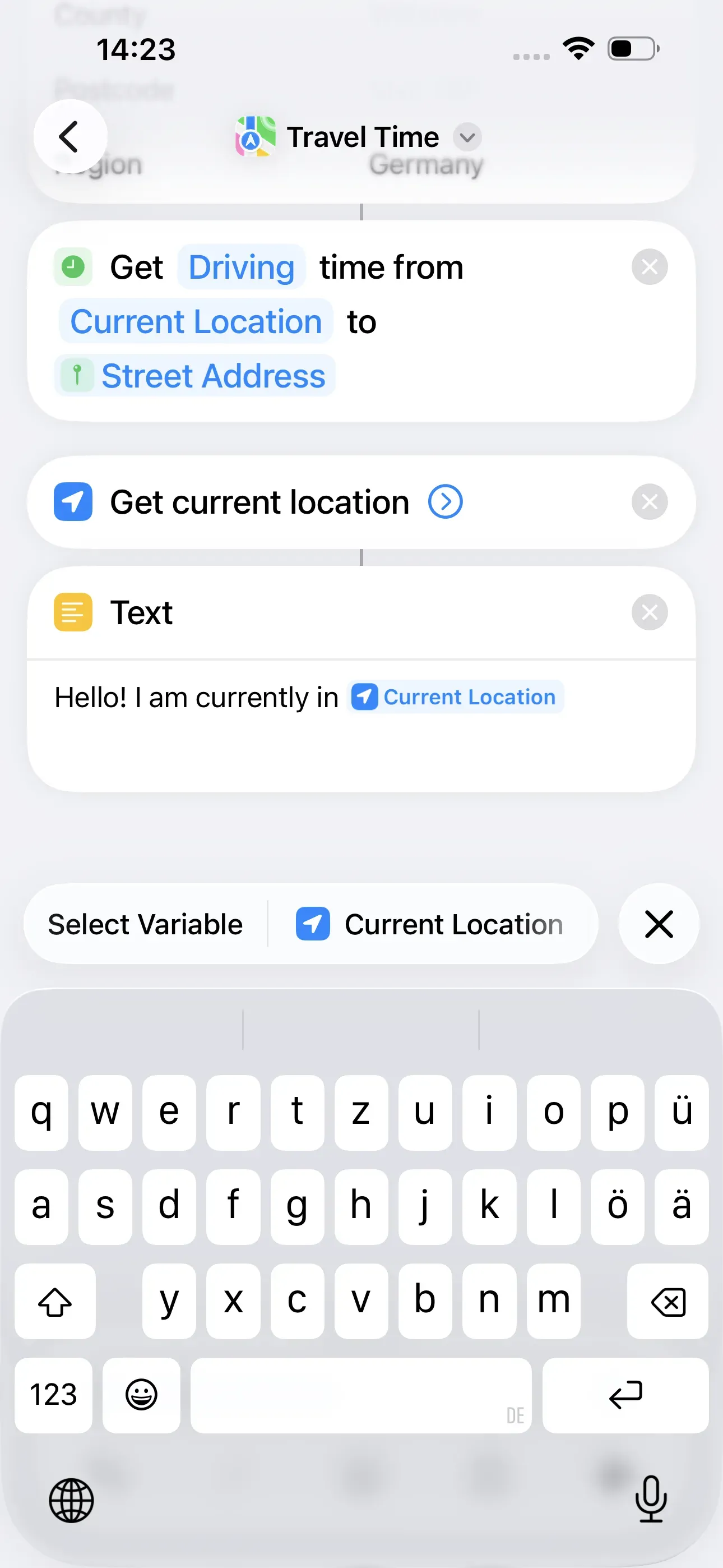
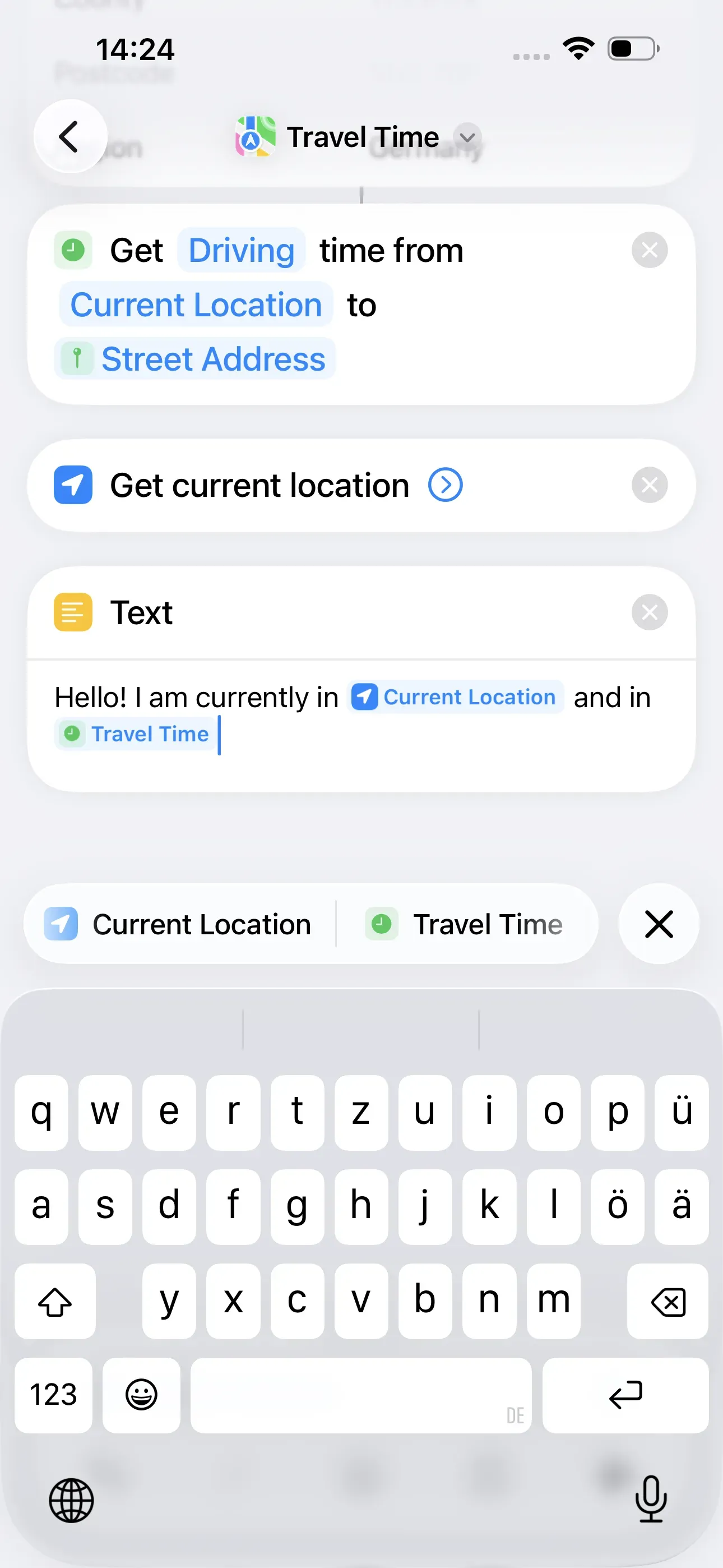
In order to send the calculated travel time via iMessage (or another messenger), an automatic message is created with our location informations. To do this, we search for Text in the search bar → Text. We now enter a message here, in our example:
"Hello! I am currently in Current Location and in Travel Time at home!"
We select the Current Location an Travel Time elements above the keyboard when writing the message. This is the data we created in previous steps.
We complete the creation of the shortcut by searching for Message → Send Message. For Recipients, we need to enter the recipient's name or mobile phone number. Now let's return to the home screen of the Shortcuts app.
Write shortcut on NFC tag
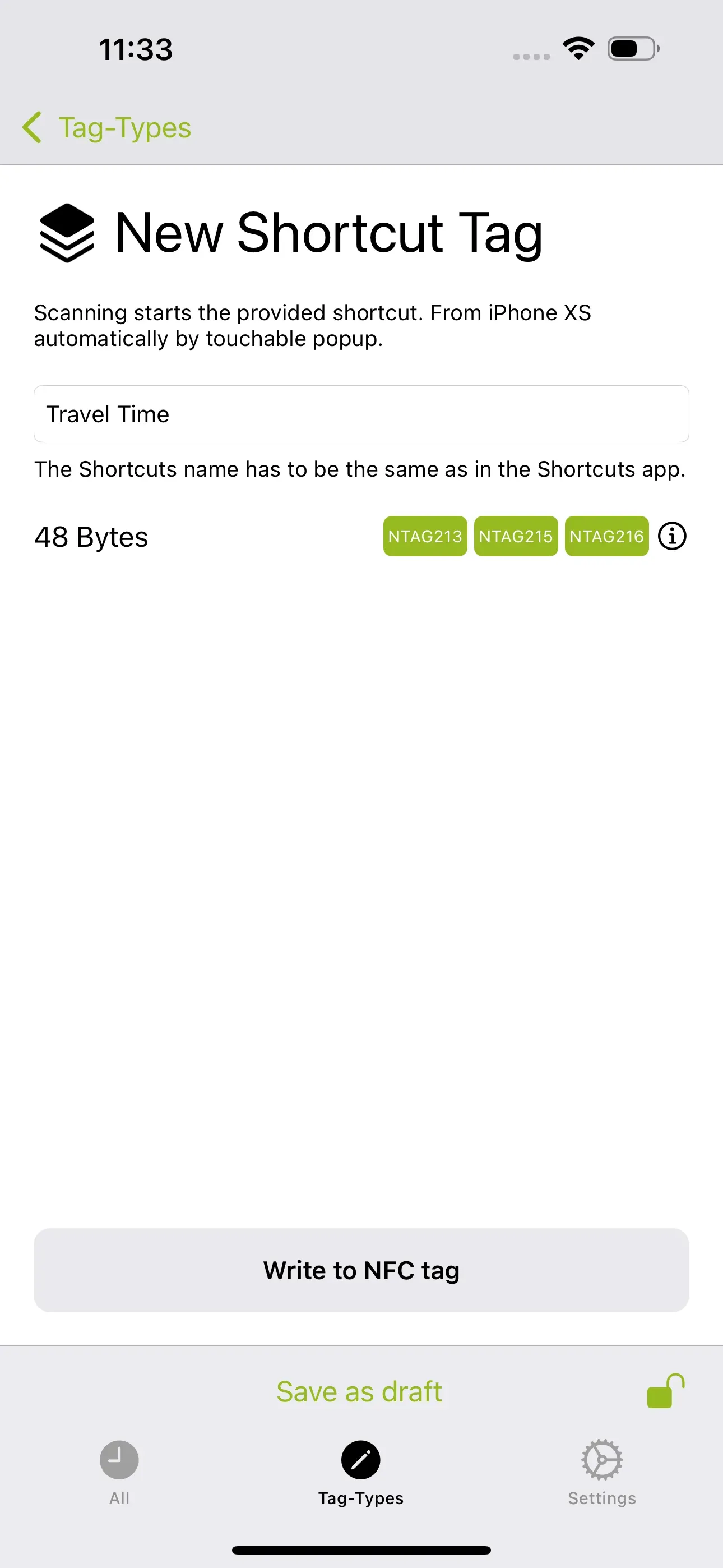
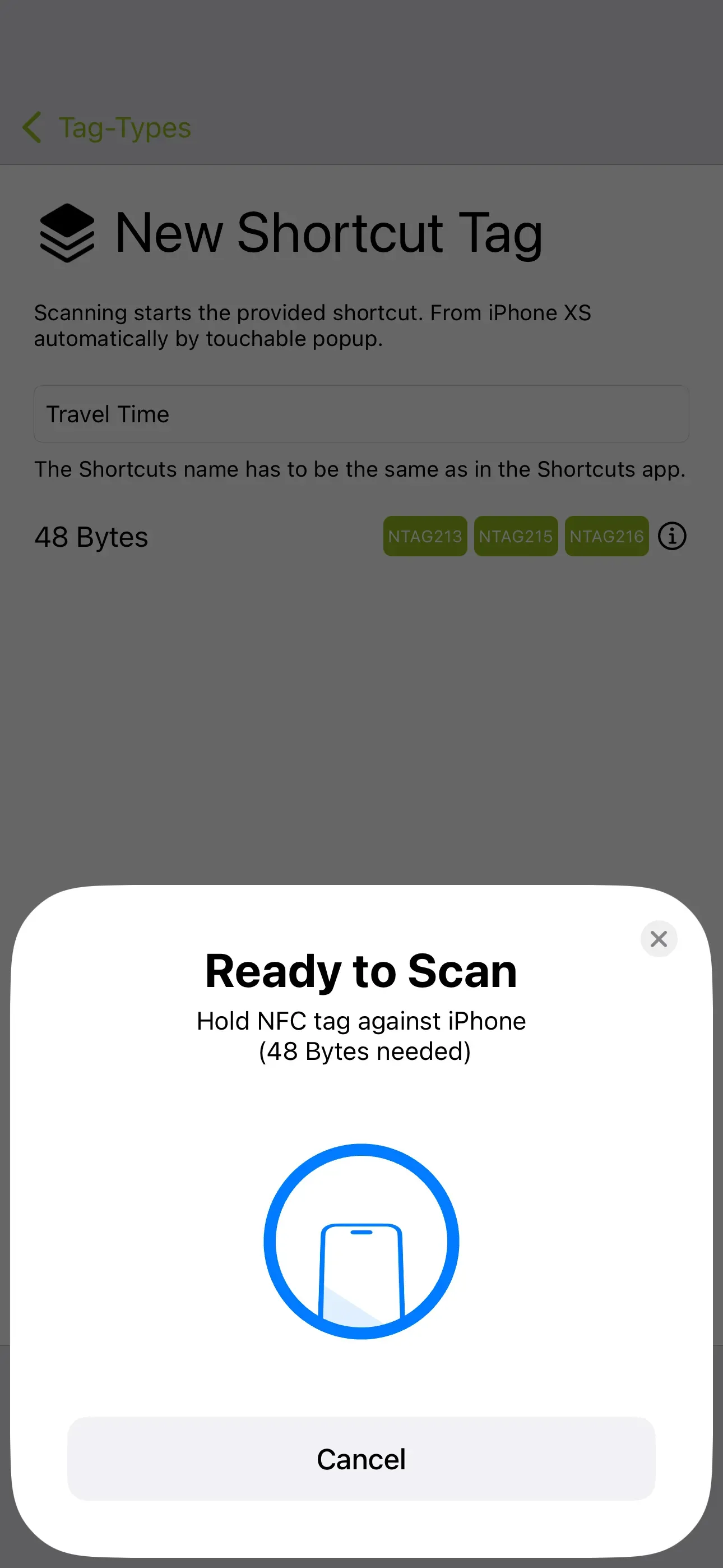
Now we save the shortcut on an NFC tag, in which we open the app NFC21 Tools → Tag-Types → + Shortcut. Here we enter the exact name of the shortcut Tag. ("Travel Time") and tap Write to NFC tag .
Summary
We have created an NFC tag that identifies one's location when scanned and calculates the travel time home. We can specify whether the travel time should be calculated for driving, walking, cycling or taking the public transport.
Note: If you do not want to create the shortcut yourself, you can download the finished shortcut directly here. To do this, click on this link. Now you just need to edit the shortcut with your information & save it to the NFC tag as explained in the last step.
In further How2s we will explain more useful uses of NFC tags in combination with the app Shortcuts, for example how to create a reminder with a fixed expiry date.
Associated operating systems
iOSFirst published: 25.07.2023 / Updated: 25.11.2025