 Near Field Communication (NFC) products Online Store
 Worldwide Shipping (free DE shipping)

If a WLAN network is to be shared with friends, the network key usually has to be laboriously typed in. For this reason, both Android and Apple have developed a method for sharing the Wi-Fi network within Android smartphones or iPhones. With Android, a QR code is generated that can be scanned by other Android smartphones to automatically join the network. Apple's function for sharing the WLAN network is based on Bluetooth. Here, the other device only needs to be in the WLAN settings and can then join the network with one click. However, this only works if Bluetooth is enabled on both devices and at least one other iPhone nearby is connected to the corresponding network.
NFC can simplify this process considerably by sharing the access data via NFC tag. For example, you can stick the NFC tag to your dining table in the form of a sticker or attach it to your fridge as a magnet. Access to the WLAN is then only a quick scan away. This How2 describes how you can easily share your Wi-Fi network.
Content:
- Determine network name and password
- Write access data to NFC tag
- Scan NFC tag with WLAN access data
- Configuration options
Determine network name and password
To store the wireless network on an NFC tag, you need the name (SSID) and password for the wireless network. By default, this data is stored directly on the router. If the password has been changed, you will of course have to enter the new password. If the iPhone is already connected to the WLAN, but the password is no longer known, there is unfortunately no way to display the password on the mobile phone with the iPhone (from iOS11). You have to use a laptop / MacBook or a PC. There the reading of the WLAN password is usually possible.
Write access data to NFC tag
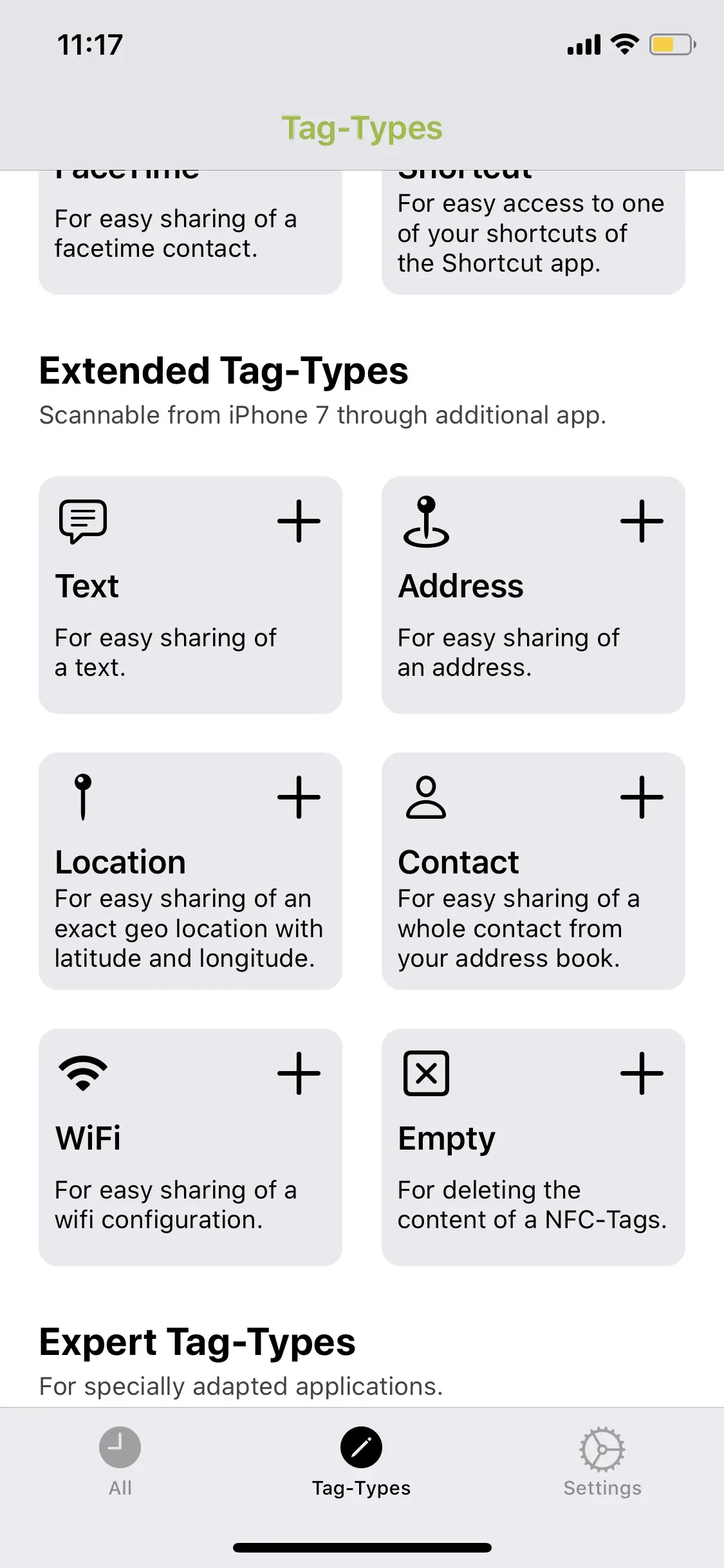
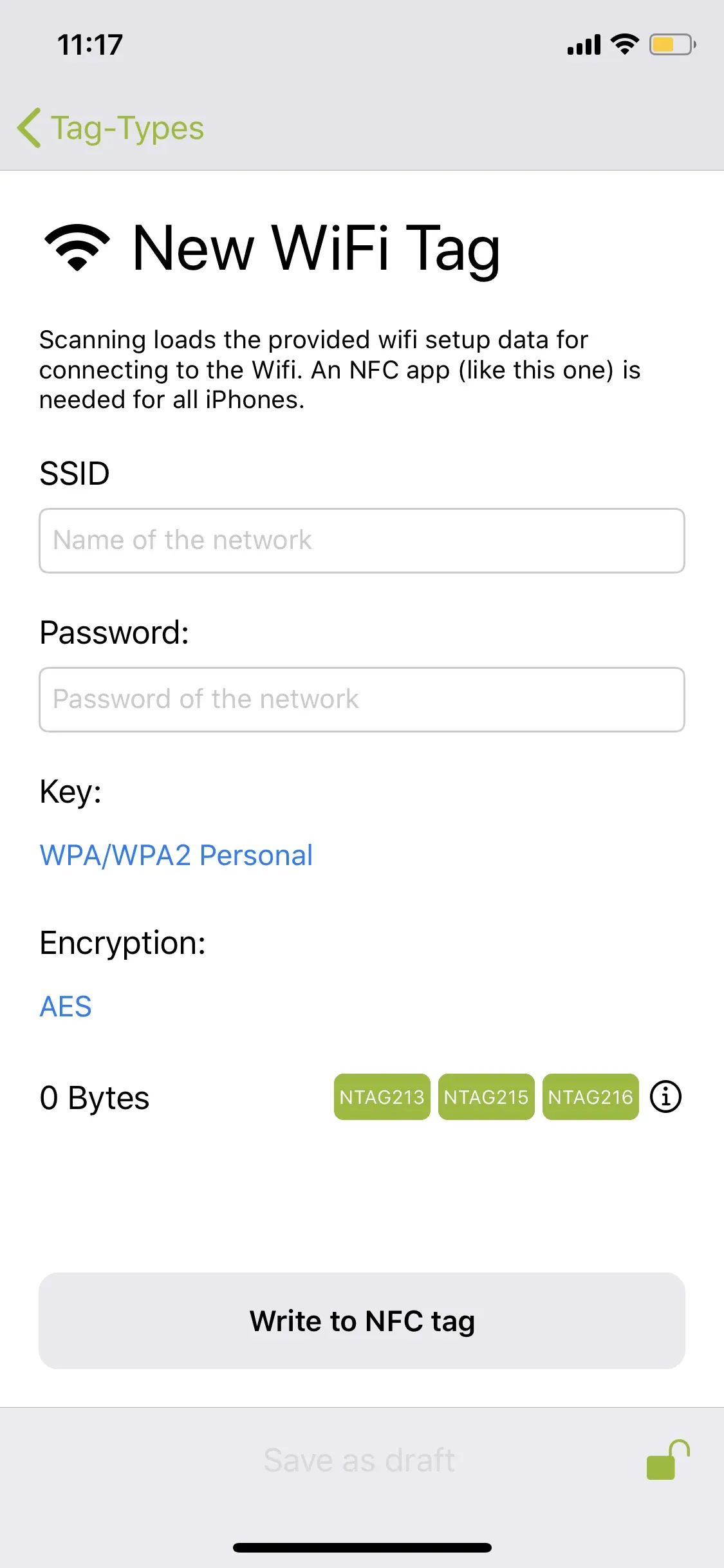
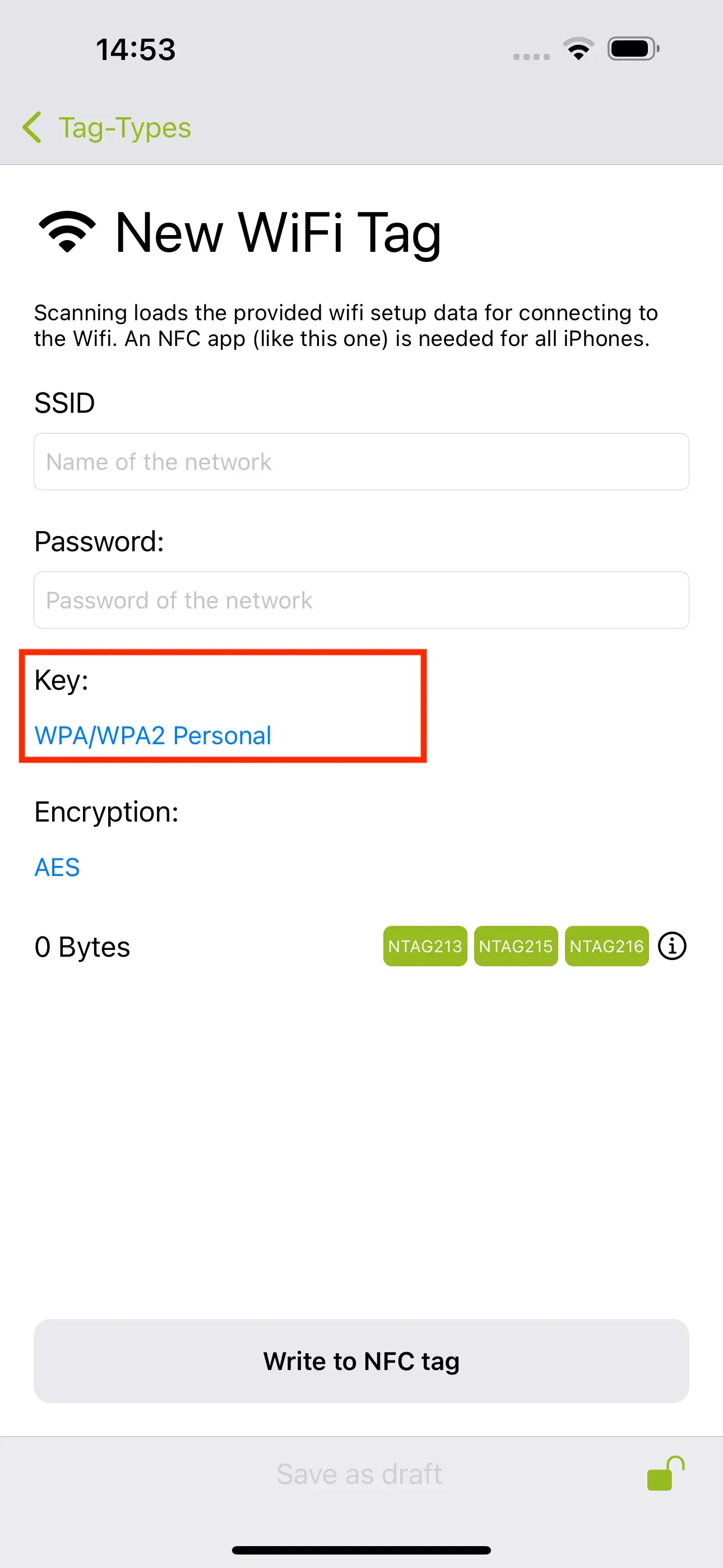
To save a WLAN network to an NFC tag, open the free NFC21 Tools app and tap on Tag-Types. There you will find the section Extended Tag-Types and tap on WiFi. Enter the name and the password of your network here and write this information to your NFC tag with Write to NFC tag.
Scan NFC tag with WLAN access data
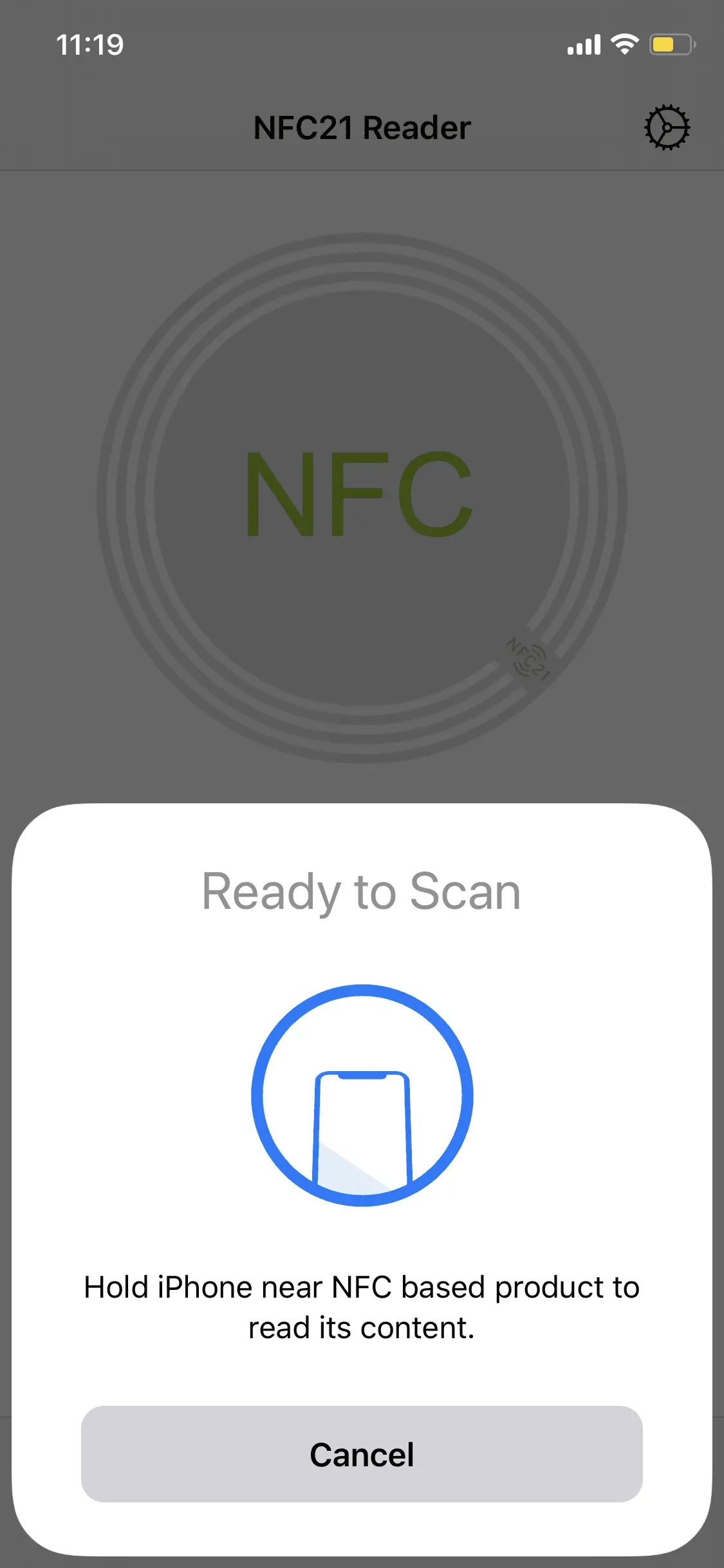
To scan access to the Wi-Fi network from the NFC tag, an app is required for both Android and iPhone. On an iPhone, the free NFC21 Reader app can be used to read NFC tags quickly and easily.
Configuration options
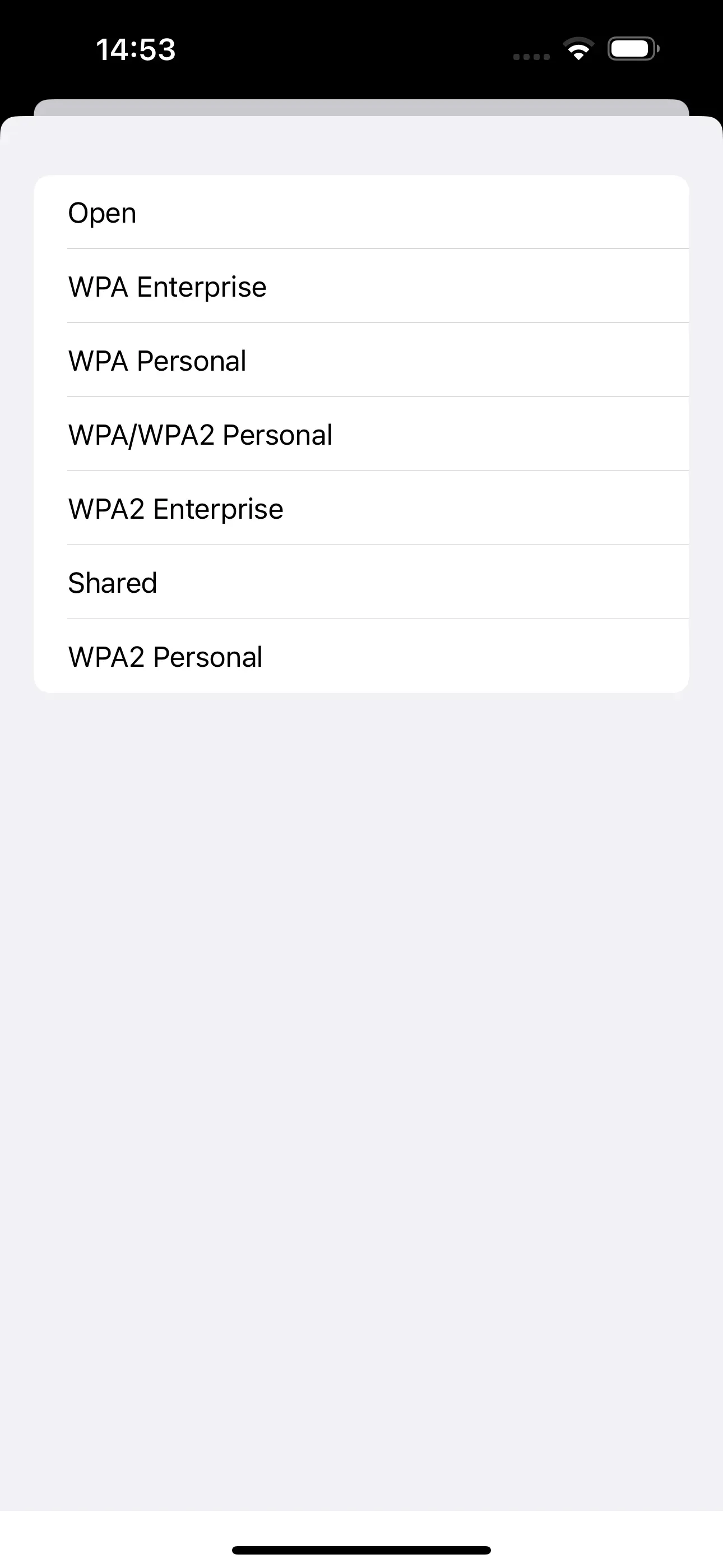
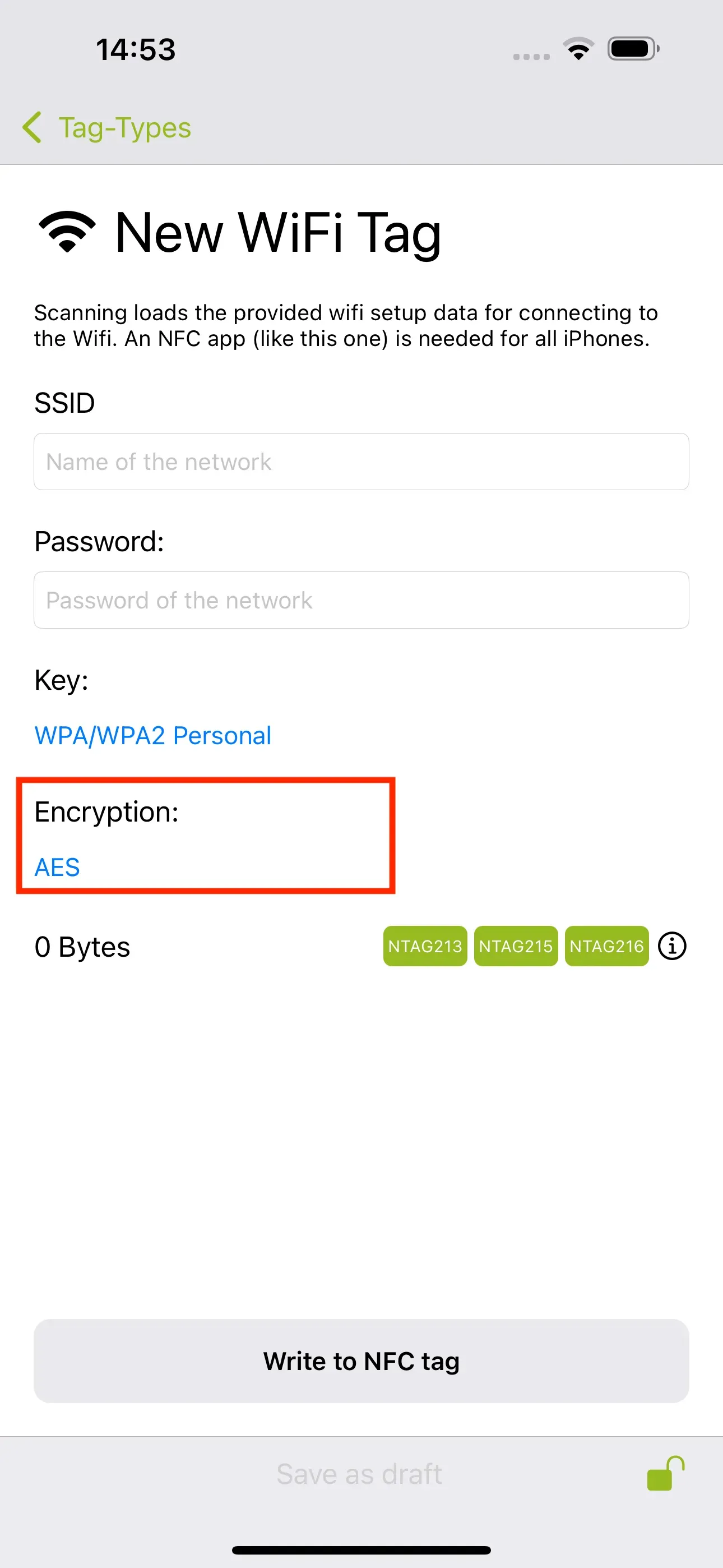
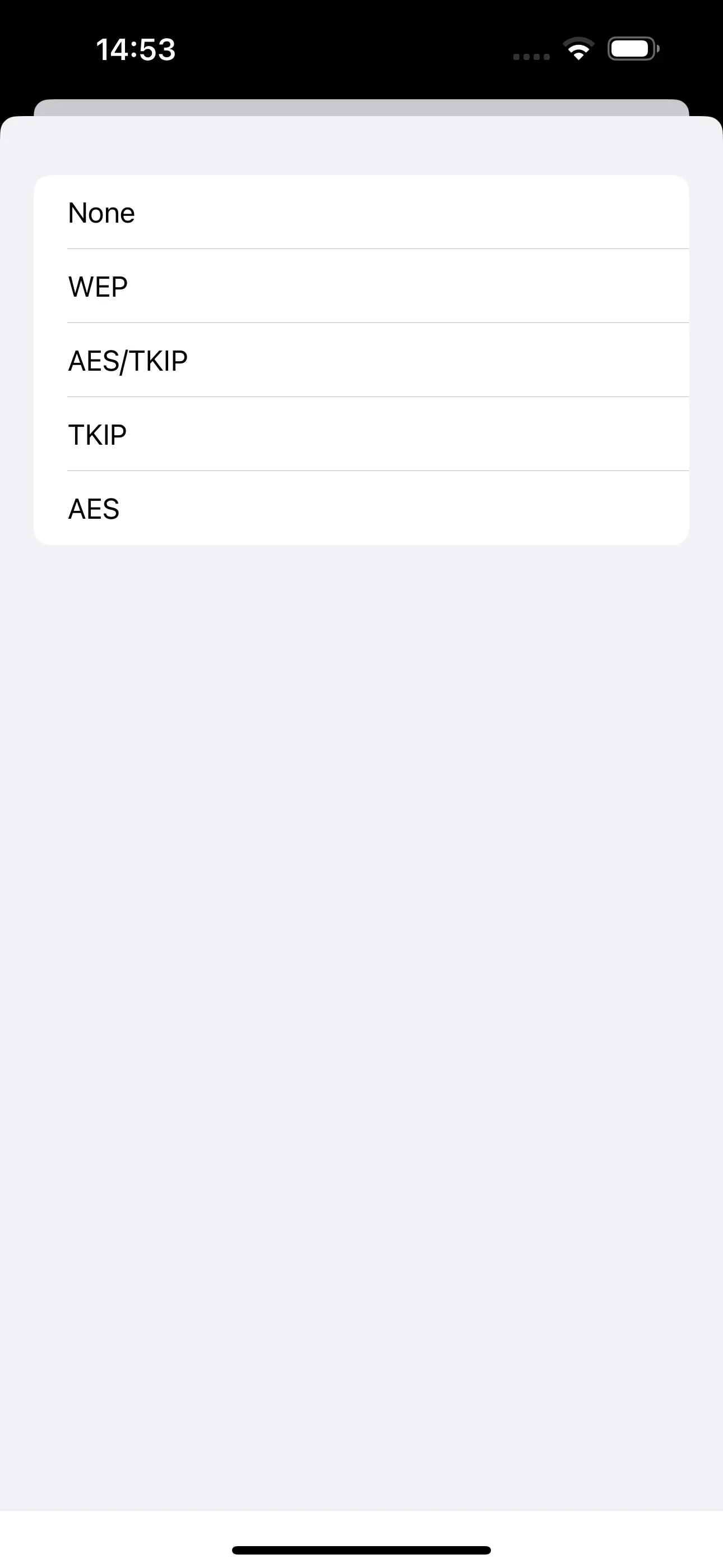
When writing to the NFC tag with NFC21 Tools, further configuration settings can also be made. When writing, you can set which key should be used (including WPA2) and which encryption should be applied. To do this, tap on Key: and on Encryption:.
Summary
Sharing a WLAN network is very easy with an NFC tag. The NFC sticker can be attached to the entrance area, for example, or directly to the router so that people can scan it quickly and independently. If the WLAN password needs to be changed, the NFC tag can be easily overwritten and updated using the same steps. It is important to note that the NFC sticker should only be placed inside the home so that only selected people can connect to your WLAN network.
Here we explain how sharing a WLAN network works, using an NFC tag and an Android smartphone.
Associated operating systems
iOSFirst published: 25.07.2023 / Updated: 21.10.2025