 Near Field Communication (NFC) products Online Store
 Worldwide Shipping (free DE shipping)

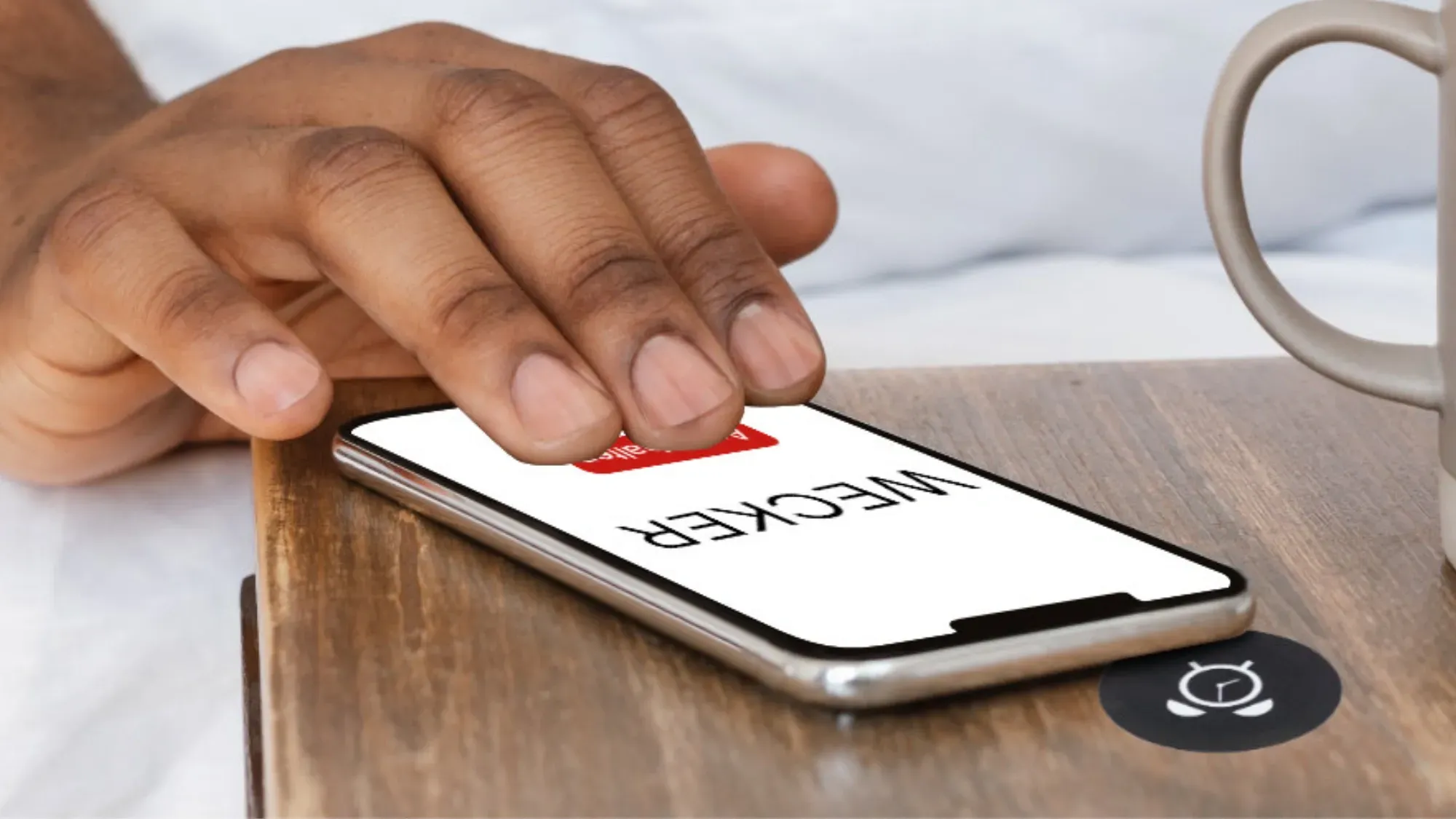
Setting an alarm is probably one of the most common actions performed with a smartphone every day. Be it before going to bed, for reminder purposes or in the kitchen. Each time you need to unlock your smartphone, select the appropriate app, enter a time / day and activate the alarm. The operating steps for this can be shortened very easily with an NFC tag. The command to set an alarm can be stored on an NFC tag, so that the smartphone only needs to be held over the NFC tag to set the alarm. Another nice side effect is that attaching such an NFC tag, for example in the form of a sticker, in a clearly visible place such as on the bedside table, can also automatically remind you to set an alarm clock.
In this How2 we want to explain how this works.
Info: If you want to download the finished shortcut directly and save it on the NFC tag, skip straight to the end of this article.
Content:
Enter the desired time
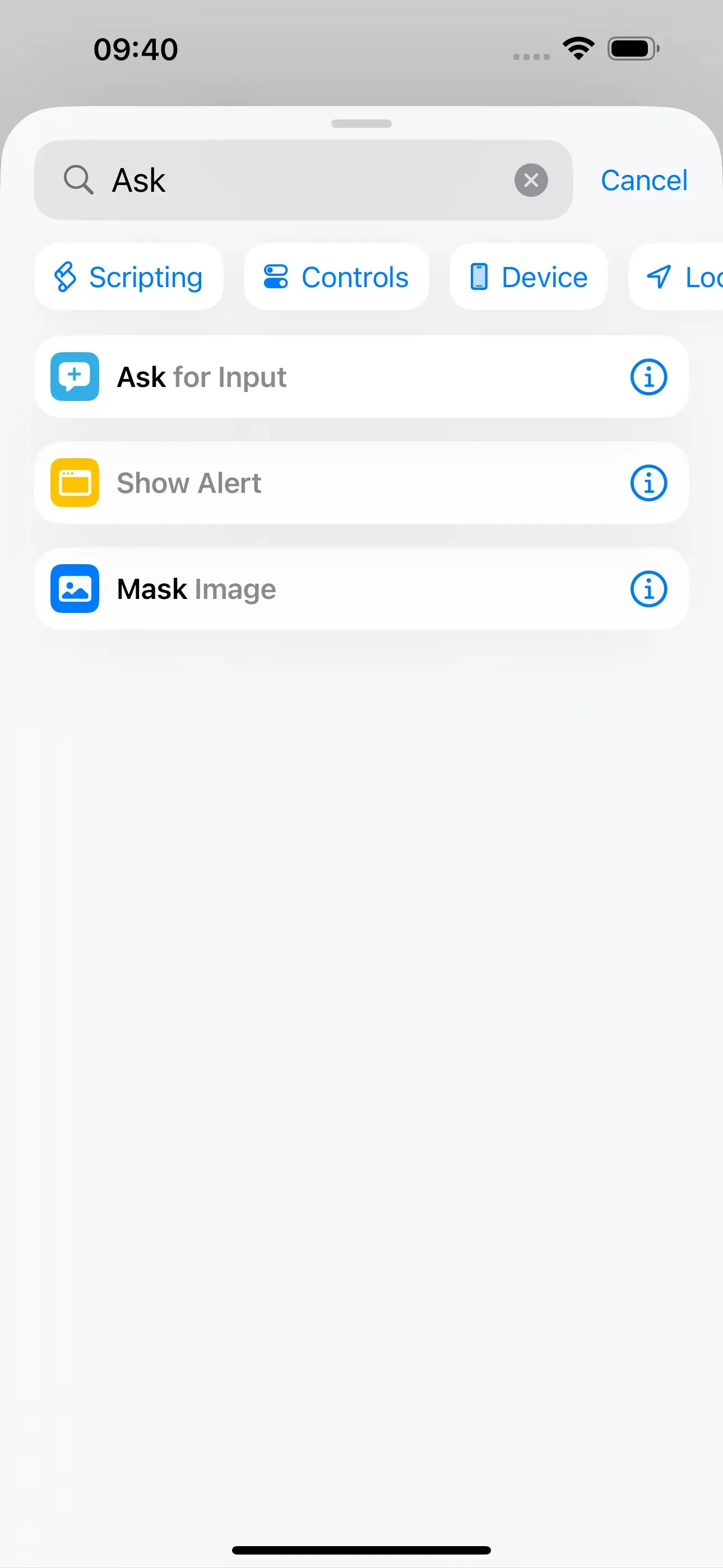
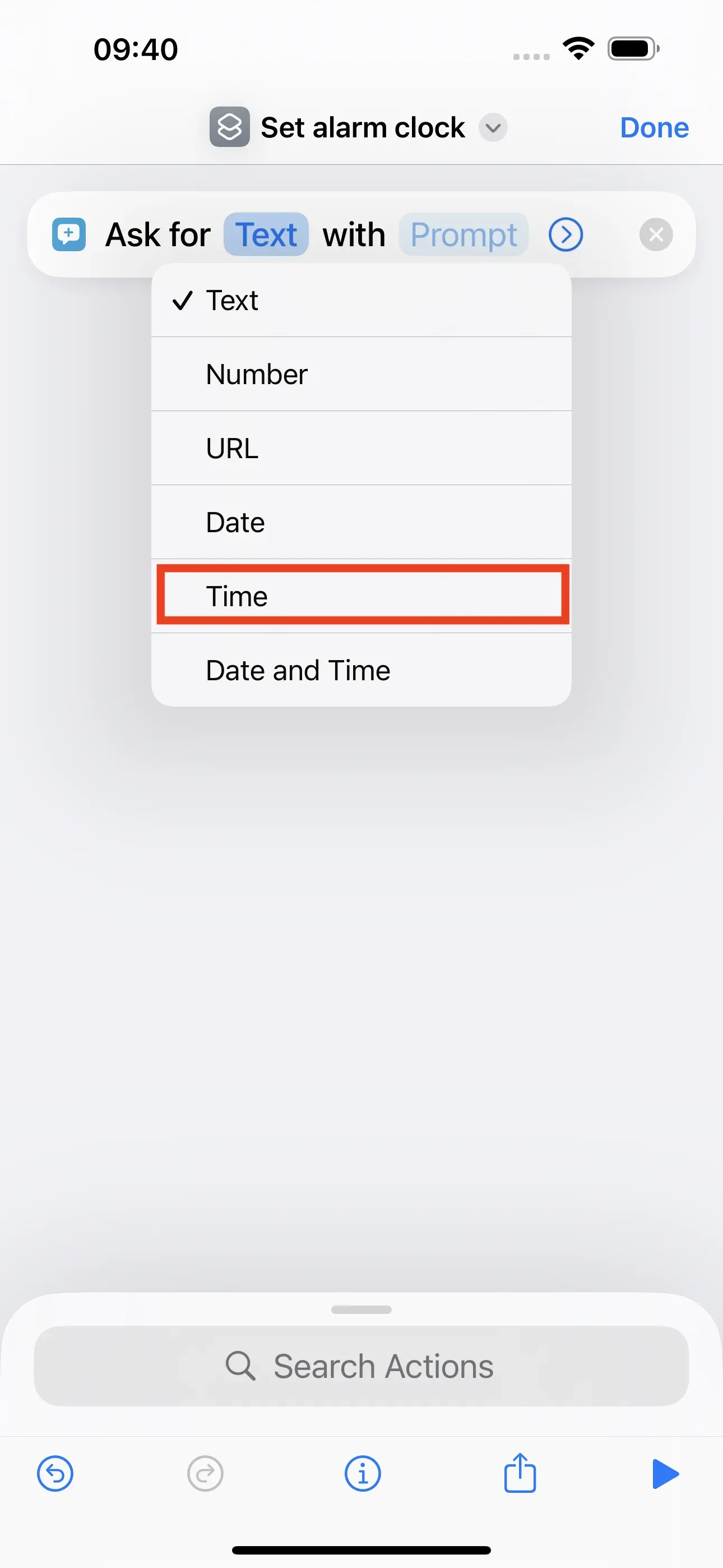
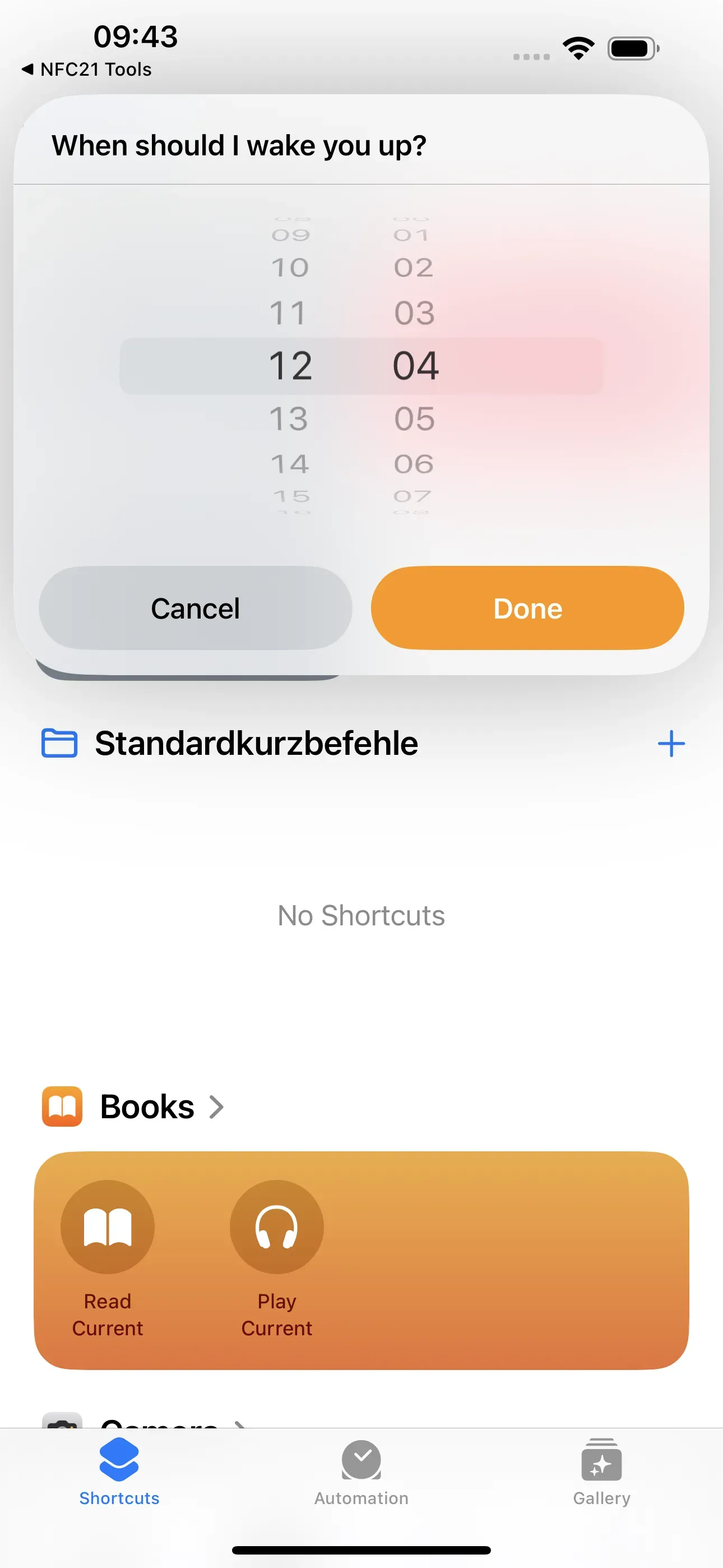
We want the smartphone to ask for the desired wake-up time after contact with an NFC tag. To do this we create a shortcut using the app Shortcuts and tap on + on the right above. Then we tap on New Shortcut and name it Set alarm clock → Done. We then add an action to the shortcut by entering Ask in the search field and then selecting Ask for Input. In the Text field, we tap on Time and in the Prompt field, we enter "When should I wake you up?", for example.
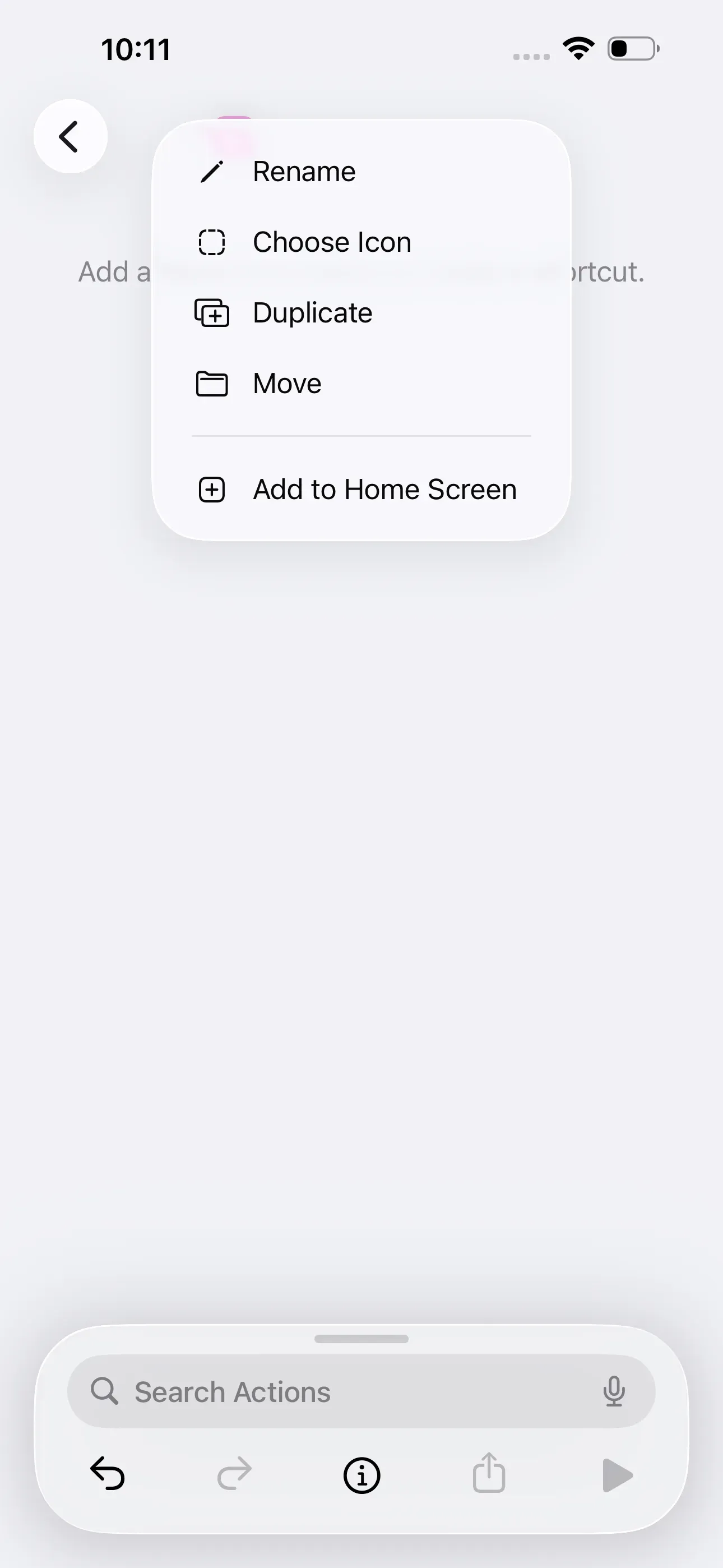
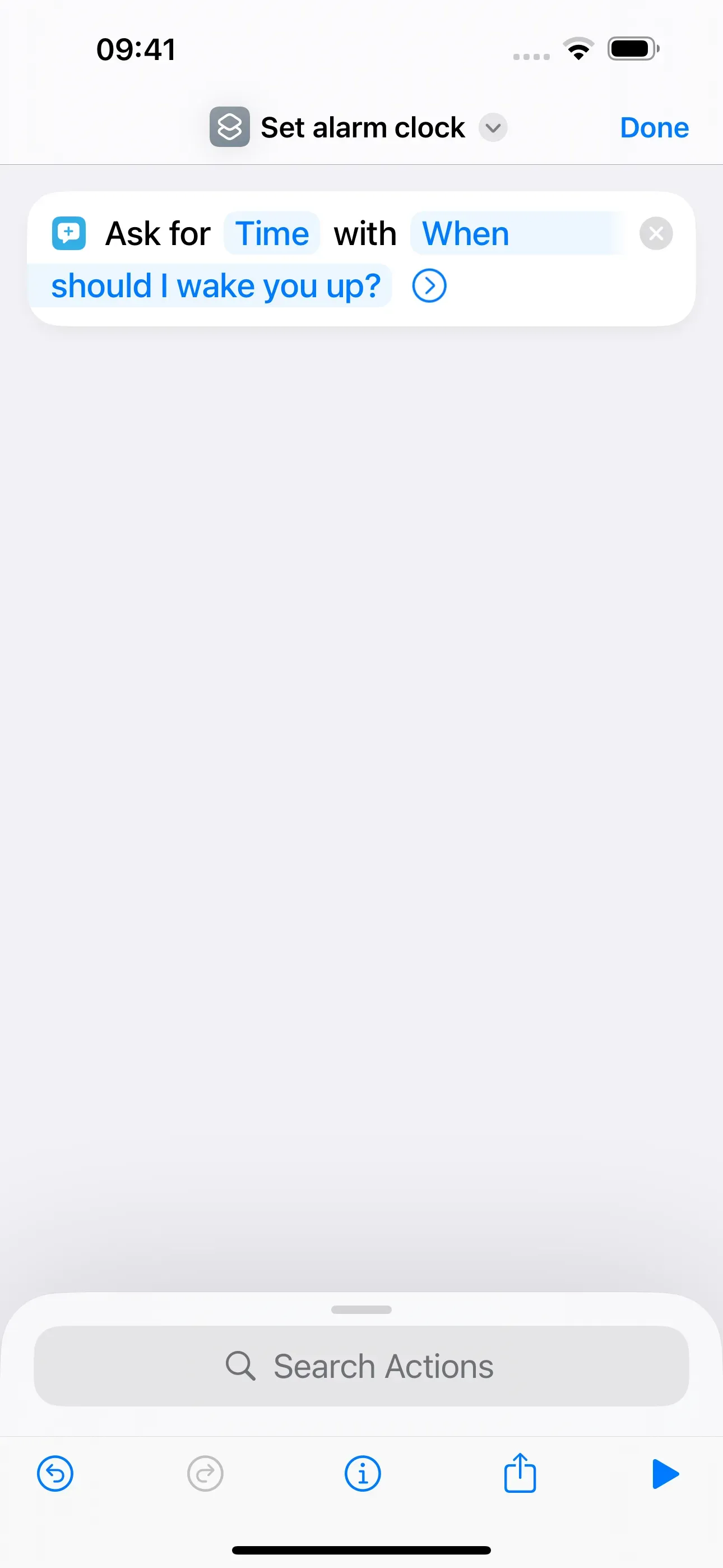
Set alarm clock
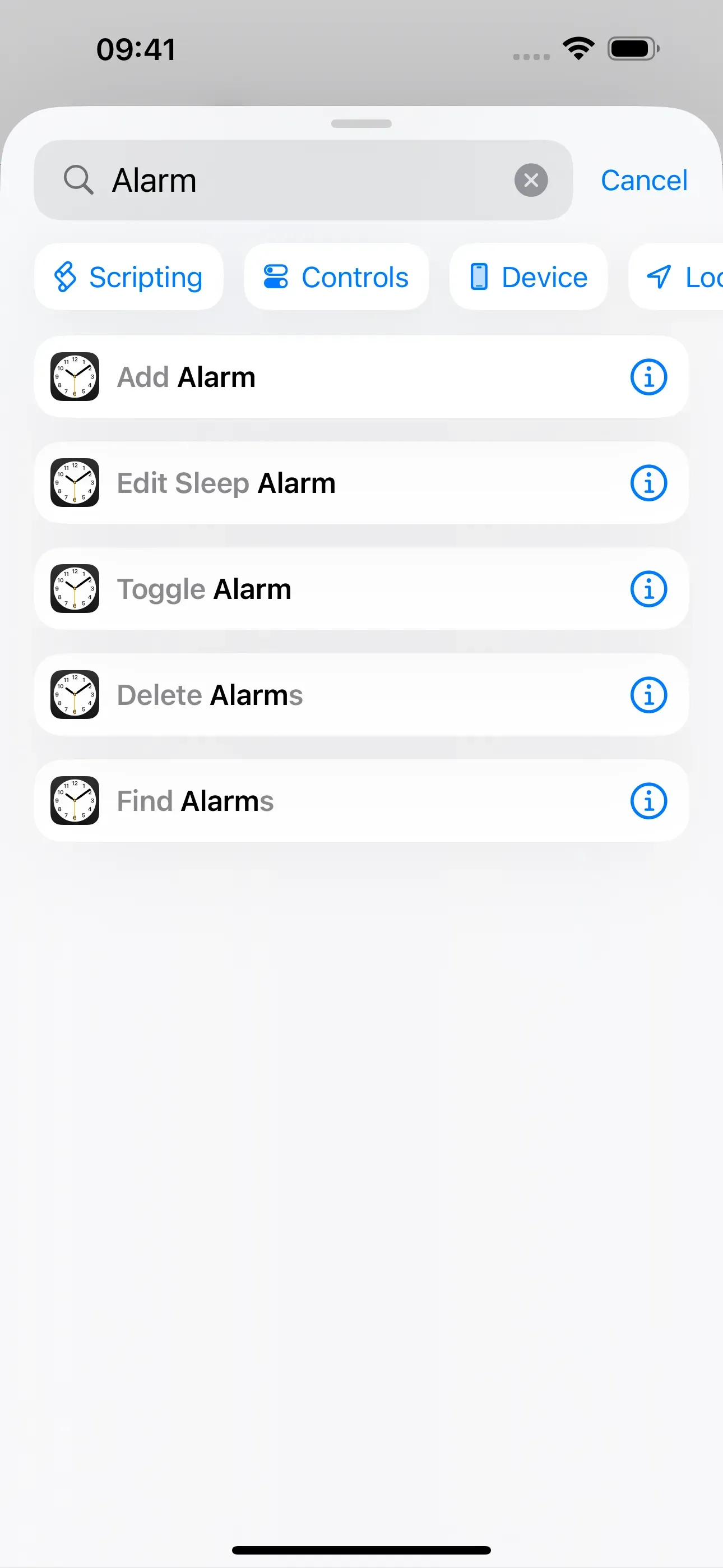
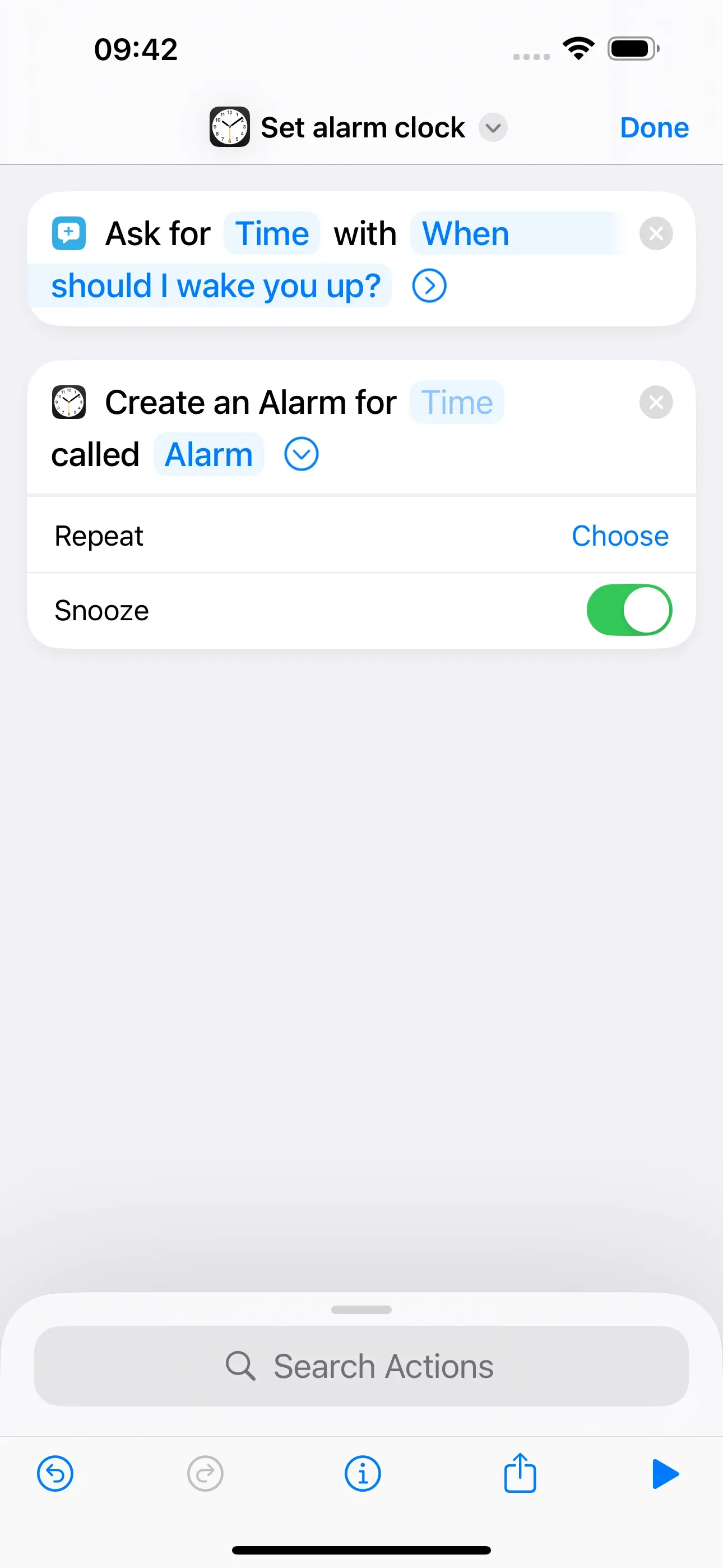
Now we want to set an alarm clock for the desired time. To do this, we search for Alarm → Add Alarm in the search bar.
If you now tap on the arrow > , you can set the days of the week on which the alarm clock should ring and whether you want to switch snooze on or off. Now you have created the shortcut and can return to the app's home screen.
Save short command to NFC tag
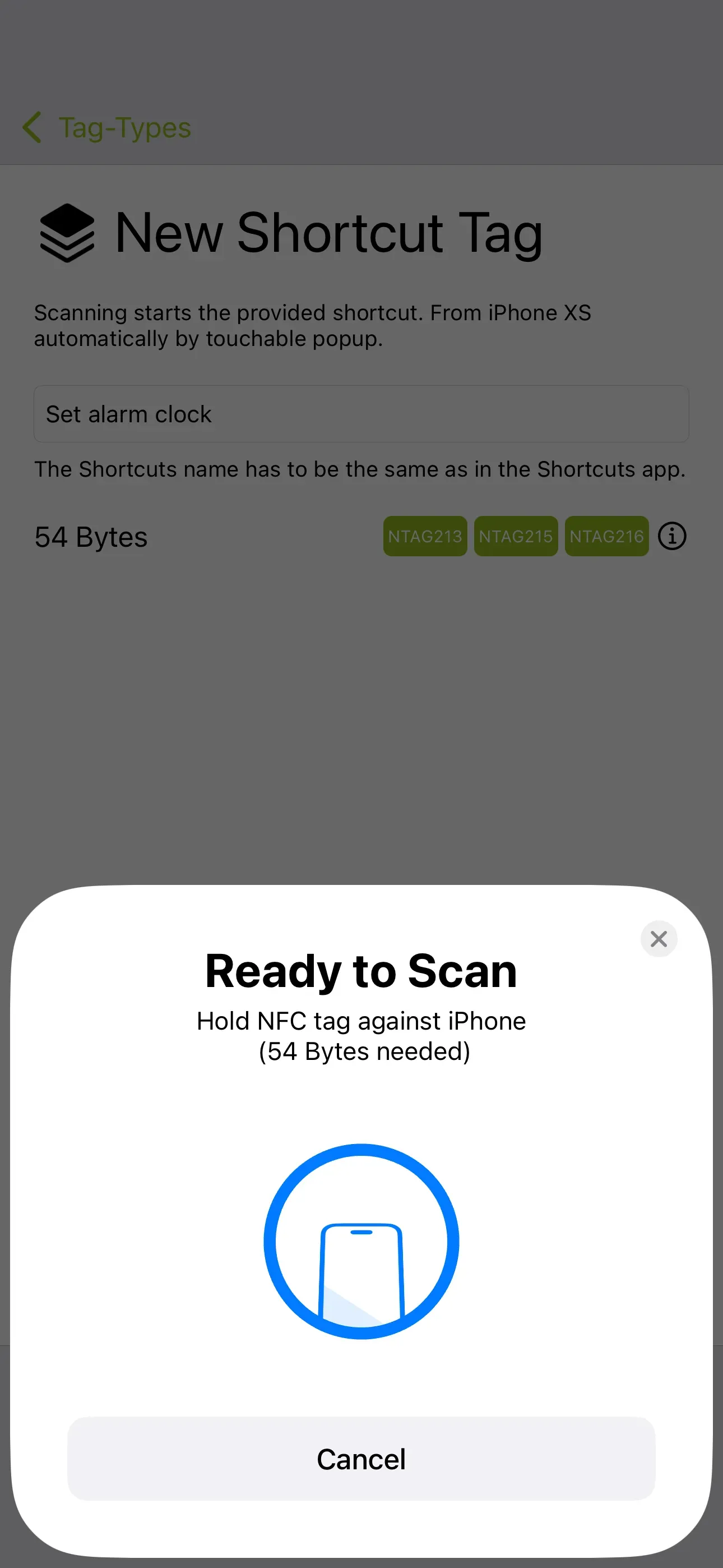
The short command must now only be stored on an NFC tag. To do this, we open the NFC21 Tools app (Link) → Tag-Types → + Shortcut → Enter the name of the short command (‘Set alarm clock’) → Write to NFC tag. Pay attention to correct spelling!
Summary
In this How2 we have explained how to create a command in two three simple steps that automatically sets an alarm when the smartphone is held in front of an NFC tag.
Note: If you do not want to create the shortcut yourself, you can download the finished shortcut directly here. To do this, click on this link. Now you just need to edit the shortcut with your information & save it to the NFC tag as explained in the last step.
In further How2s we will explain other applications of NFC tags in everyday life, such as connecting to a Bluetooth box or setting a specific reminder.
Associated operating systems
iOSFirst published: 25.07.2023 / Updated: 16.12.2025