 Near Field Communication (NFC) products Online Store
 Worldwide Shipping (free DE shipping)


Take a photo, save it as a PDF and send it directly by email. This is possible with a simple short command. If this shortcut is saved on an NFC tag, these actions are performed automatically when the NFC tag is scanned. For example, an NFC sticker can be attached to the workplace to send photos quickly and easily as a PDF document by email. The recipient can be defined each time the action is carried out. At the same time, a recipient can also be defined in advance (e.g. e-mail to myself). In this How2 we explain how to create such a shortcut and how to save it on an NFC tag.
Important Information: If you want to download the finished shortcut directly and save it on the NFC tag, skip straight to the end of this article.
Content:
Convert photo to PDF document
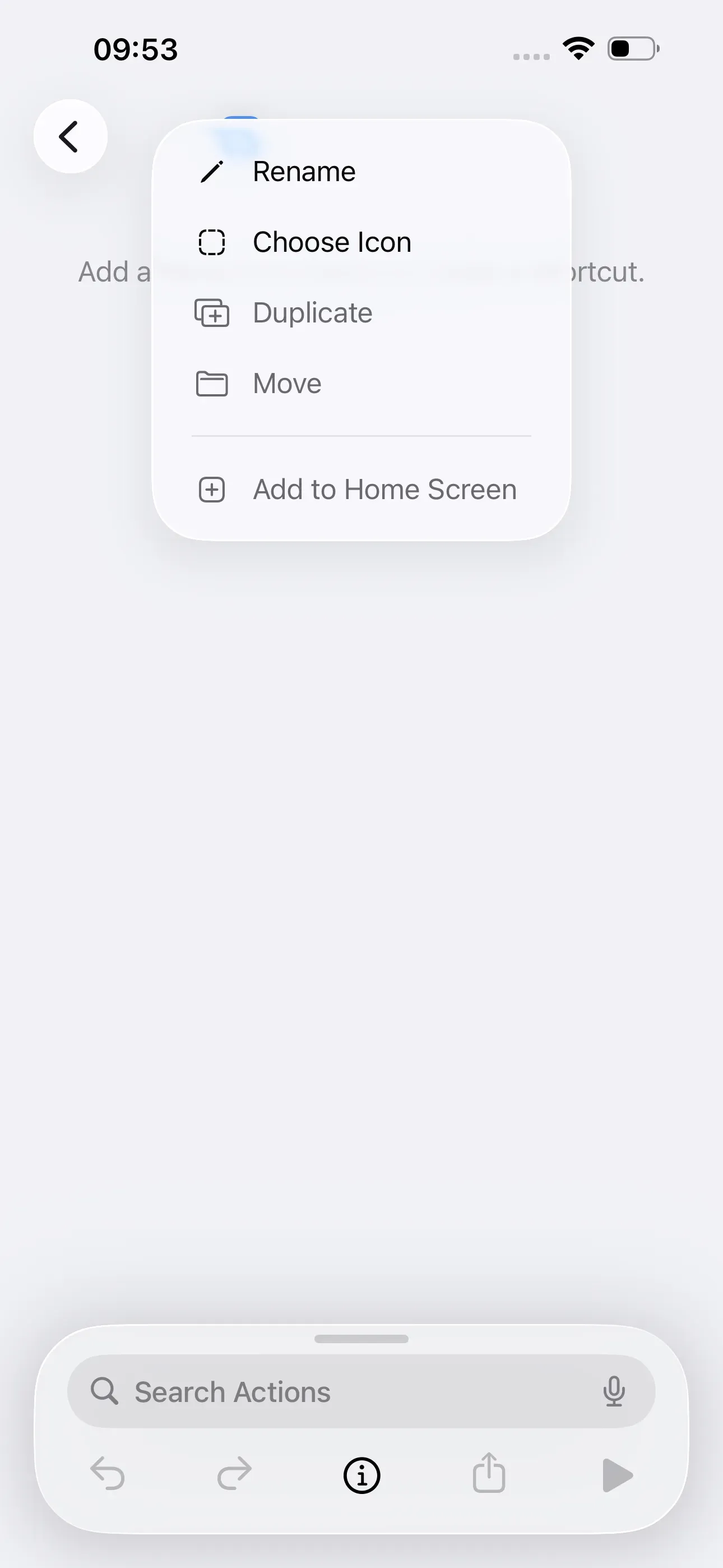
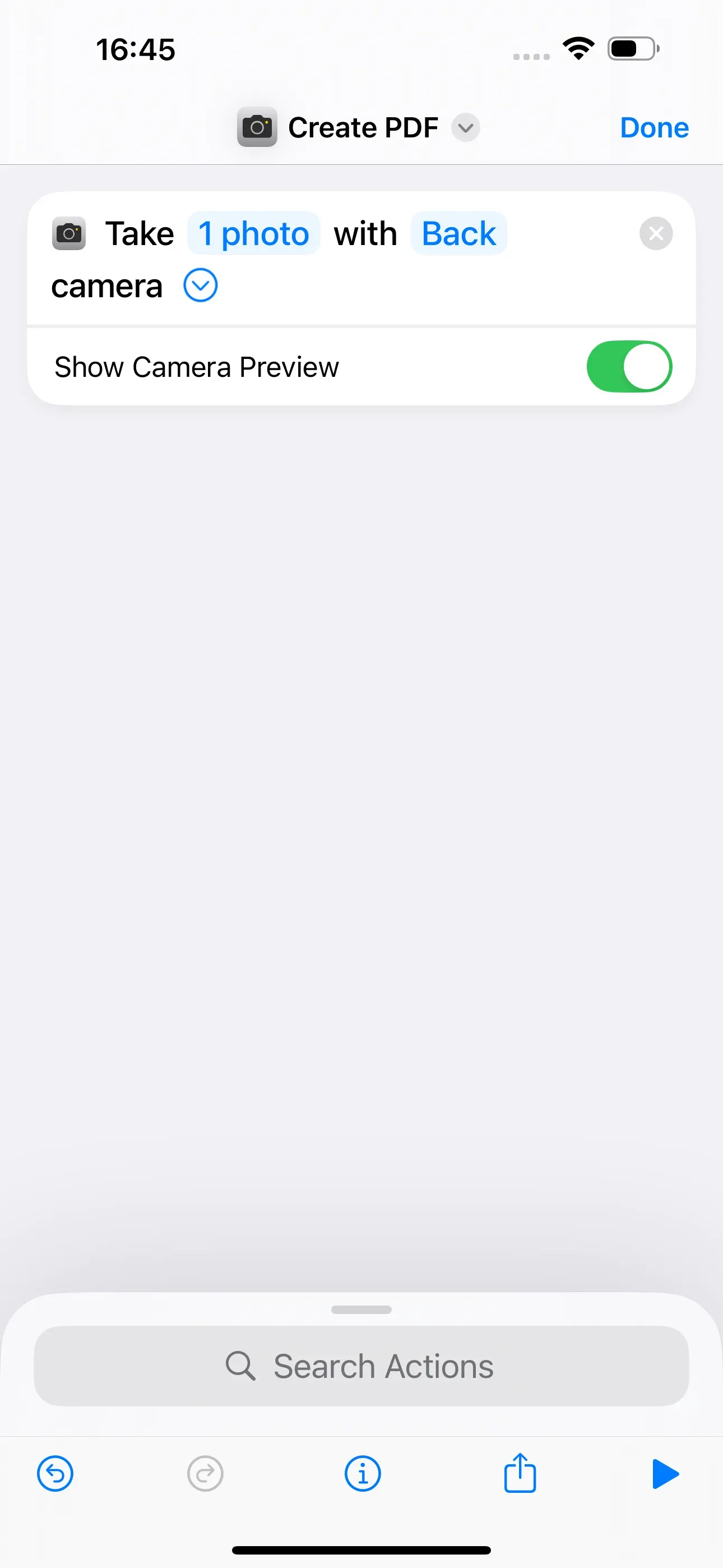
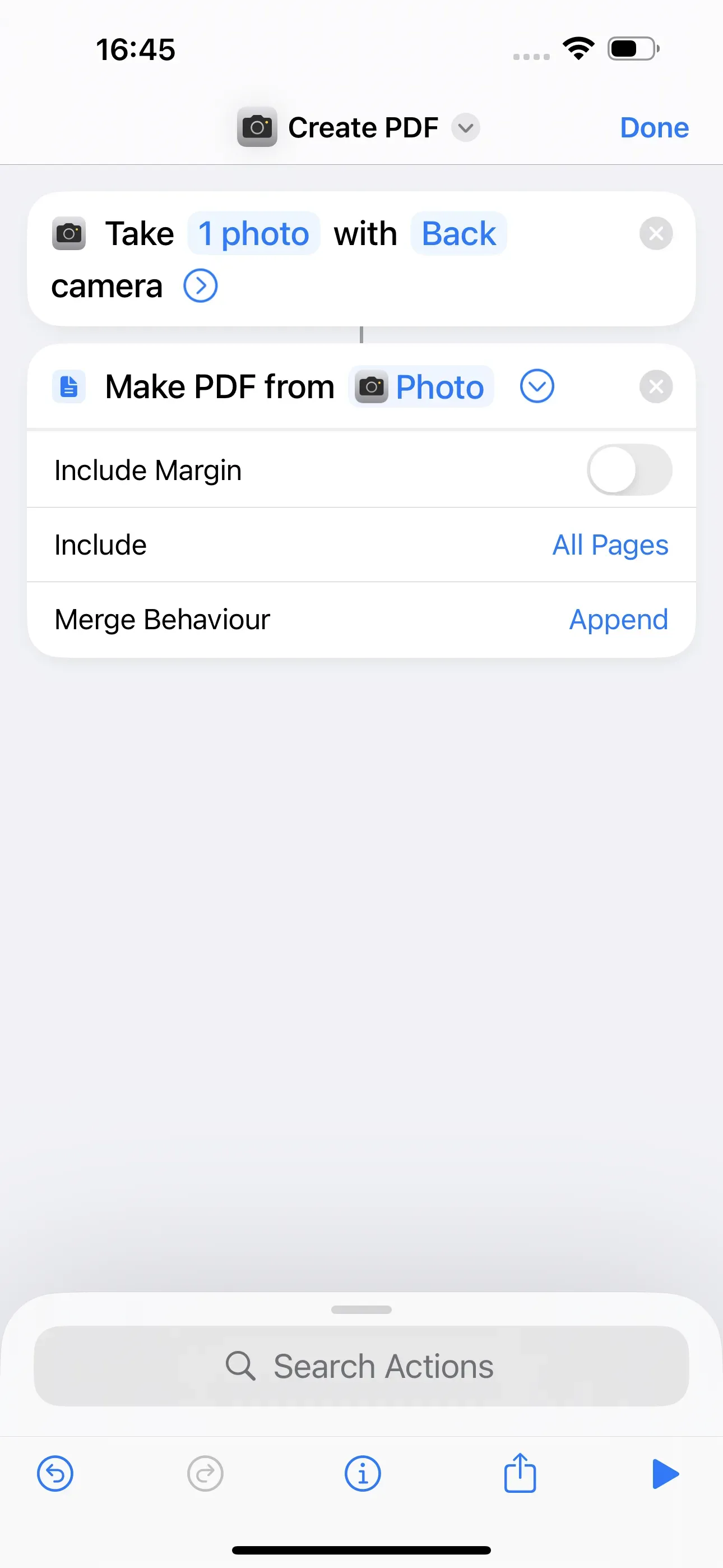
We start by creating a new shortcut via the Shortcuts app by tapping on + on the right above. We call this Create PDF. Now we enter Camera in the search bar and then tap Take Photo. Next, we enter Pdf in the search bar and select Make PDF.
Send PDF document by email
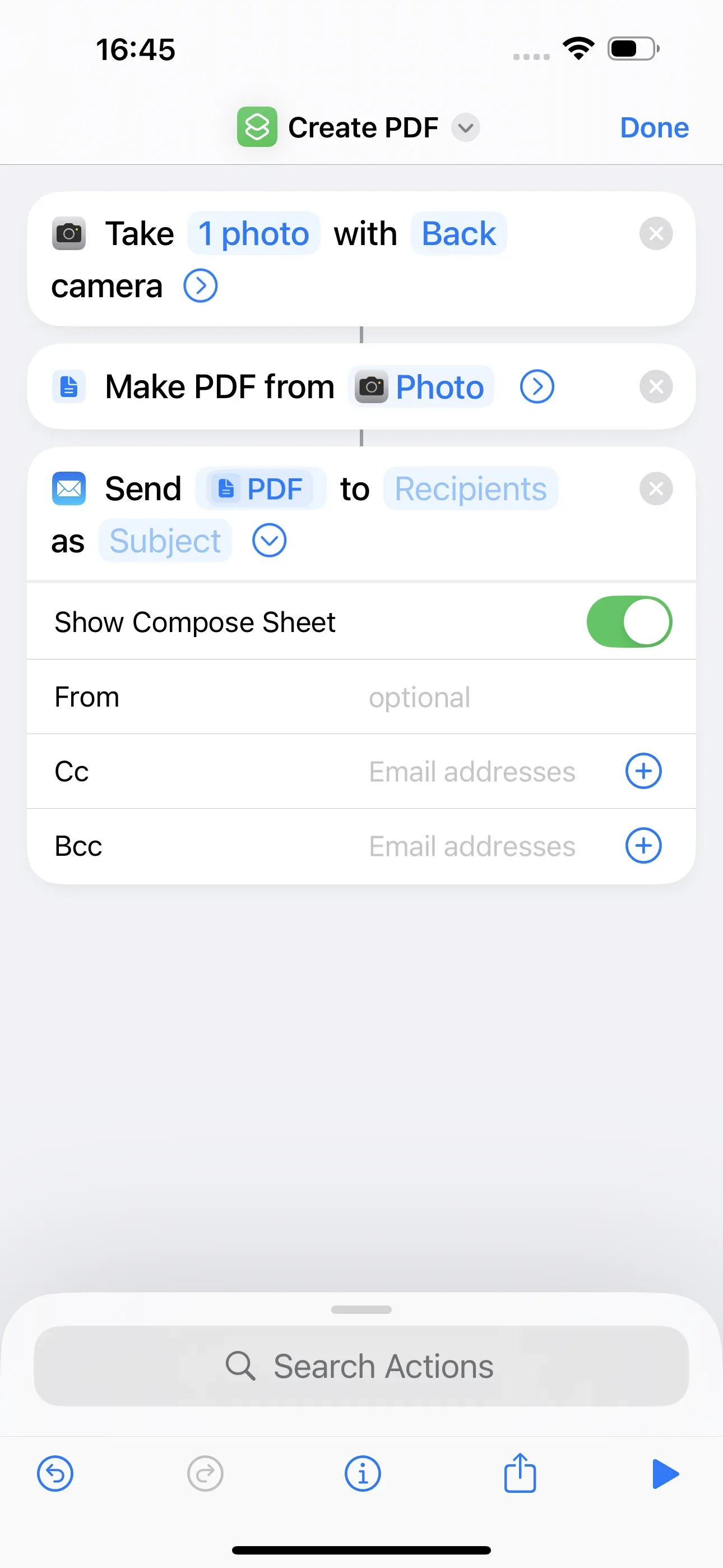
The only thing missing now, is sending the PDF file by email. To add this action to the shortcut, we search for Email → Send Email. By selecting Recipients, you can enter a default recipient to whom the email will always be sent. If a different recipient is to be defined for each photo, then no recipient needs to be entered here. Further settings can be made via the arrow > . For example, you can use Show Compose Sheet to specify whether the email should be displayed again before sending it or not. Once all the desired settings have been made, tap Done.
Save shortcut on NFC tag
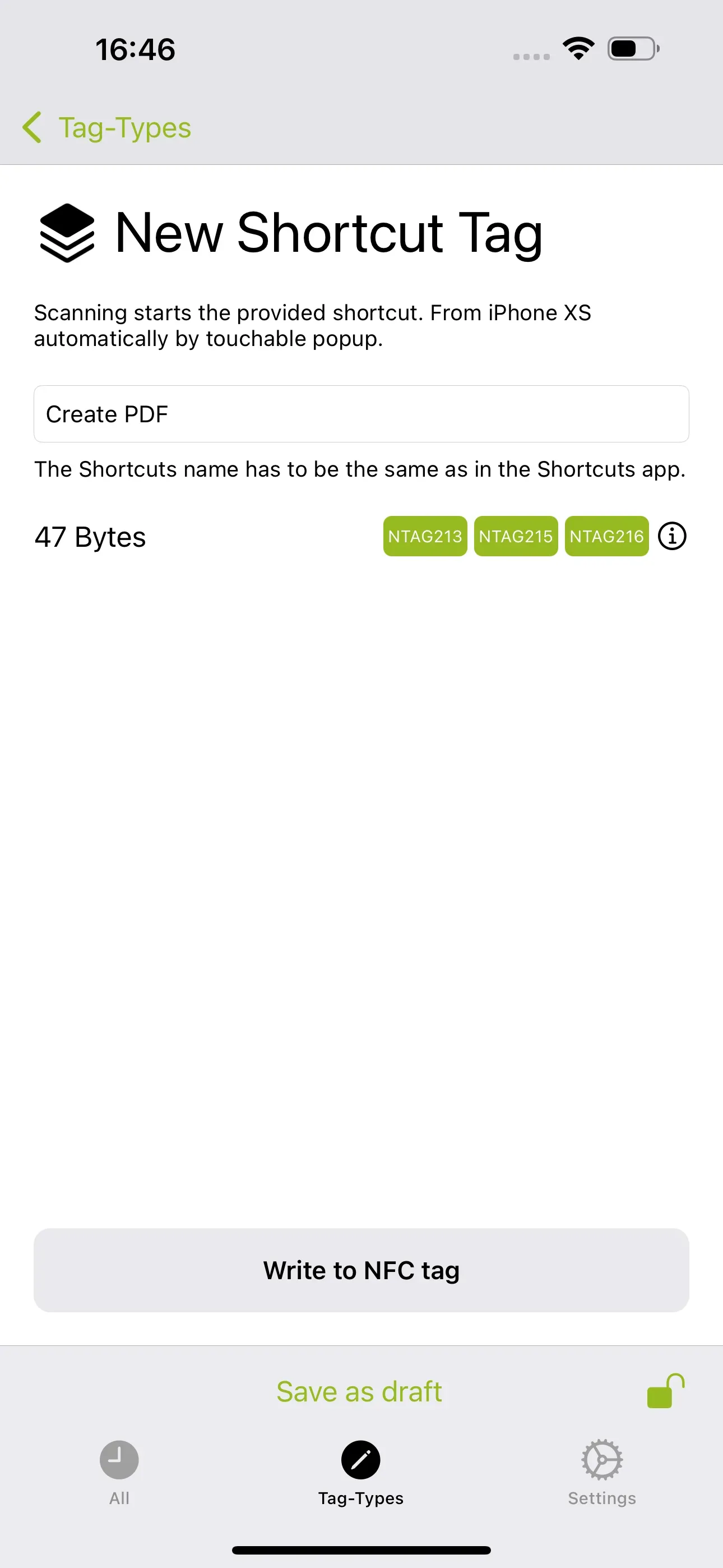
Using the NFC21 Tools app, we now save the short command to an NFC tag. To do this, we tap on Tag-Types → + Shortcut and enter the name of the shortcut „Create PDF“. Then we tap on Write to NFC tag.
Summary
In this How2 we have explained how a photo can be taken, converted into a PDF document and sent via email. To do this, we created a shortcut that performs these actions automatically. Finally, we saved this shortcut to an NFC tag. Note: If you do not want to create the shortcut yourself, you can download the finished shortcut directly here. To do this, click on this link. Now you just need to save the shortcut to the NFC tag.
In other How2s, we explain how to use the shortcuts app to set an alarm, share Wi-Fi or filter your own contacts with an NFC tag.
Associated operating systems
iOSFirst published: 25.07.2023 / Updated: 16.12.2025