 Near Field Communication (NFC) products Online Store
 Worldwide Shipping (free DE shipping)

When we are on holiday or travelling, we visit many places and areas. We take photos to capture moments and scenes. It would often be nice to also record the current location so that we can save it for later. There are, of course, ways to do this: you can place a pin on the map app or create a note. But this is very cumbersome and can easily be forgotten when you're on the go. With an NFC tag, which can be attached to your keys or wristband, for example, you can quickly scan it to immediately retrieve and save your current location. This is not only useful when travelling: it can also be used to mark your parked car, share your current location, or simply record and save a precise waypoint while jogging.
We explain how this works in this How2.
Info: If you want to download the finished shortcut directly and save it to the NFC tag, skip to the end of this article.
Content:
- Procedure
- Get current location
- Name the current location
- Create note with current location
- Save location in note
- Save finished short command on NFC tag and test it
Procedure
In this article, we'll create a shortcut that first retrieves the current location, then asks the user what the location is, and then saves it in a note with the same name. The goal is to name interesting places and record them in notes so that they can be found later. You can also write a note about the corresponding places in the note.
To do this, we open the app Shortcuts and create a new shortcut by pressing + in the top right-hand corner of the app. Then tap on New Shortcut and rename it Where am I?.
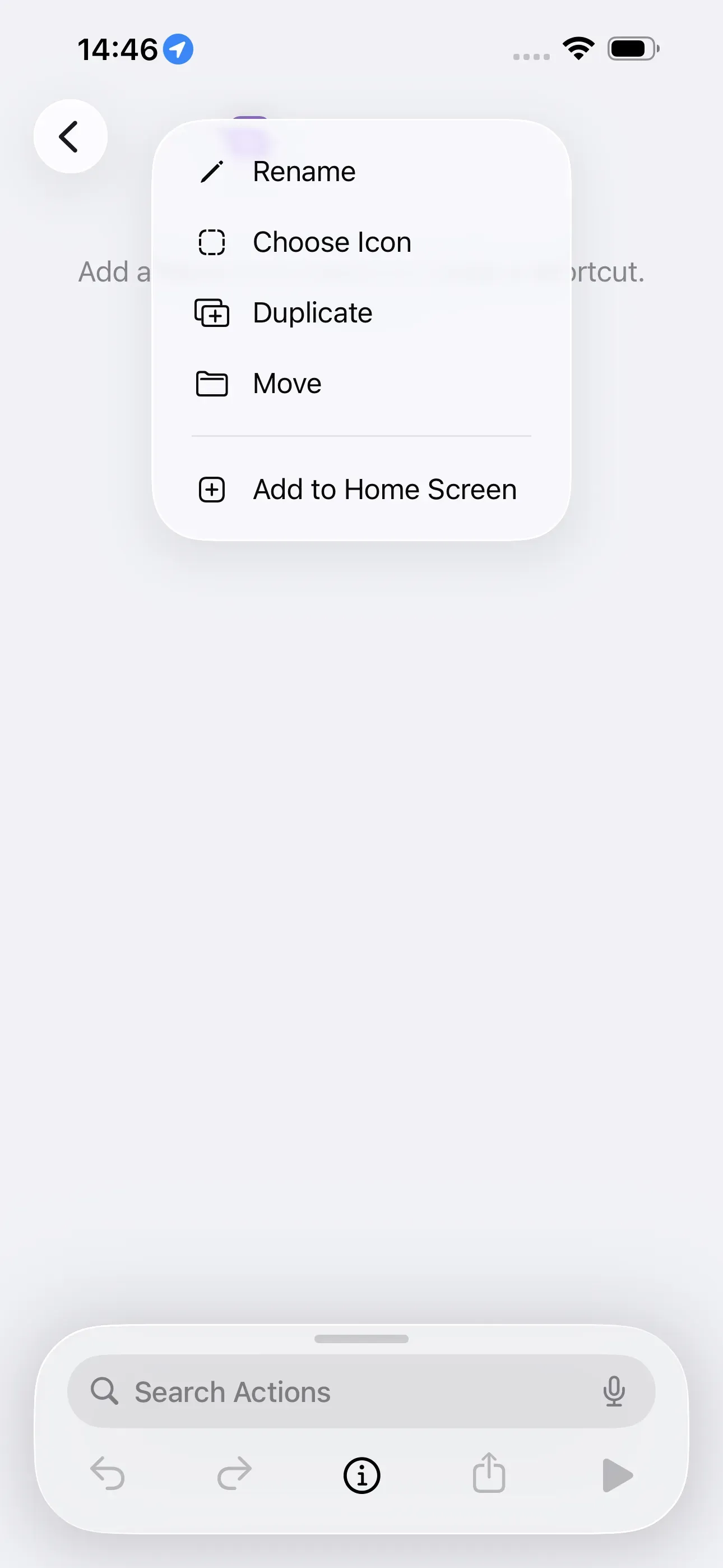
Get current location
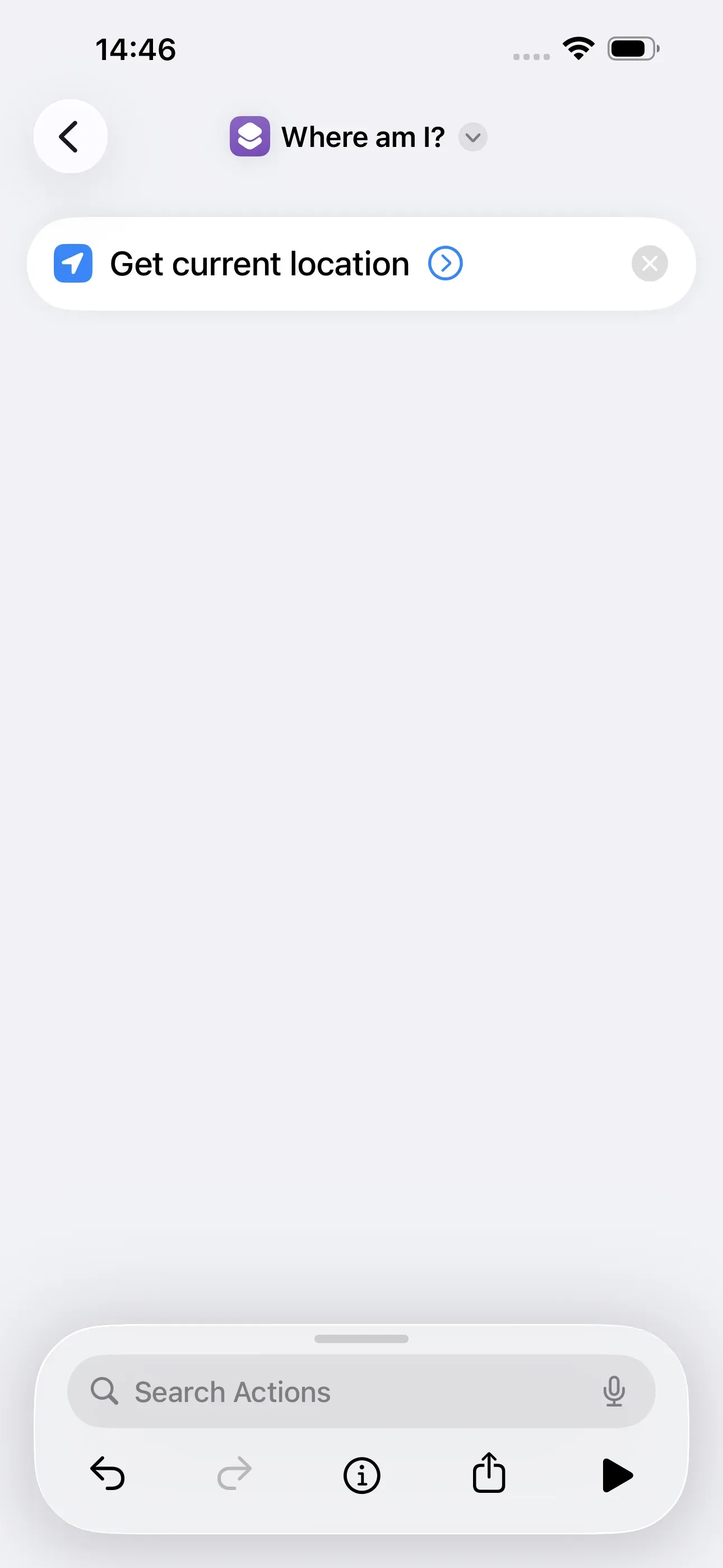
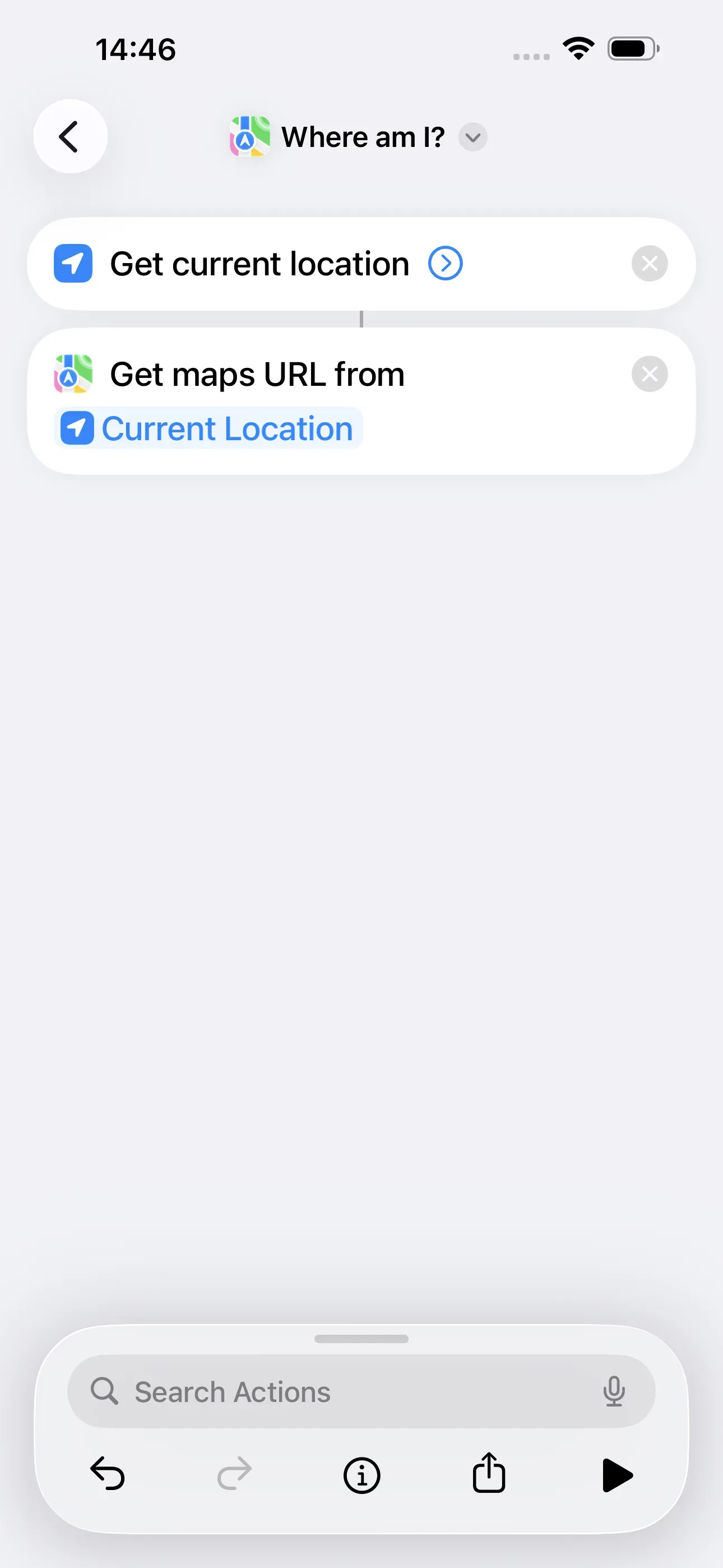
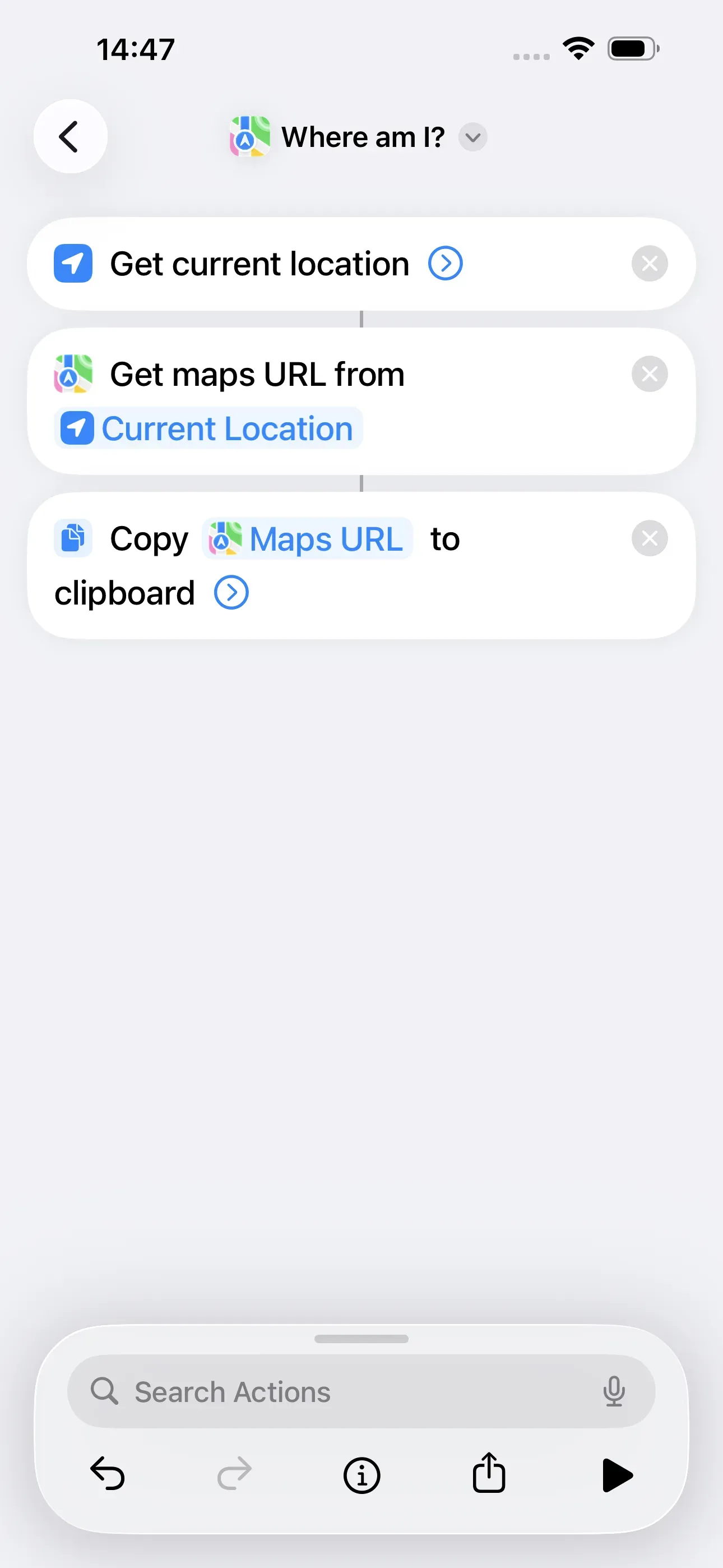
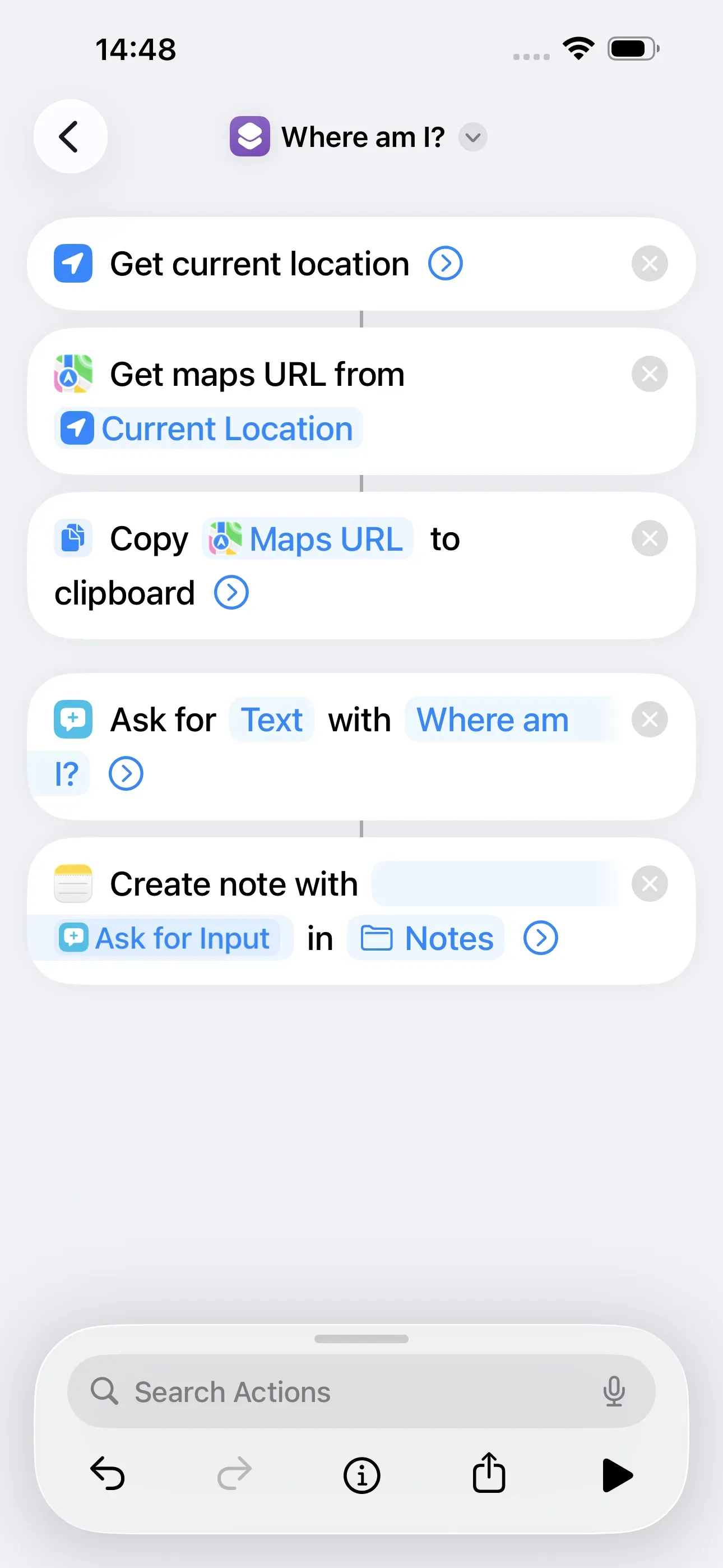
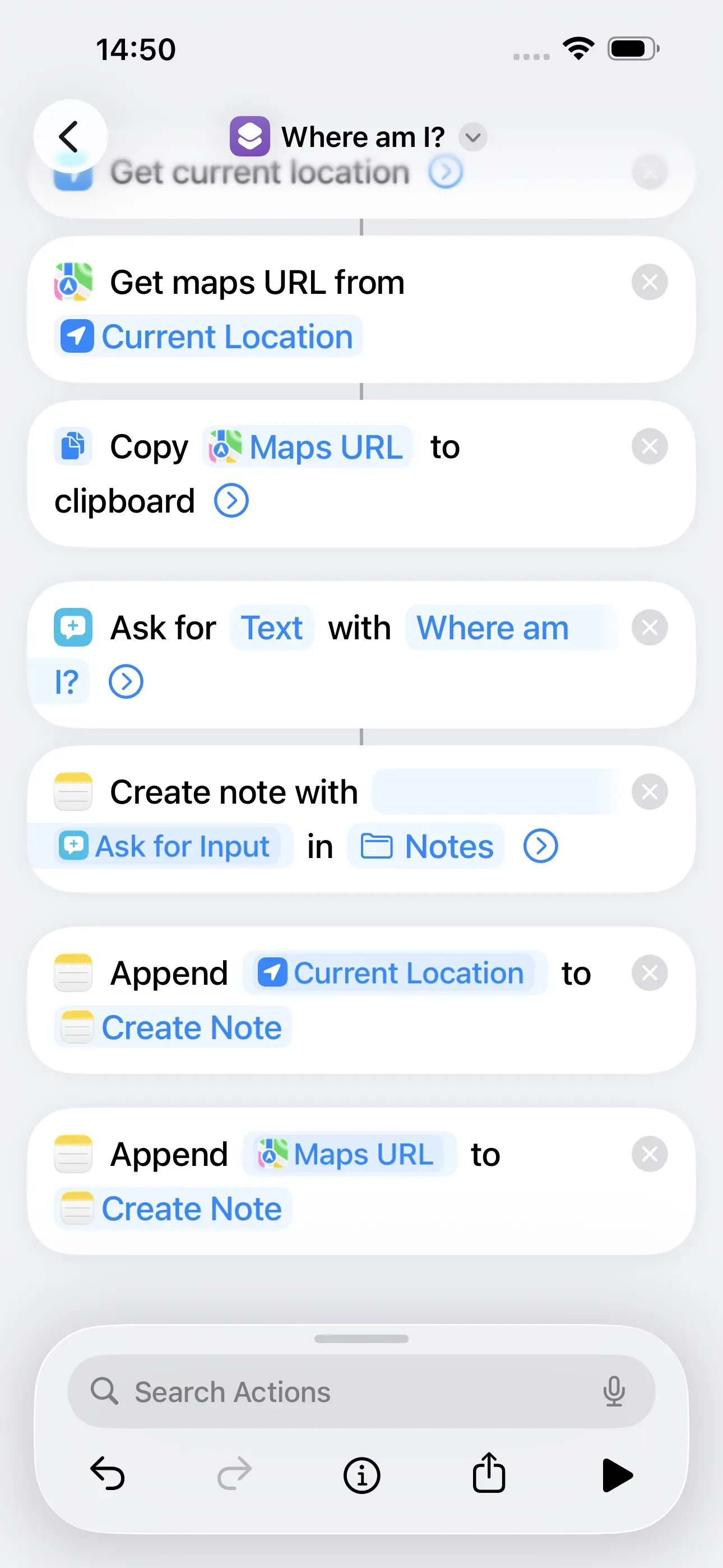
Further down you can see a list of actions. There we search for Location and select Get Current Location. Then we search for Maps and select Get Maps URL. To save the current location to the clipboard, we type in Clip → select Copy to Clipboard.
Name the current location
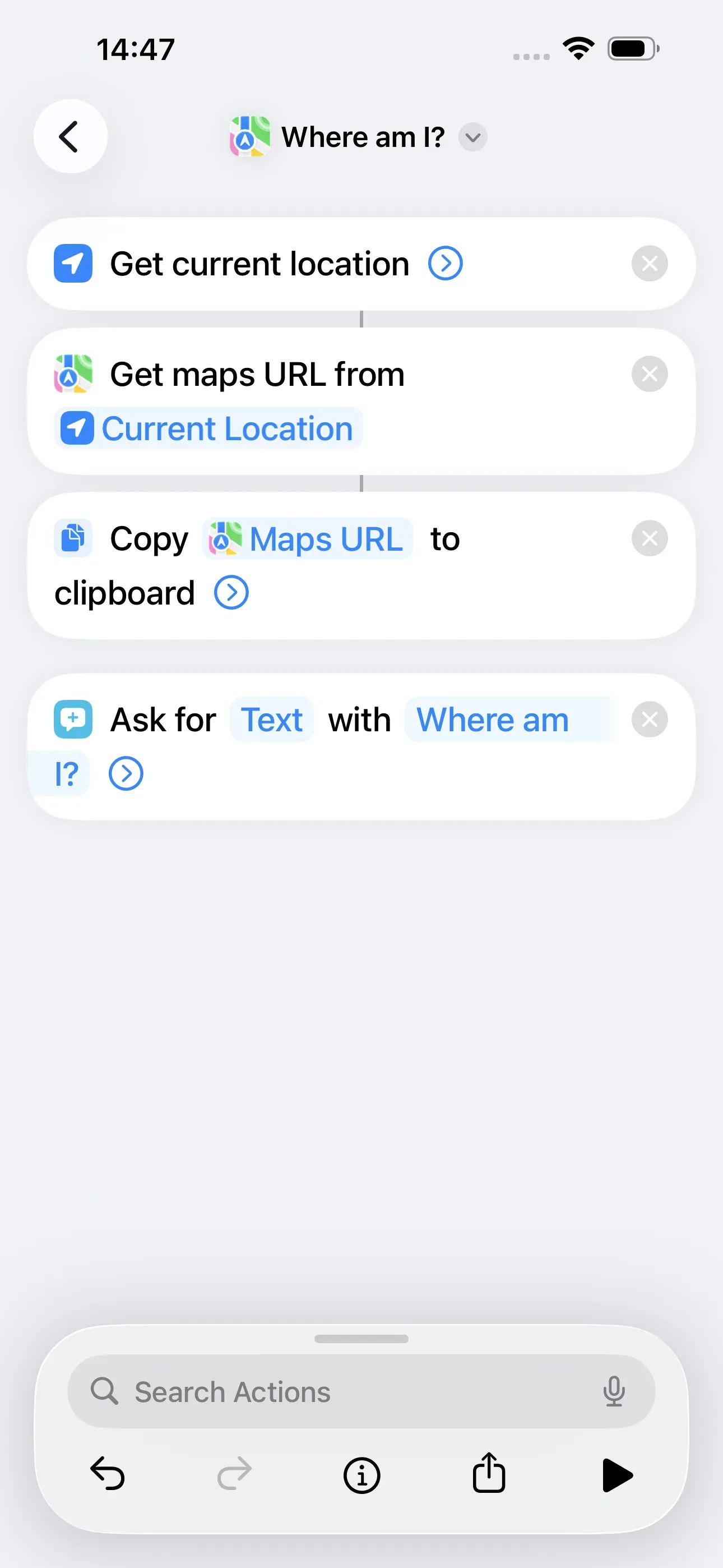
It should be possible to name the current location individually for each scan of the NFC tag. For this purpose we configure an input field with the question "Where am I?". We search for Input → select Ask for Input. Here we now tap on Prompt and enter Where am I?.
Create note with current location
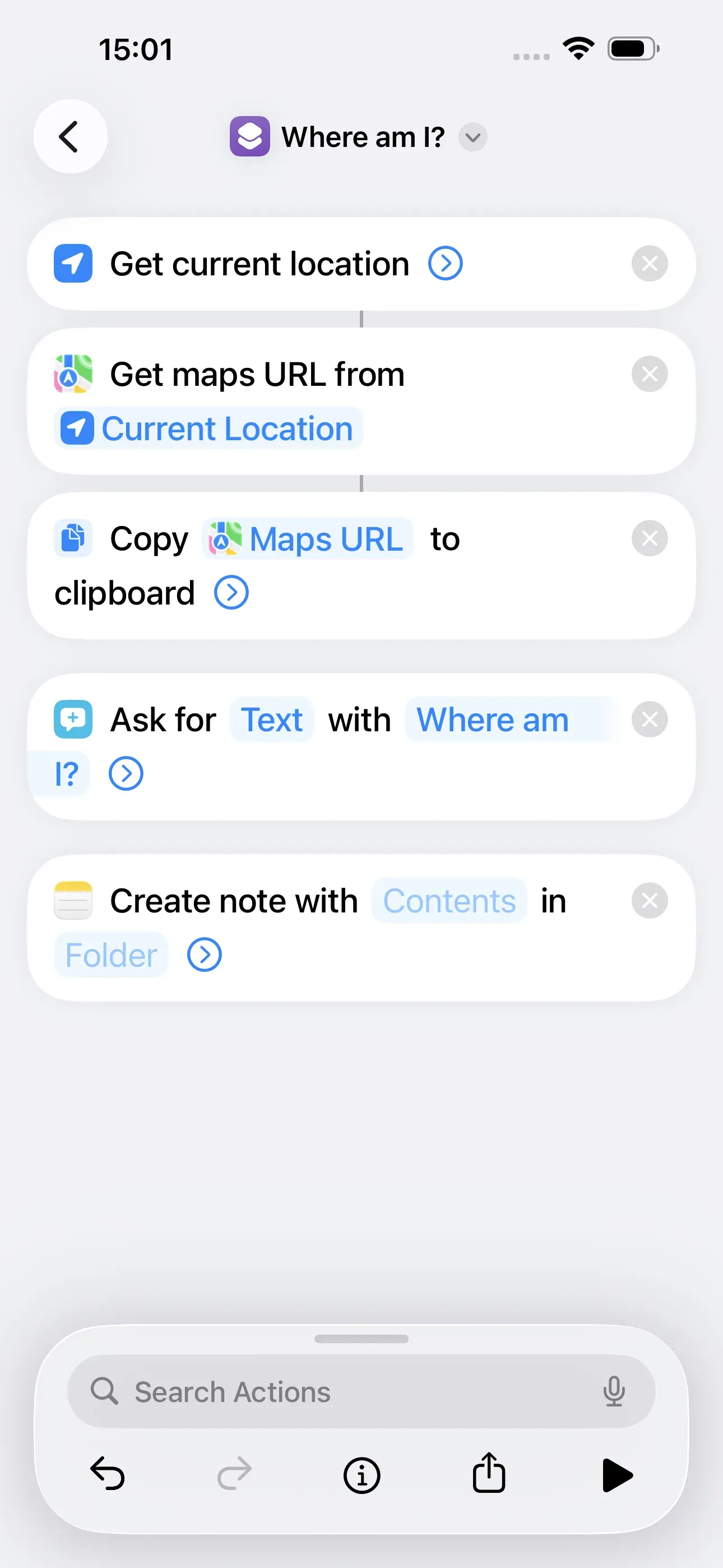
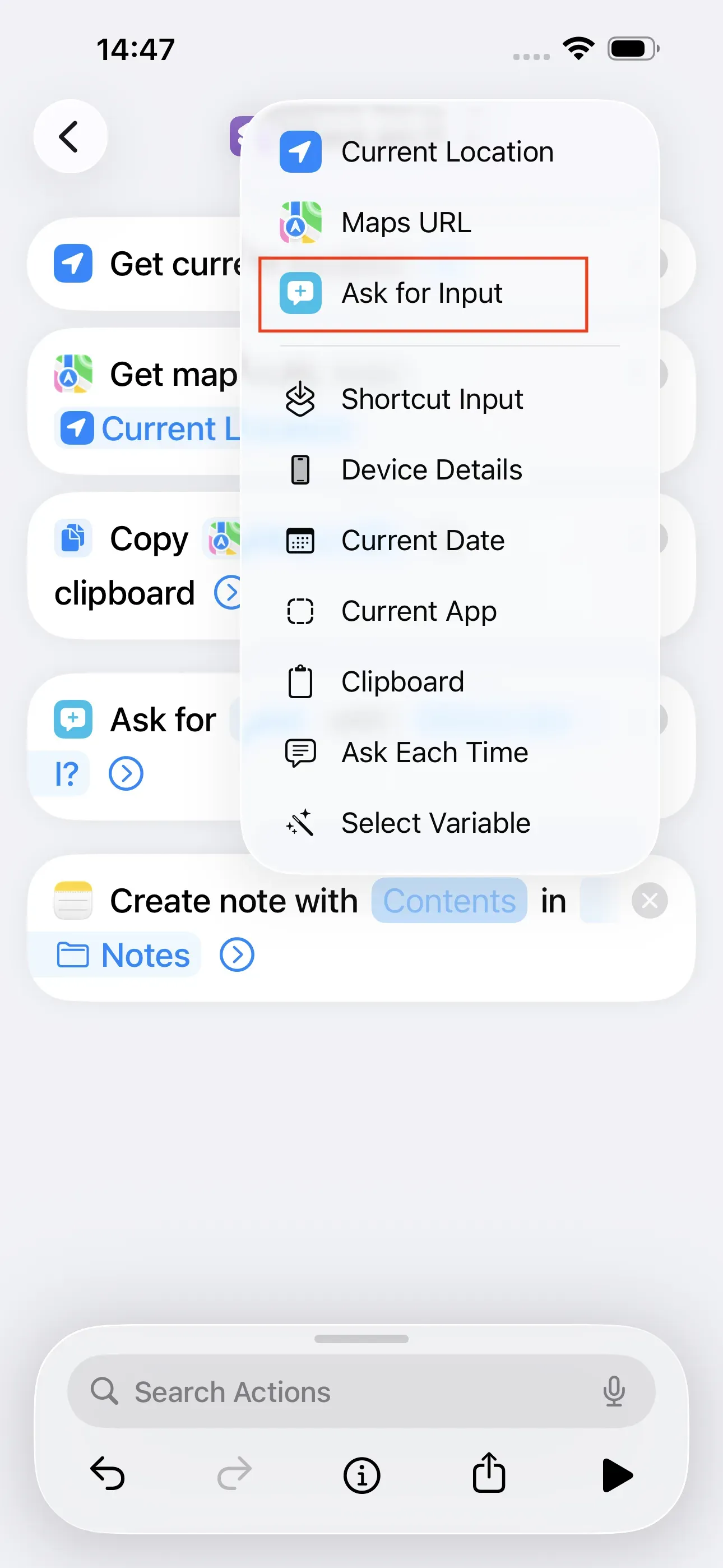
We enter in the search field Note → Create Note. Then we tap on the field Folder and select Notes [iCloud], to select a note path by default. Then an action must be linked to the field Contents. To do this, we press on this field and tap on Ask for Input.
Save location in note
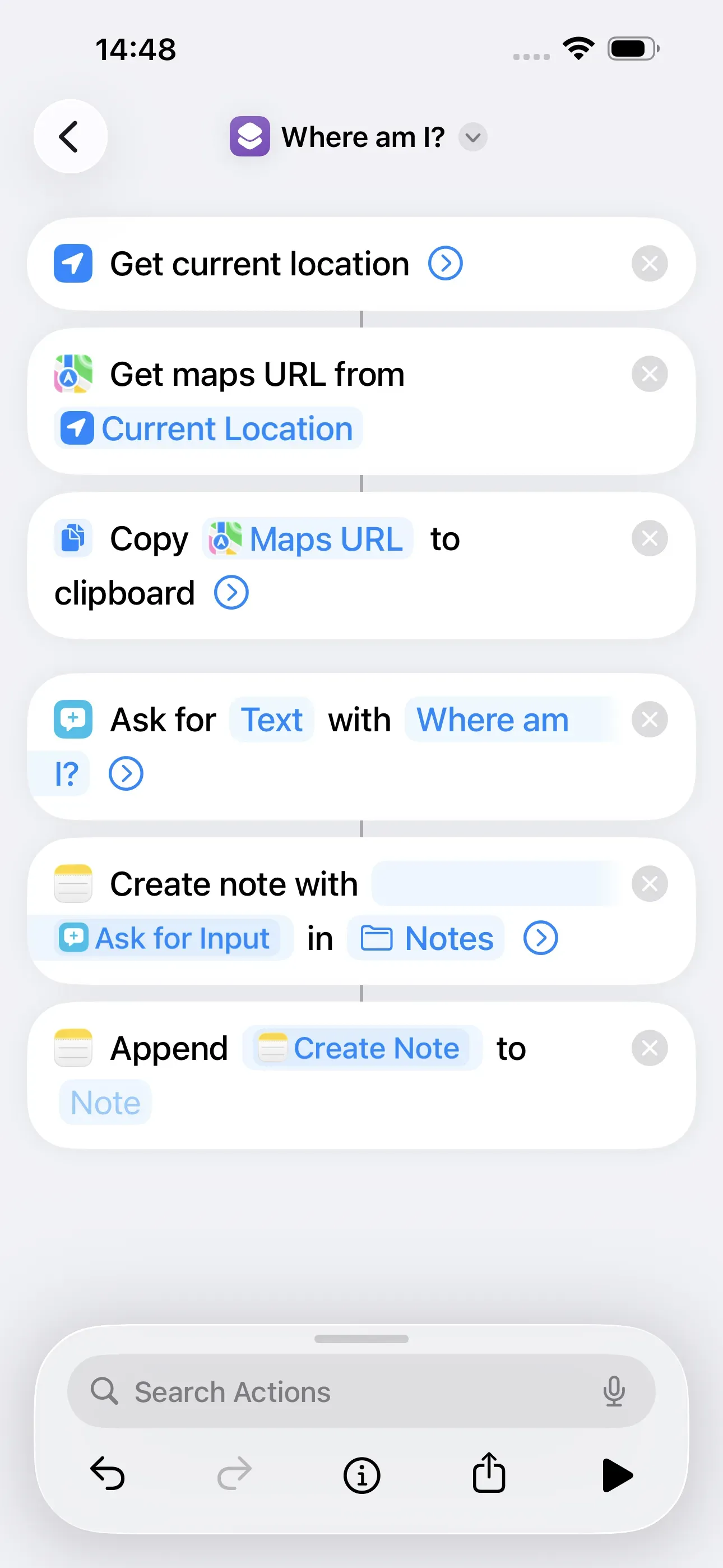
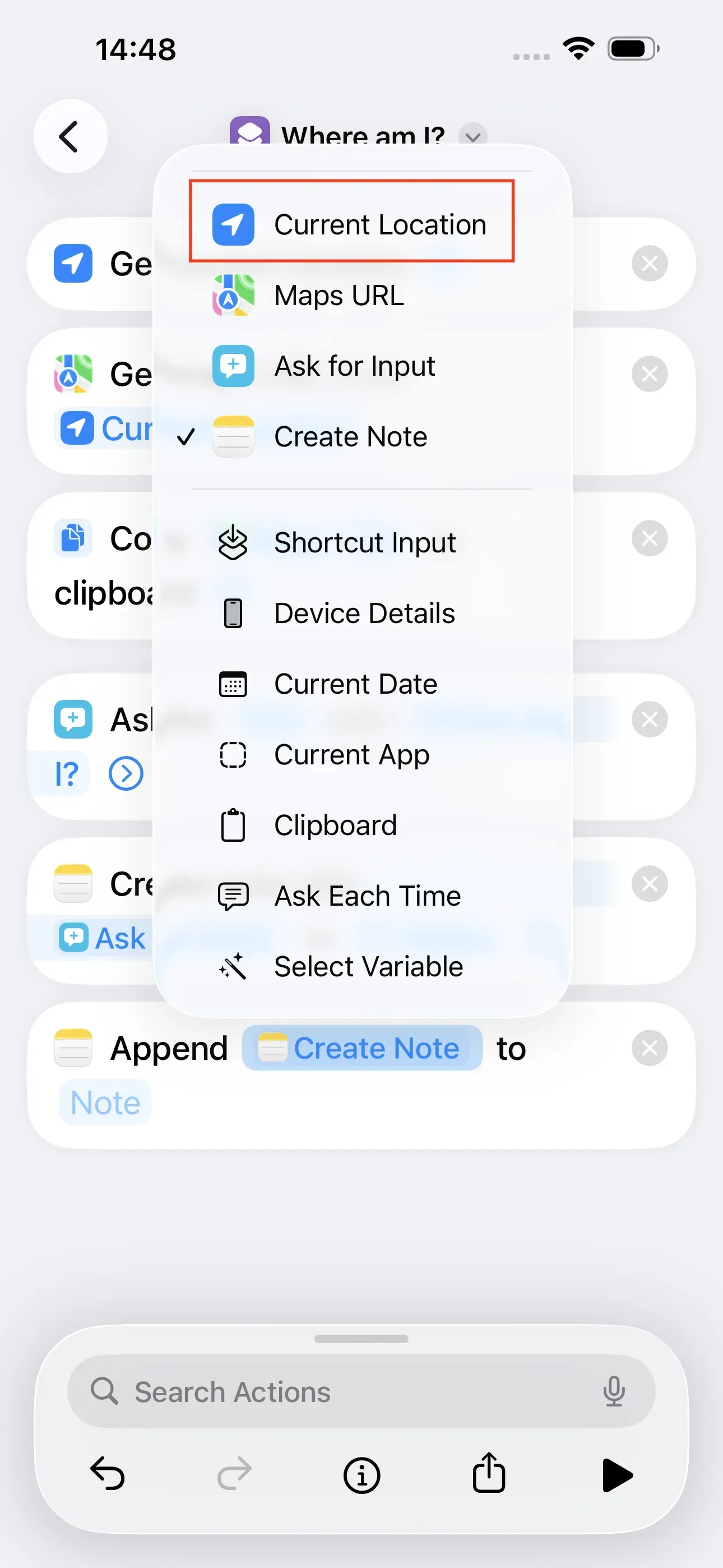
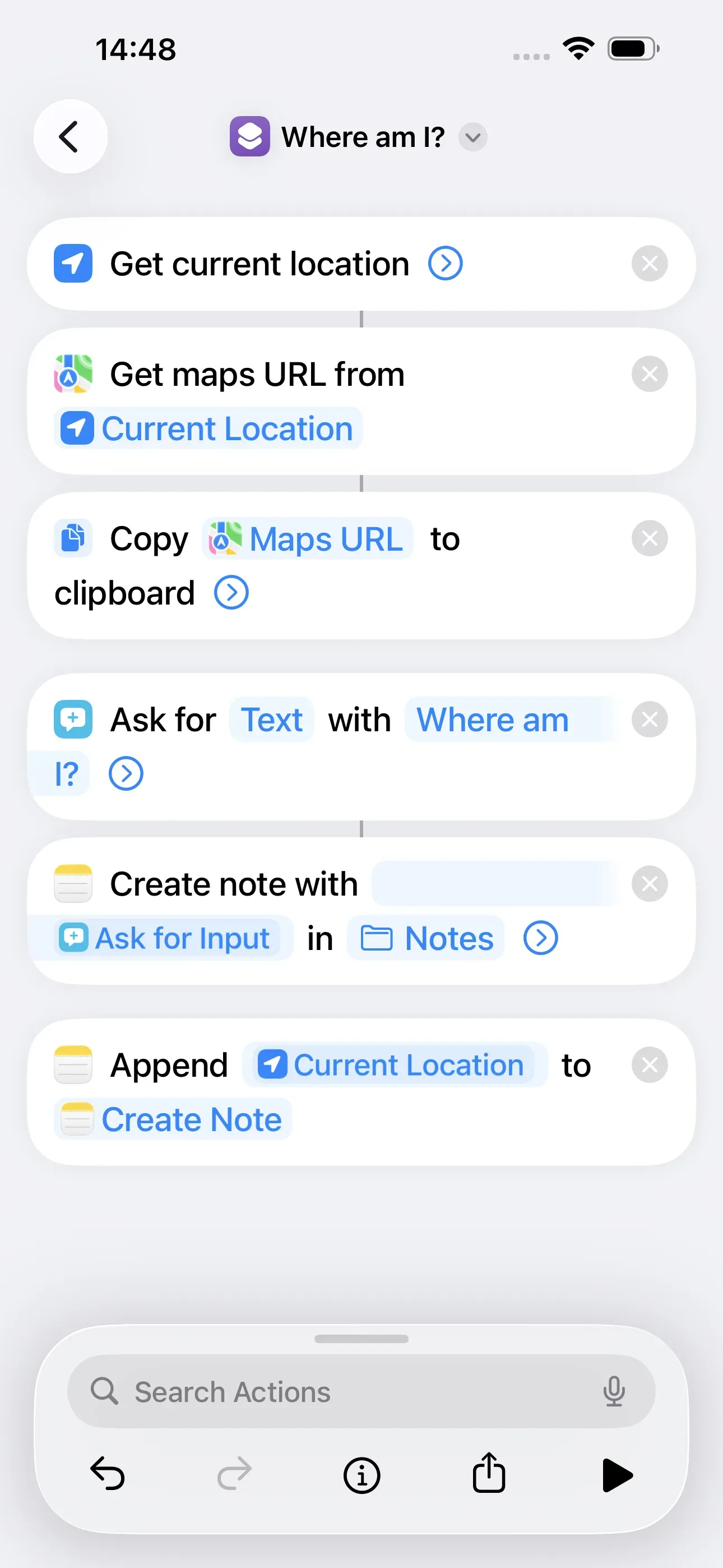
In the last step we tap again Note in the search field and select Append to Note. Then we press on the field Create Note and tap on Current Location. After this, we press on the field Note and we tap on Create Note. By doing this the exact address of the location is displayed.
Now we have to do this step again for Maps URL. For this purpose, we search again for Note → Append to Note. We press on Appended Note → Maps URL. After this, we press on the field Note → Create Note. This can be used to display the Google Maps location.
Save finished short command on NFC tag and test it
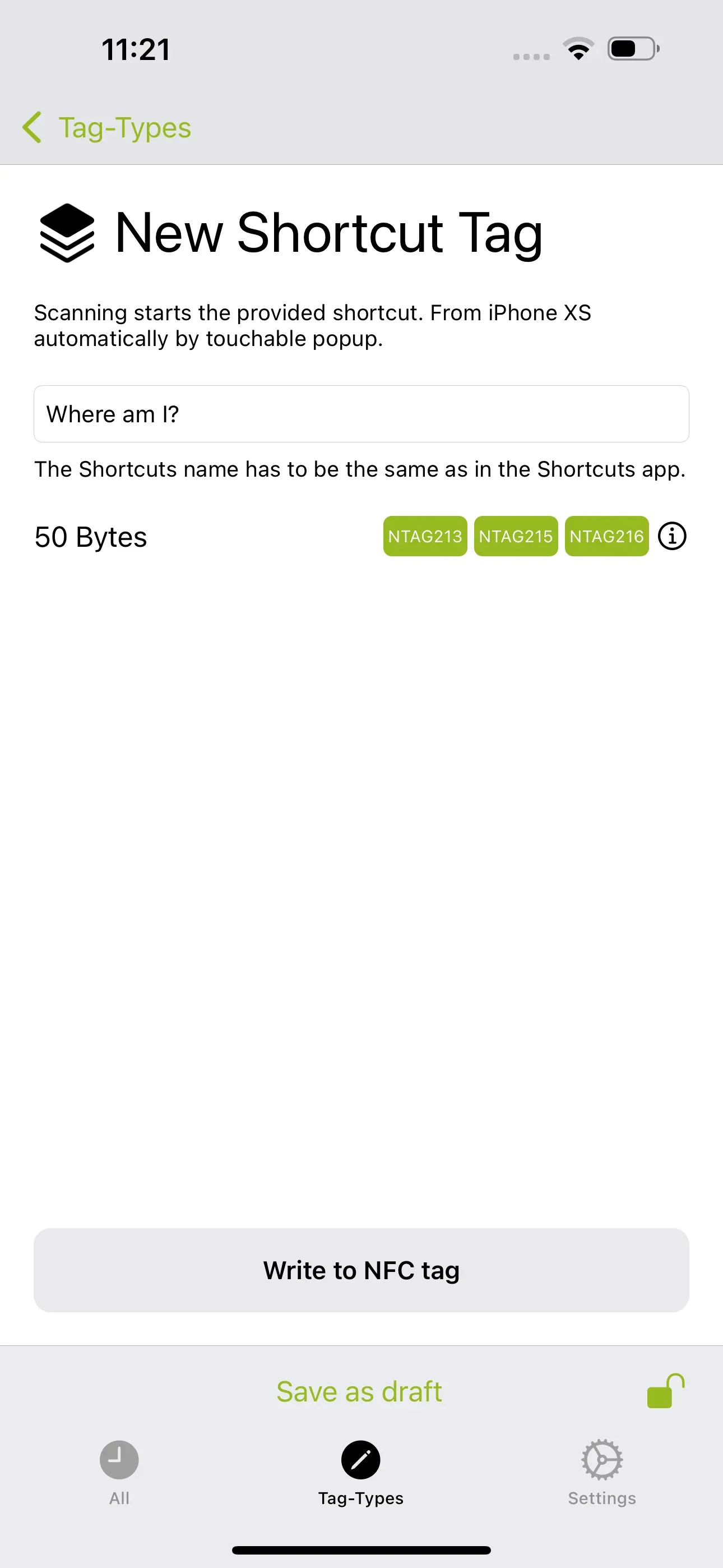
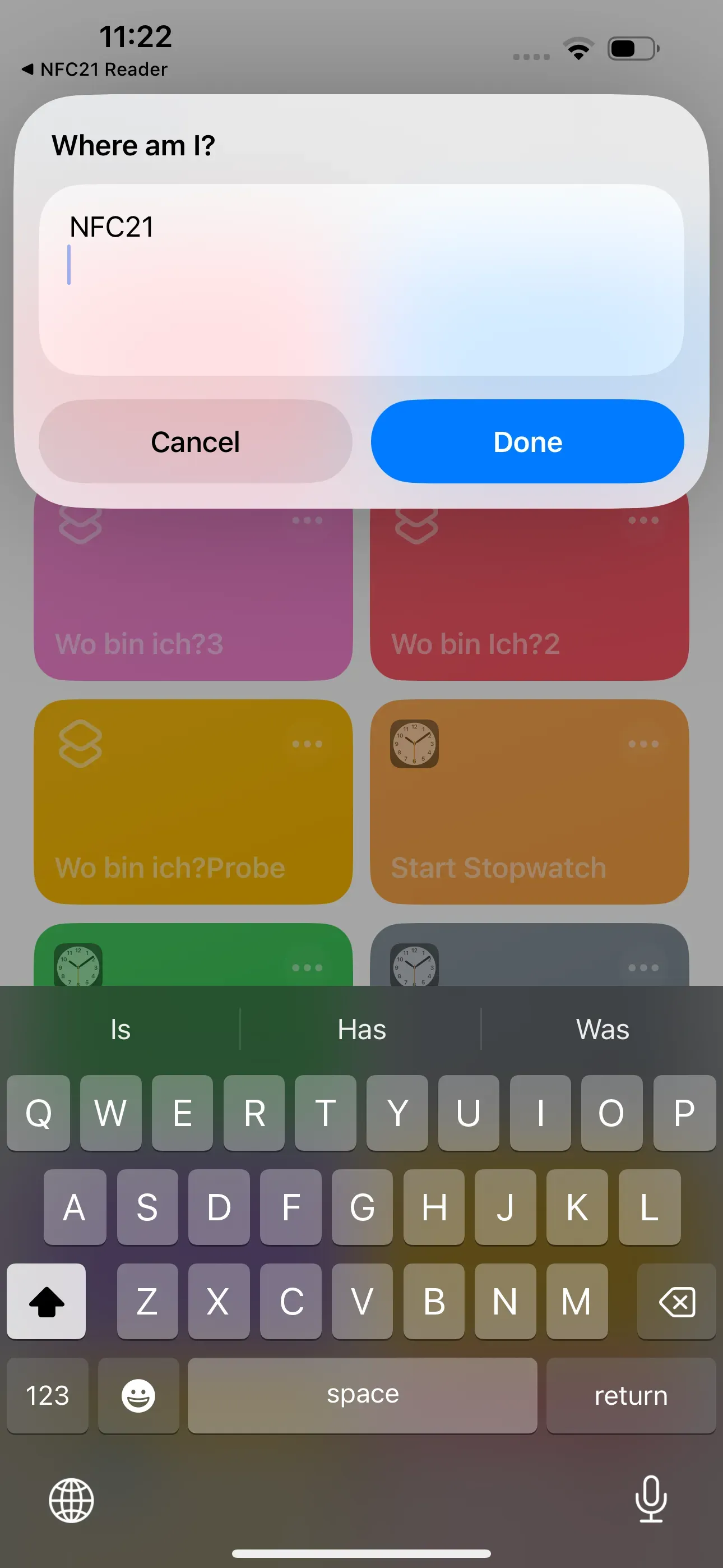
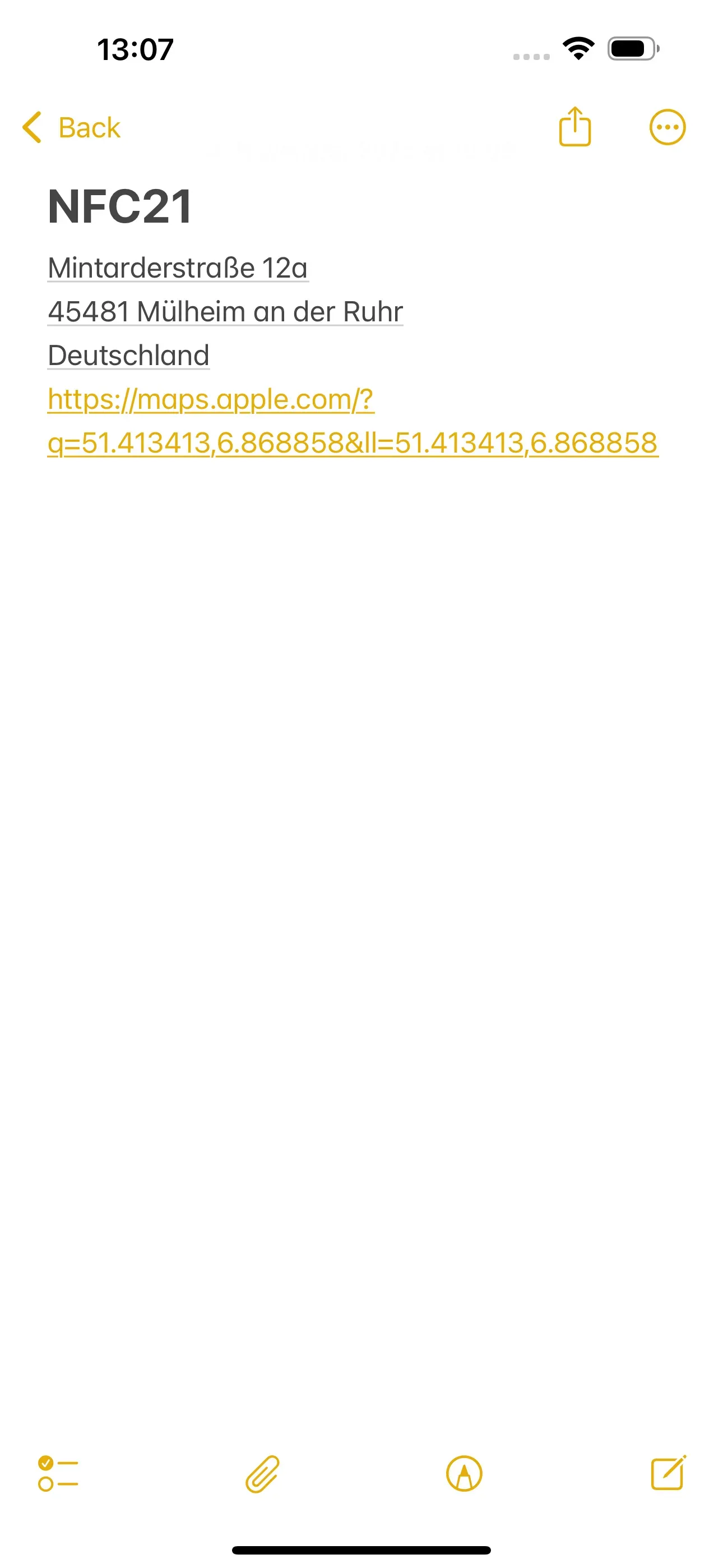
To trigger the short command with an NFC tag, we save it to an NFC tag using the NFC21 Tools app. Now we tap on Tag-Types → + Shortcuts → enter the name of the shortcut (Where am I?). In a final step, we save the shortcut on the NFC tag, by pressing on Write to NFC tag and hold the top edge of the iPhone over the NFC tag. As soon as the NFC tag is scanned, we can enter the name of our location and the name of the location, the address and the map URL is then entered in our notes.
Summary
In this How2 we explained that an NFC tag can help to name the current location and save it in a note. Each time the NFC tag is scanned, a new name can be created and thus a note can be created. The finished shortcut can be downloaded here, which then only needs to be written on an NFC tag using NFC21 Tools.
Note: If you do not want to create the shortcut yourself, you can download the finished shortcut directly here. To do so, click on this link. Now all you have to do is save the shortcut to the NFC tag.
In a further How2 we also explain how to set a timer or share a WLAN network using an NFC tag.
Associated operating systems
iOSFirst published: 25.07.2023 / Updated: 06.11.2025