 Near Field Communication (NFC) products Online Store
 Worldwide Shipping (free DE shipping)

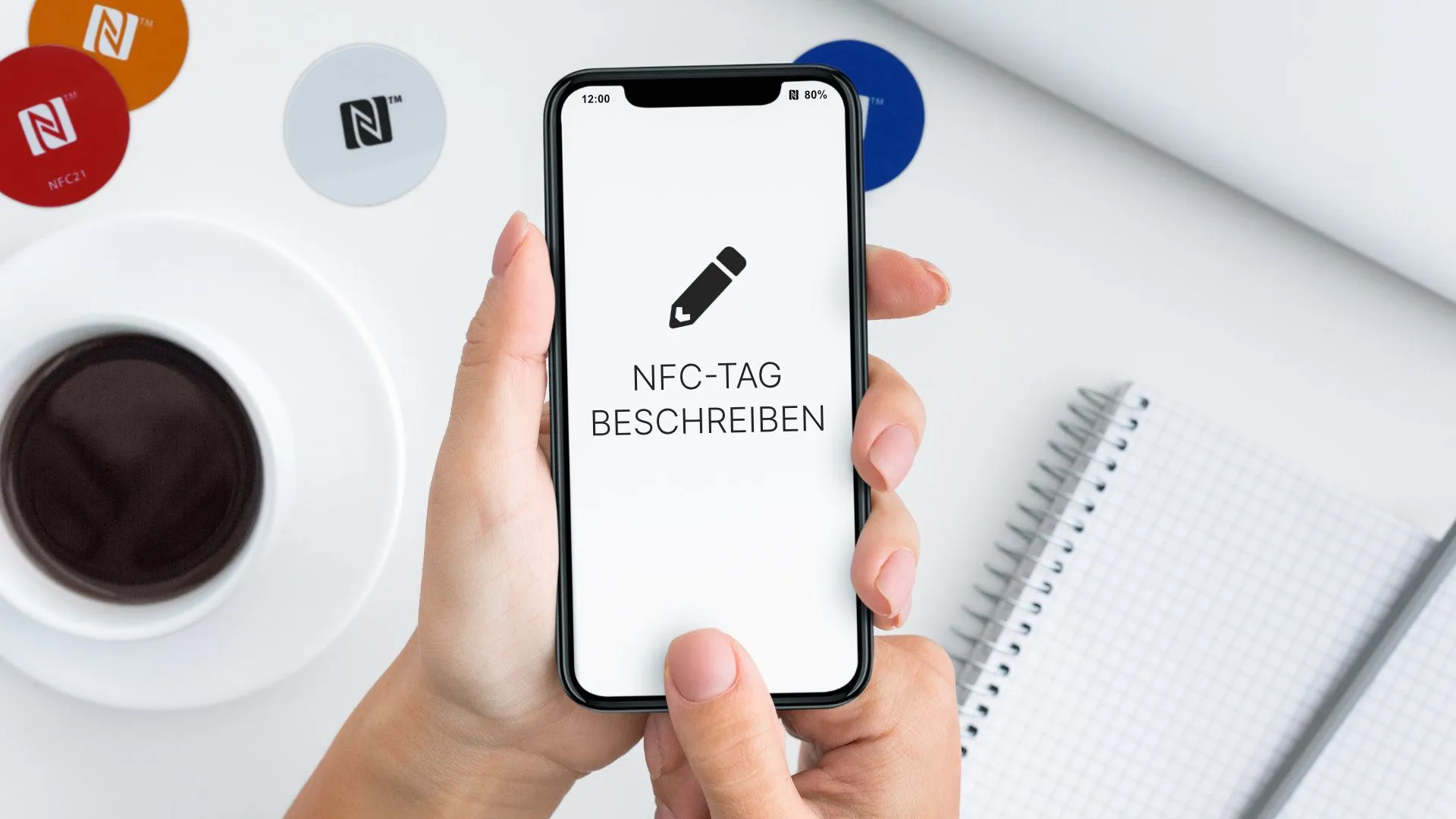
With our free NFC21 Tools app, you can describe and read all common NFC tags. In this article, we explain how it works.
Content:
- Overview
- Reading NFC tags
- Write NFC-Tags
- Standard Tag-Types: URL, phone number and FaceTime
- Standard Tag-Type: E-Mail, SMS and Shortcut
- Extended Tag-Types
- Expert Tag-Types
Overview
After opening the app, we are automatically taken to the All overview. Here, we can use the bar at the top of the screen to filter which tags we want to see: All, Read, Written, Drafts and Favorites. Entries can be deleted from this list by selecting Edit. Alternatively, you can also swipe right over the desired entry. Written NFC tags can be favourited and/or saved as drafts so that they can be accessed again later. This is particularly useful for NFC tags that are to be written with an email, text message or text, for example, to save repeated typing. Each NFC tag (regardless of whether it is read, written or a draft) can be saved as a favourite by tapping on the star in the top right-hand corner.
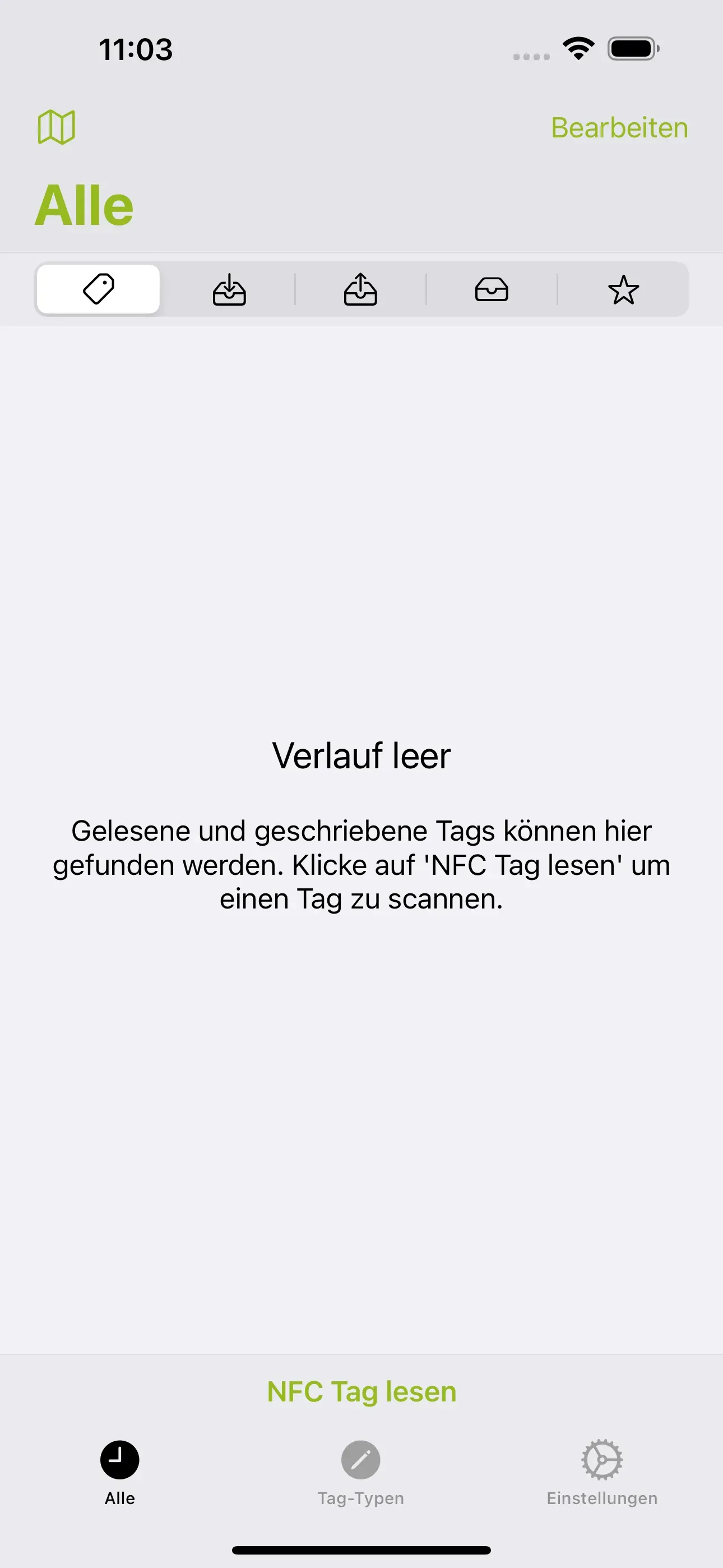
By selecting Read NFC tag, an NFC tag can be read, which then appears in the overview under Read and All. By selecting this entry, further information and actions can be accessed, which vary depending on the type of tag. For example, with an email tag, you can compose a corresponding email, with a location tag, you can start navigation, etc.
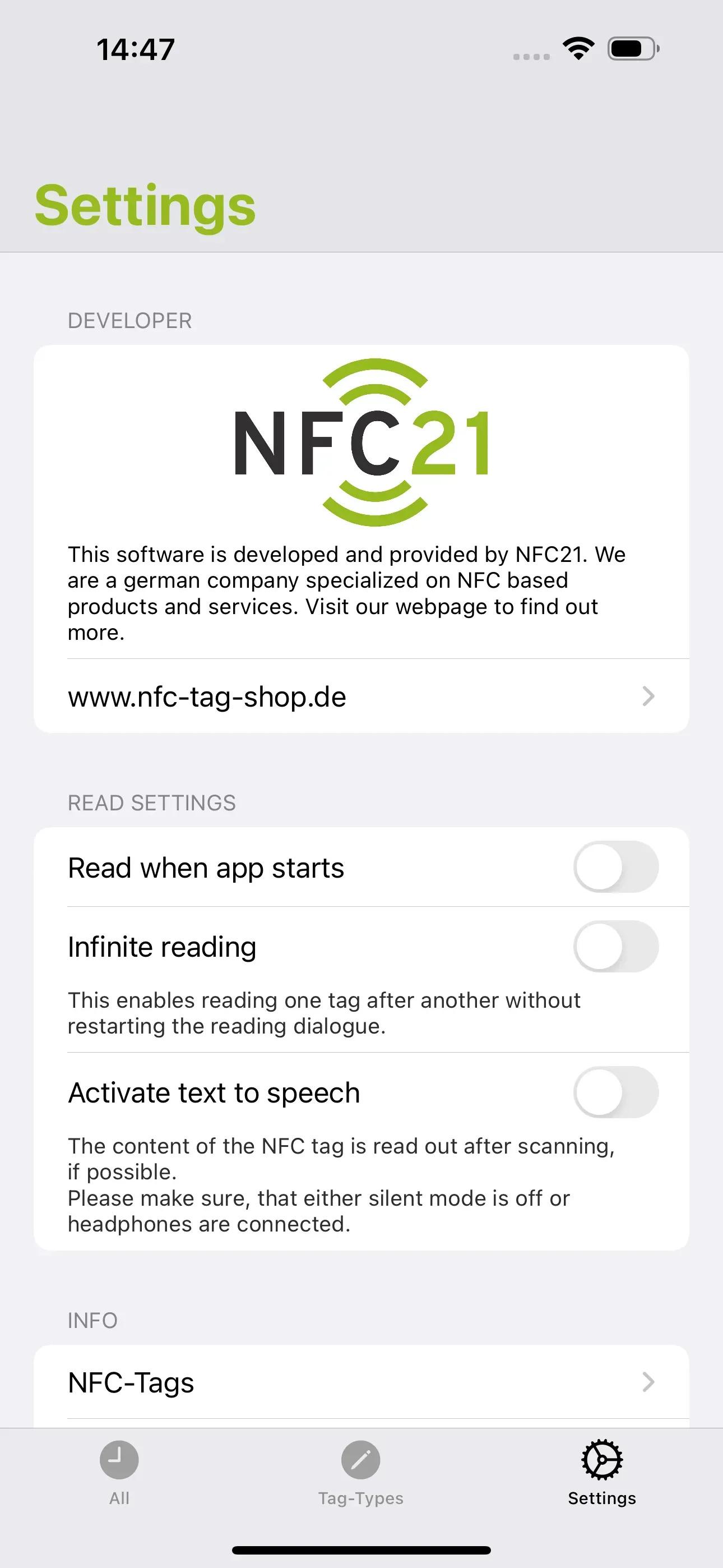
Note: Under Settings, you can set the app to read an NFC tag immediately upon starting the app. In addition, the Infinite reading function allows you to read one tag after another without having to reopen the dialogue box. Another important function is Activate text to speech. This allows the content of the NFC tag to be read aloud after scanning. This function is particularly helpful for people with visual impairments.
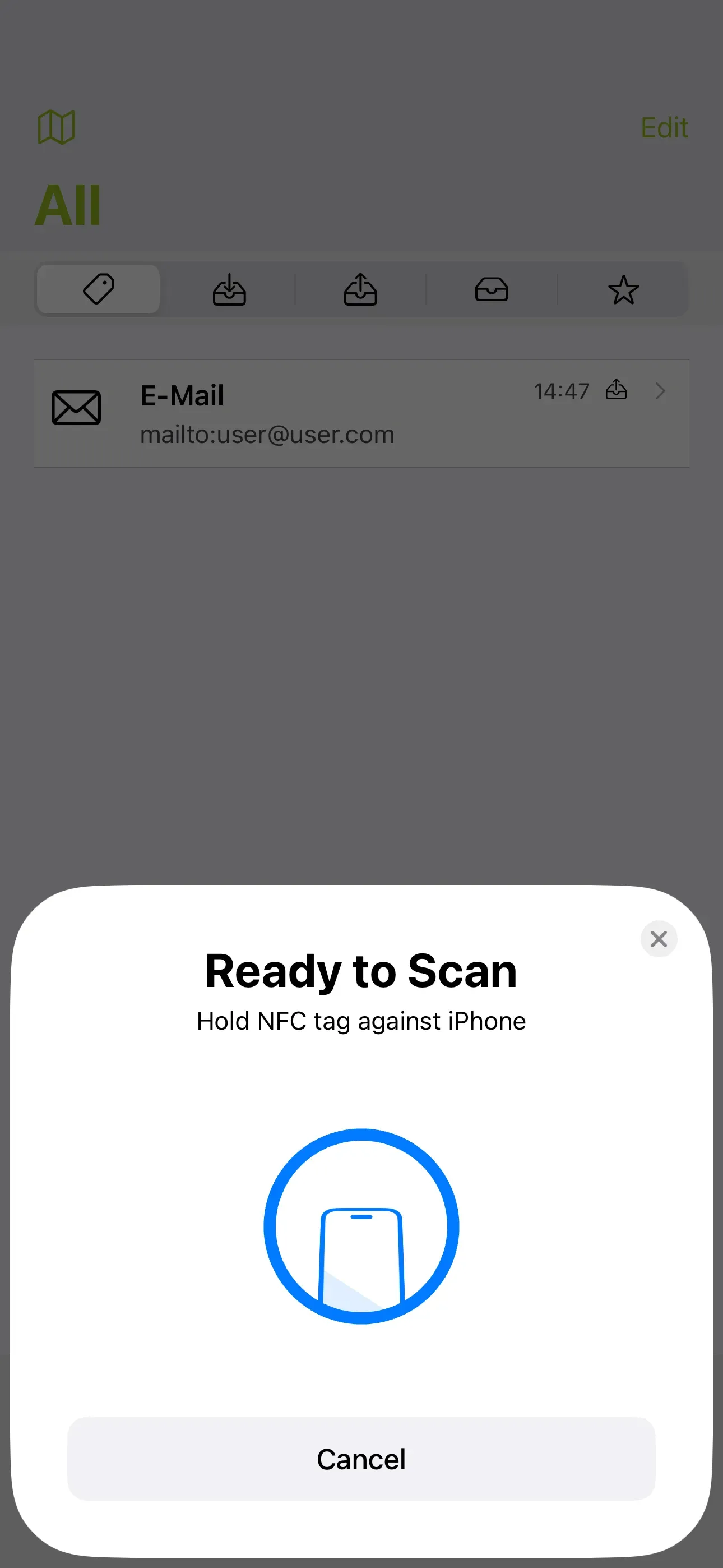
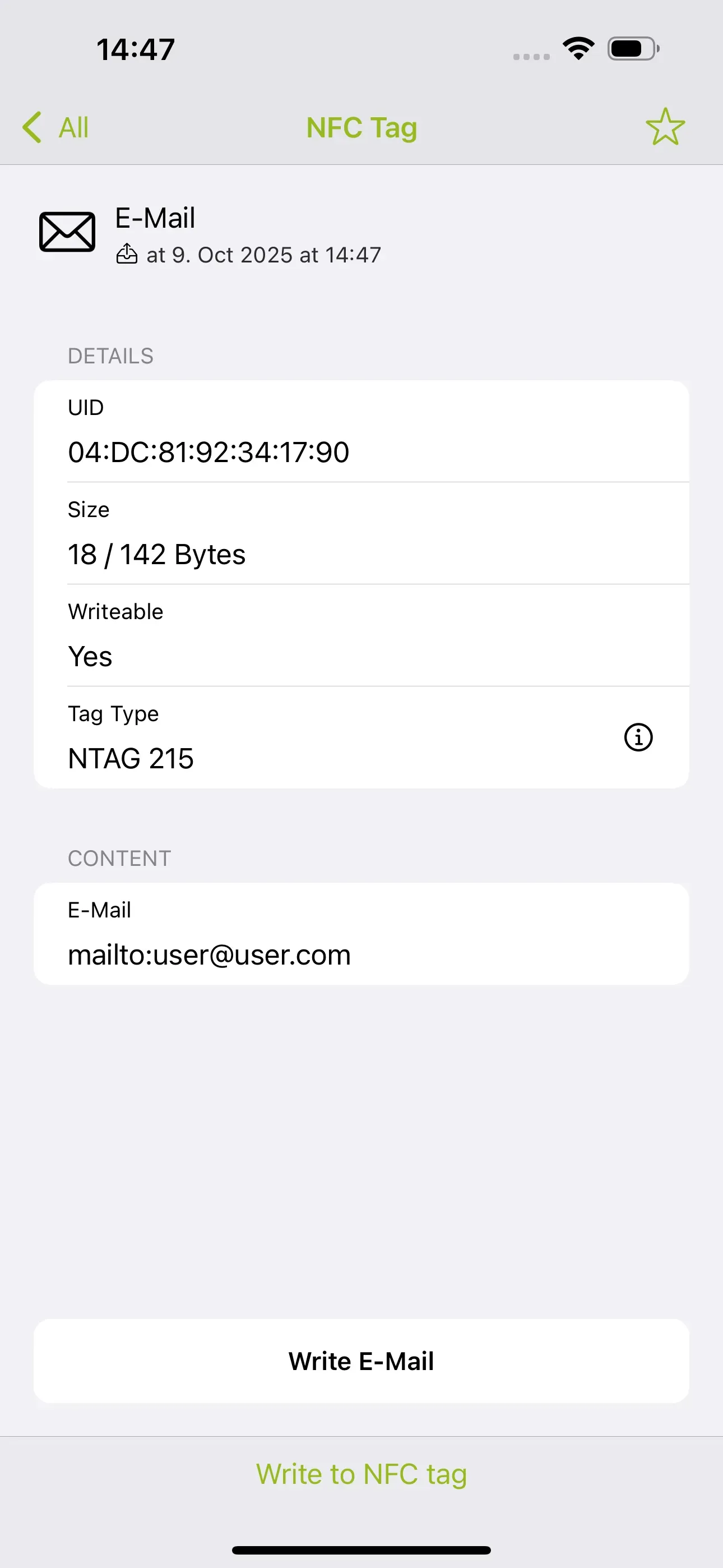
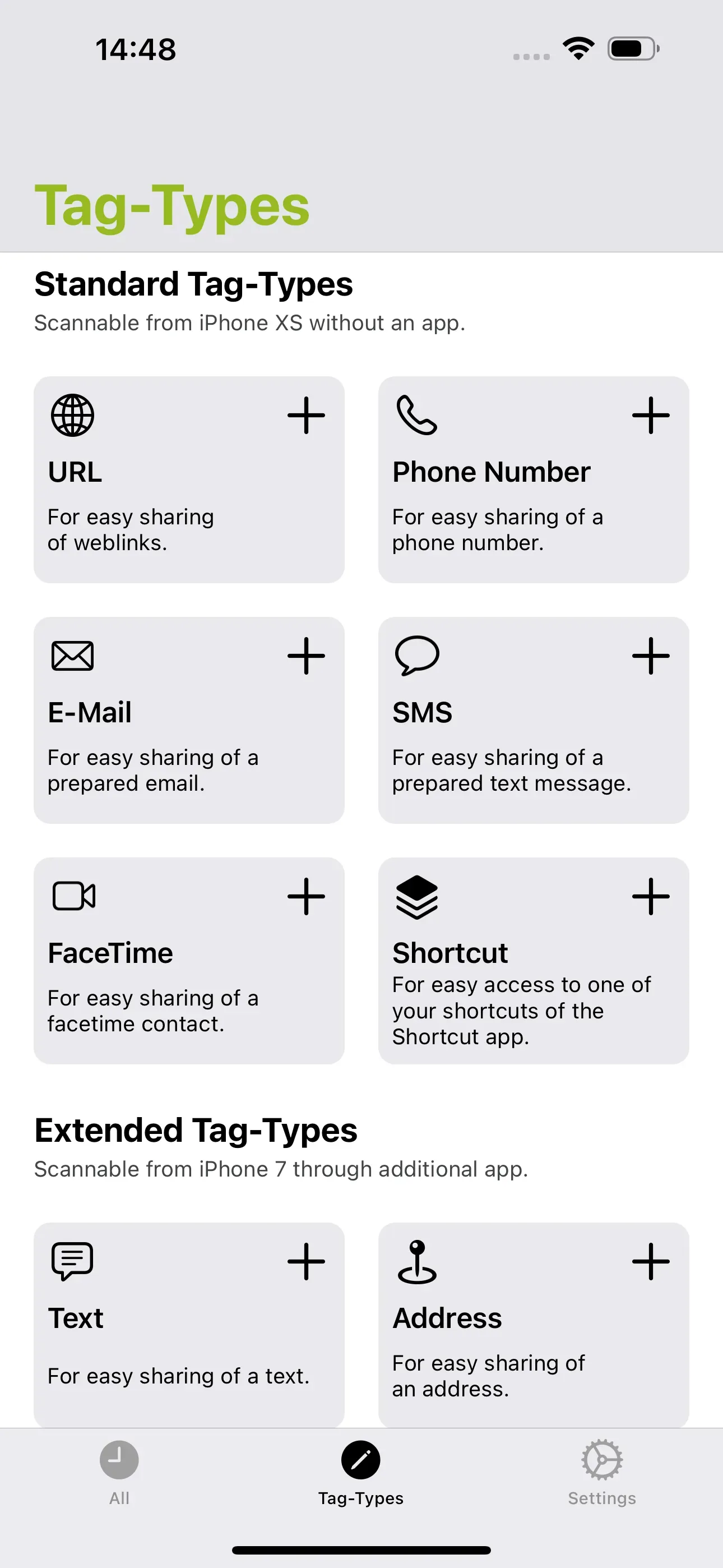
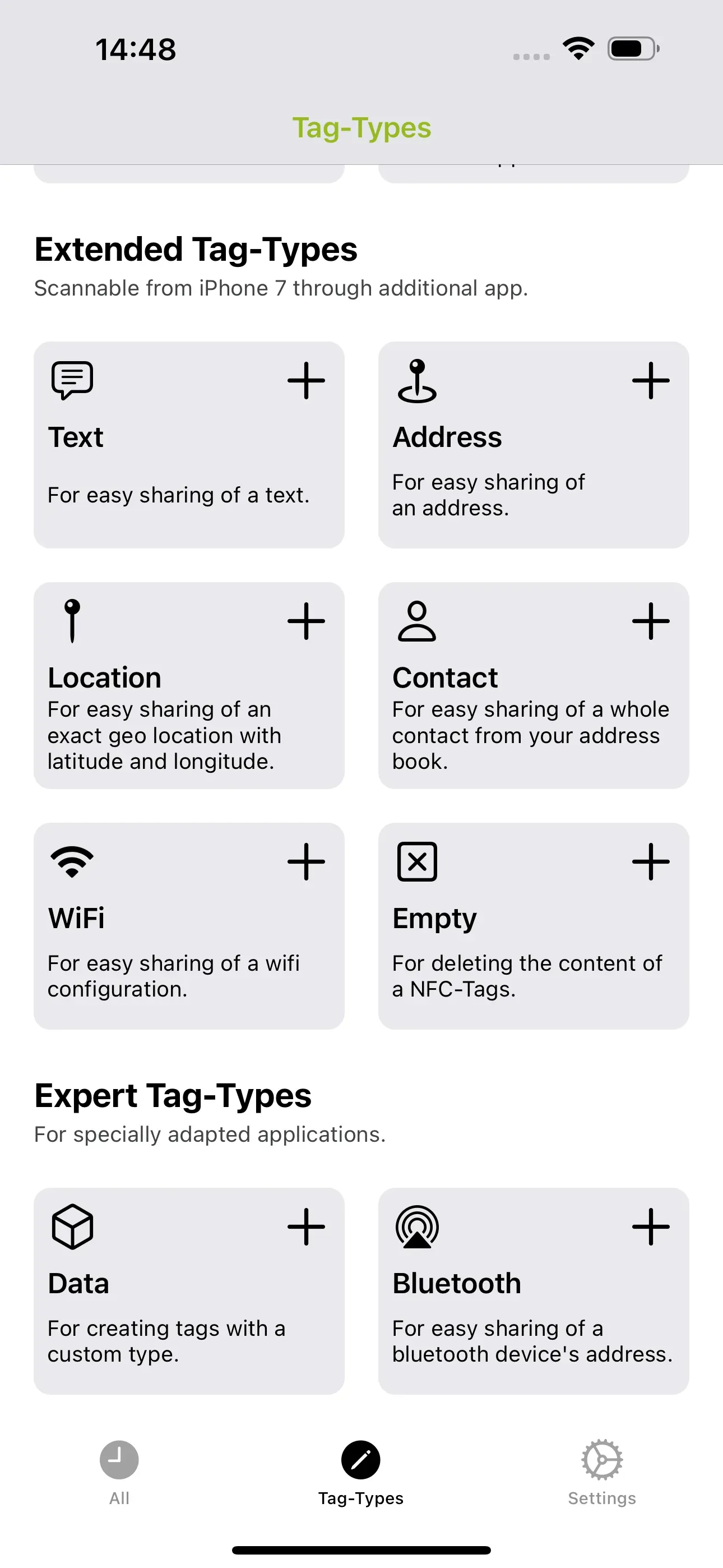
By selecting Tag-Types at the bottom of the screen, you can choose which tag types to describe. The Tag-Types are divided into Standard Tag-Types, Extended Tag-Types and Expert Tag-Types.
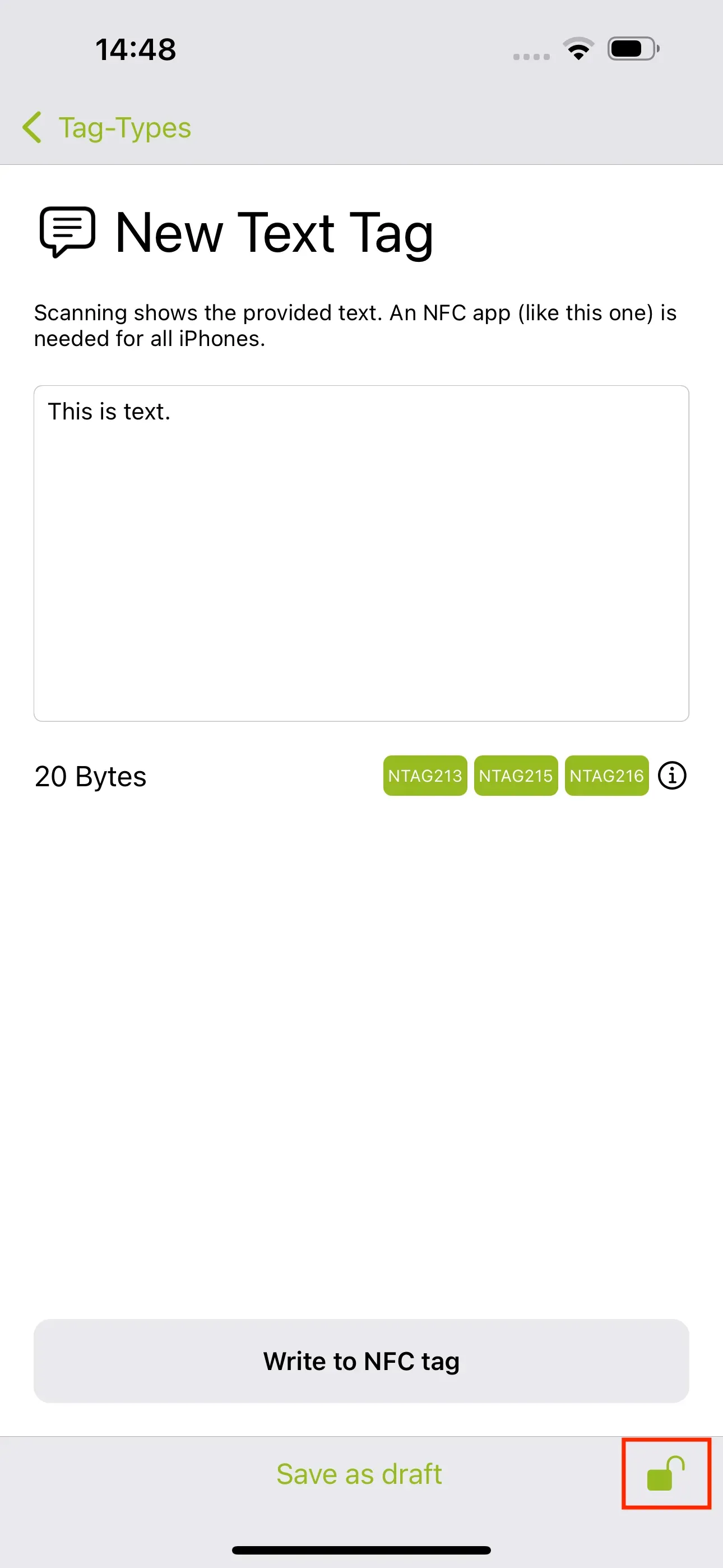
Note: When describing a tag, we can select the lock icon. By selecting the lock icon, we can decide whether the NFC tag should be locked. This means that the tag cannot be overwritten afterwards. This step cannot be undone!
Standard Tag-Types: URL, phone number and FaceTime
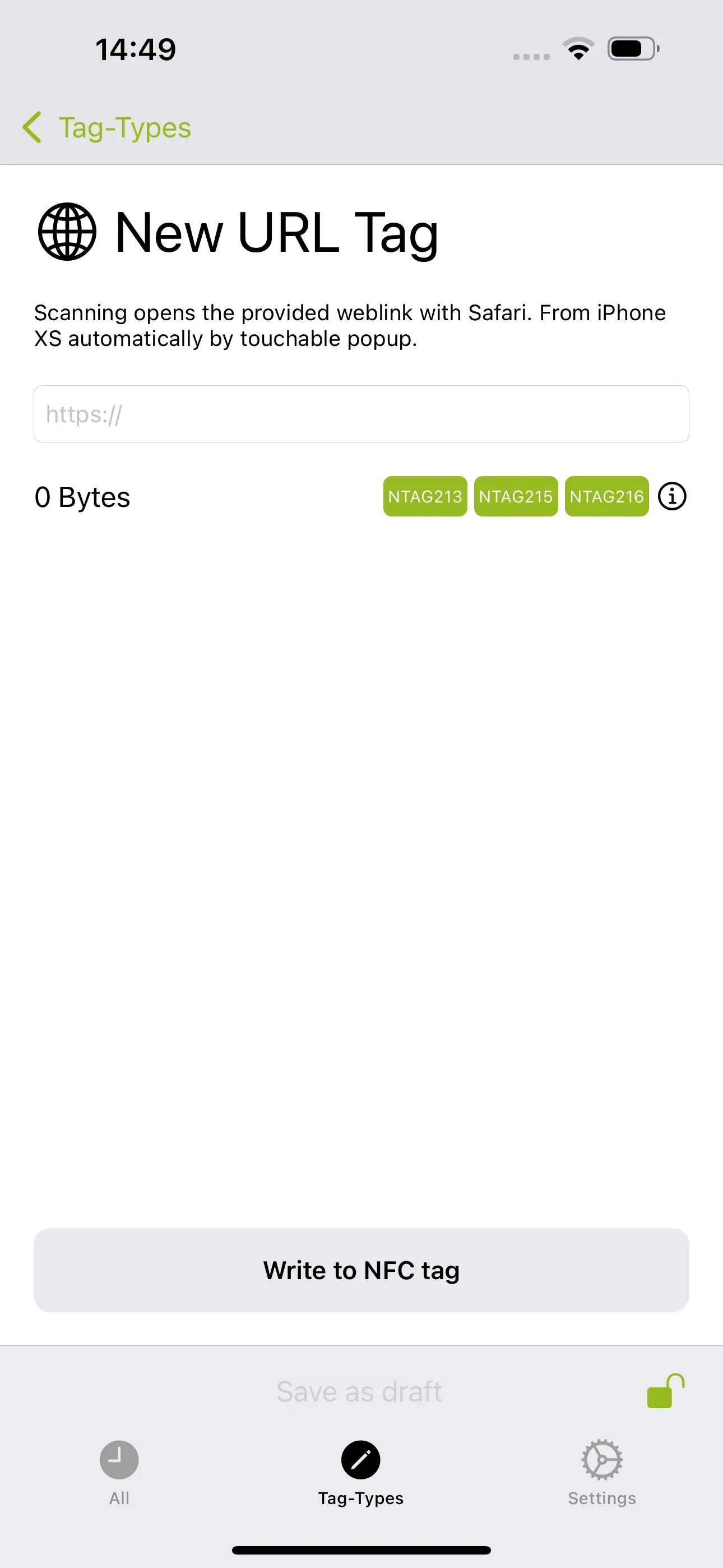
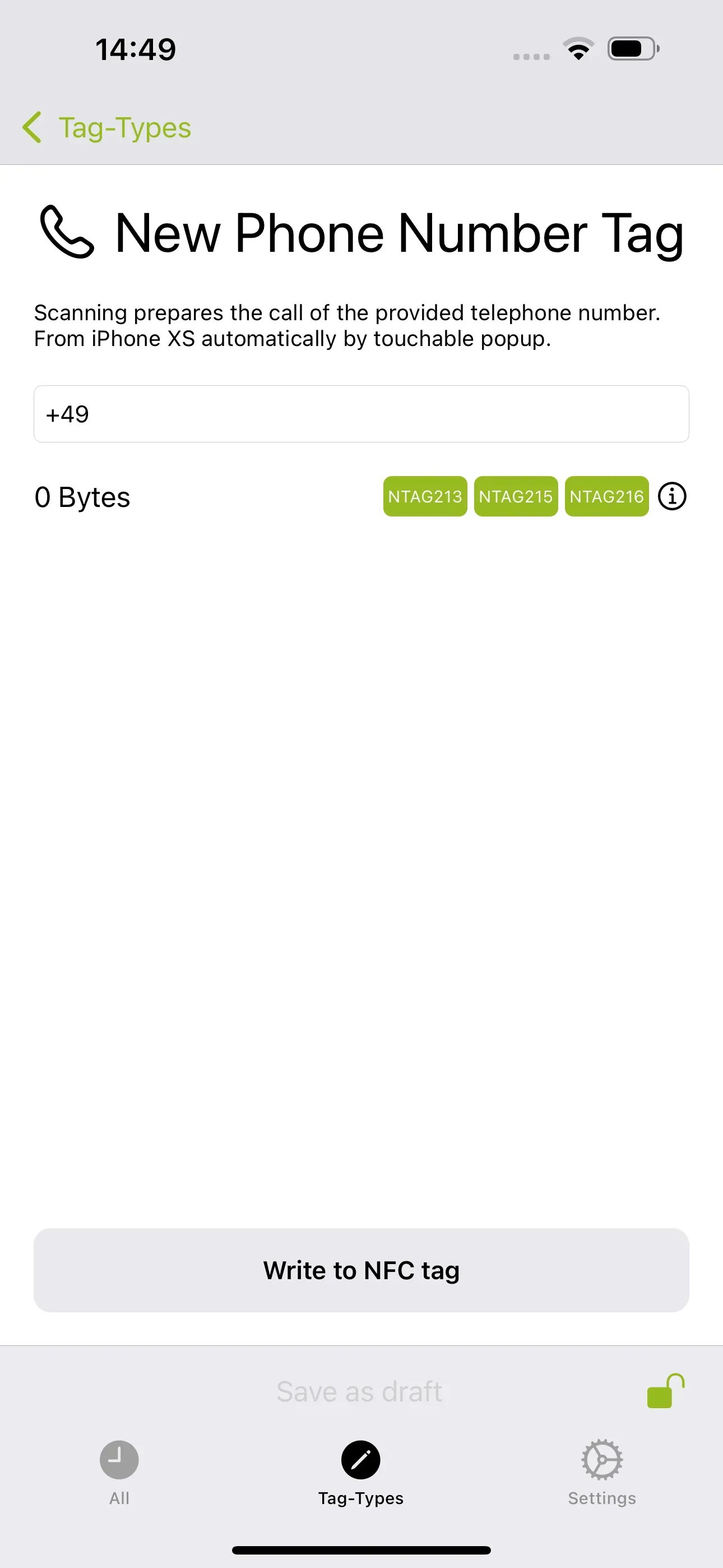
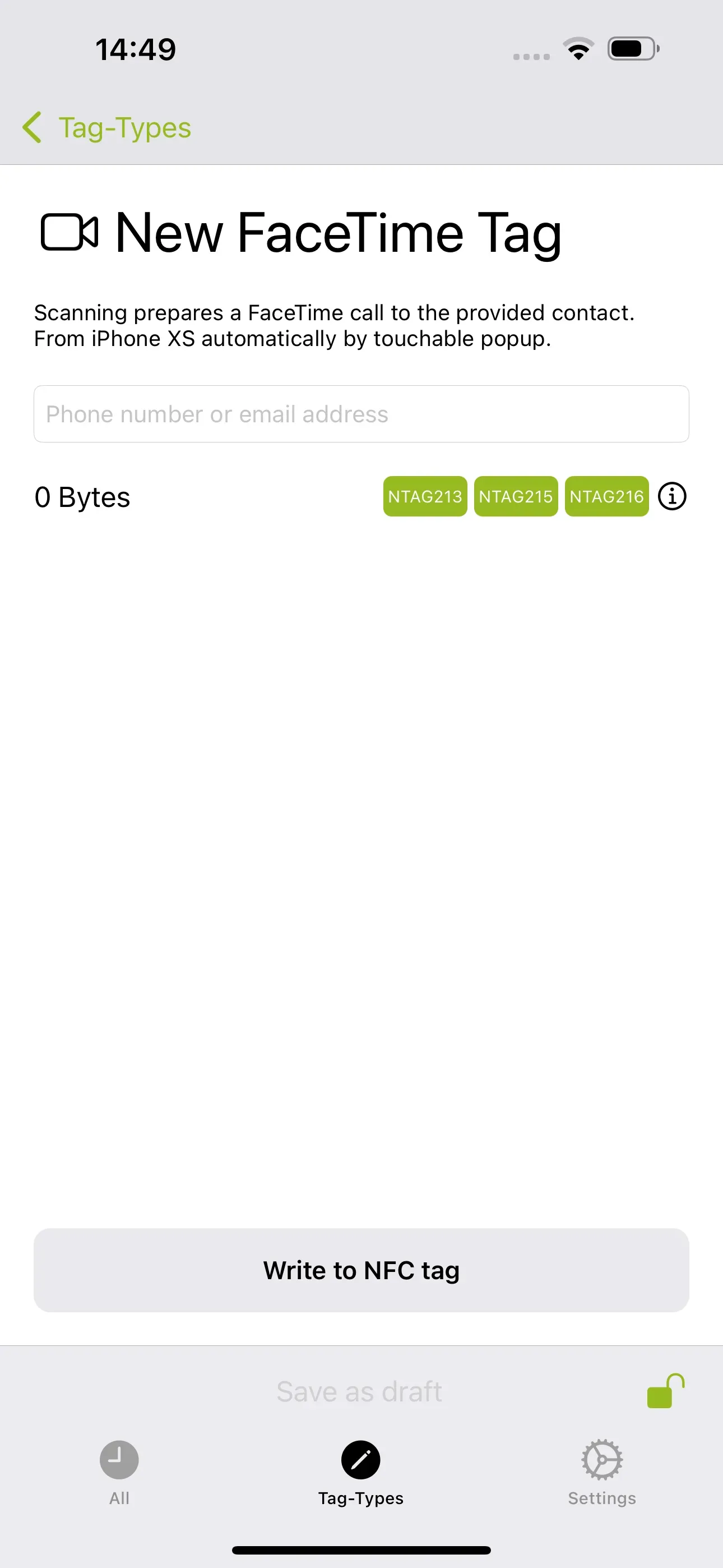
For these Standard Tag-Types, simply enter the desired URL, phone number or FaceTime address to write it to the NFC tag using Write to NFC tag. All Standard Tag-Types can be read on iPhone XS and iPhone 7 or later without the need for an external app.
Standard Tag-Type: E-Mail, SMS and Shortcut
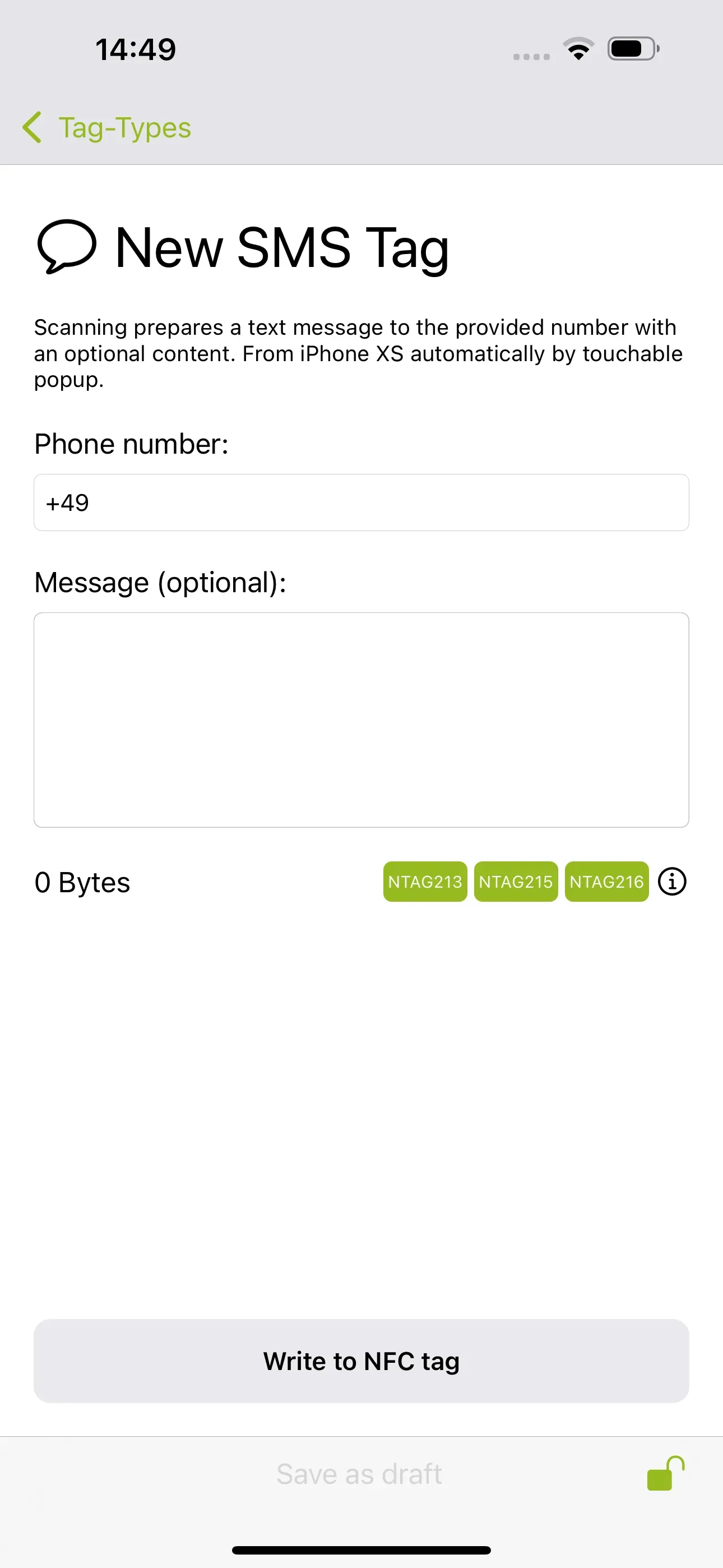
For these Standard Tag-Types, a Receiver must be entered in order to then write them to the NFC tag using Write to NFC tag. For E-Mail and SMS, you can also enter a template text. This can be saved by tapping Save as draft so that you can retrieve it again for later use.
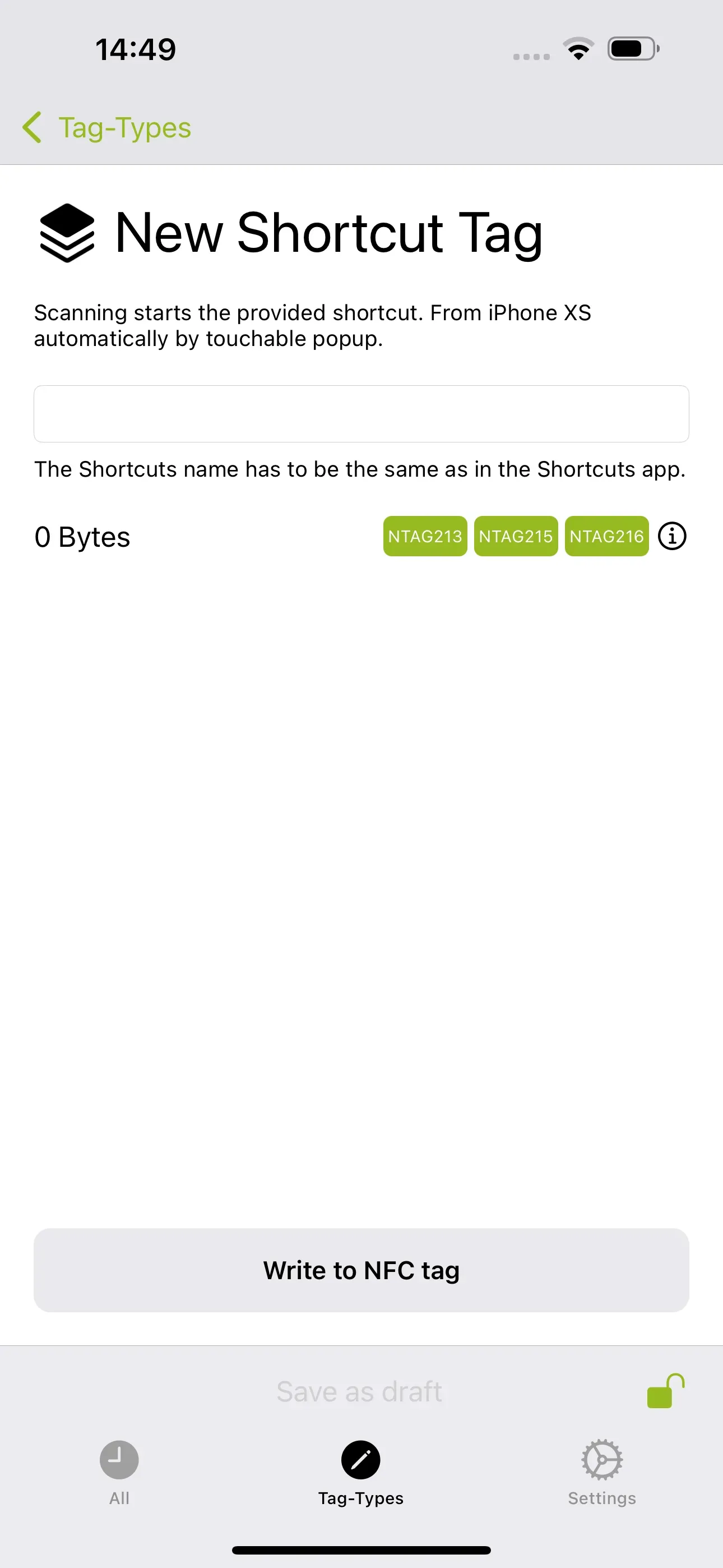
Note: With the tag Shortcut, already existing or self-created shortcuts can be written to an NFC tag. The input and the existing shortcut must have the same name. This guide explains how to create shortcuts using a simple example.

Extended Tag-Types
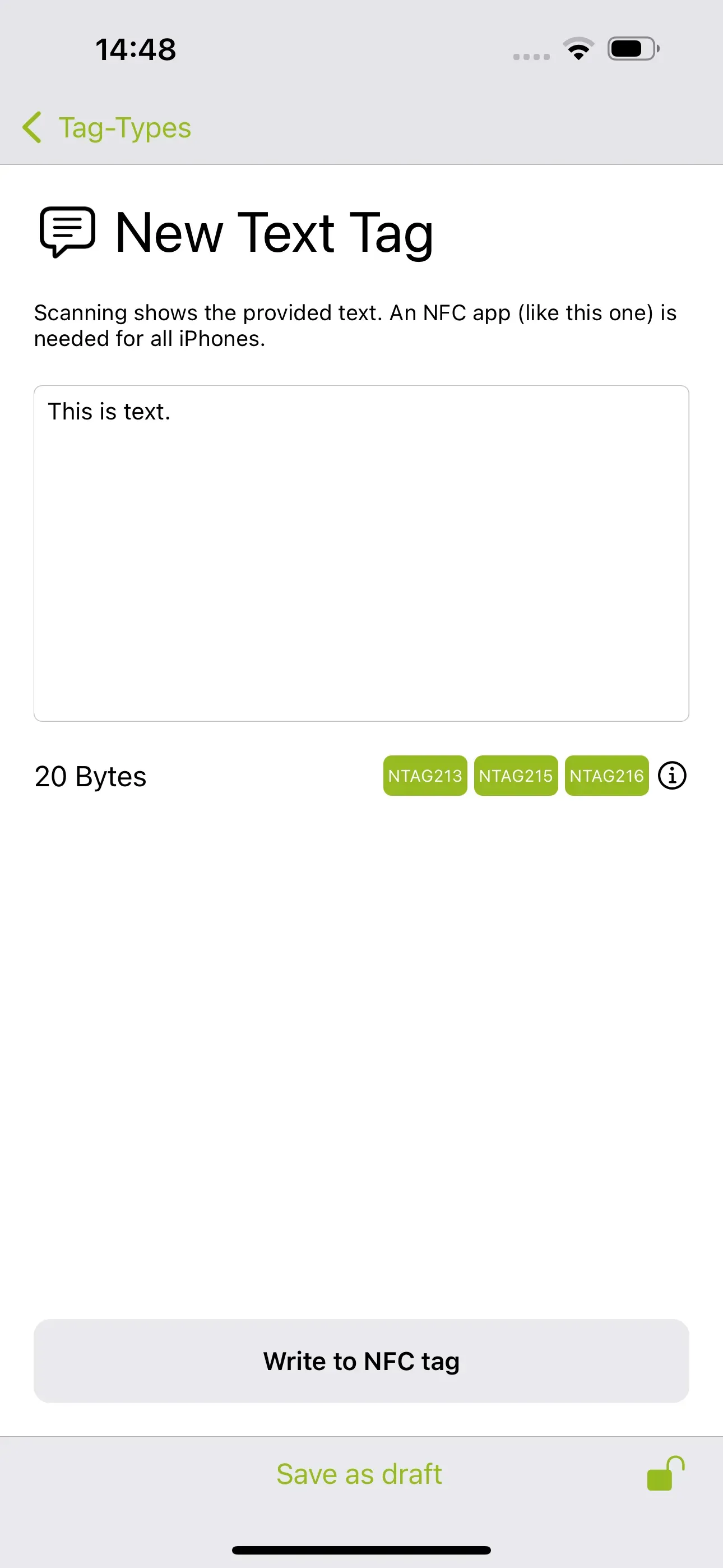
Extended Tag-Types can be read using a suitable NFC app, such as this one or the NFC21 Reader app, available for iPhone 7 and later models. These extended Tag-Types can be described as follows:
- Text Enter any text.
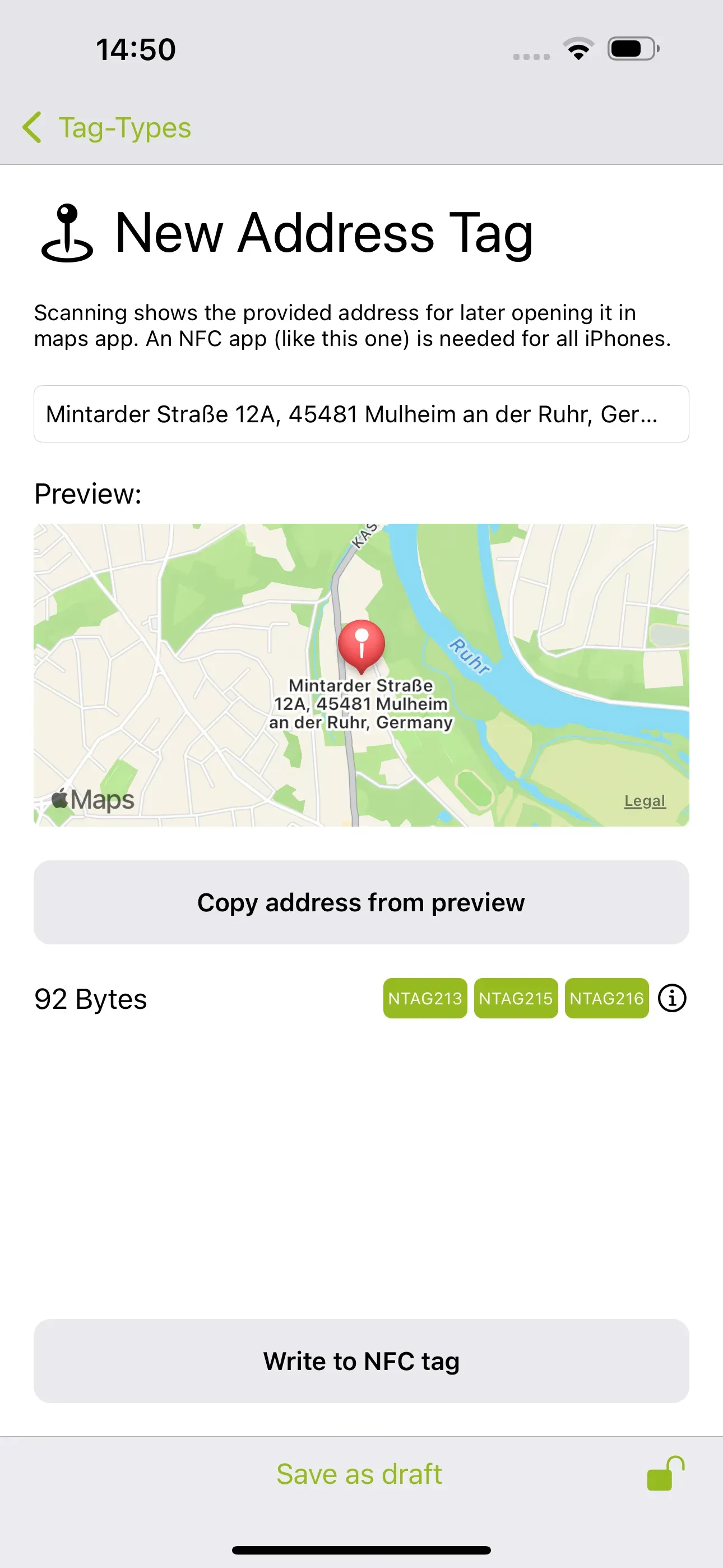
- Address Enter any address. Alternatively, you can simply search for the current address and then copy it from the preview.
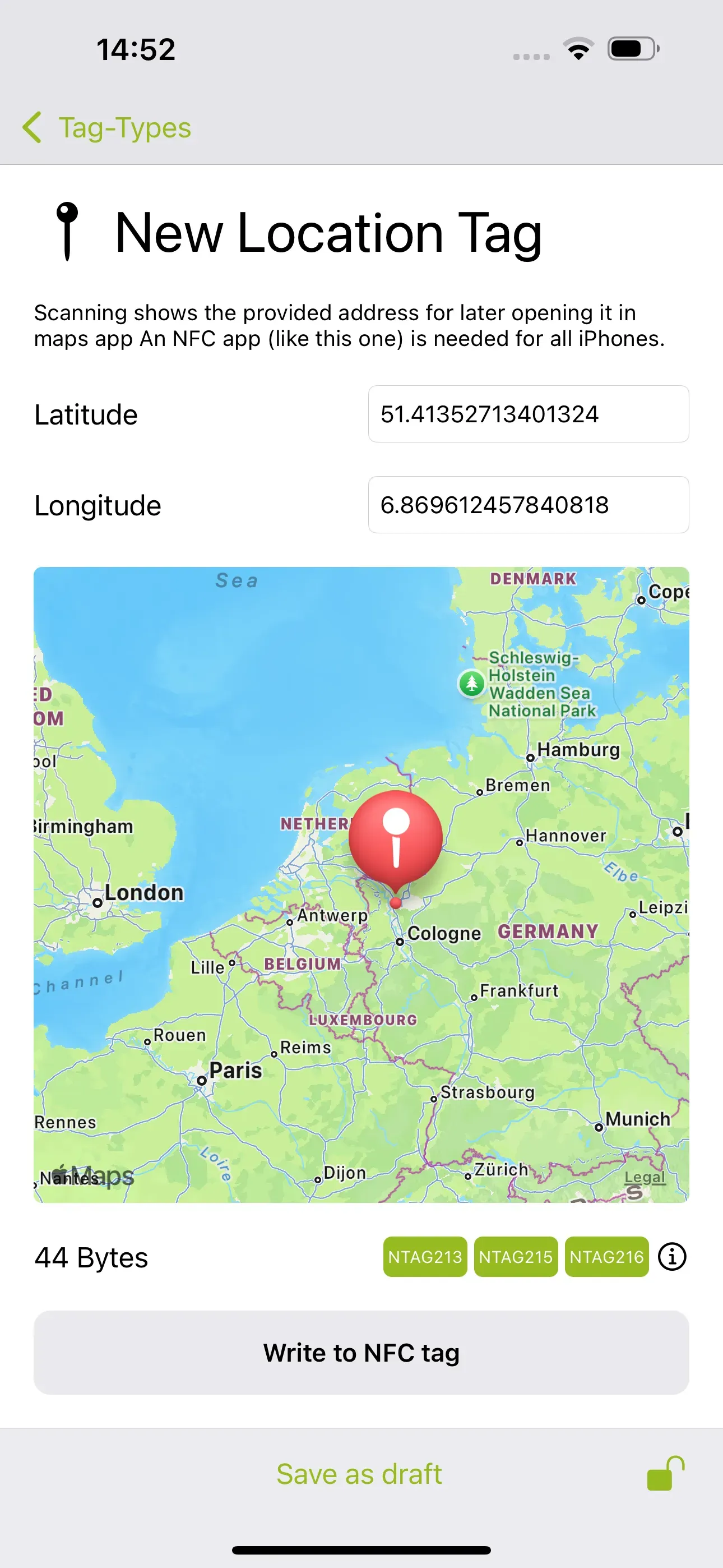
- Location Navigate the map using familiar gestures. Then set the location by tapping on any point on the map.
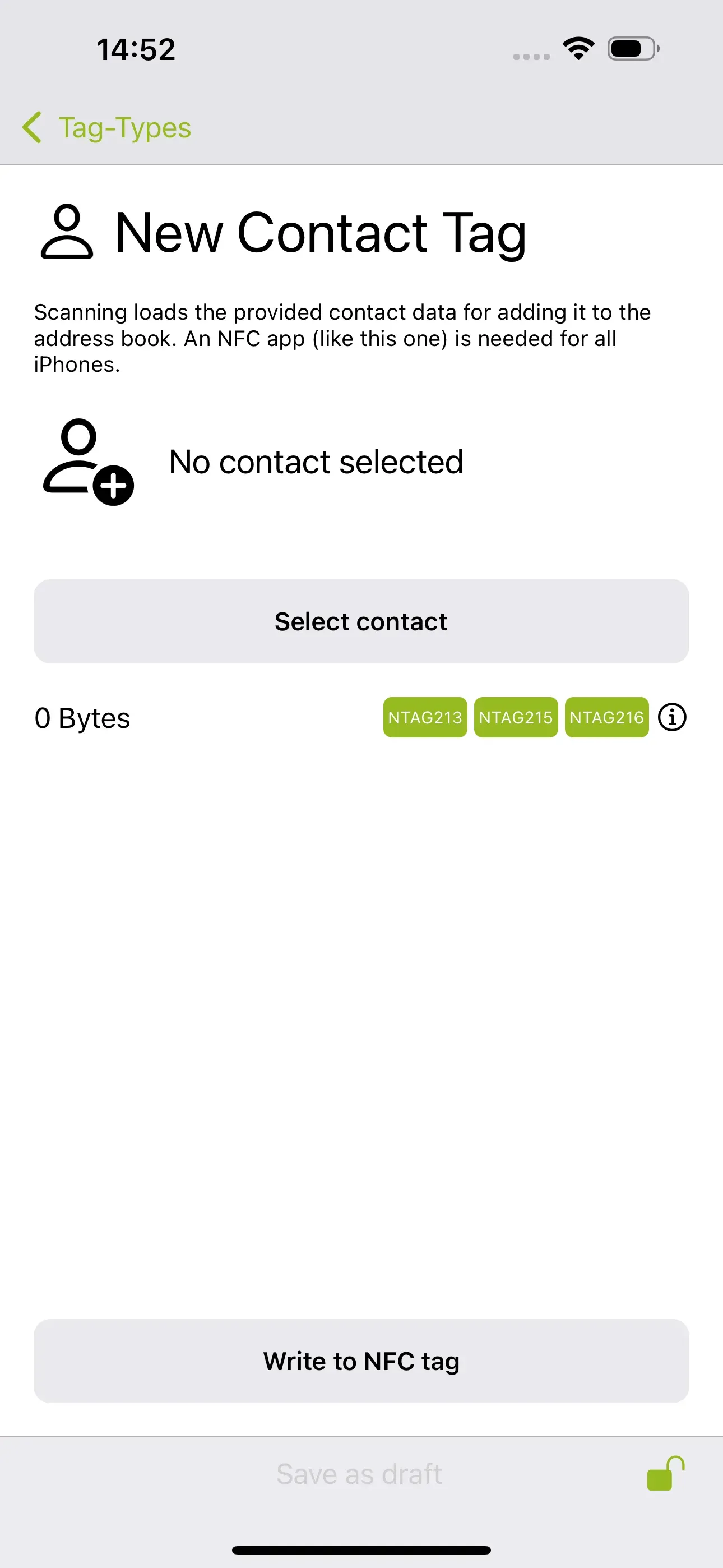
- Contact Add a contact from your address book to write it to the NFC tag.
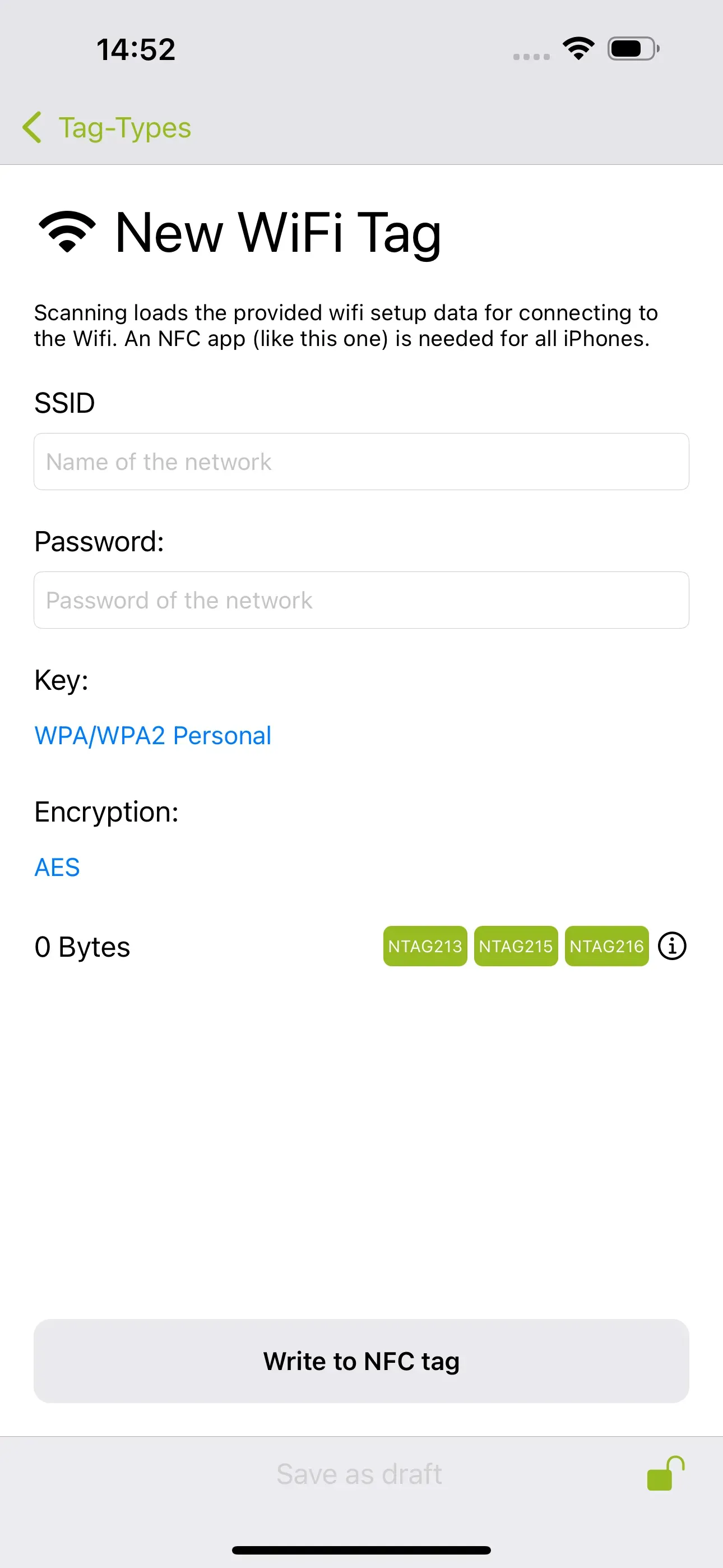
- WiFi Enter the name and password of a known wireless network so that other smartphones can connect directly to this network via NFC tag.
This information can then be written to the NFC tag using Write to NFC tag.
Expert Tag-Types
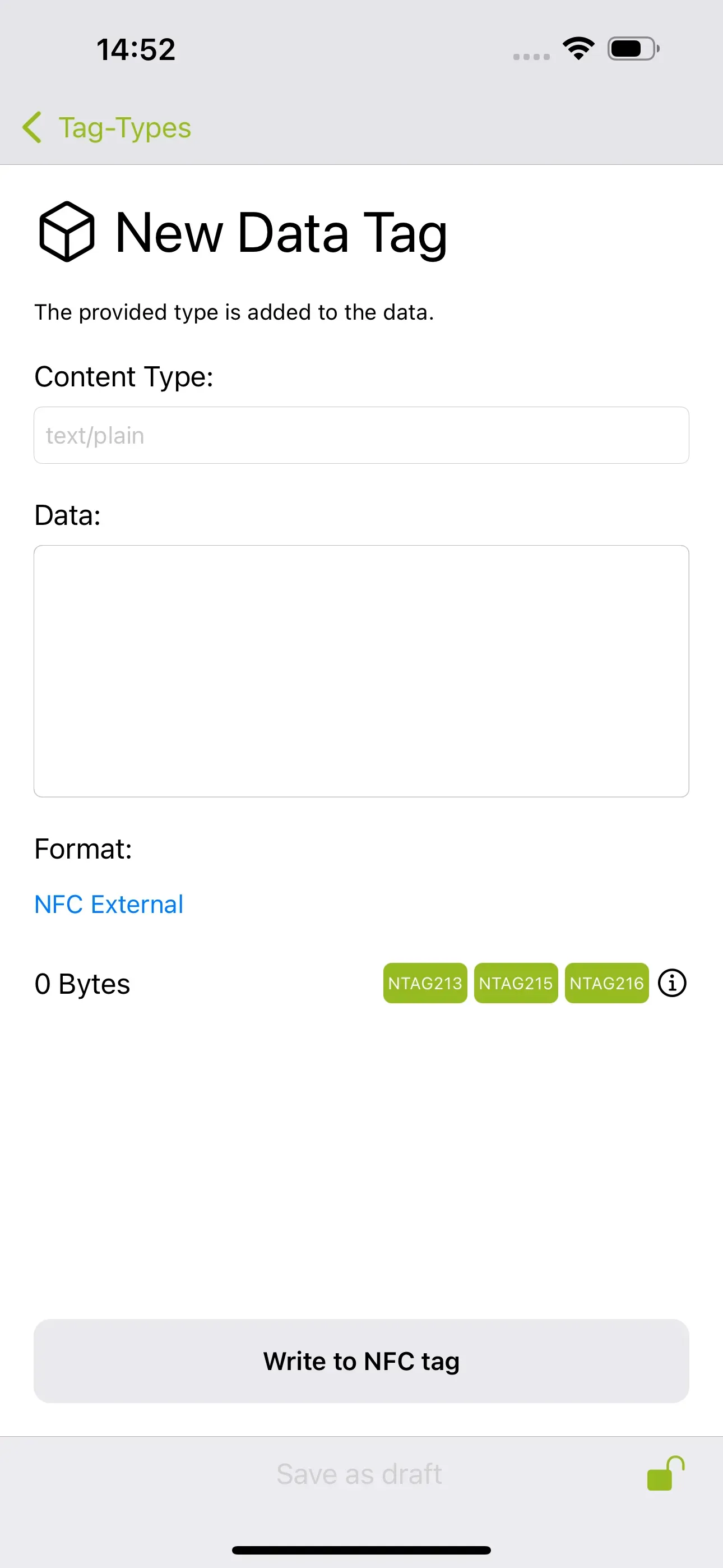
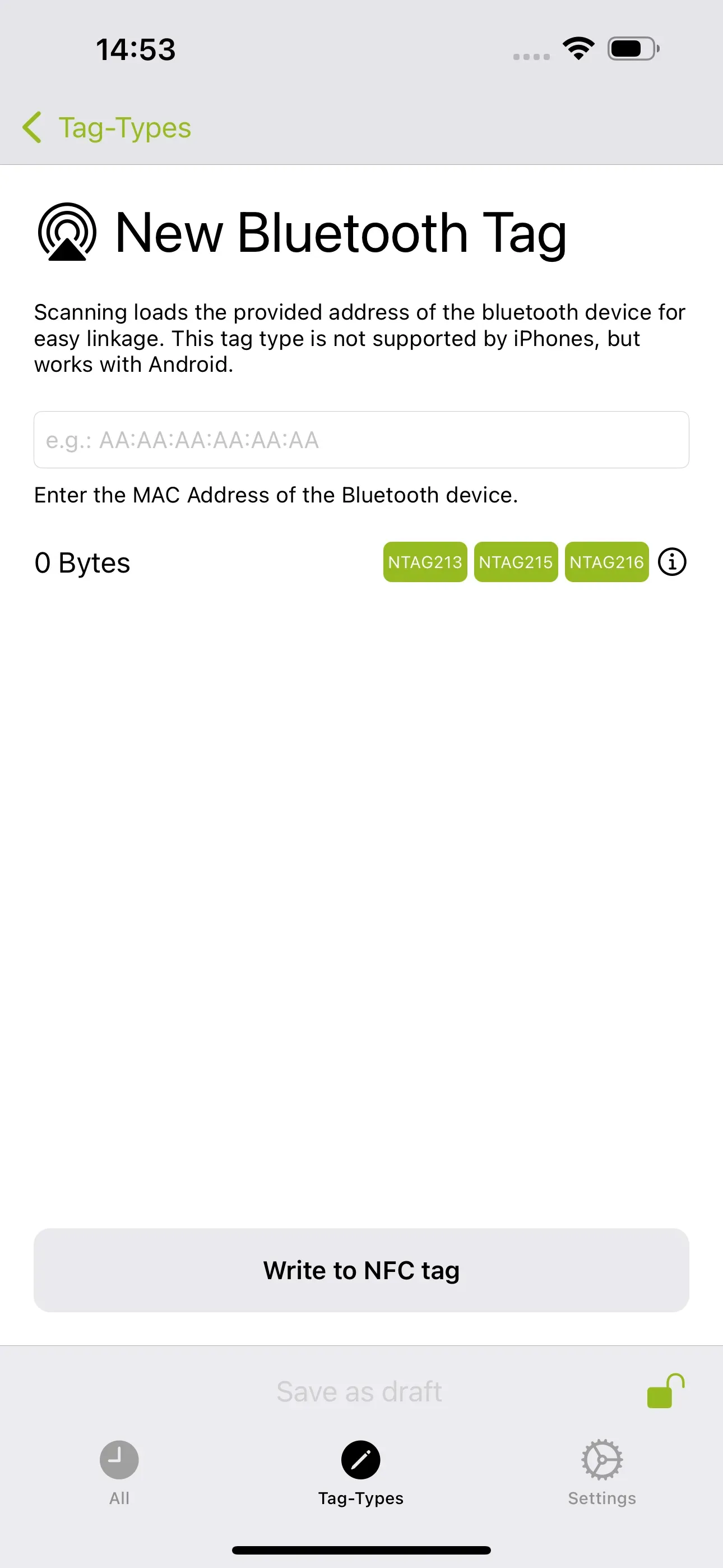
A new Data tag allows individual data to be written to the NFC tag, which can then be processed by a specially designed application. With the Bluetooth tag, you can establish a direct connection to the Bluetooth device by entering the MAC address of the Bluetooth device (e.g. that of the Bluetooth speaker) during scanning. This tag type is currently not supported by the iPhone, but works on Android.
Summary
NFC21 Tools makes reading and writing NFC tags super easy thanks to its highly intuitive operation and functionality for various everyday situations. Our app also provides information about different storage sizes and designs of NFC tags, such as stickers, key rings, wristbands, cards and many more. At the same time, we offer suitable tag types from our online shop for your project.
Associated operating systems
iOSFirst published: 25.07.2023 / Updated: 11.12.2025