 Near Field Communication (NFC) products Online Store
 Worldwide Shipping (free DE shipping)

In the article NFC-Tag: Read UID we explained how to read out the identification number UID of an NFC tag with different operating systems such as iOS, Android and Windows.
In the following article we want to describe how the UID of an NFC-Tag can be read out in Excel with a Windows computer.
Content:
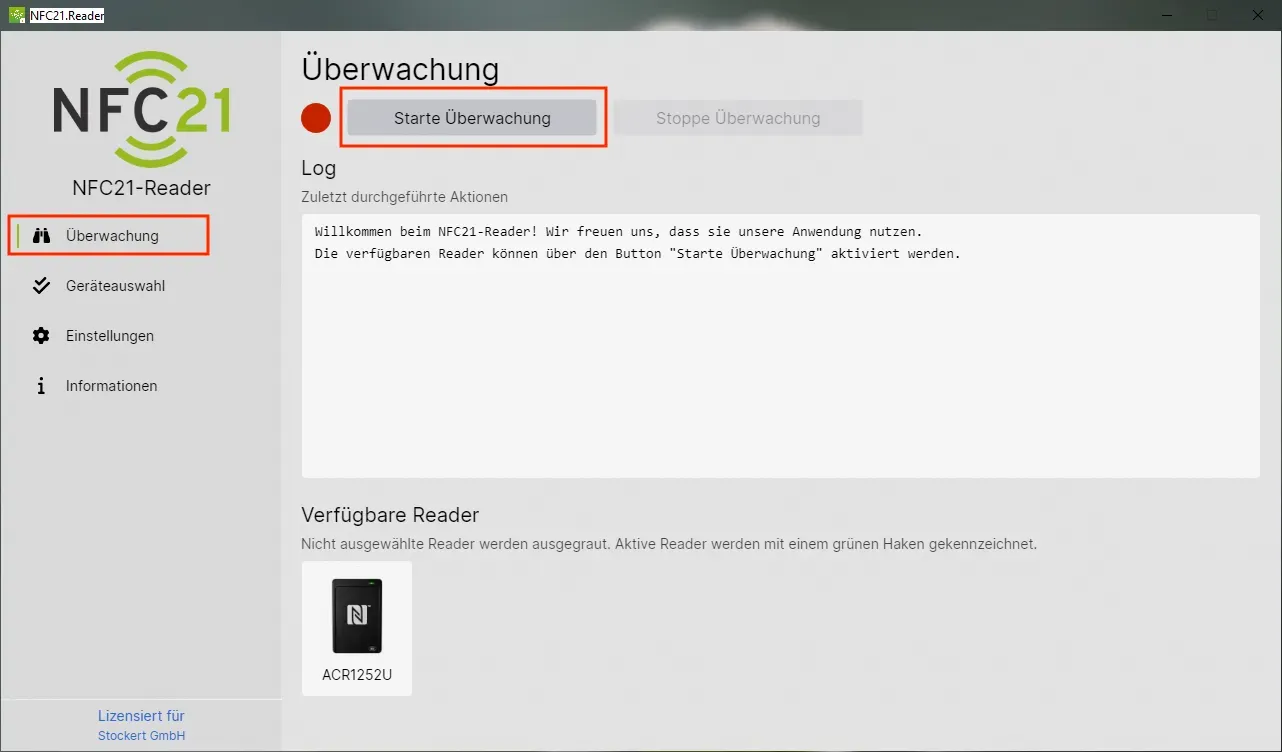
Start NFC-Reader
First connect the NFC reader/writer to your Windows computer via USB and then start the NFC21 Reader software. First click on the NFC icon on your screen and then click on Settings in the menu.

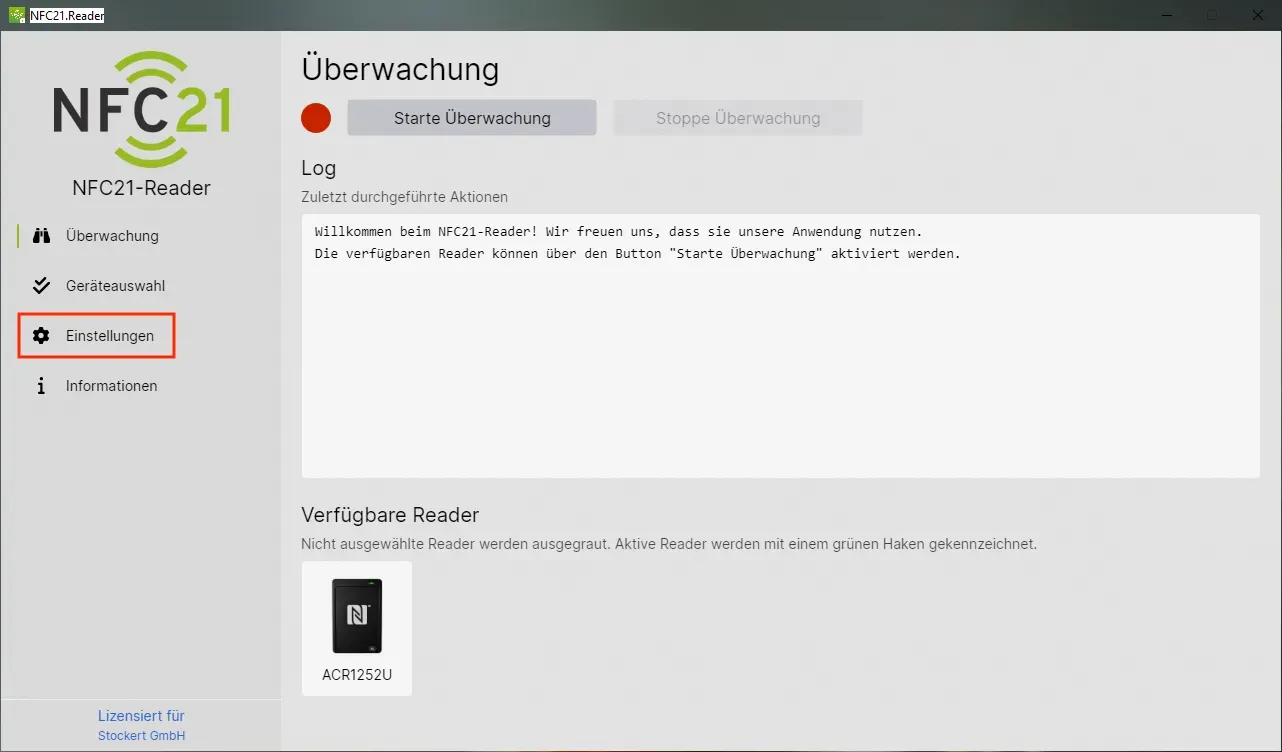
Open Settings
Then activate, in the area Additional Actions the option read out UID and enter in active window and the option Enter after keyboard input.
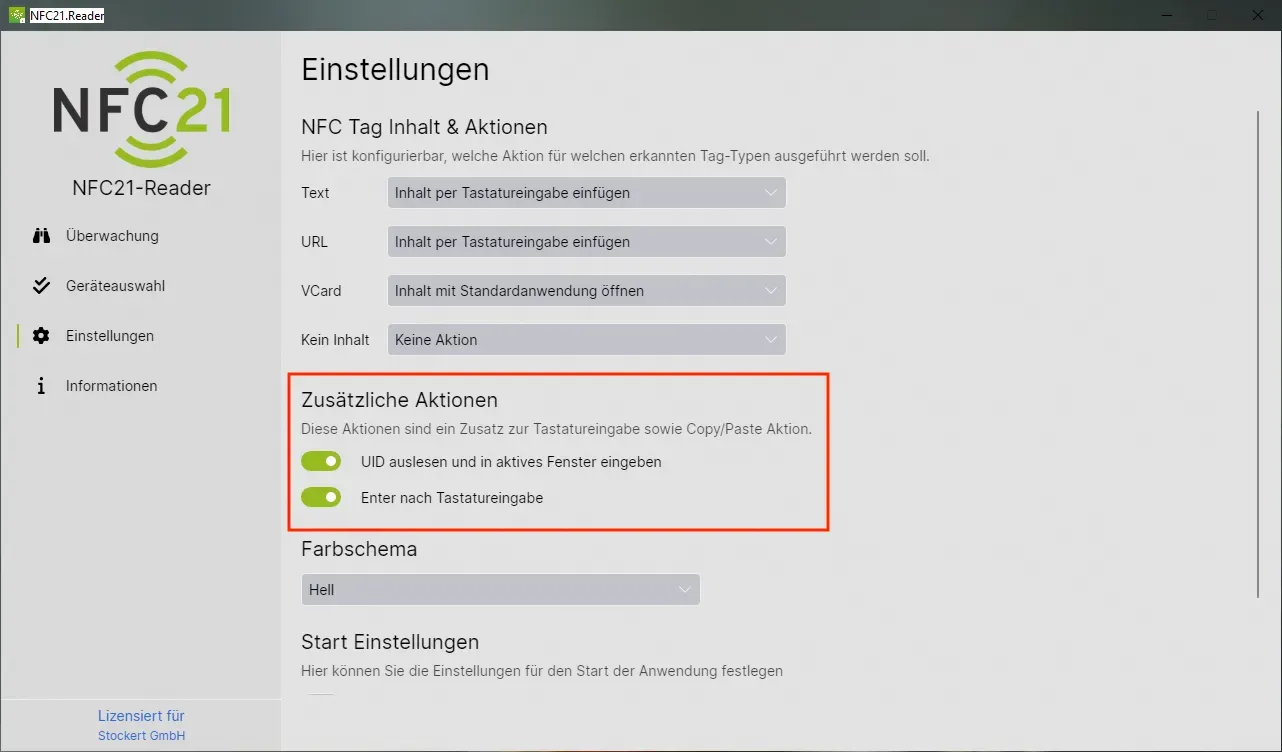
NFC-Tag - Content & Actions
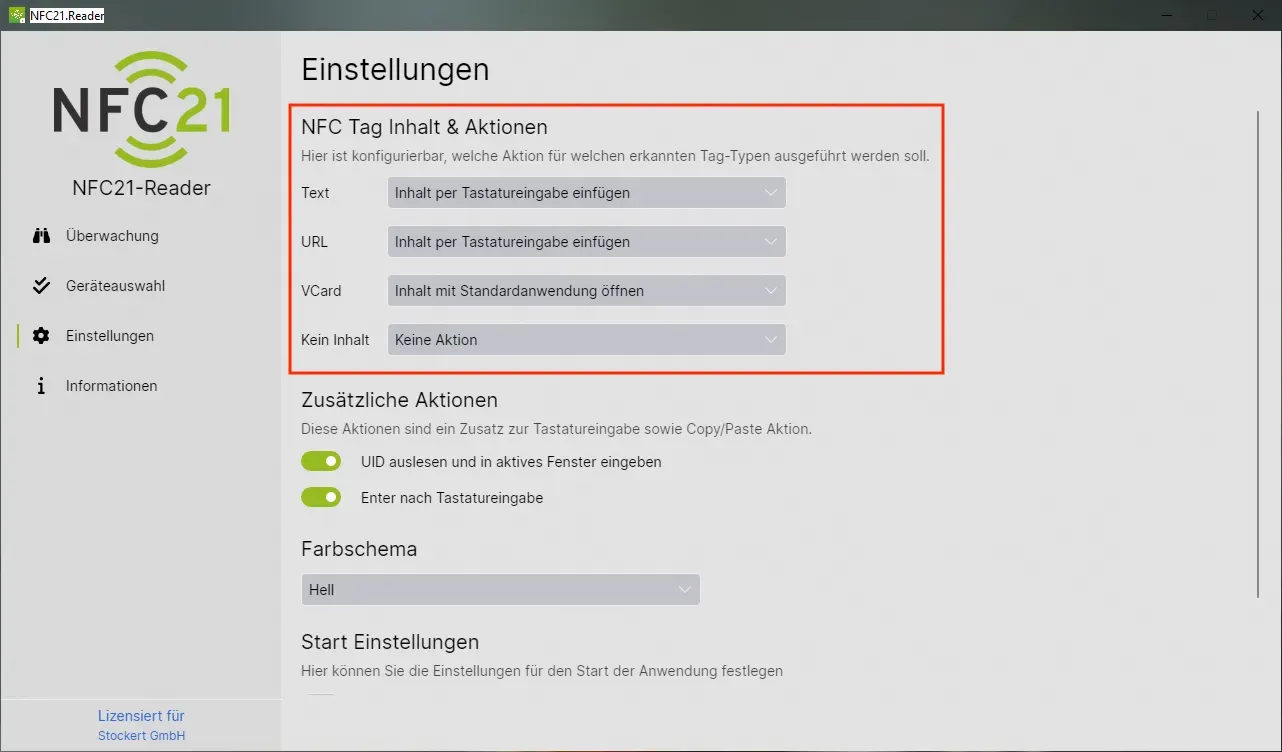
In the third step, go to the area NFC Tag Content & Actions (this is located above the area Additional Actions). If you only want to have the UID read out in Excel, select No action for the respective tag types.
However, if you want to have the UID and the content of your NFC-Tag read out in Excel, select Insert content via keyboard input.
Then start the monitoring.
Open Excel and apply Tag
Once you have started monitoring, open Excel. Here you focus Excel.
Now place your NFC-Tag on the NFC reader/writer.
Summary
In this article, we have briefly explained how the UID of any NFC-Tag can be read out in Excel using a Windows operating system.
More How2s
NFC-Tag: Read UIDFirst published: 23.01.2025 / Updated: 23.07.2025