 Near Field Communication (NFC) products Online Store
 Worldwide Shipping (free DE shipping)

In May 2020, Spotify introduced the group session or jam feature. This feature allows up to 32 people to invite others to a jam. Everyone can edit the playlist, for example, add songs to the queue and influence the order in which the tracks are played. Changes are applied in real time and played back via a device. To join the jam, you always have to scan a jam QR code located on the smartphone of the person inviting you. This can be annoying. In addition, songs that have been played once are no longer available after the jam session.
In this article, we explain how to save a Spotify playlist to an NFC tag. The aim is to enable people who scan this NFC tag to be redirected to the playlist directly and without much effort, where they can add songs. For a better understanding, we recommend reading the article Writing NFC tags with the iPhone first, which explains how to write an NFC tag with different data types on the iPhone.
Content:
Copy Link to Spotify playlist
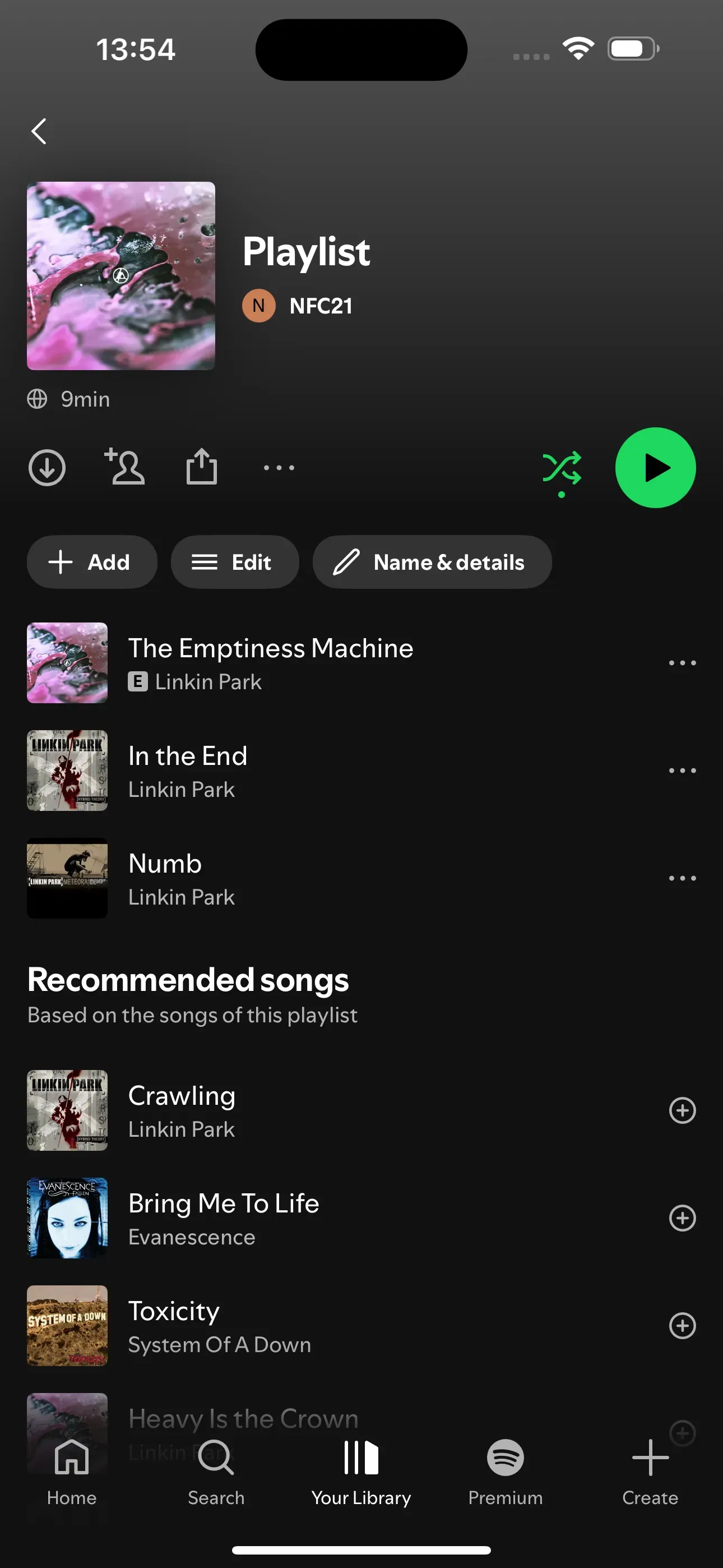
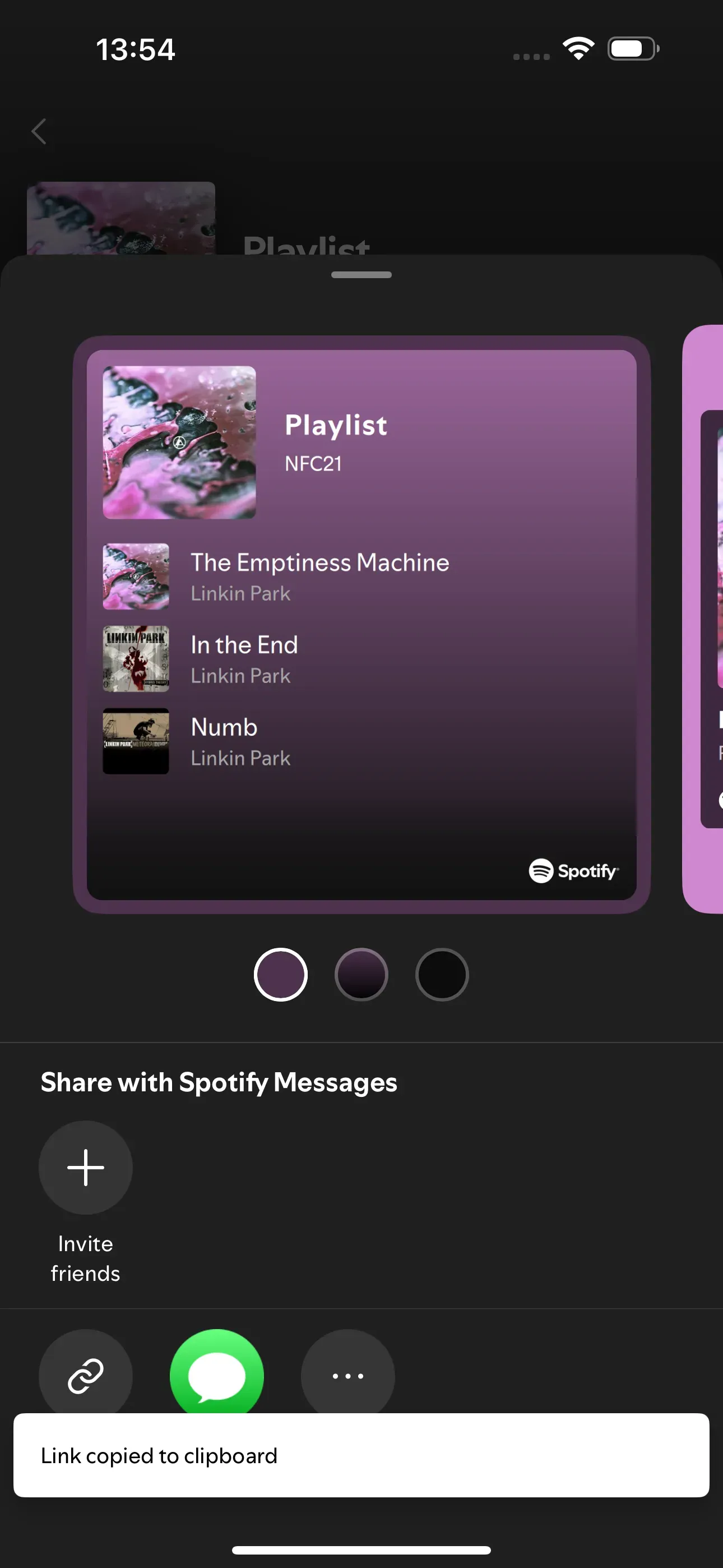
To share a Spotify playlist, we first need to copy the link to the playlist. To do this, we open the playlist and then tap on the three grey dots. Here, we tap on Share and then on Copy link. This copies the link to our playlist to the clipboard.
Save link to Spotify Playlist on NFC tag
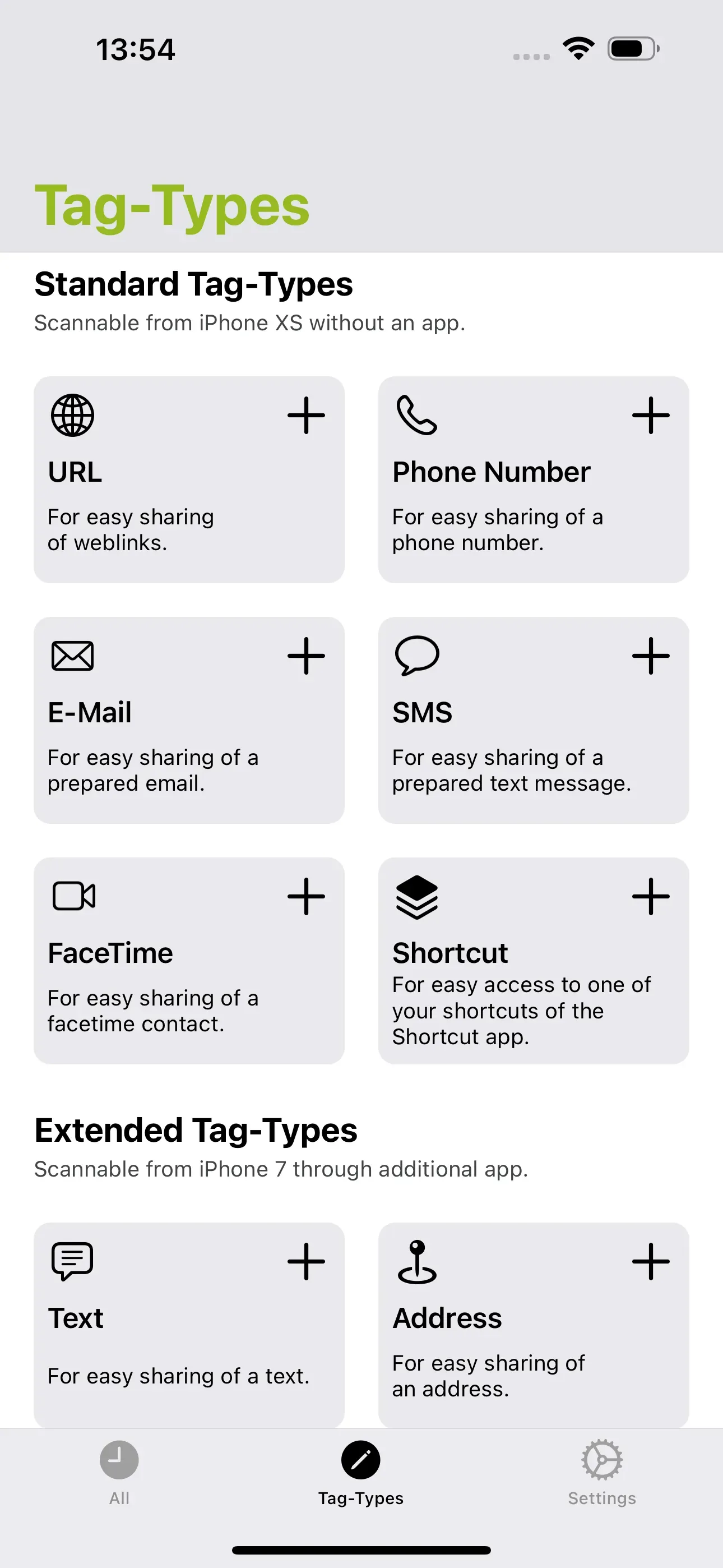
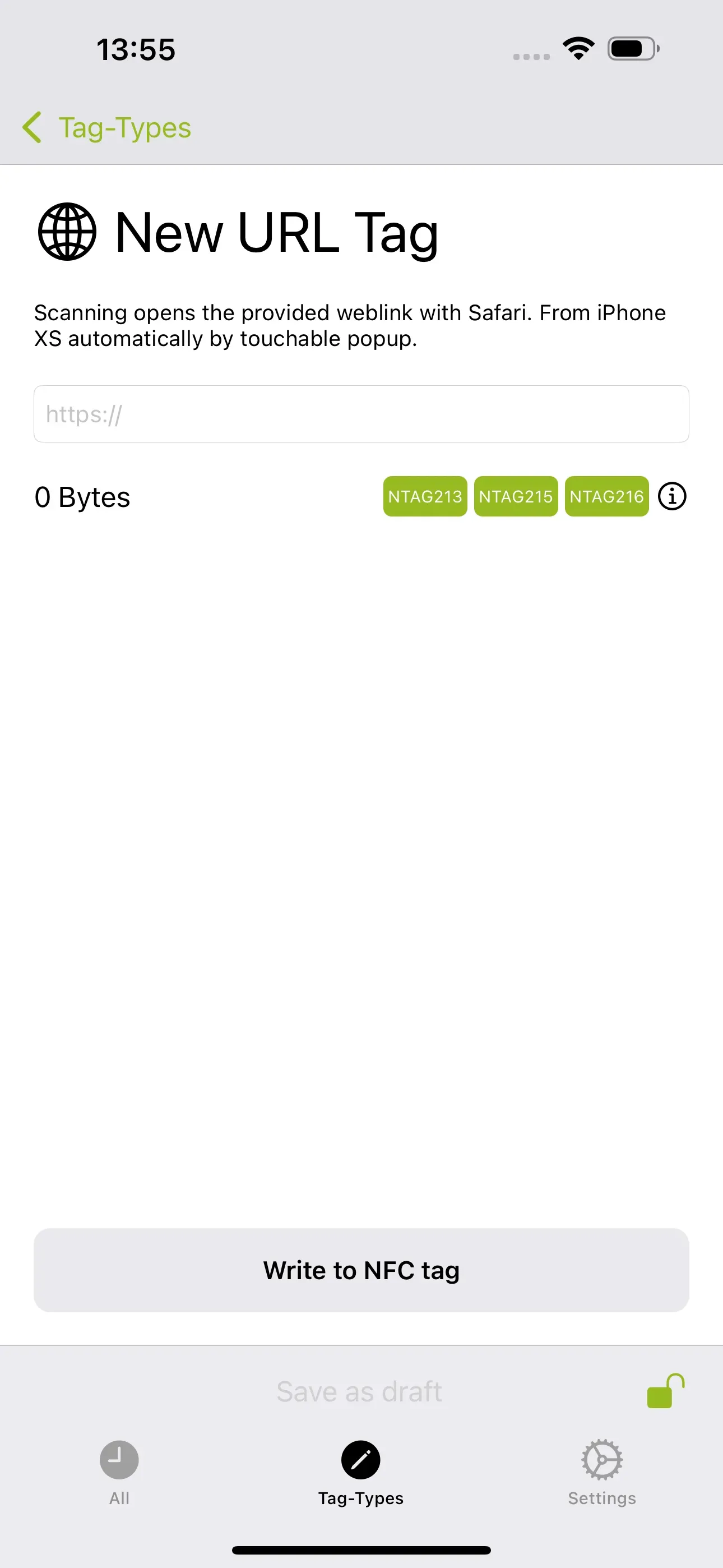
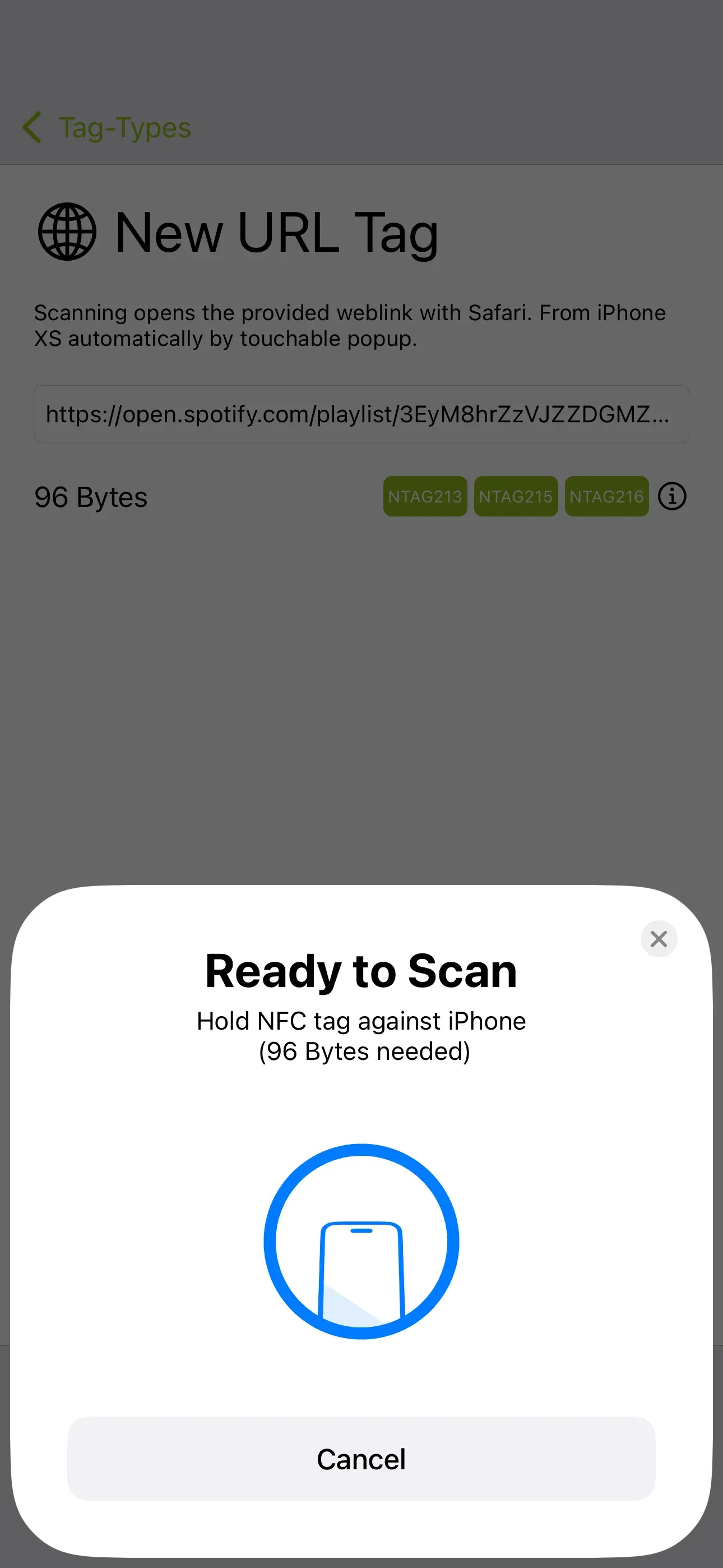
To finally save the copied link to the NFC tag, we open the NFC21 Tools app. Now we tap on Tag Types → URL and paste our link into the field. Last but not least, tap Write to NFC Tag and hold the writable NFC tag against the top back of the iPhone. When the NFC tag we have written to is scanned, Spotify and the corresponding playlist will open automatically. Of course, this also works with Apple Music.
Summary
In this How2, we have saved a link to our Spotify playlist on an NFC tag. In another article, we explain how a timer can be set automatically using an NFC tag.
Associated operating systems
iOSFirst published: 25.07.2023 / Updated: 11.11.2025