 Near Field Communication (NFC) products Online Store
 Worldwide Shipping (free DE shipping)

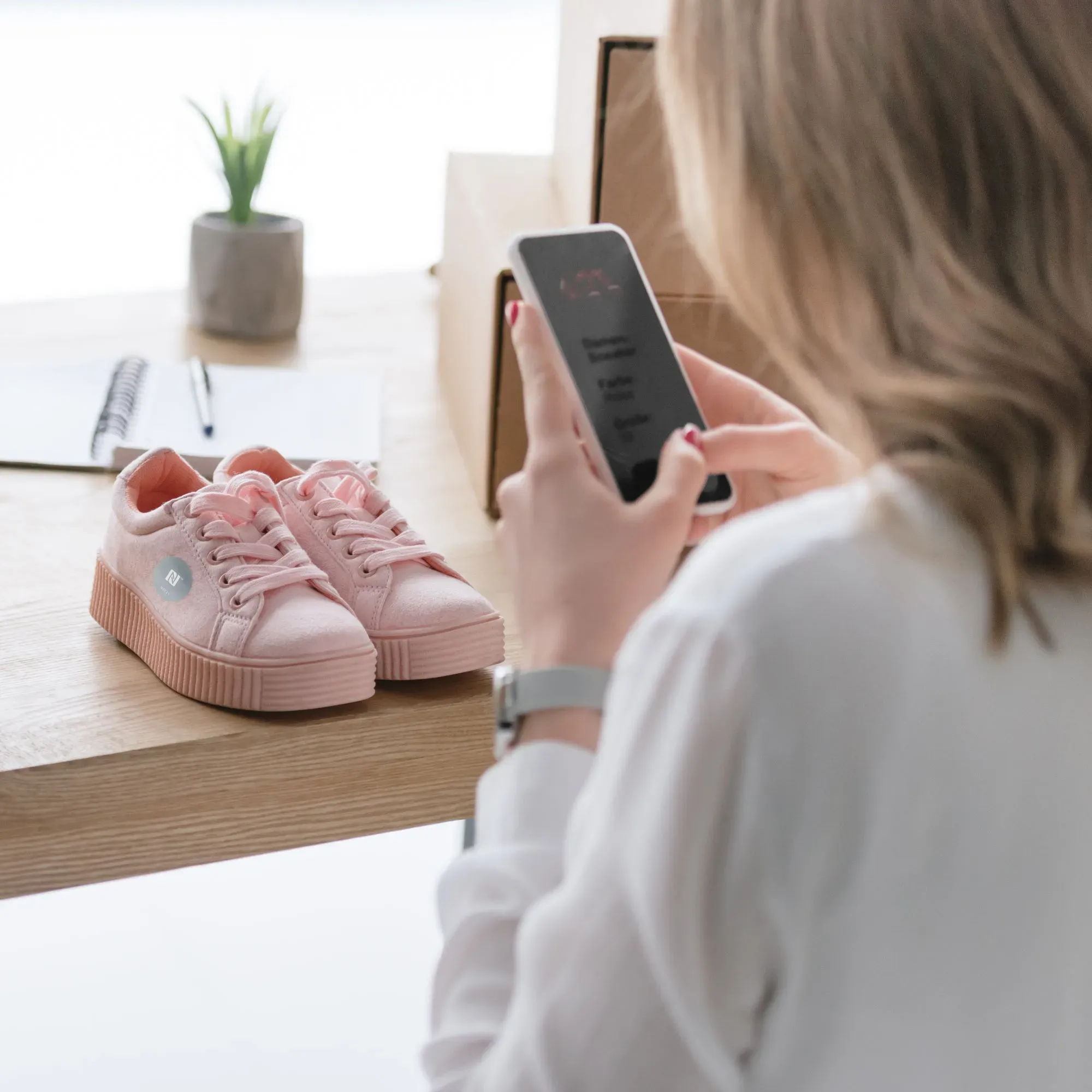
NFC tags are little helpers for everyday life. With their help, we can automatically set an alarm clock or a timer and calculate the time we need for our journey home.
People with visual impairments or blindness, for example, may find it difficult to recognise different items of clothing or shoes. With an NFC tag, labels for individual items of clothing, shoes, etc. can be read aloud when scanned with a smartphone. To do this, we just need to create an automation with a shortcut using the Shortcuts app and we need an empty NFC tag, such as an NFC sticker.
In this How2, we explain how to create an automation with the shortcut Speak Text using an iPhone and how to save it to an NFC tag.
Important information: If you have already created the shortcut Speak Text, go directly to step 4 of these instructions. If you want to download the finished shortcut directly, skip to the end of this article.
Content:
- Create automation
- Trigger automation with NFC tag
- Create ‘Speak Text’ action
- Add shortcut to automation
Create automation
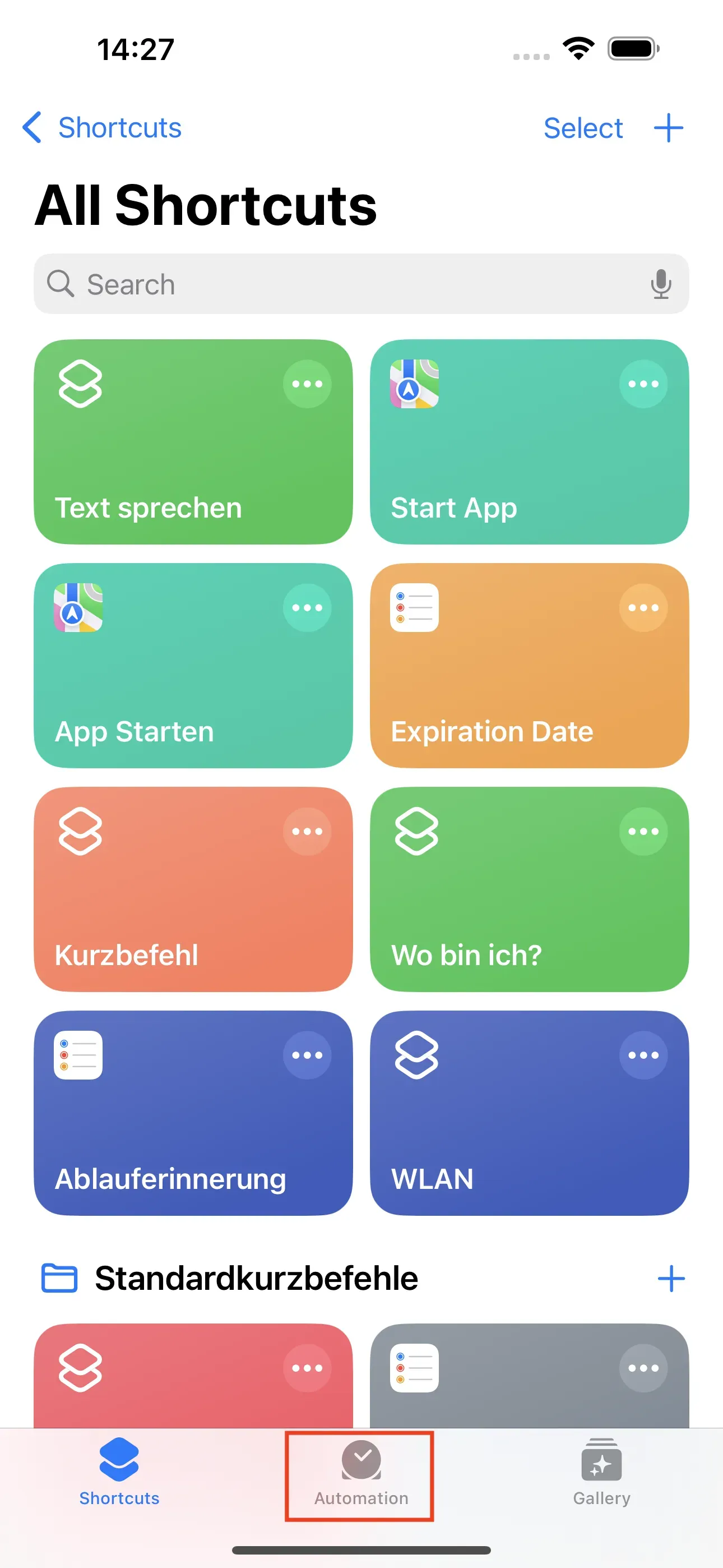
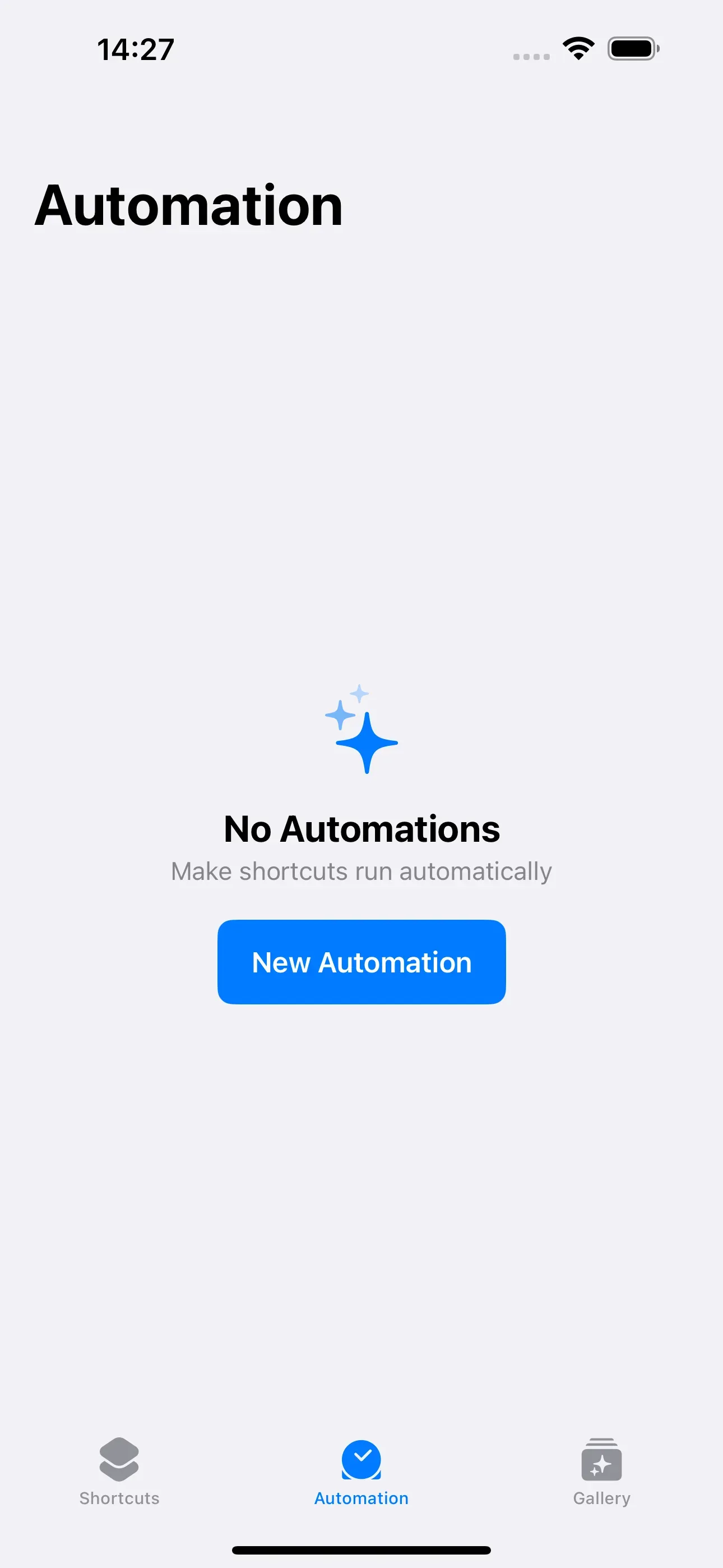
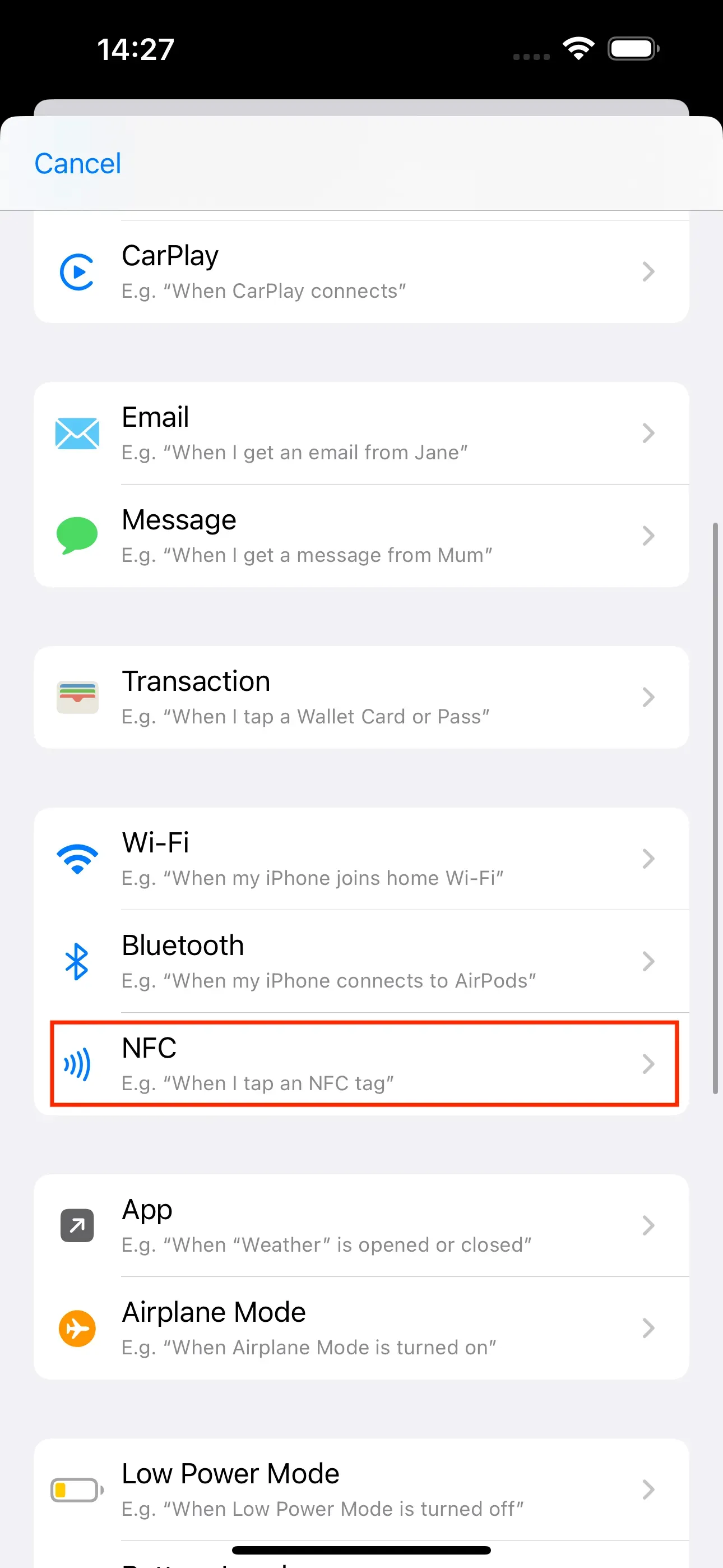
To ensure that text stored on the NFC tag is automatically read when the NFC tag is scanned with an iPhone, you must first create an automation. To do this, open the shortcut app on your iPhone. Then tap on the Automation tab at the bottom. Next, go to New Automation. In the new window, scroll down to Personal Automation and then select NFC.
Trigger automation with NFC tag
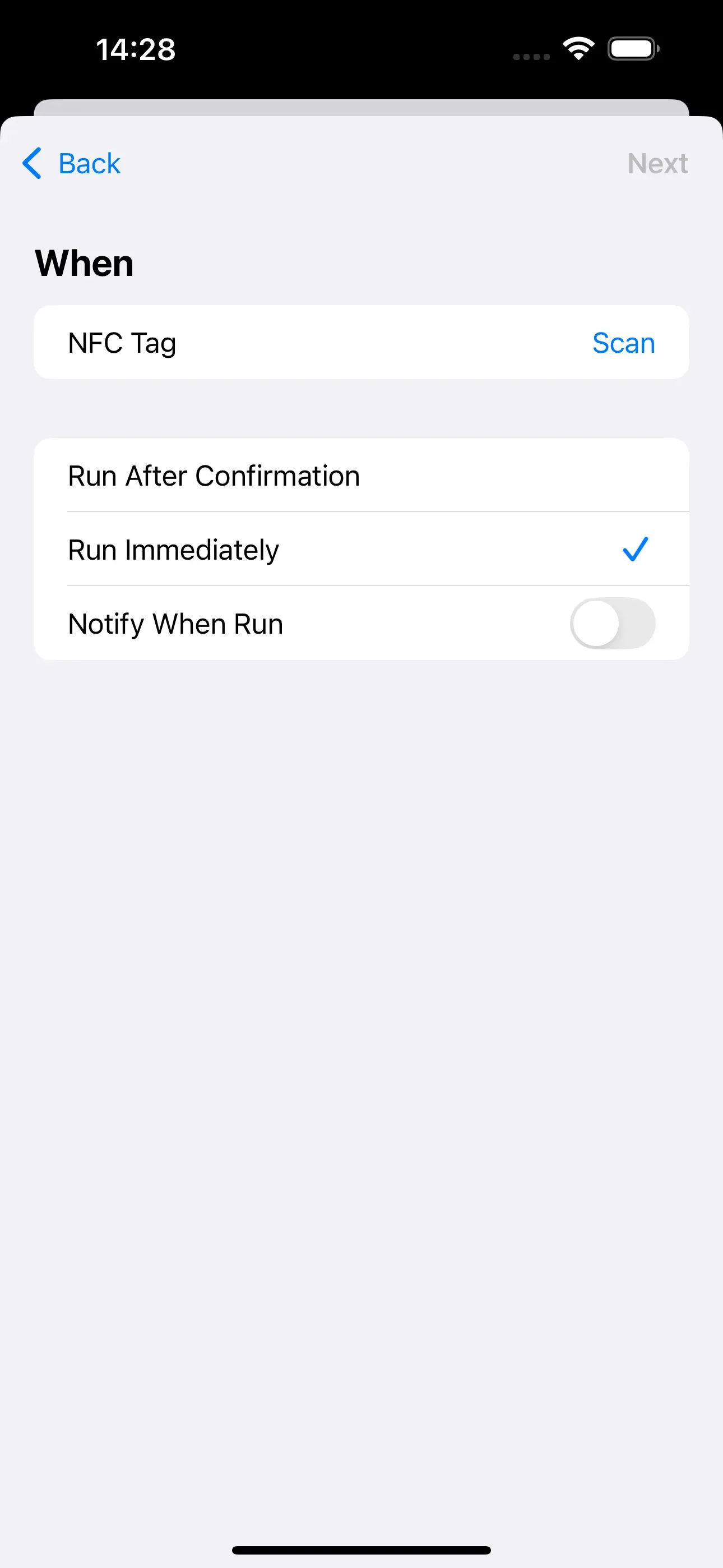
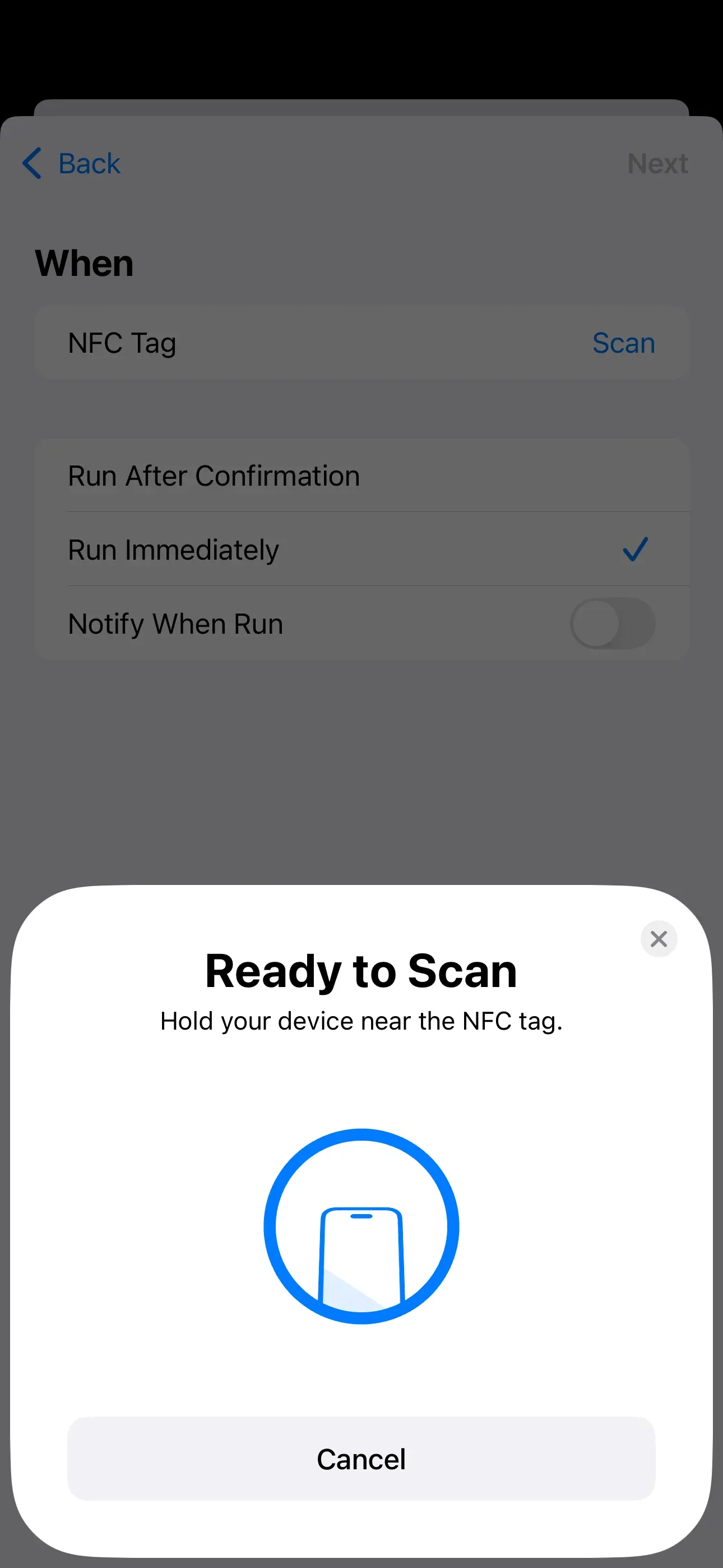
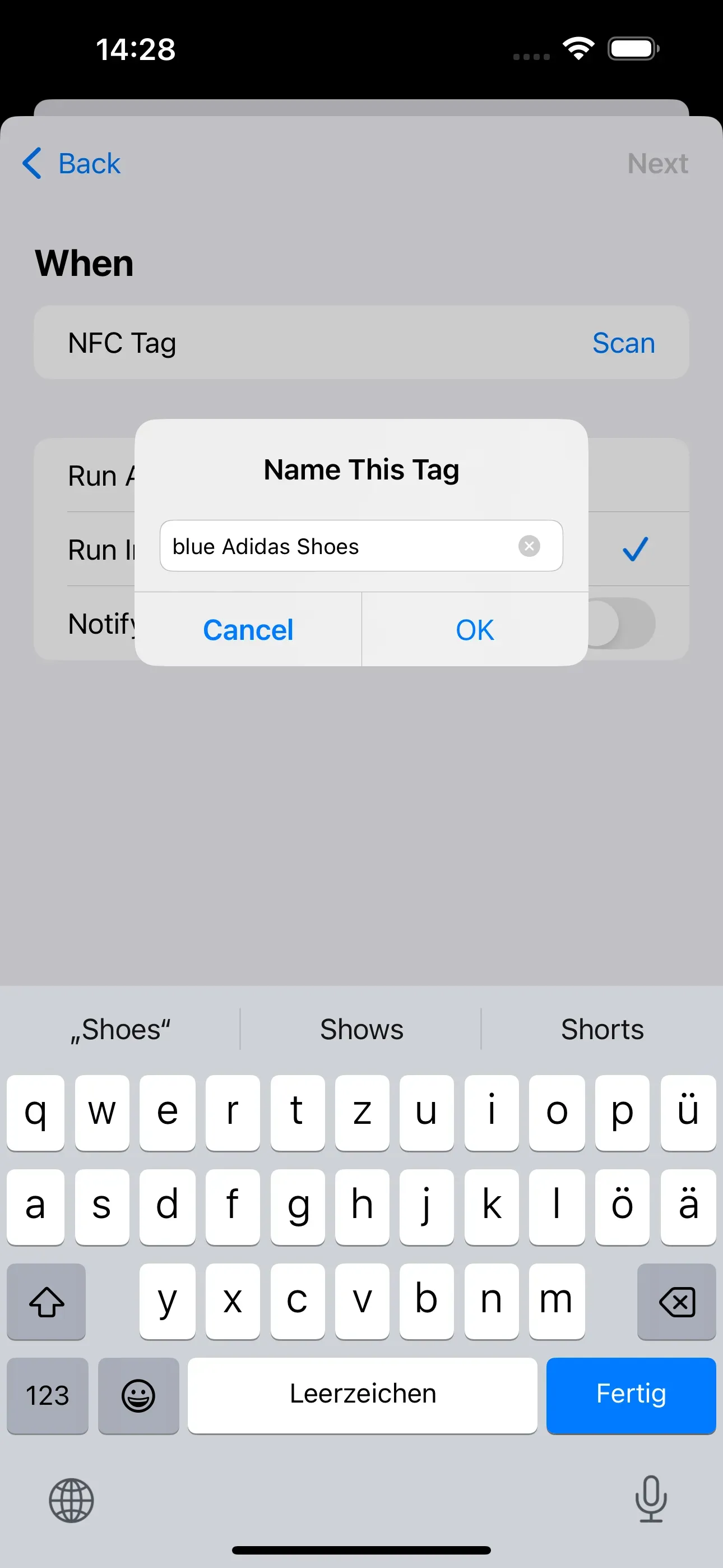
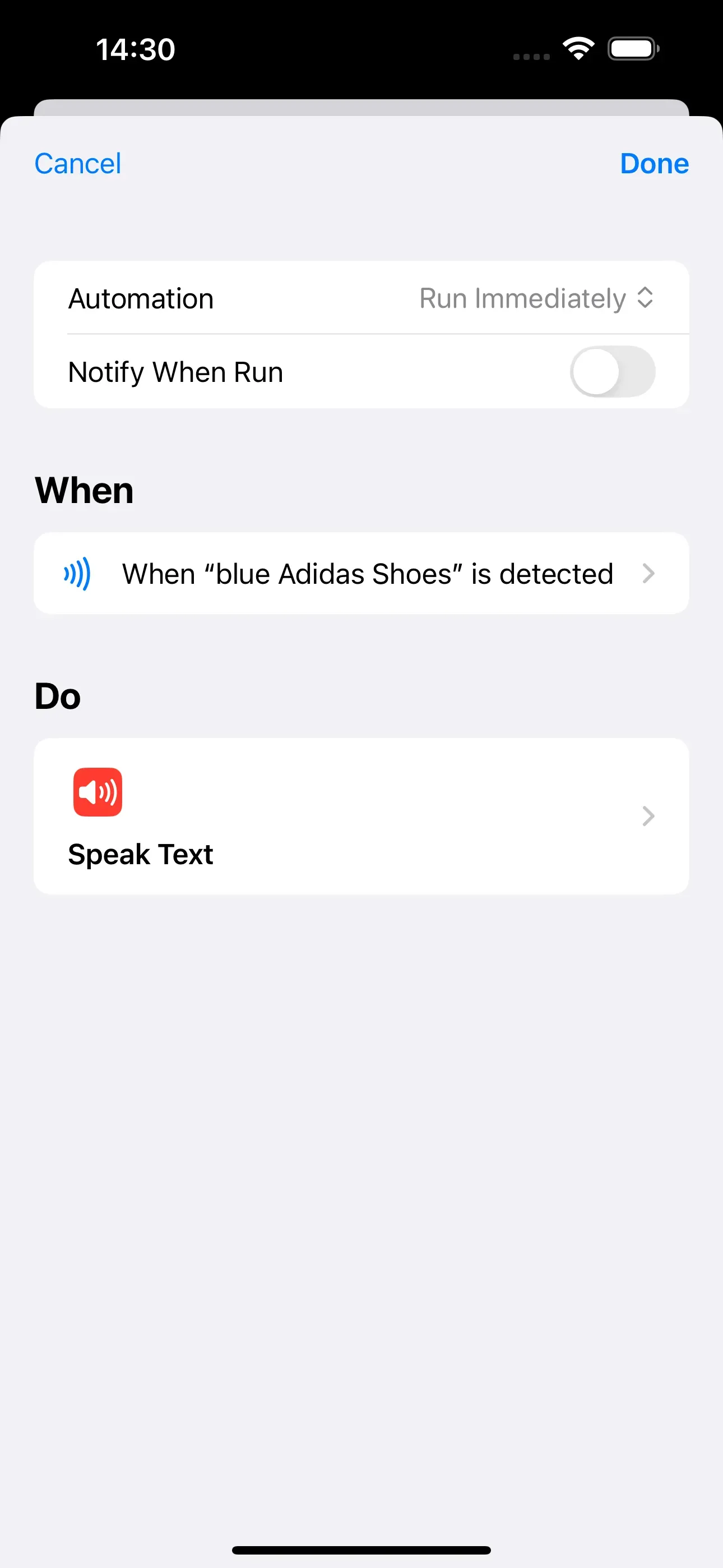
It is important that you select Run Immediately and leave the option Notify when Run deactivated. Now tap Scan and hold the blank NFC tag against your iPhone. This allows it to be scanned and named. For our example, we will name the NFC tag blue Adidas Shoes. Then tap OK and Next in the top right corner. Now our NFC tag can be linked to a specific action.
Create ‘Speak Text’ action
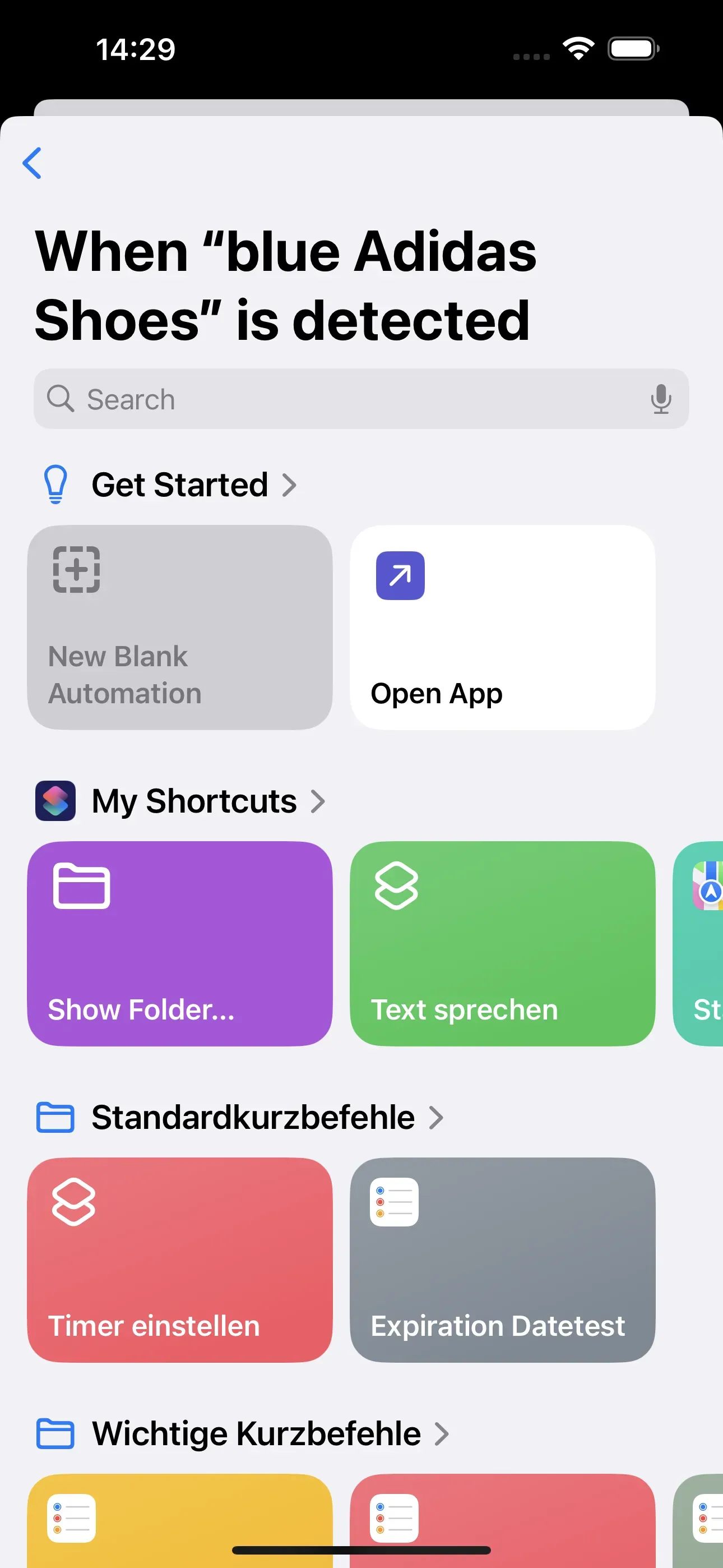
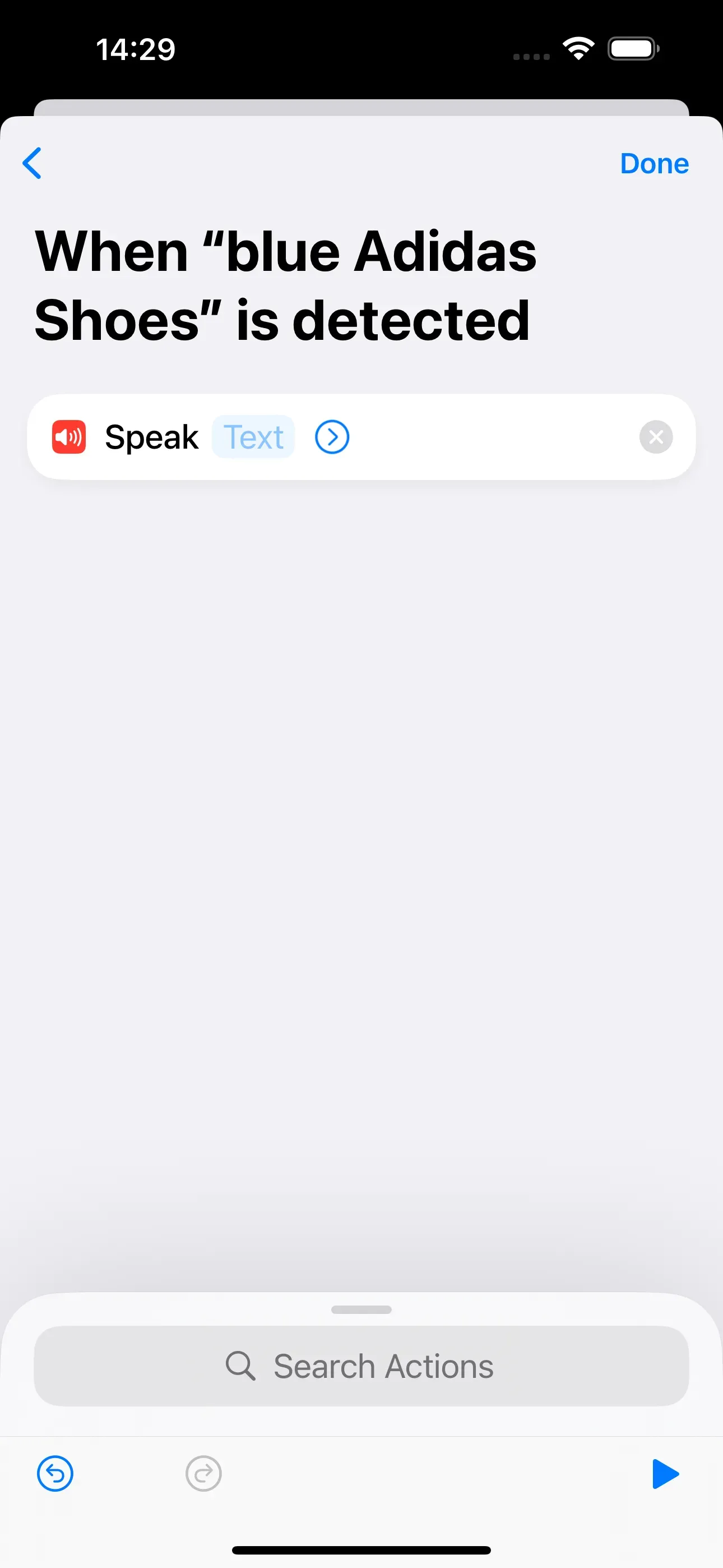
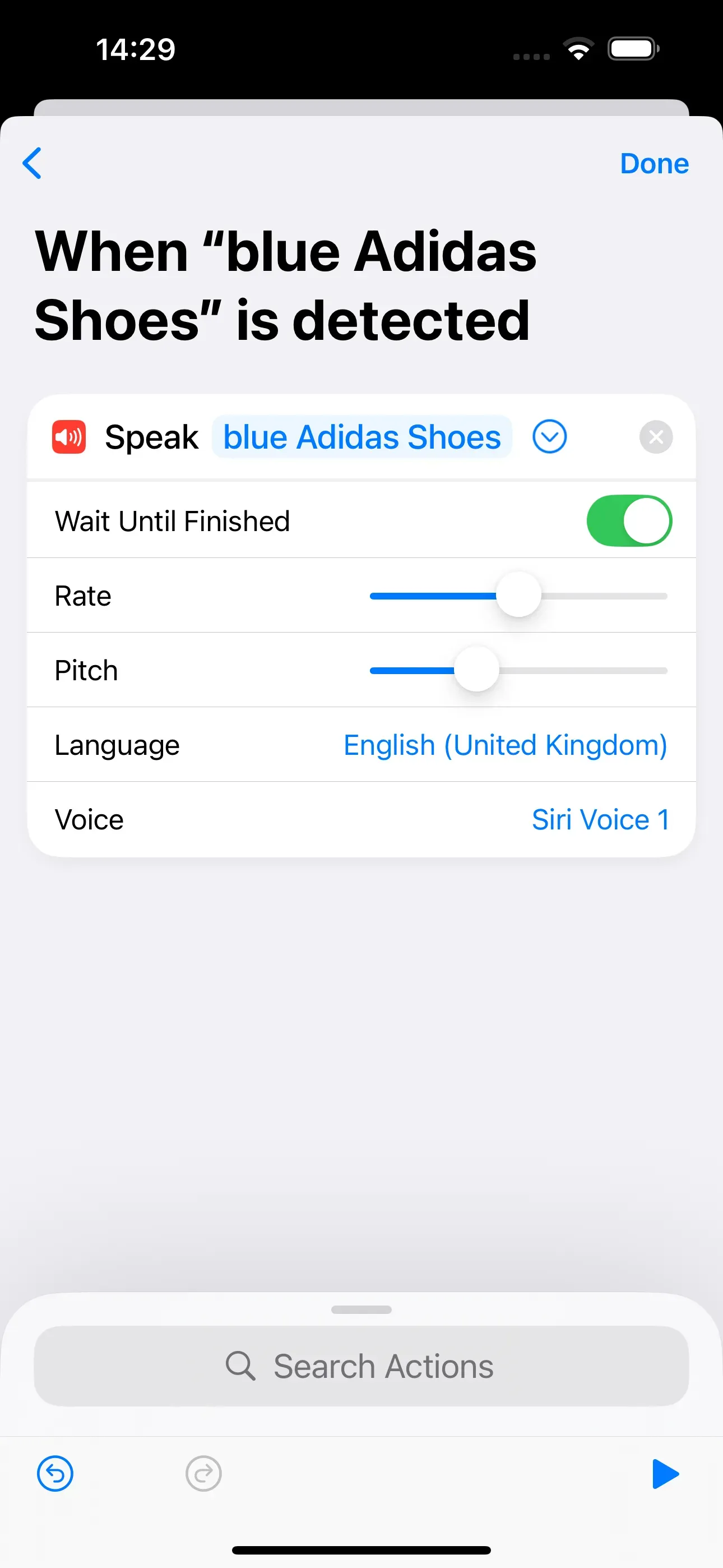
A new window will now open. It is called When ‘blue Adidas Shoes’ is detected. Here, tap on New Blank Automation. Then enter Speak text in the search bar and tap on the action Speak Text. This adds a shortcut to the automation. In the Text field, enter the text you want to be read aloud. In our case, we enter blue Adidas Shoes. Tap the arrow > on the right to select the speaking ratw, pitch, language and the voice you want to use to read the text aloud. Finally, tap Done in the top right corner. Now we are done.
Add shortcut to automation
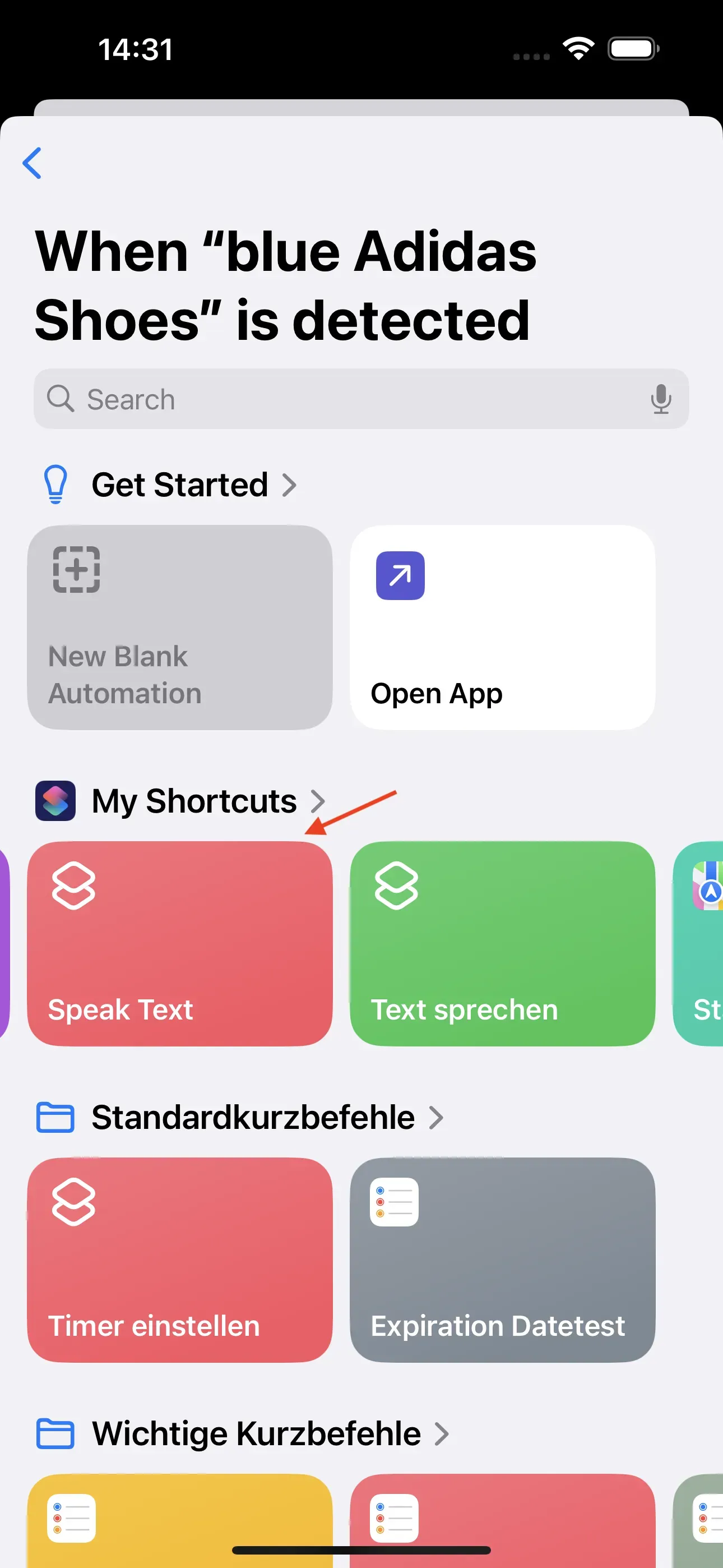
If you have already created the shortcut Speak Text, then all you need to do is follow the first step in these instructions and create the automation. Then, in the When ‘blue Adidas Shoes’ is detected window, tap on the respective shortcut to add it to the automation.
Summary
Associated operating systems
iOSFirst published: 19.09.2025 / Updated: 30.10.2025