 Near Field Communication (NFC) products Online Store
 Worldwide Shipping (free DE shipping)

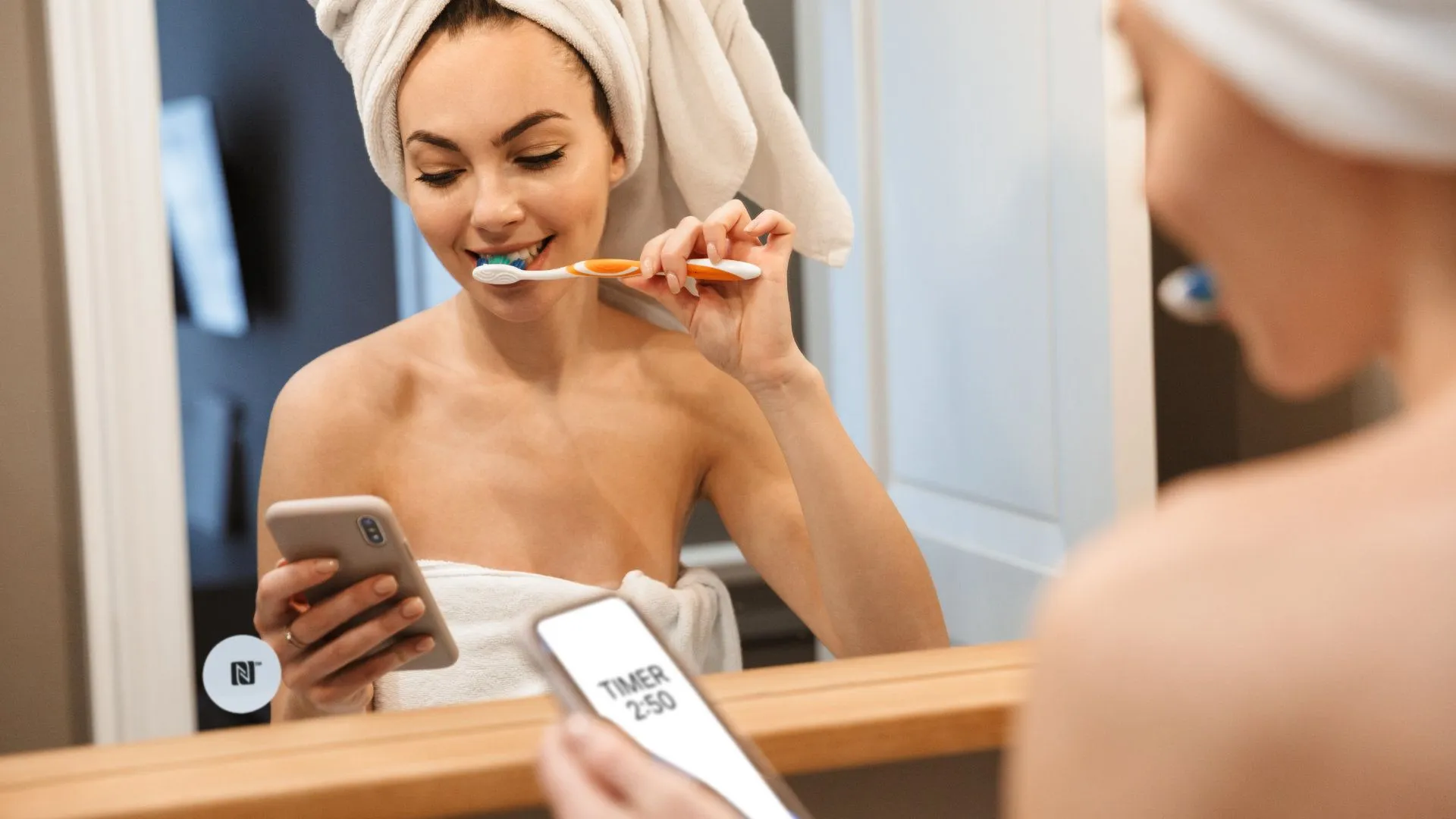
With an NFC tag, certain actions can be performed directly on the iPhone without having to touch the screen. This is particularly useful for facilitating regular activities, such as brushing your teeth. There is no need to set a timer. For example, an NFC sticker attached to the bathroom cabinet can automatically set a timer when the iPhone is held over it. This saves time and at the same time reminds you to brush your teeth for 2-3 minutes to keep them healthy.
In this How2, we explain how this works by creating a shortcut and then writing it to an NFC sticker.
Info: If you want to download the finished shortcut directly and save it on the NFC tag, skip straight to the end of this article.
Content:
Set the timer
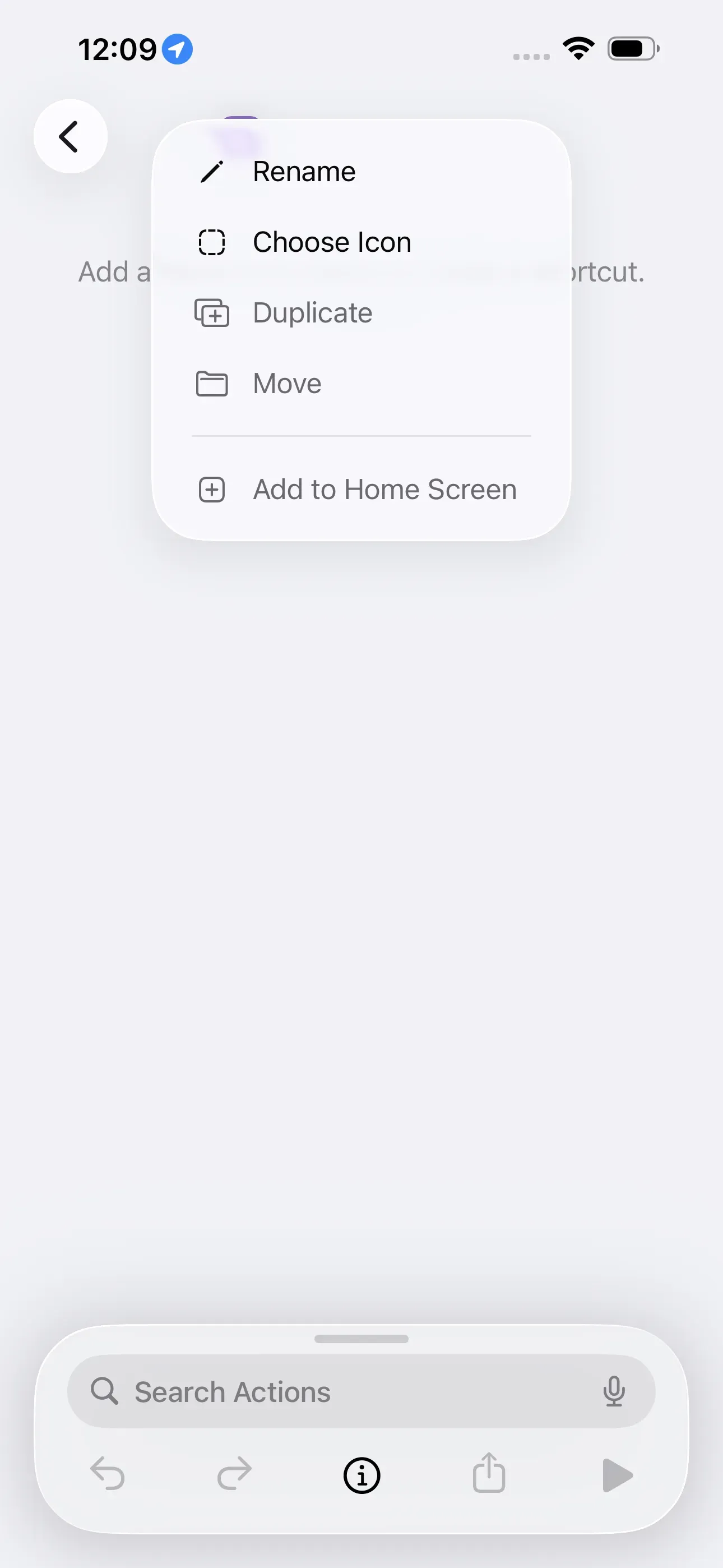
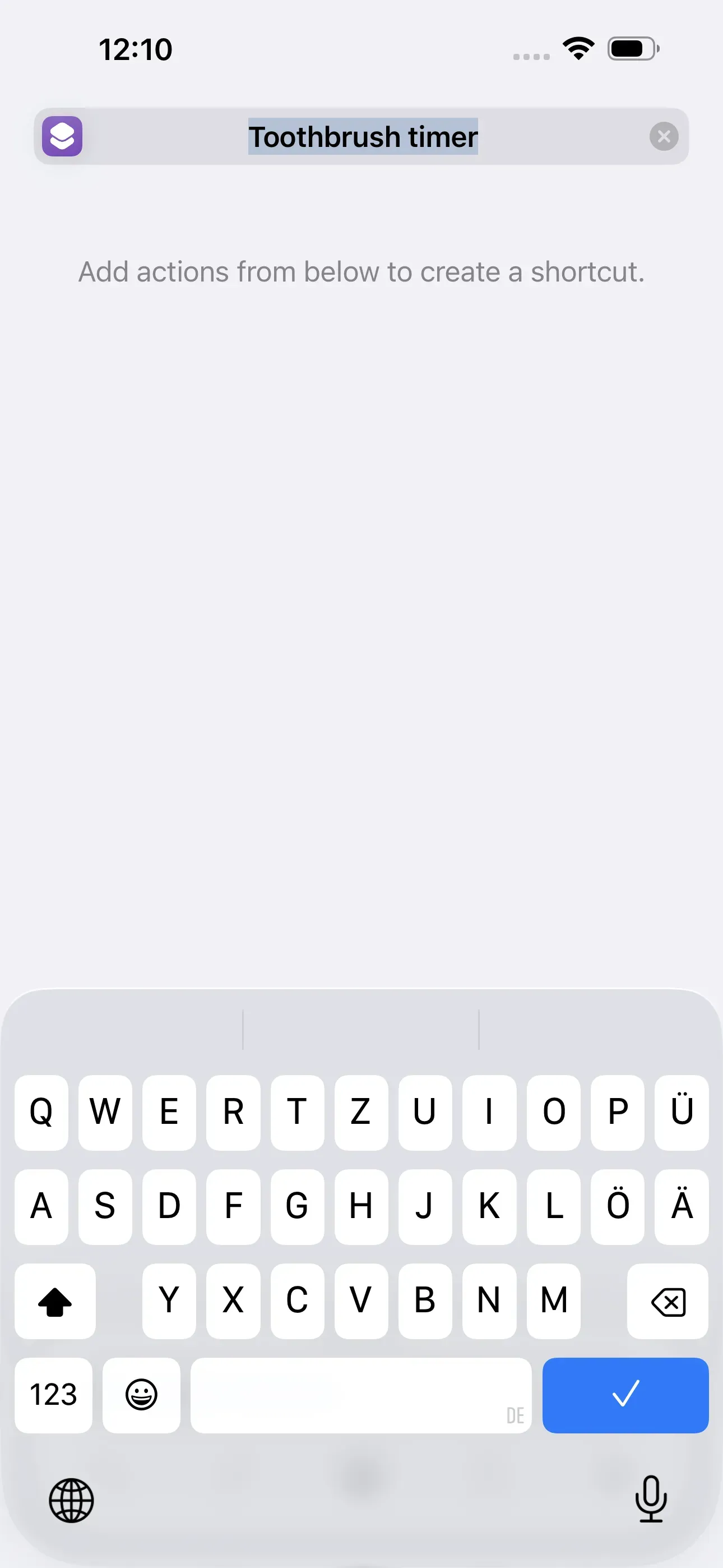
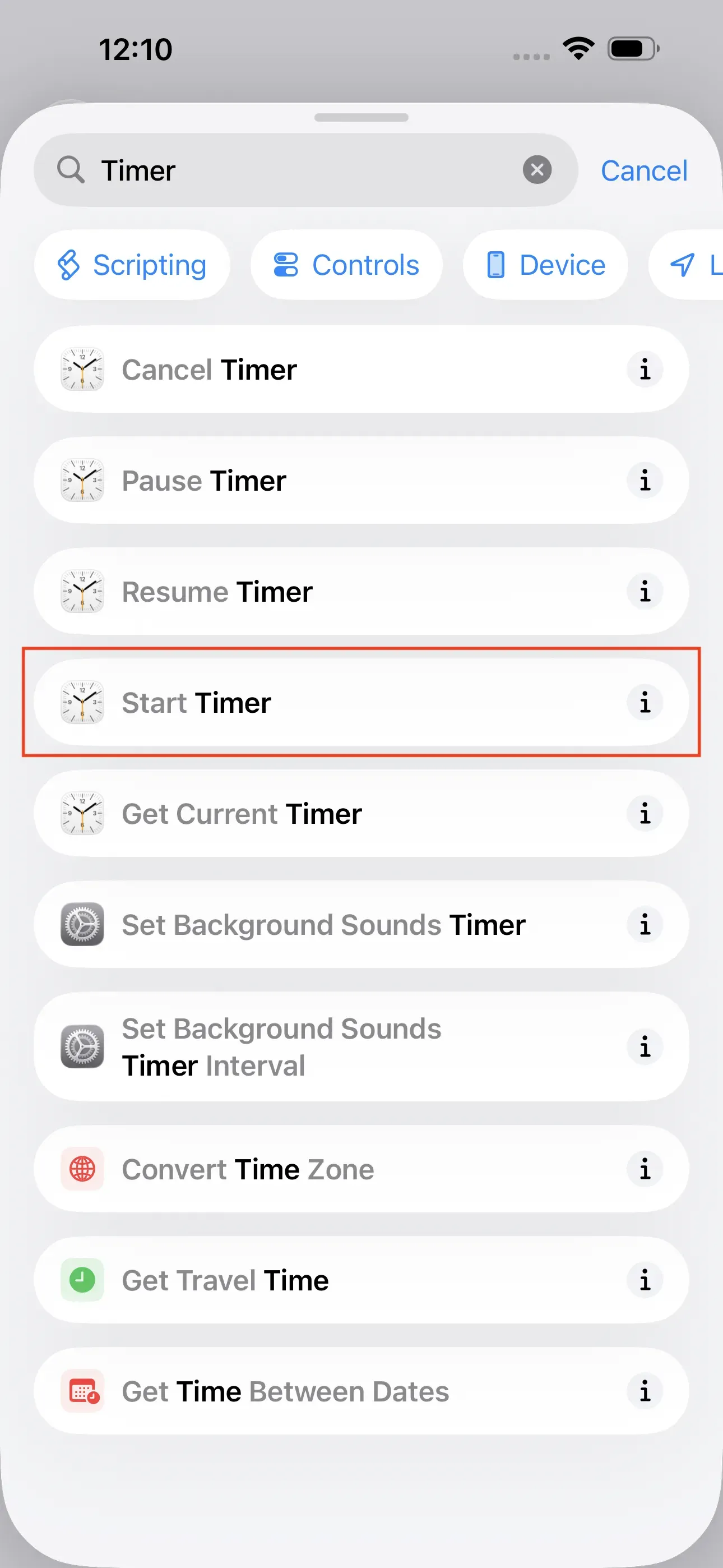
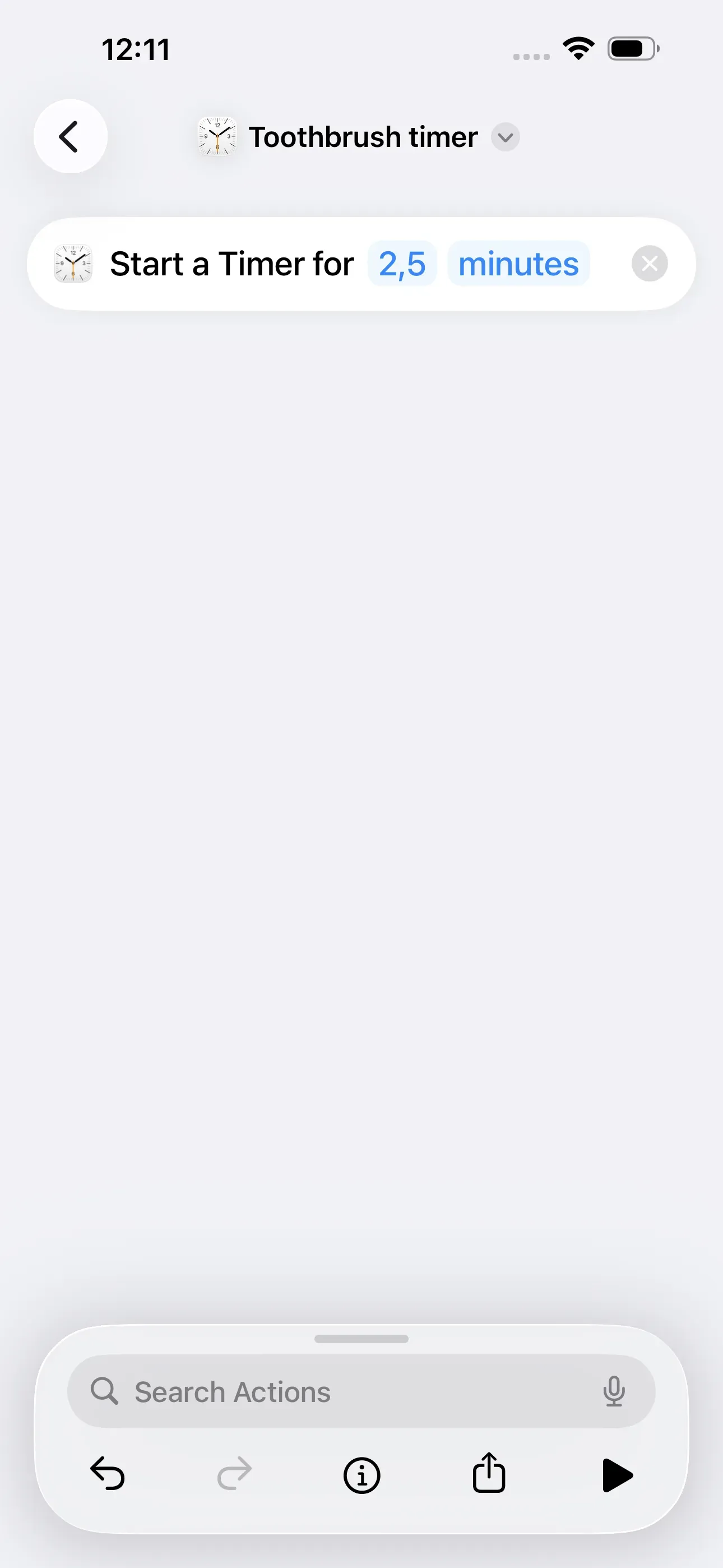
First, we create a new shortcut using the Shortcuts app by tapping on the + in the top right corner. Then we tap on New Shortcut and name it Toothbrush timer. Then we tap on the blue tick at the bottom. Further down, there is a list of action categories. To create the shortcut, we need to select an action from this list or enter Timer and then select the action Start Timer. Since we want to remember to brush our teeth for 2-3 minutes, we enter 2,5 (or another number of minutes) for the duration.
Show confirmation
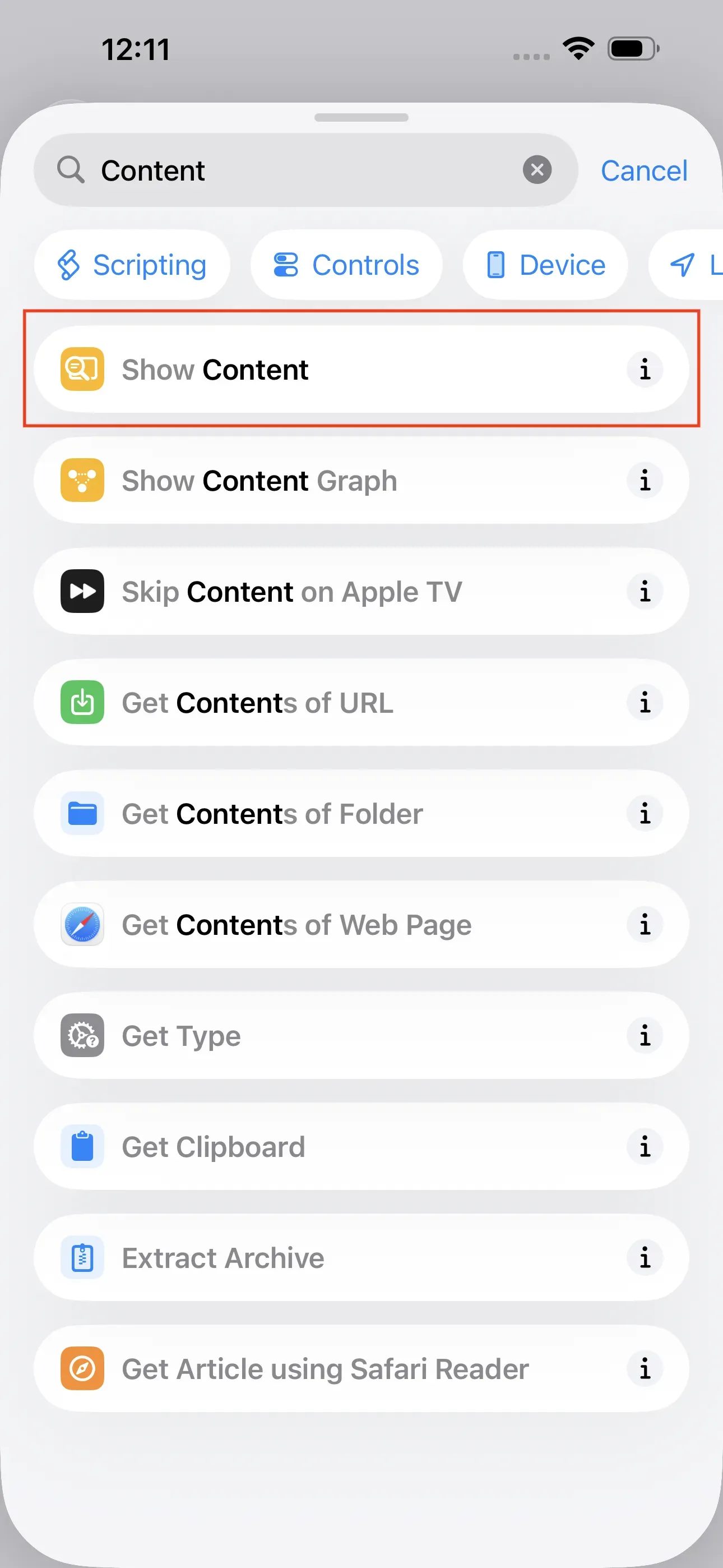
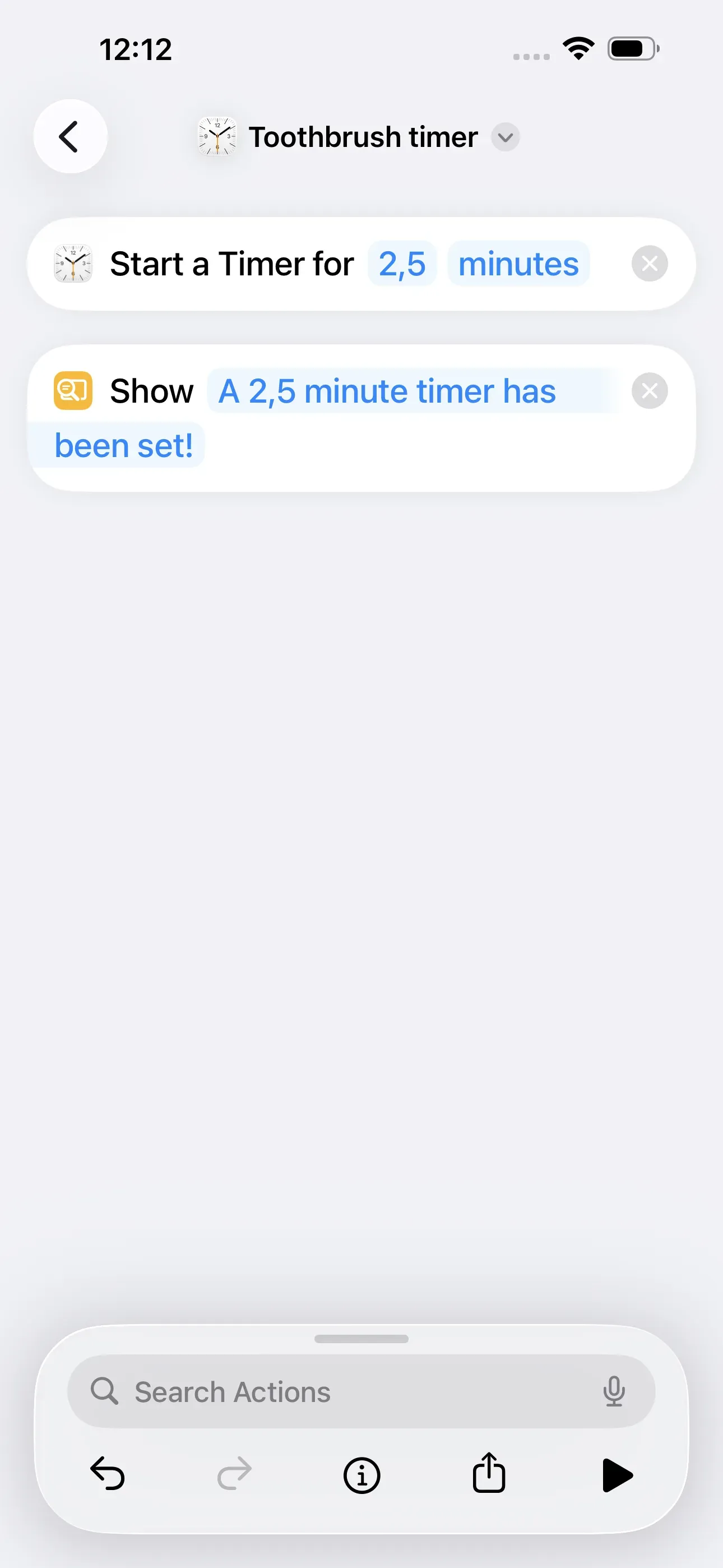
If we now enter Content in the search field and then select Show Content, a confirmation can be configured and displayed. Here, we enter A 2,5 minute timer has been set!. Then we return to the home screen of the Shortcuts app.
Trigger shortcut with NFC tag
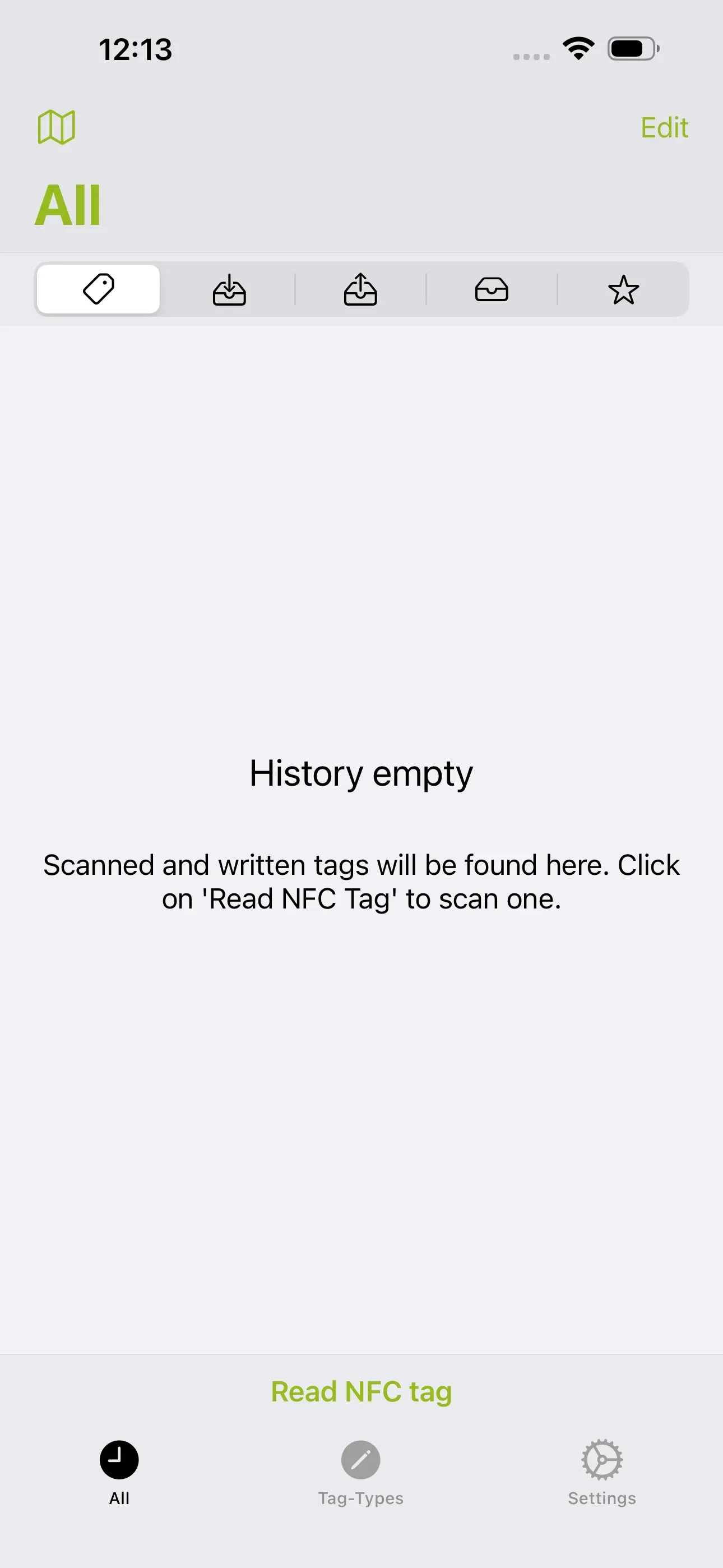
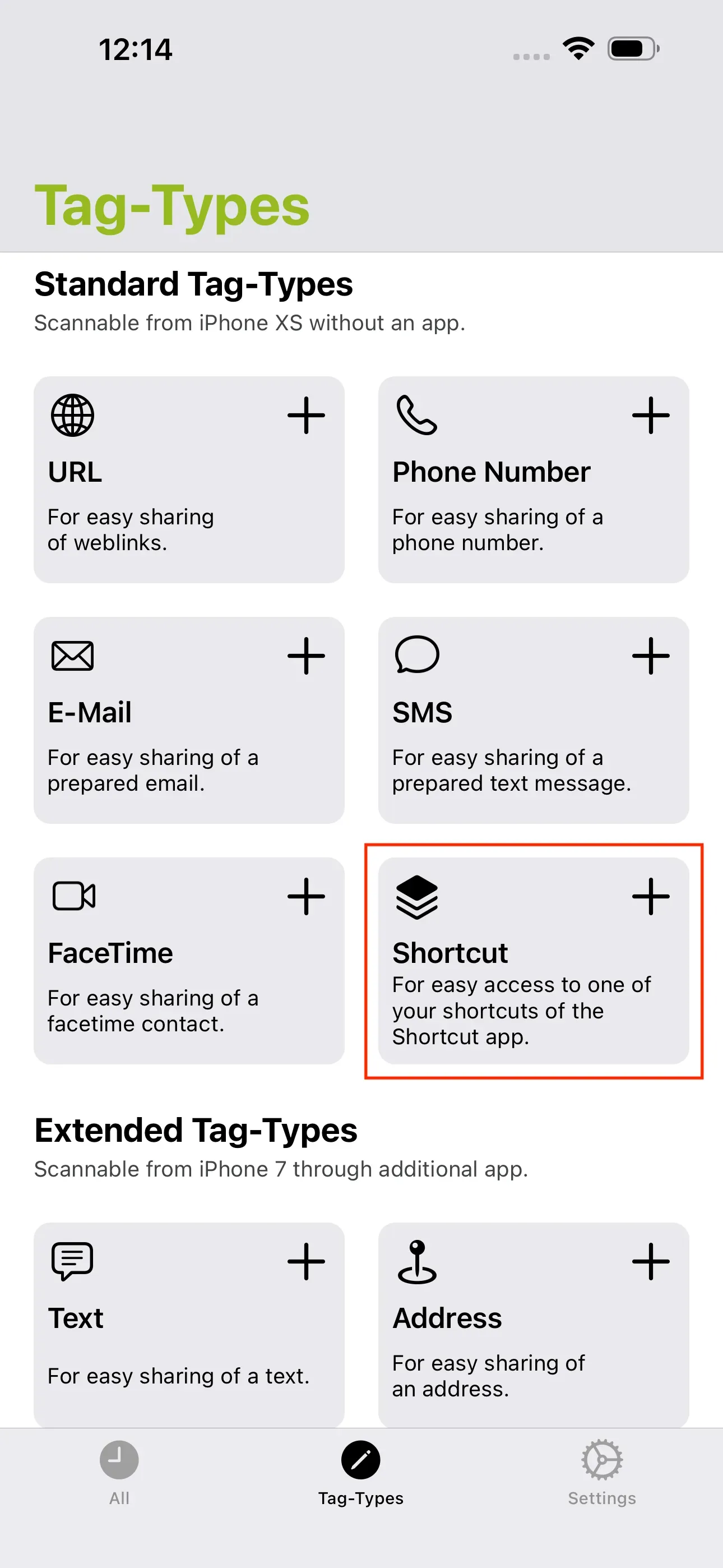
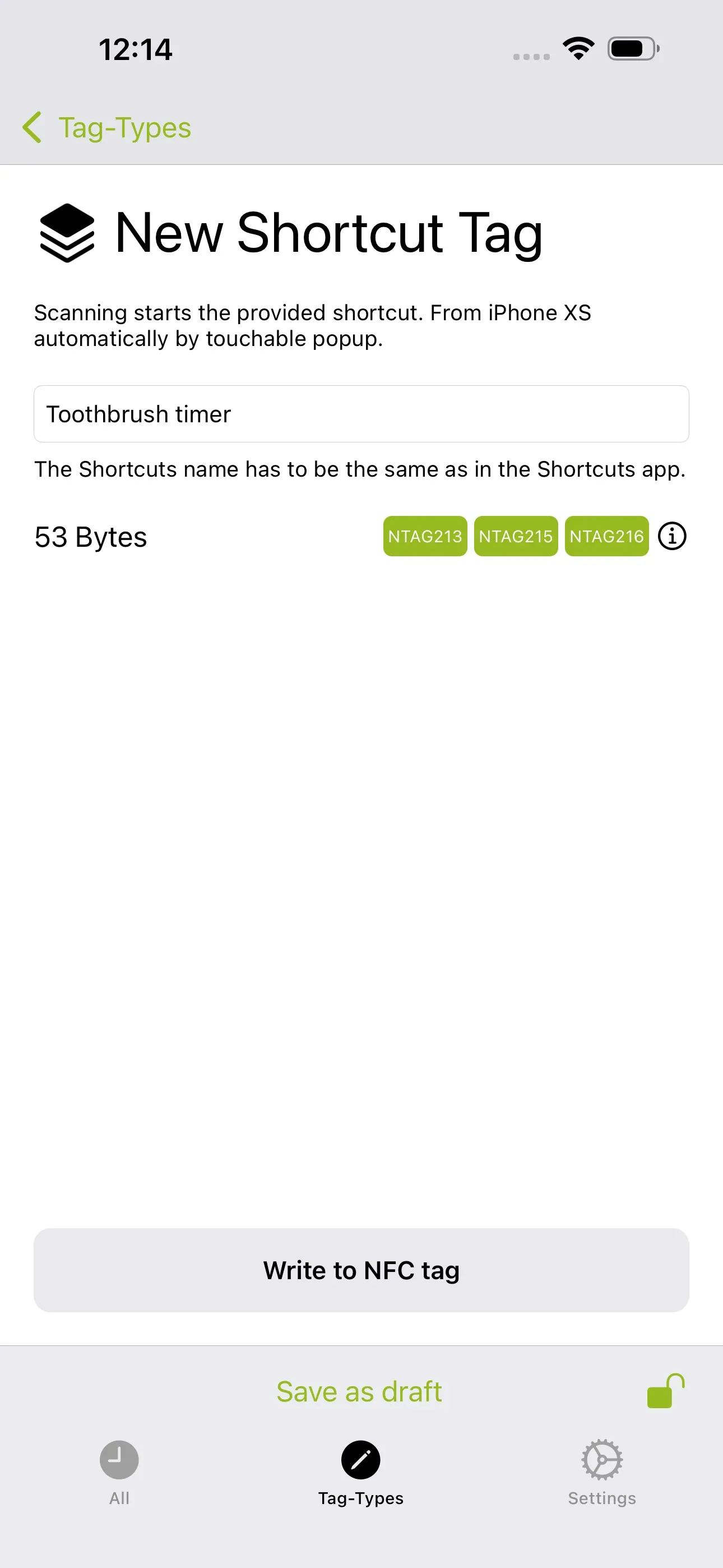
Using the NFC21 Tools app, we now save the shortcut to an NFC tag. To do this, we tap on Tag Types → + Shortcut and enter the name of the shortcut ‘ Toothbrush timer’. Then we tap Write to NFC tag. Shortcuts stored on the NFC tag can also be adjusted and changed retrospectively in the Shortcuts app.
Important note: The name of the shortcut from the Shortcuts app and the name you enter in the text field must match!
Summary
We have programmed a shortcut and saved it on our NFC tag. By scanning the NFC tag, you automatically set a timer for 2.5 minutes. To let you know that the timer has been set, you will receive a notification when the timer has been set.
Note: If you do not want to create the shortcut yourself, you can download the finished shortcut directly here. To do this, click on this link. Now you just need to save the shortcut to the NFC tag.
With NFC21 Tools, you can store not only shortcuts but also many other types of data on an NFC tag. We explain how this works here.
Associated operating systems
iOSFirst published: 25.07.2023 / Updated: 06.11.2025