 Near Field Communication (NFC) products Online Store
 Worldwide Shipping (free DE shipping)

If certain activities have to be carried out for a certain period of time, timers help us to remember when we have to finish the activity. Setting a timer or alarm can be easily triggered by an NFC tag.
NFC tags can be stuck or placed anywhere, such as on a wall. For example, it can be helpful to place a 3-minute timer next to the bathroom mirror to keep to the required time when brushing your teeth. The NFC tag can be used as an additional reminder in everyday life; all it needs is a quick scan with your smartphone.
In this How2 we explain how you can create such a timer tag.
Beware: For this How2, the app NFC Tools and NFC Tasks need to already be installed on your device.
Content:
Configurate NFC as a trigger
An NFC tag should be the trigger for setting your alarm. To set this, open the NFC Tasks app. This is an extension app for the NFC Tools app from the same manufacturer “wakdev”. After opening NFC Tasks, the NFC Tools app opens.
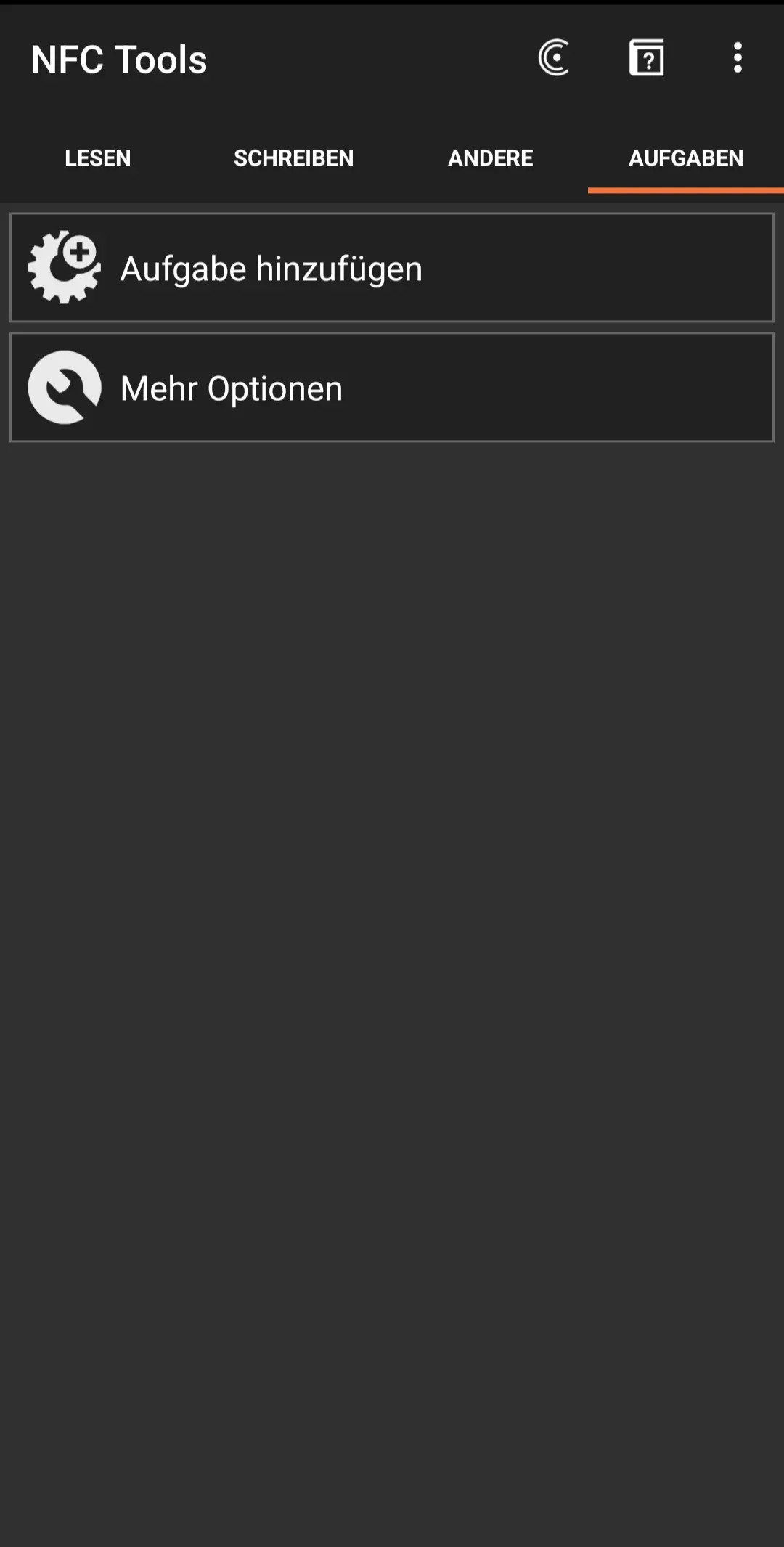
Select Tasks in the top tab. Then select Add task.
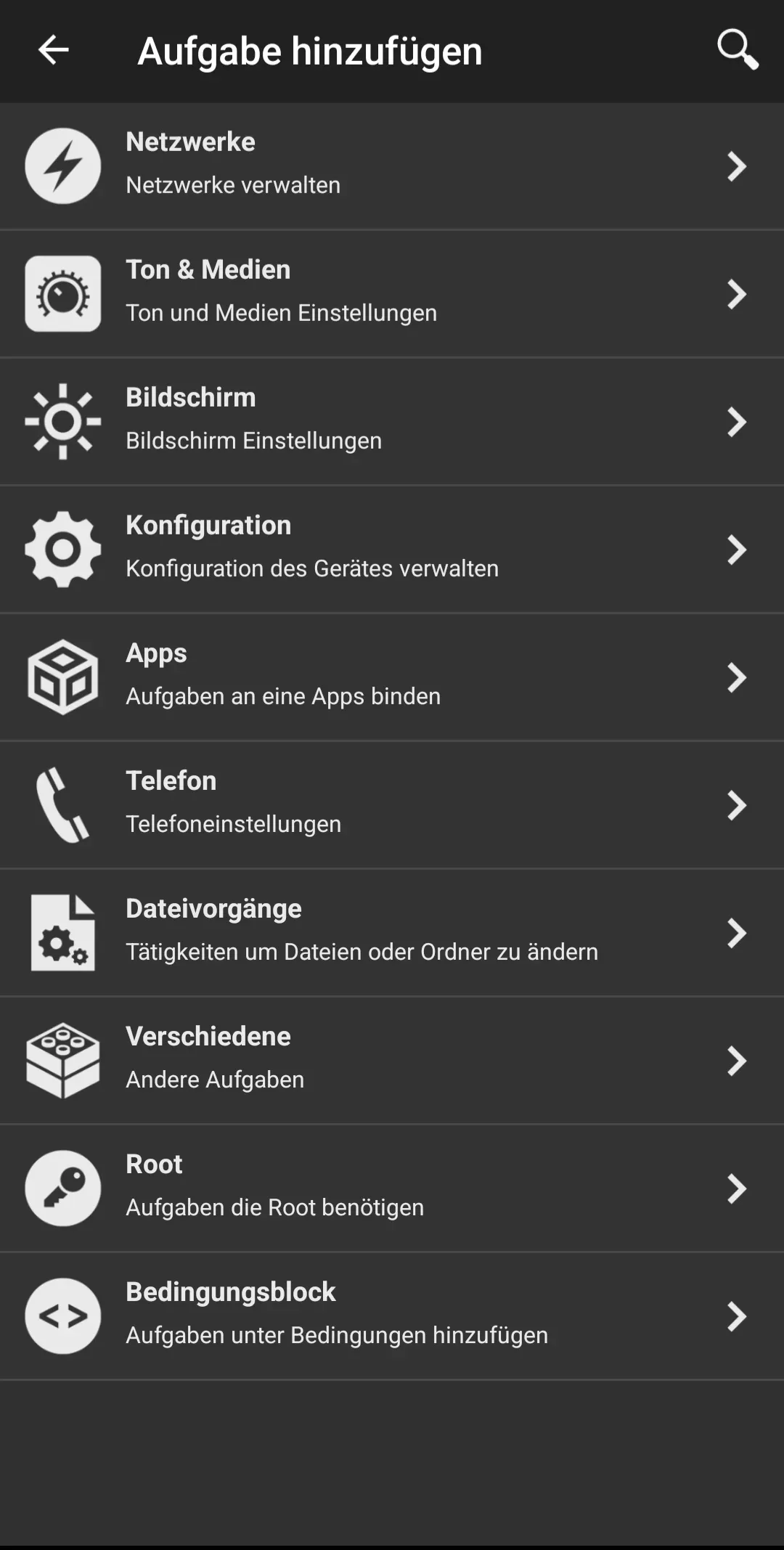
Create a task
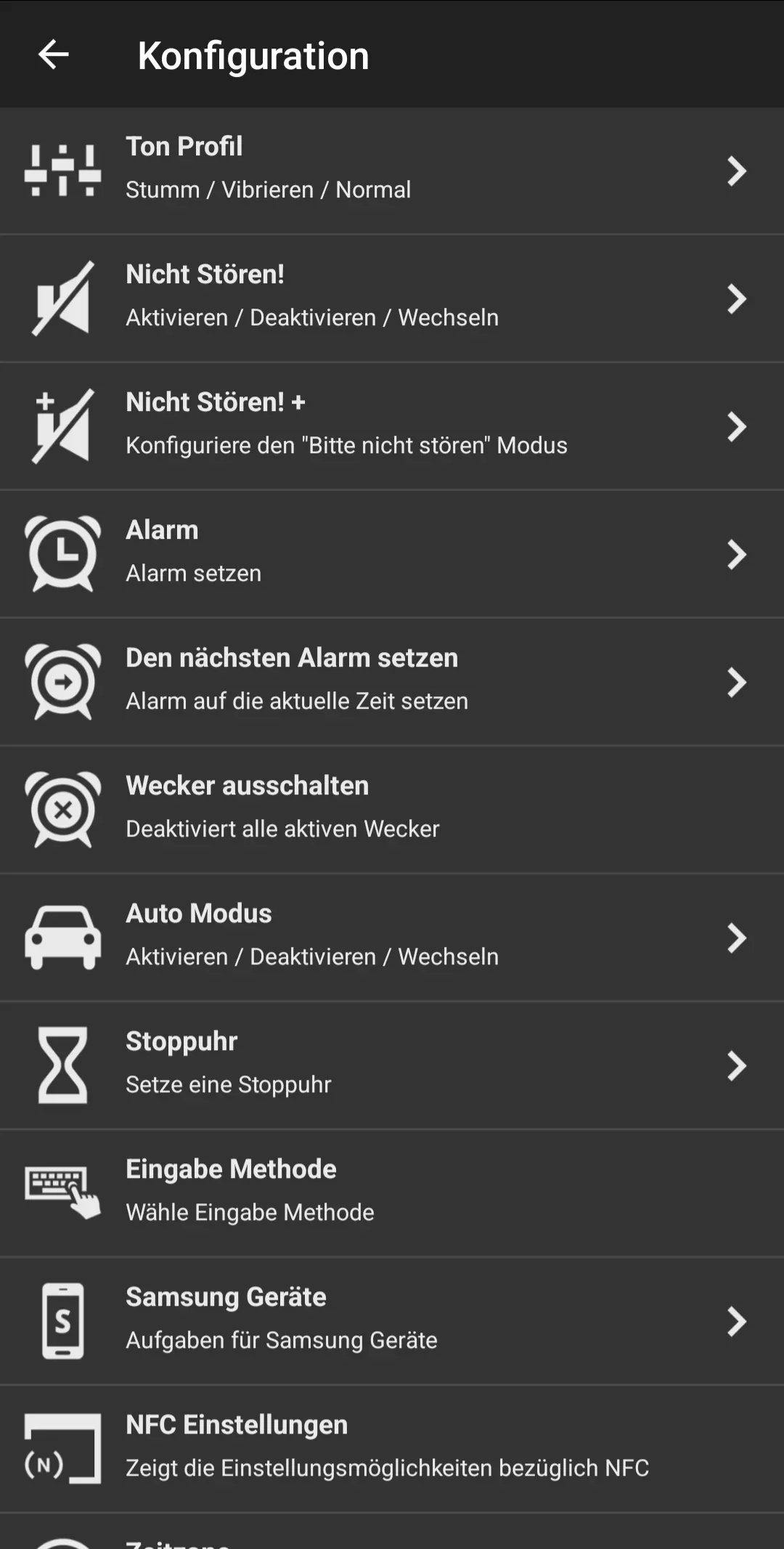
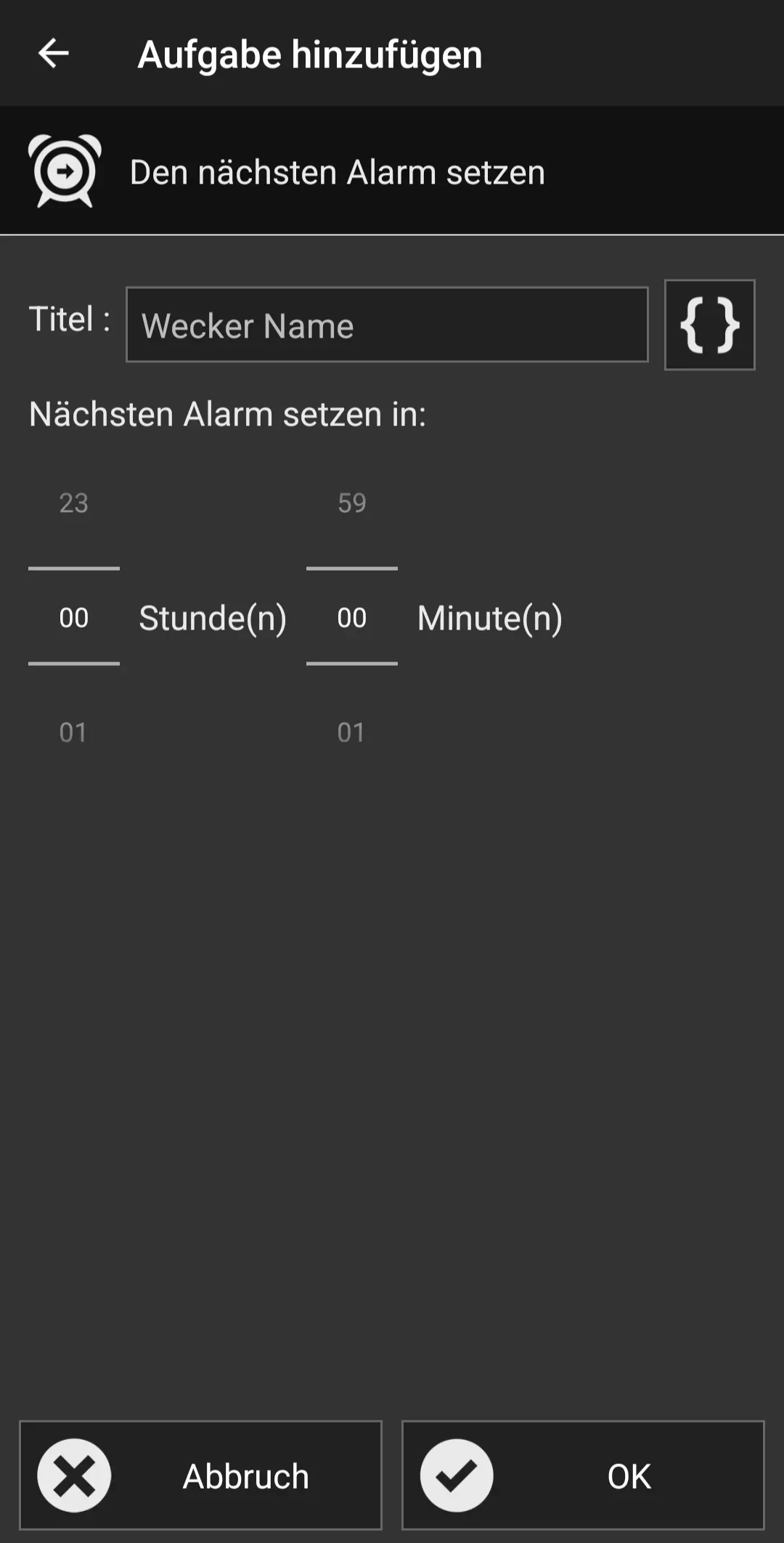
To create a task, tap on Configuration to manage the settings of our smartphone. Then select the Set next alarm option from the many options.
You now have the option of naming your timer under Alarm name and setting the next alarm in hours and minutes. If you want the alarm clock to notify you in 20 minutes, set 0 hour(s) 20 minute(s). If you want it to notify you in 1.5 hours, set 1 hour(s) 30 minute(s) in the app.
Then tap on Ok.
Write on NFC-Tag
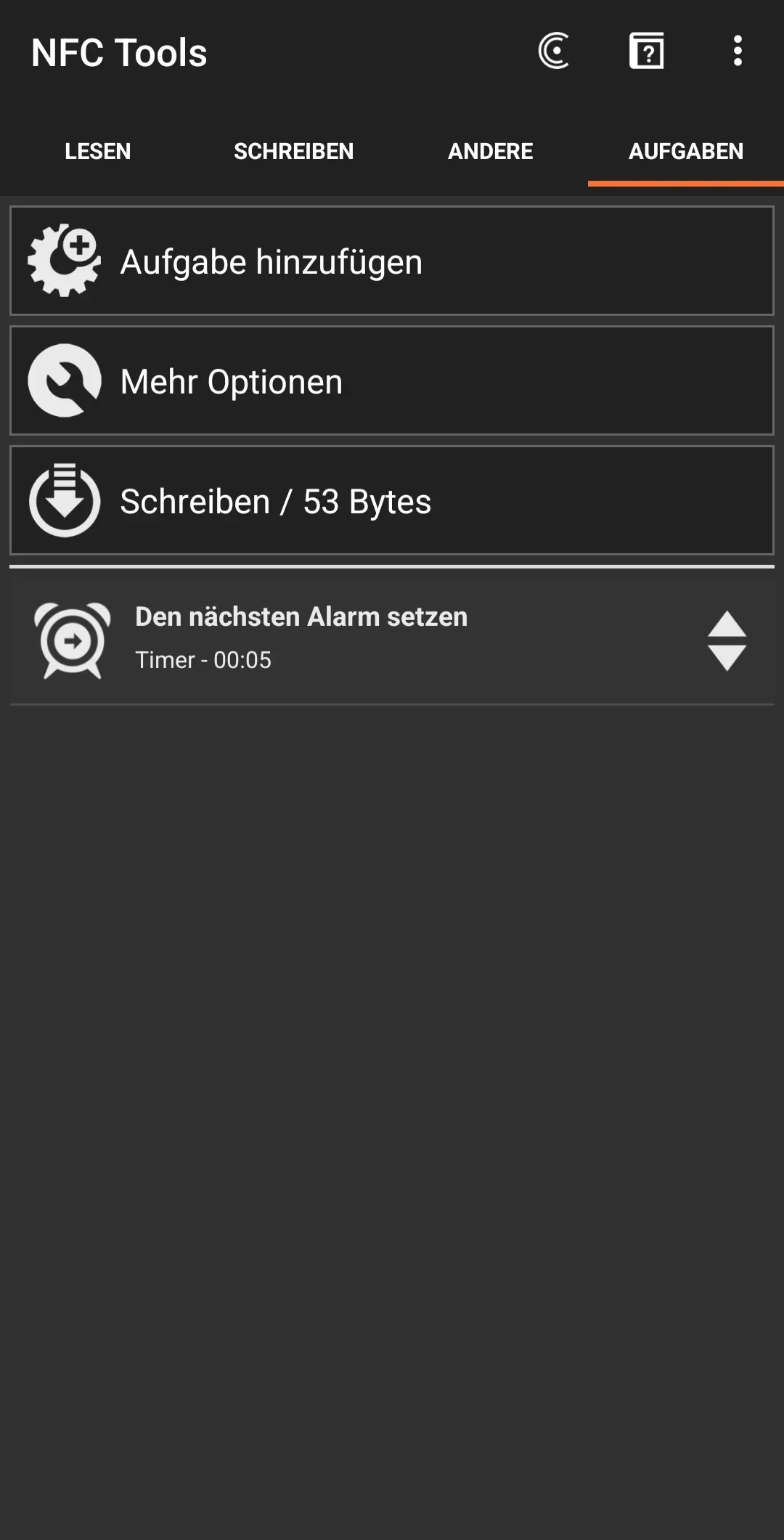
The task is now fully prepared. In this step, it is also possible to add further tasks to the NFC tag. To do this, tap on Add task and choose between further tasks.
For our example, however, you do not need any further tasks.
We now want to write our prepared task to the NFC tag. To do this, select Write and then hold the NFC tag to your smartphone. The NFC tag is now finished writing and adds a timer of your previously selected time period after each scan.
Summary
In this How2 we have explained how you can write a timer on an NFC tag and then trigger it. Once the above steps have been completed, the NFC tag can simply be placed in your home to start the timer. Here we explain how this works with an iPhone
We also explain here how other activities can be automated using an NFC tag and how operating steps on the Android smartphone can be simplified and saved.
Associated operating systems
AndroidFirst published: 25.07.2023 / Updated: 12.08.2025