 Near Field Communication (NFC) products Online Store
 Worldwide Shipping (free DE shipping)

In many companies, NFC tags need to be read quickly and reliably, for example for access control or time recording of working hours. This often requires manual registration or special software, which can be time-consuming and cumbersome. The ACS1552U NFC reader solves this problem. After a one-time configuration of the reader, no additional software is required and the reader can be used as a UID scanner on any device, including the iPad. The reader reads the UID of a tag and transfers it directly to applications that accept keyboard input, such as Microsoft Word, Google Sheets, Notes and Excel.
This completely eliminates manual effort: there is no need to type anything in; simply hold the NFC tag up to the reader and the UID is entered automatically, regardless of which device is being used. This How2 provides step-by-step instructions on how to configure the reader once on a Windows computer so that it can be used as a UID scanner on any device.
Content:
Technical preparation
Before configuration, we must prepare all the technical components we need for configuration. We need a computer with the Windows 10 or 11 operating system and an internet connection. The computer should have a free USB-C port or a free USB-A port. If there is a free USB-A port, we need a USB-A to USB-C adapter. Then we need the ACS1552U USB-C Reader. If we want to read the UID after configuration with the iPad, we need an adapter for the iPad. Finally, we need the reader's configuration tool.
Start configuration tool
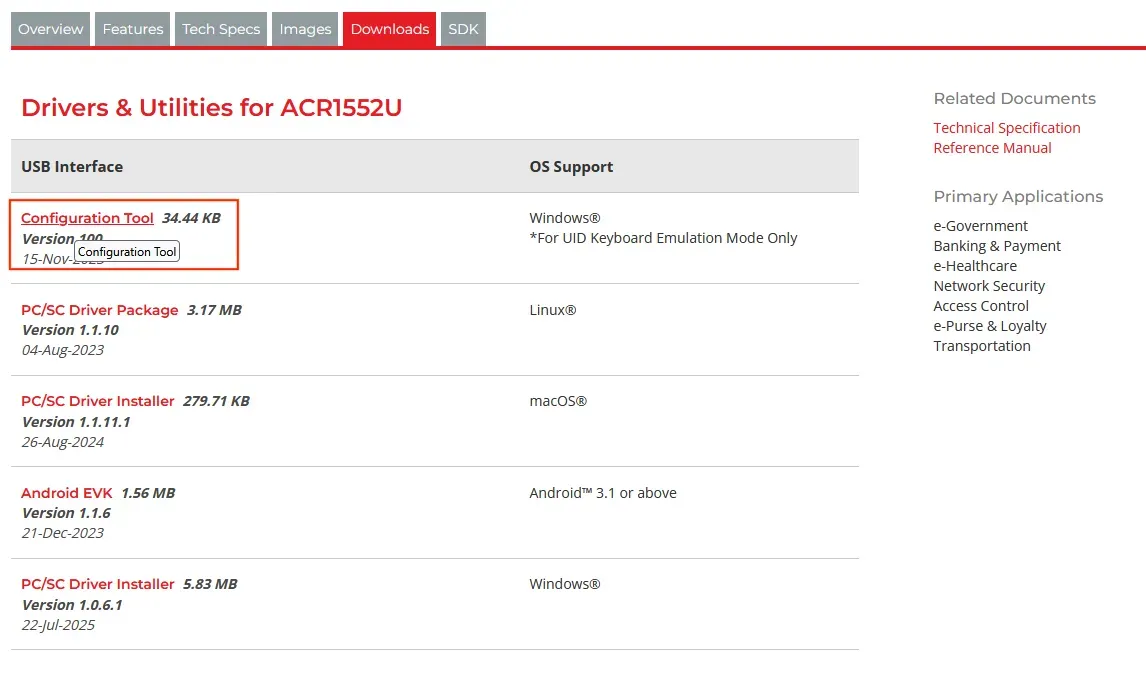
First, we need to connect the reader to the USB-C port on the Windows computer. Now let's download the configuration tool. To do this, click on the following link (https://www.acs.com.hk/en/products/575/acr1552u-usb-nfc-reader-iv/ ) and go to Downloads in the top bar. There, we tap on Configuration Tool 34.44 KB, Version 100. A zip file will then be downloaded to our computer. After clicking on the zip file, the file manager opens. There, we tap on Extract All and select the folder to which the file should be moved. Then we click on Extract.
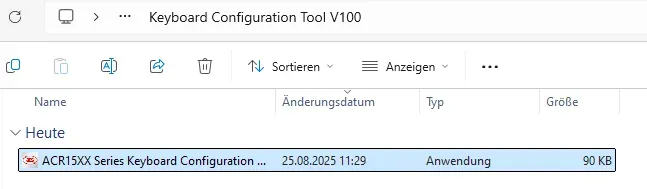
Now tap on the folder Keyboard Configuration Tool V100 and start the application ACR15XX Series Keyboard Configuration Tool V100.exe.

Select reader
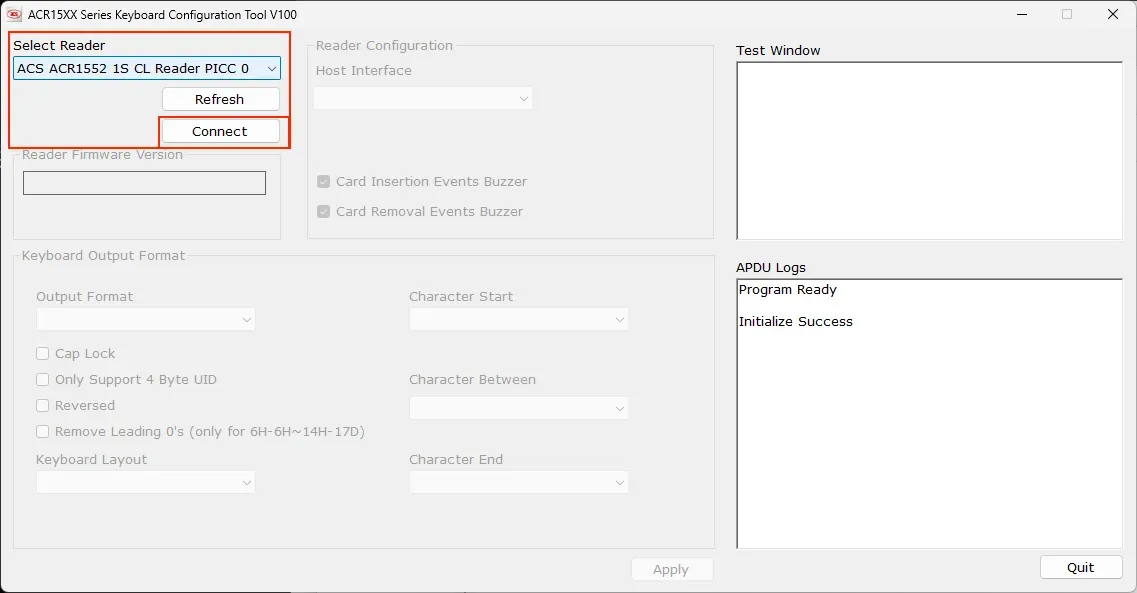
To configure the reader as a UID scanner, select the following reader in the Select Reader section: ACS ACR1552 1S CL Reader PICC 0. Then tap Connect.
Important! – If the reader is not displayed, first check that you have connected the reader correctly to your Windows computer and then click on Refresh.
Change input mode
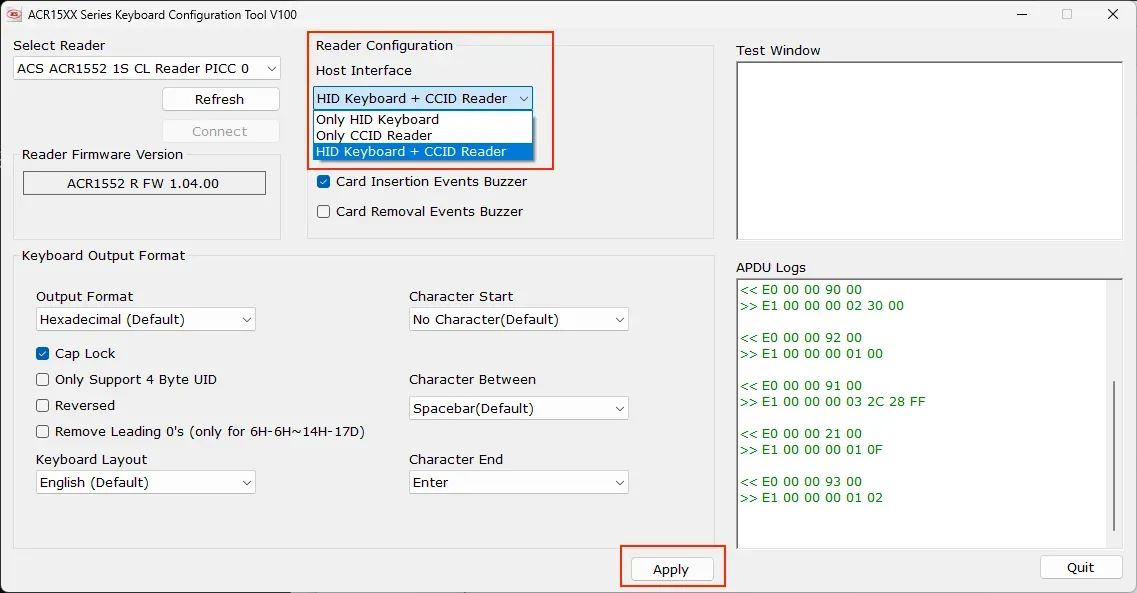
In the Reader Configuration section, we can now change the input mode. There are 3 options.
-
Only HID Keyboard: this option means that the reader is only recognised as a keyboard input. This means that the reader is only used for UID input. Important – if the UID is to be read via the iPad, we must select this option!
-
Only CCID Reader: this is the default mode and with this option, the reader cannot be used as a UID scanner. Important information: To undo the configuration and use the UID scanner as a normal NFC reader again, you must select this option.
-
HID Keyboard + CCID Reader: this option recognises the reader as a keyboard input and has the functions of a reader. This means, for example, that an NFC tag can still be written to. Important – if you also want to use the reader for other NFC functions, then select this option!
To configure the reader as a UID scanner, we select either Only HID Keyboard or HID Keyboard + CCID Reader, depending on our use case. After selecting the input mode, click on Apply. The reader can now be used as a UID scanner on any device.
Connecting to the iPad: To connect the reader directly to the iPad after configuration, we need to click Quit and connect the reader to the iPad.

Summary
This How2 showed how to configure the ACS1552U NFC reader once on a Windows computer so that it can be used as a UID scanner. After configuration, the reader can be used as a UID scanner on any device without the need for additional software. The reader can then also be used on the iPad, which otherwise does not support direct use of NFC readers. This makes it possible, for example, to conveniently and securely log employees into internal systems using the UID on their employee ID cards. You can find more information about using the ACS1552U on the iPad here.
More How2s
Reading UIDs with the iPad using an NFC readerFirst published: 25.09.2025 / Updated: 25.09.2025